

Looking to type in Hindi on your Windows 11/10 PC but don’t have a Hindi keyboard? No problem! Hinglish to Hindi is a free app that can add a Hindi keyboard to your computer, allowing you to switch between Hindi and English characters while typing easily. In this article, we’ll introduce you to this helpful software and show you how to use it. With Hinglish to Hindi, you can translate your Hinglish text to Hindi and post it on social media, share it with friends, or use it in any other application. Plus, the built-in copy and share feature makes it easy to use across multiple applications. Let’s get started!
Those who are good at typing Hinglish but not Hindi can write their text in Hinglish and convert it to Hindi text without difficulty. You can also check our detailed guide on how to add or remove keyboard layouts in Windows 11 to customize your typing experience.
Hinglish to Hindi
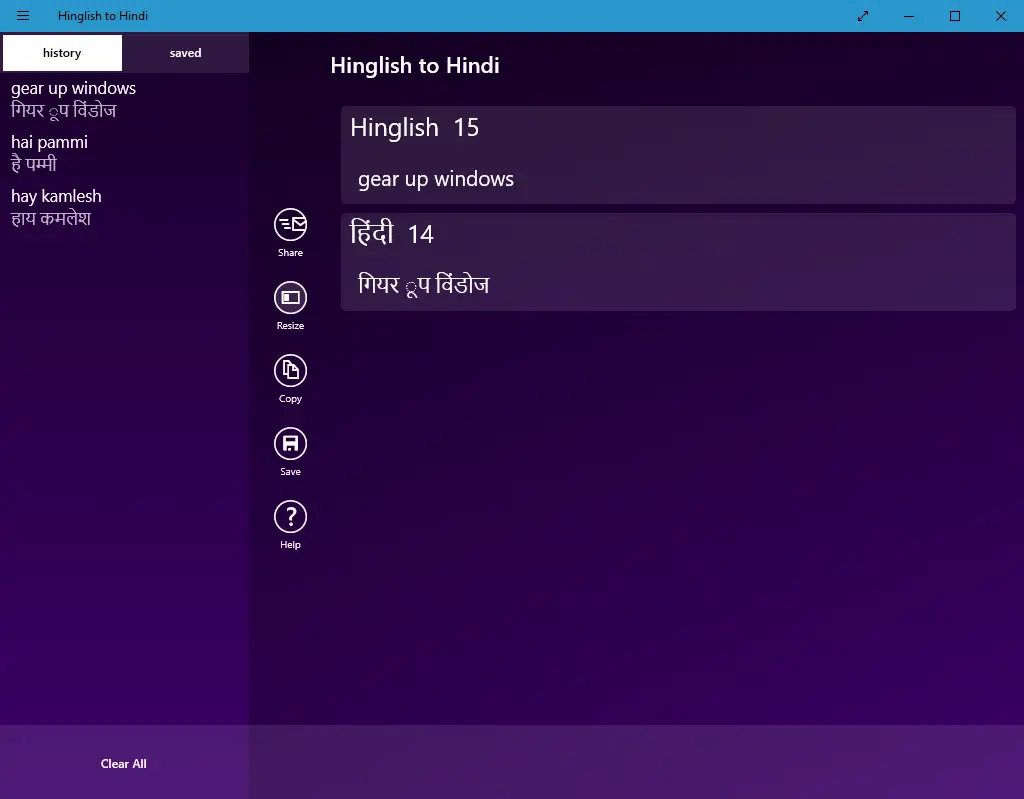
Add a Hinglish Keyboard to Your Windows 11/10 PC to Translate into Hindi
Hinglish to Hindi is a simple and user-friendly app that can easily convert Hinglish messages to Hindi. With no complicated options, the app is easy to use. Simply type your Hinglish text in the provided textbox, and the app will quickly and automatically translate it to Hindi.
If you need to translate a Hindi word, just click the copy button and paste it anywhere on your computer. You don’t have to repeatedly type in the same Hinglish word if you have a history of translated words. To copy the already converted words or sentences, simply click on the “Copy” button in the history section. Additionally, the app has an option to clear all converted texts located at the bottom of the application.
How to Use Hinglish to Hindi on Your PC
- Open the Hinglish to Hindi app on your computer.
- Type in the Hinglish word or sentence you want to translate into the Hindi language in the provided textbox.
- The app will automatically and quickly translate your Hinglish text into Hindi in real-time.
- To share the translated text, click on the Share button, which will allow you to post it through various messaging and social media apps like Microsoft Messaging, Twitter, Facebook, OneNote, Evernote, Mail, Skype, and more.
- To copy the translated text, click on the dedicated Copy button, which will allow you to paste it into other applications like Gmail, Facebook, Microsoft Word, Notepad, etc.
- The app also features a History tab that automatically stores translated text within the app. You can even save a translated text using the dedicated Save button.
Key Features
- Real-time translation of the Hinglish word or sentence into the Hindi language.
- The built-in Share button allows you to post Hindi text through various messaging and social media apps, for instance, Microsoft Messaging, Twitter, Facebook, OneNote, Evernote, Mail, Skype, and more.
- The dedicated Copy button is available to copy Hinglish to Hindi converted text. You can also paste it into other applications like Gmail, Facebook, Microsoft Word, Notepad, etc.
- It features a History tab that automatically stores translated text within the app. You can even save a translated text using the dedicated Save button.
For users who frequently copy or manage text between apps, Clipboard History Manager can make multitasking even smoother. It lets you recall copied text instantly and reuse translations effortlessly.
And if you want your translated text perfectly formatted before sharing it on social media or messaging apps, try the Text Cleaner & Formatter tool — it instantly removes unwanted spaces, line breaks, and symbols.
Download Hinglish to Hindi Keyboard
Once you find it useful, you can download this freeware application from Microsoft Store.
Conclusion
In conclusion, Hinglish to Hindi is an incredibly helpful app for those who want to type in Hindi on their Windows 11/10 PC but don’t have a Hindi keyboard. With this app, users can easily switch between Hindi and English characters while typing Hinglish messages, which are then automatically translated into Hindi. The app also features a copy and share function that allows users to post the translated text on various social media and messaging apps. Additionally, the History tab automatically stores translated text within the app, making it easy to retrieve and reuse. For organized writing, ideas, or notes, check out the GUW Smartboard – Notes & Ideas Organizer to keep your content structured. Overall, Hinglish to Hindi is a simple, user-friendly, and highly convenient app for anyone looking to type in Hindi on their Windows 11/10 PC.
Trash app you need internet always for it. And we want to type in apps. For copy paste we can directly paste from internet tab. Why we need this??