

A standard app or program window in Windows 11 or 10 typically includes three buttons on the top right side of the title bar, such as Minimize (-), Maximize ([]), and Close (X). Microsoft does not offer an option to add more buttons to a window title bar. However, if you need, you can use a freeware tool called eXtra Buttons that allows you to add more valuable buttons to the window title bar quickly. If you enjoy customizing your Windows interface, you can also check our guide on how to change the color of highlighted text and background in Windows 11 or 10 to give your desktop a personal touch.
eXtra Buttons for Windows 11/10
As mentioned above, eXtra Buttons is a free application that allows you to add more buttons to a window. Usually, in a program, you will find three primary buttons: Minimize, Maximize, and Close, which may not be enough for all Windows users. Similar to how Nilesoft Shell lets you customize right-click menus, eXtra Buttons enhances your title bar with additional, customizable options for better window control.
Using eXtra Buttons, you can easily create your own set of buttons that will appear on top of the window. In this free tool, there are a lot of buttons that you can choose and add depending on your requirements.
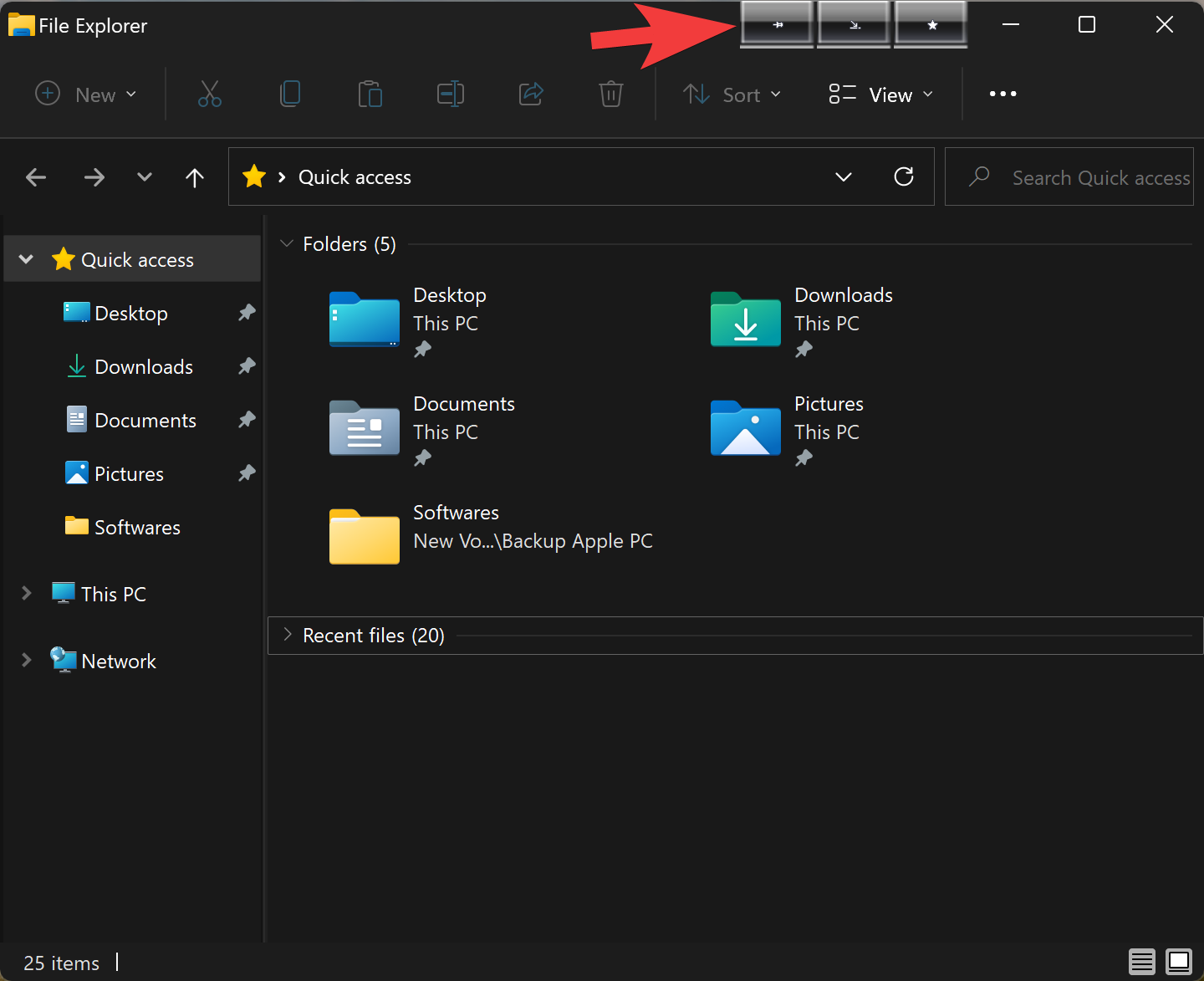
This app is only 1.33 MB in size, and you need to install it on your computer to use it. When you install eXtra Buttons software on your computer or laptop, in every window title, you will see three extra buttons on the top of the window: Always on top, Minimize to tray, and Bookmarks. However, you can edit those buttons according to your needs.
How to Configure and Use the eXtra Buttons to Add More Buttons in the Window Title?
First, download eXtra Buttons and install it on your computer as regular software. When you launch the app for the first time, you will see a strip containing Always on top, Send to tray, and Bookmarks buttons.
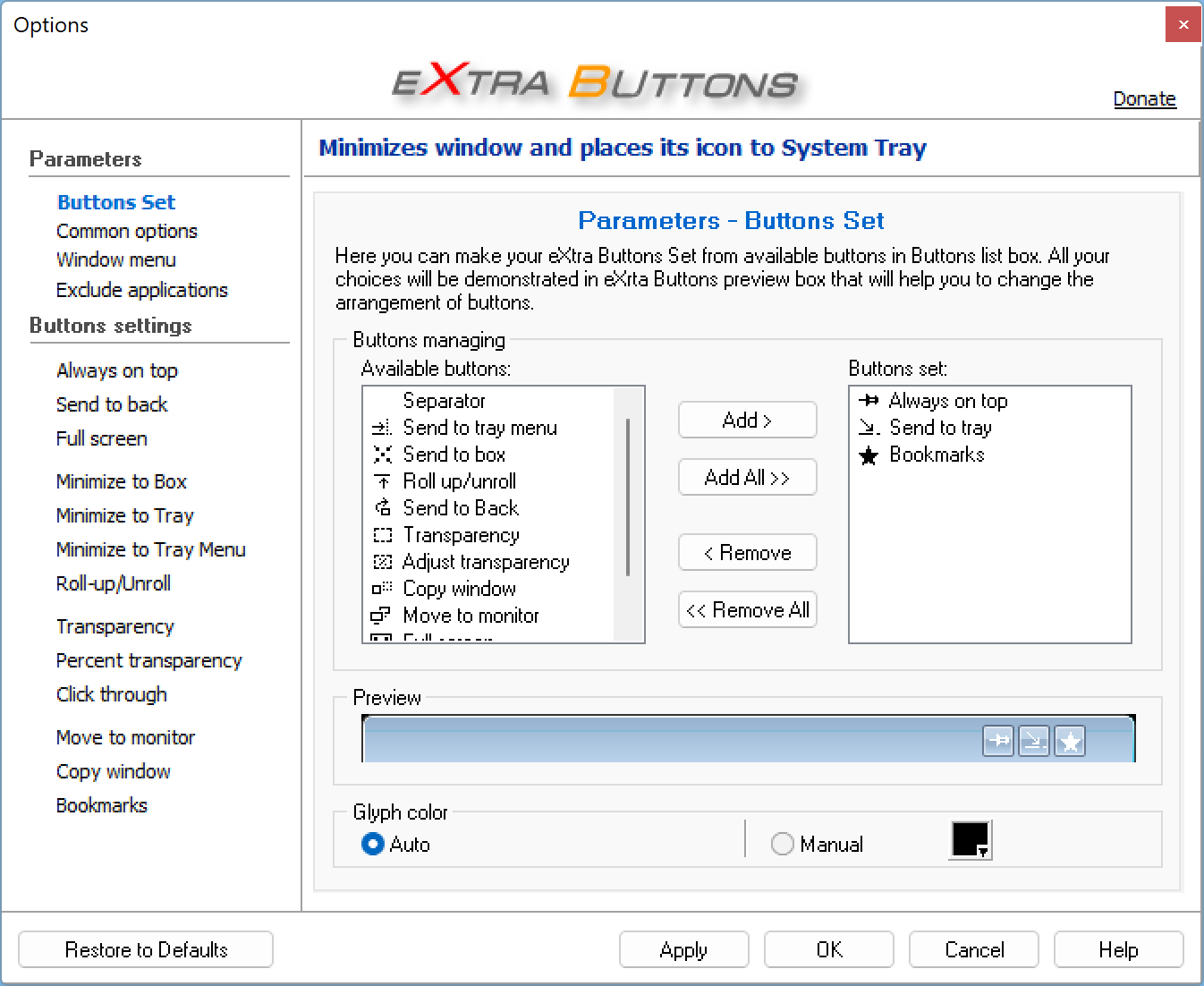
If you need, you can add more buttons or remove a button. On the “eXtra Buttons Options” page, from the “Available buttons” list, select a button of your choice and click the Add button. If you want to add all of them simultaneously, click the Add All button.
Similarly, you can also remove a key by selecting the key and clicking the Remove button. If you want to remove all the keys at once, click the Remove All button. After that, you can add your required keys one by one. When you’re done, click Apply and then the OK button.
For users who like to manage open applications efficiently, pairing eXtra Buttons with Taskbar Buddy can make multitasking even smoother by providing instant window controls right from the taskbar.
Using the eXtra Buttons app, you can add the following buttons to the window title:-
- Always on top
- Send to tray
- Bookmarks
- Copy Window
- Roll-up/Unroll
- Minimize to Box
- Transparency
- Percentage Transparency
- Minimize to Tray
- Minimize to Tray Menu
- Click through
- Move to another monitor
- Full Screen
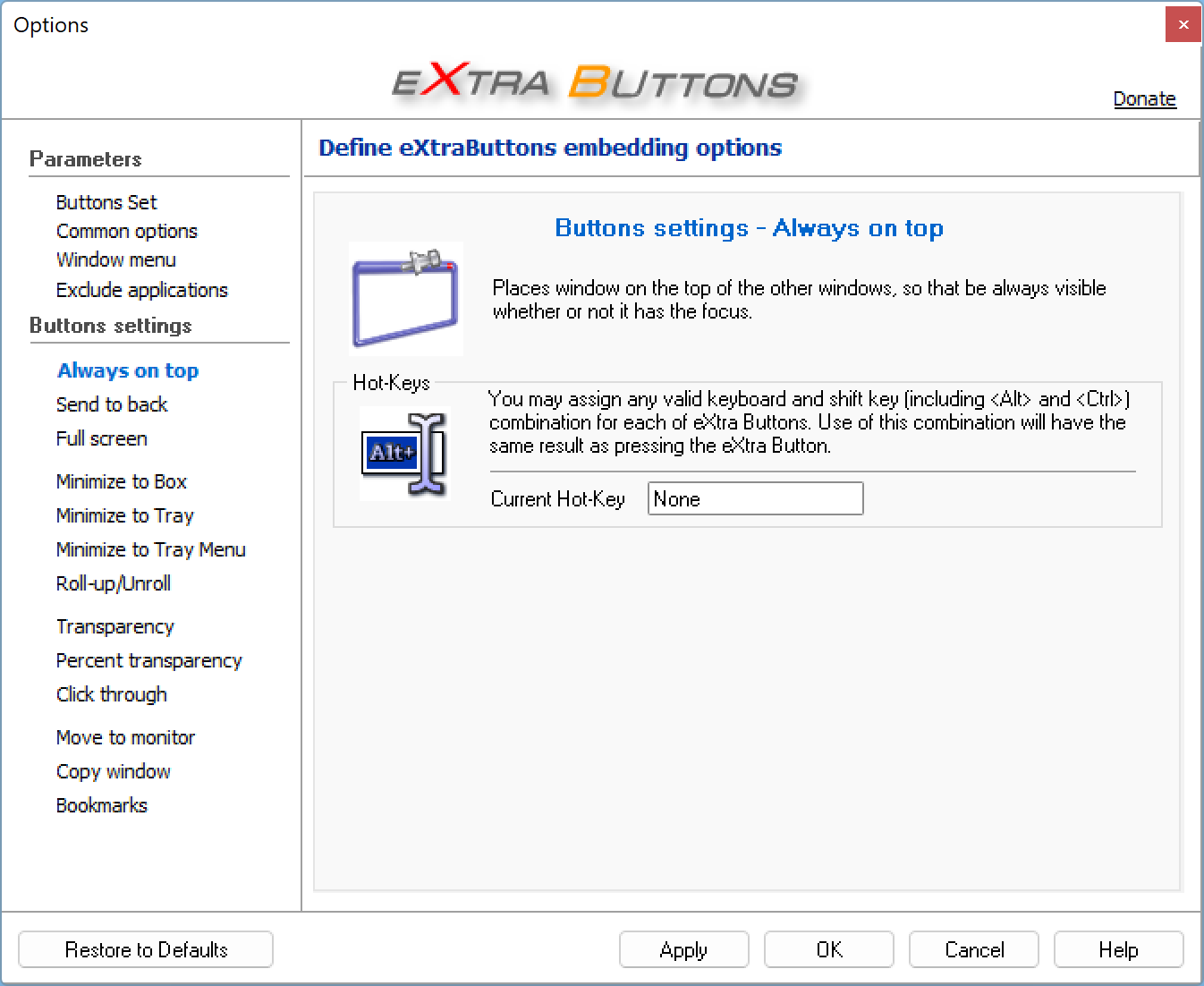
This freeware application also lets you set a Hotkey for all buttons via eXtra Buttons options. For that, under the Buttons settings section, click on the button that you want to configure and set the Hot Key. By default, you will see None.
Download eXtra Buttons
If you want to add more buttons to the window title bar, you can download eXtra Buttons from here. To further enhance your window management experience, you may also explore the Window Centering Helper, which aligns open windows perfectly on your desktop with one click.
Conclusion
In conclusion, adding more buttons to a window title bar can be useful for some Windows users who need quick access to certain functions. While Microsoft does not offer a built-in option to add more buttons to a window, eXtra Buttons is a free and easy-to-use tool that allows you to customize the buttons on any window title bar. With eXtra Buttons, you can add buttons such as Always on top, Send to tray, Bookmarks, Copy Window, Roll-up/Unroll, and many others. By following the simple steps outlined in this article, you can configure and use eXtra Buttons to add the buttons you need to your windows in just a few clicks.