

DPI stands for Dots Per Inch. It’s a physical measurement that defines how many pixels fit within a linear inch of your display. In Windows 11, DPI acts as a scale factor that determines how apps, text, and interface elements are rendered on the screen. Most modern monitors operate between 96 and 125 DPI, but Windows automatically adjusts scaling based on screen size and resolution.
Increasing or decreasing the DPI scaling allows you to make everything on your display appear smaller or larger. This is particularly useful for high-resolution displays like 1080p, 2K, or 4K monitors found in desktops, laptops, and tablets. While Windows 11 typically manages DPI scaling automatically, you may need to configure it manually for better clarity and readability.
In this gearupwindows article, we’ll guide you through several ways to change DPI scaling in Windows 11 using built-in tools such as the Settings app, Custom Scaling, and Registry Editor.
How to Adjust DPI in Windows 11 using the Settings app?
Follow these steps to adjust DPI in Windows 11 via the Settings app:
Step 1. Open the Settings app by pressing Windows + I keys.
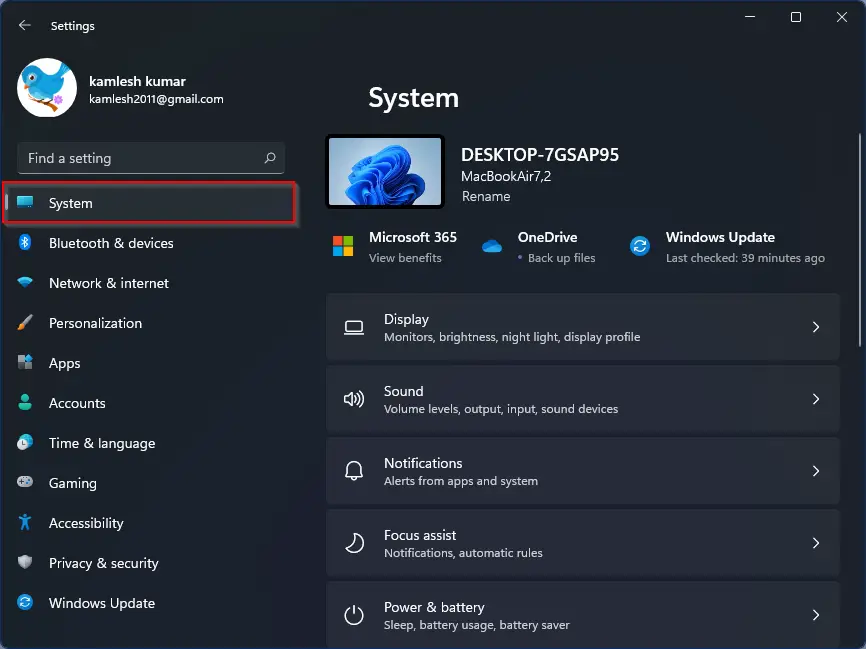
Step 2. Select the System category from the left pane.
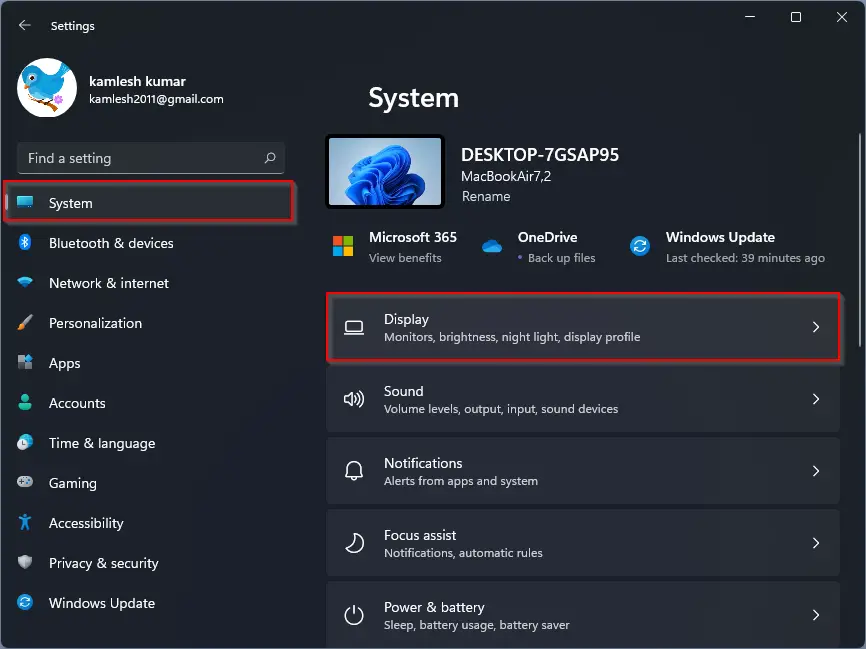
Step 3. Click on Display in the right section.
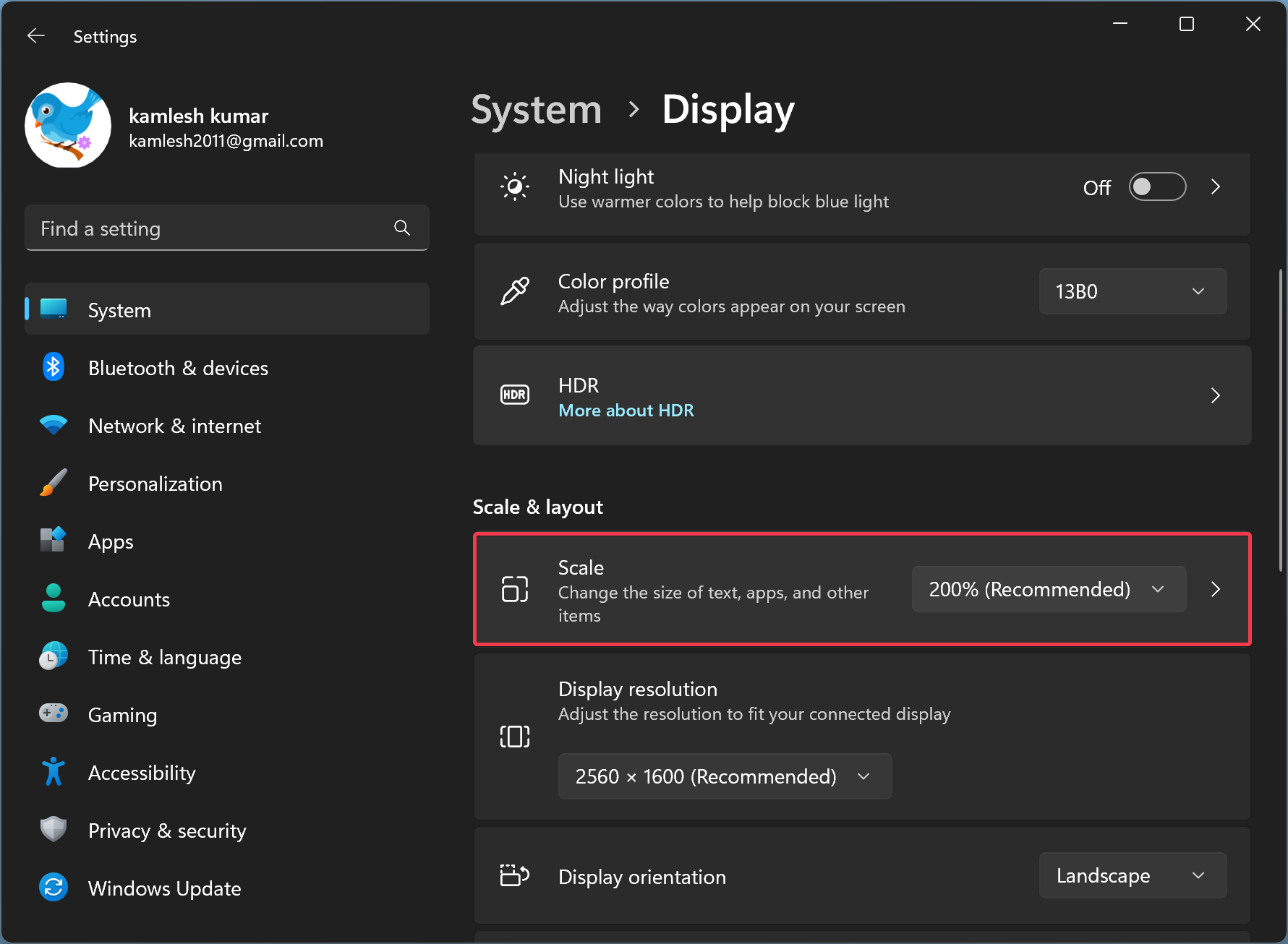
Step 4. Under the Scale option, choose a new value such as 100%, 125%, or 150% from the drop-down list.
Step 5. Once selected, Windows 11 will instantly apply the new DPI scaling value.
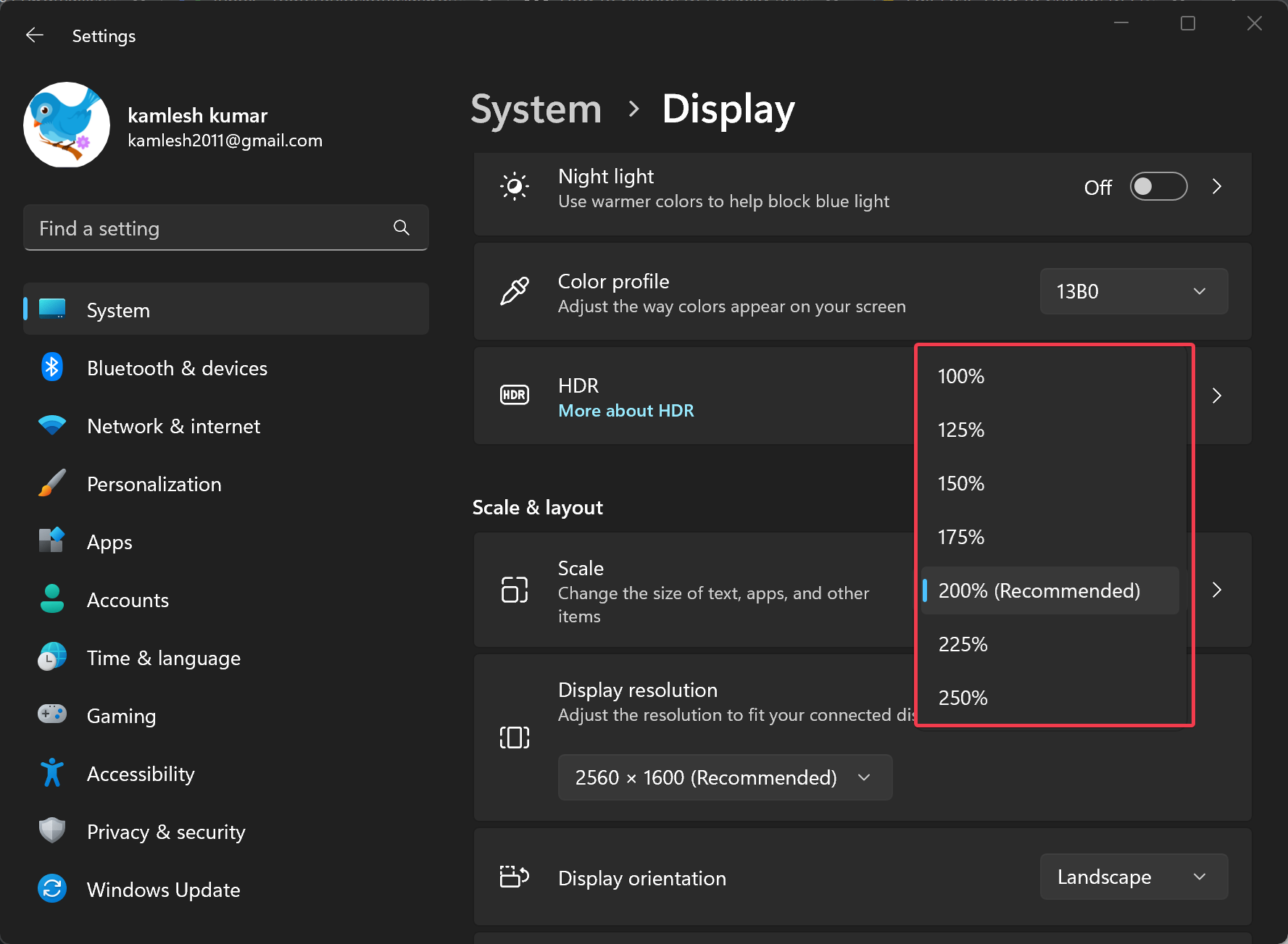
If the scaling doesn’t meet your preferences, try another value until you find the most comfortable size. The settings are saved automatically.
How to Change DPI Display Scaling in Windows 11 via Custom Scaling?
Use these steps to set a custom DPI scaling value:
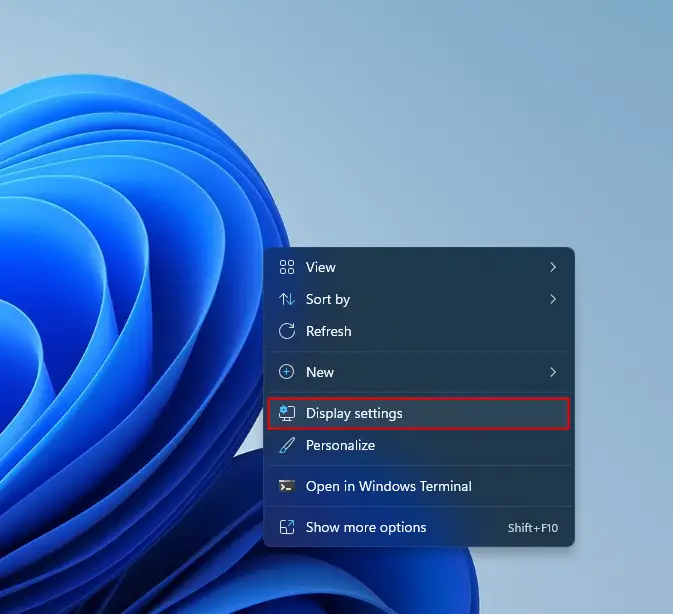
Step 1. Right-click on the desktop and select Display Settings.
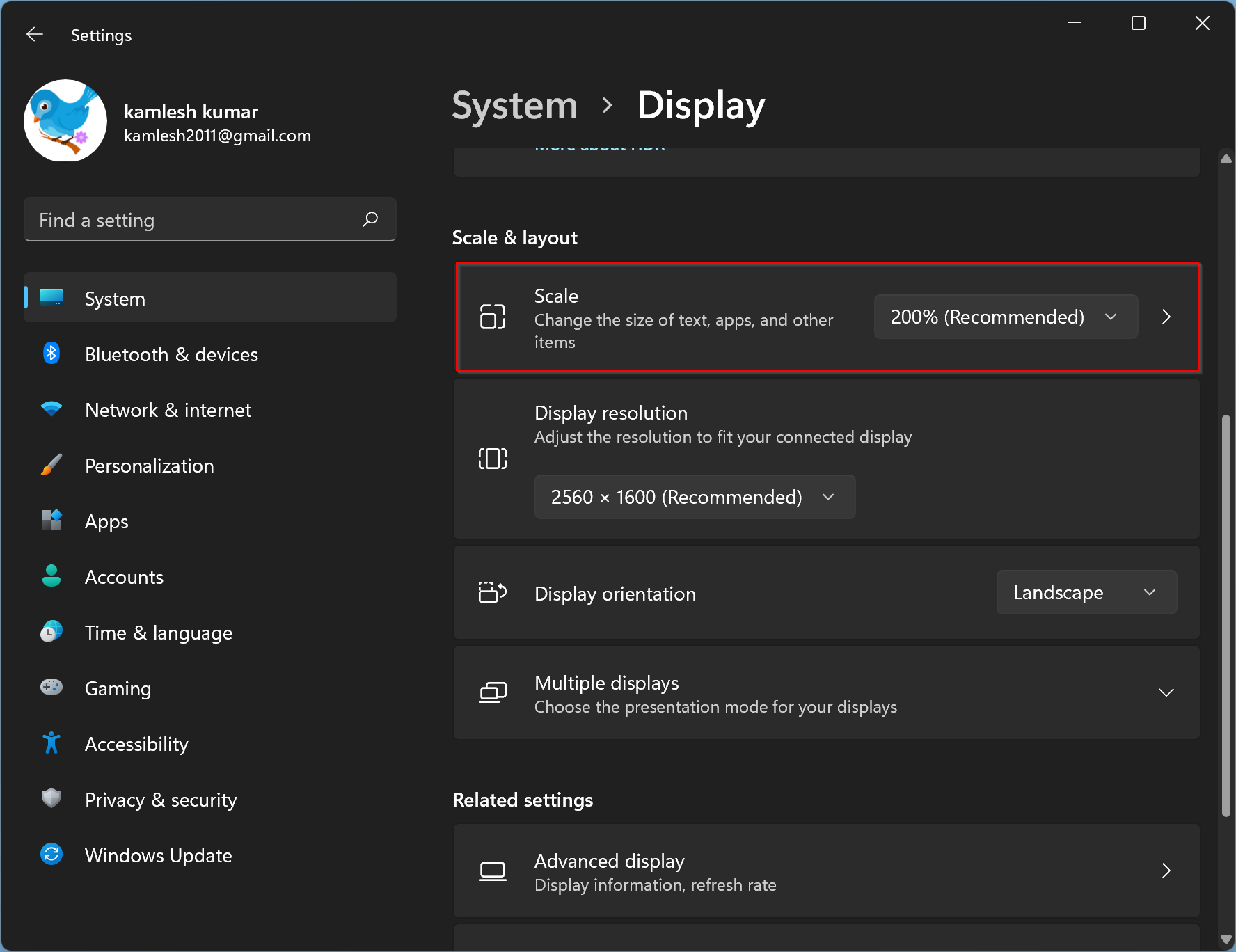
Step 2. Scroll down in the Display settings and click the Scale section.
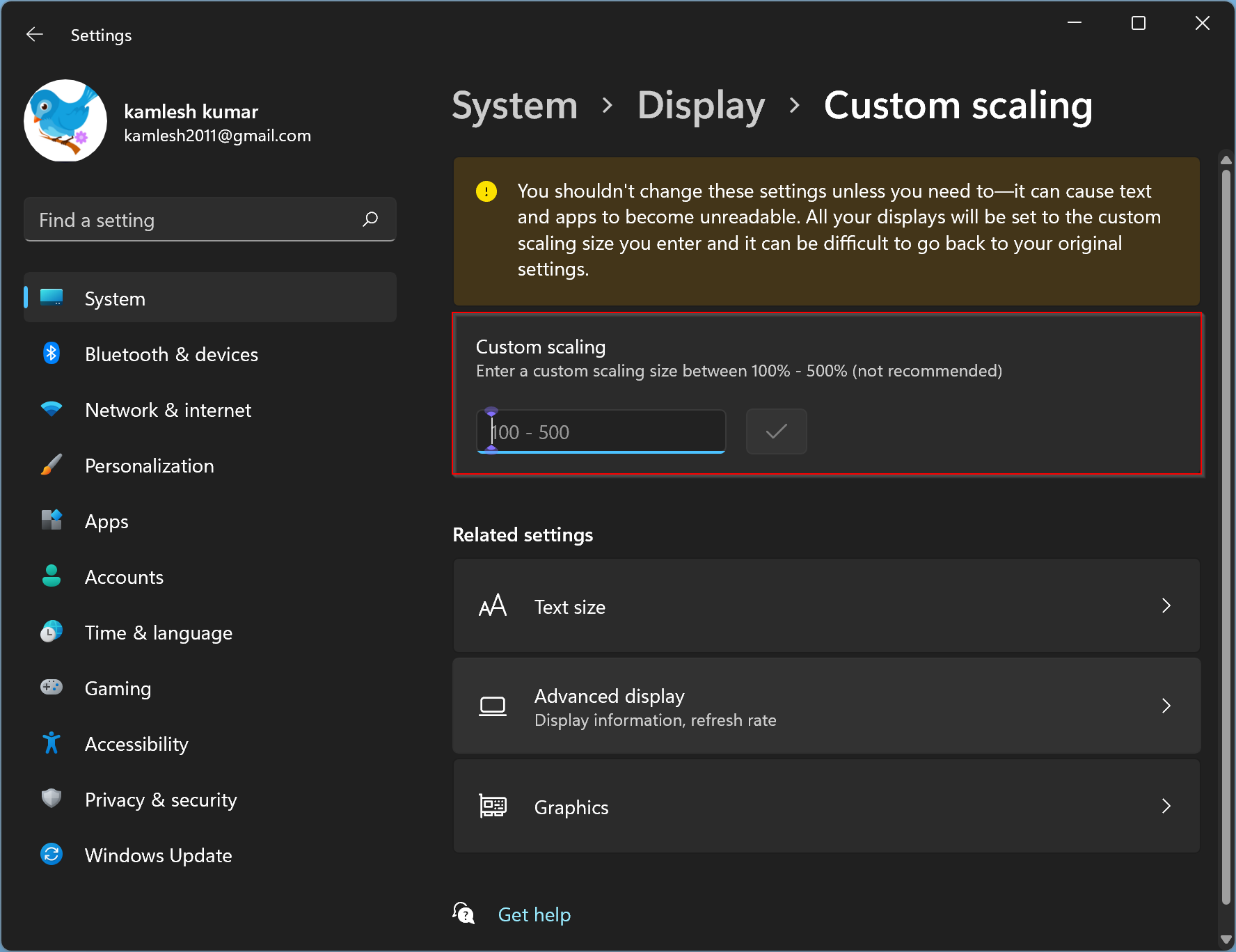
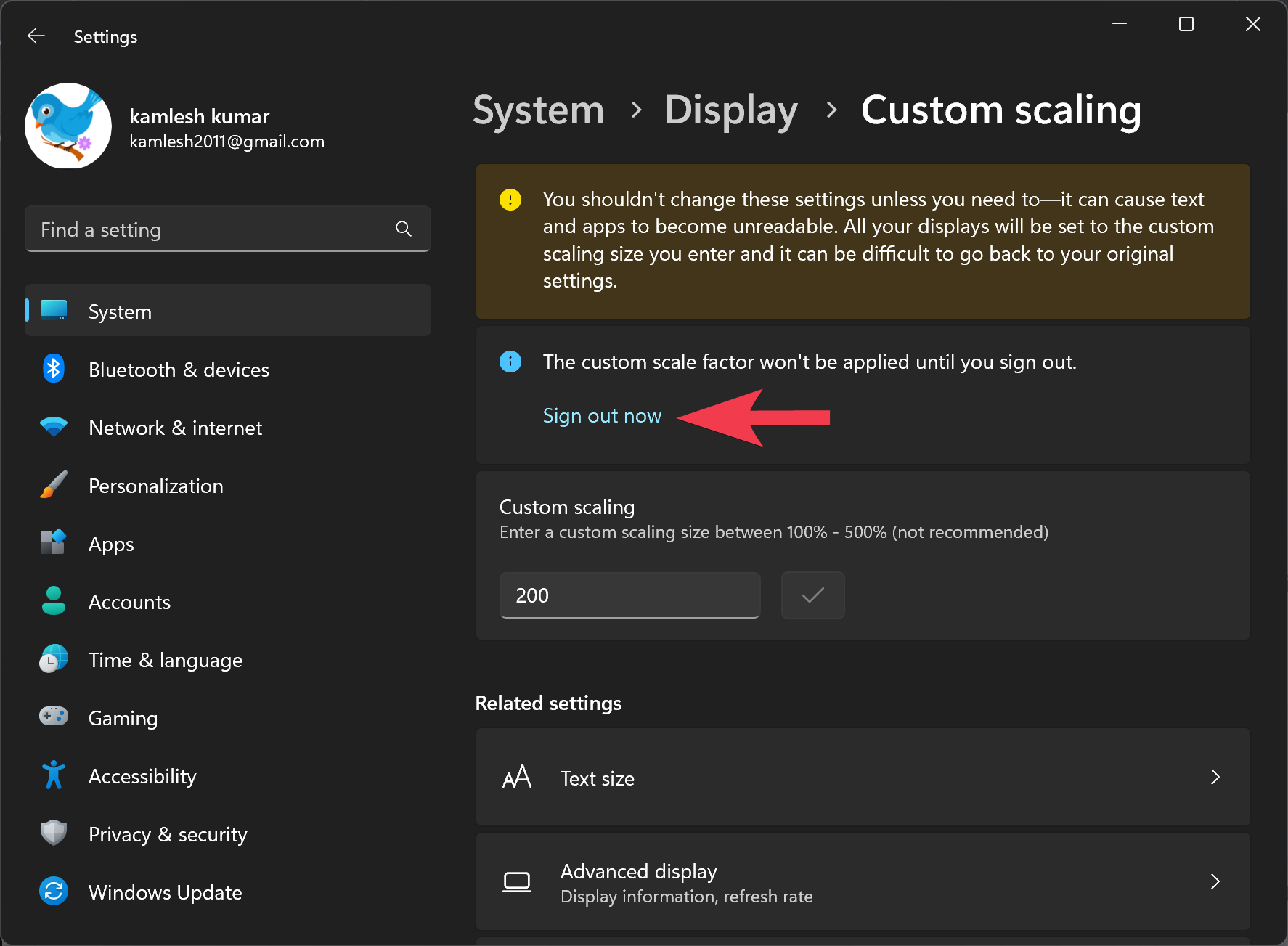
Step 3. Under Custom scaling, enter a value between 100% and 500%.
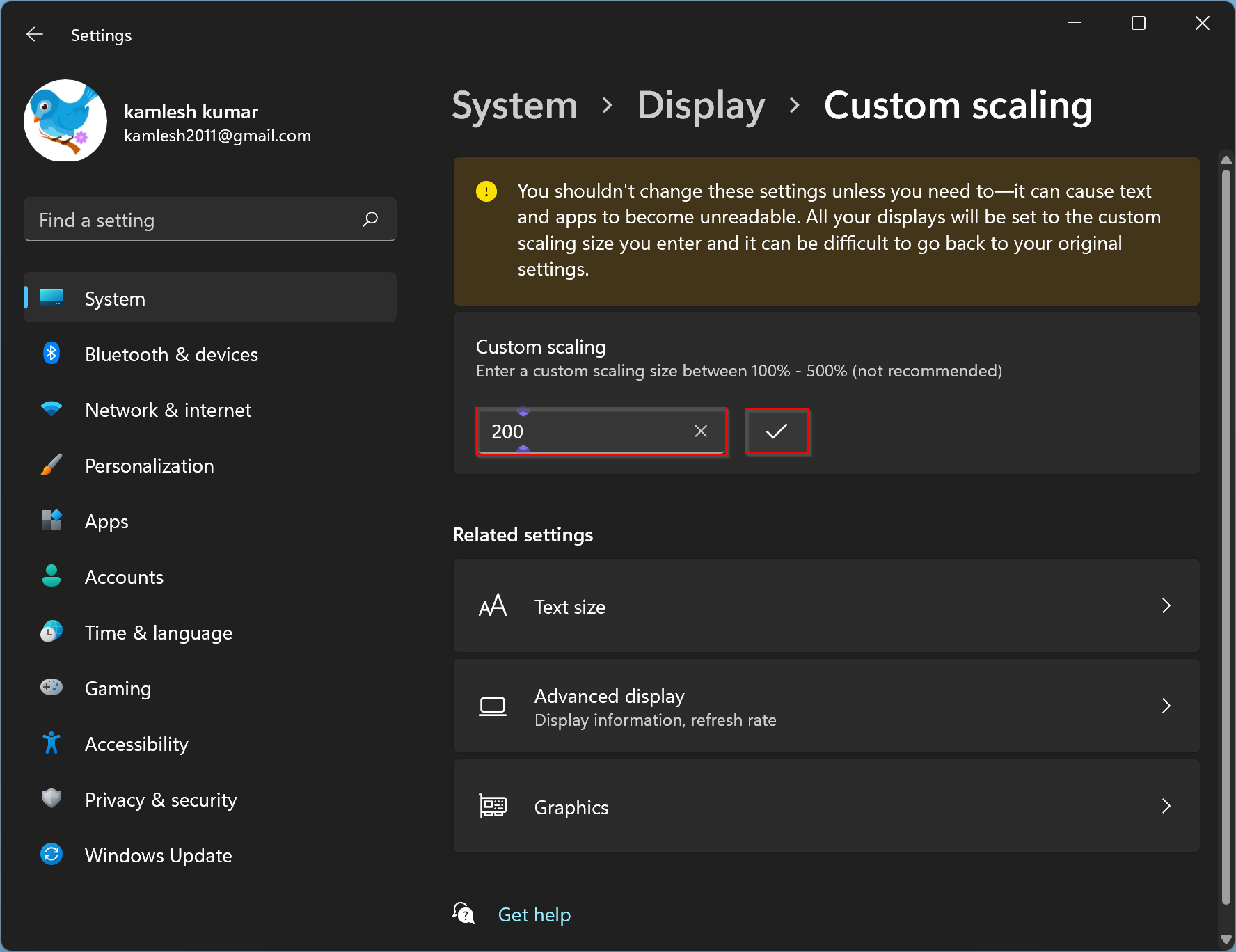
Step 4. Click the checkmark icon to confirm.
Step 5. Finally, click Sign out now for the changes to take effect.
How to Change Windows 11 Display Scaling using Registry Editor?
If you prefer the manual route, follow these steps to change DPI scaling via Registry:
Step 1. Open Registry Editor.
Step 2. Navigate to the following key:
HKEY_CURRENT_USER\Control Panel\Desktop
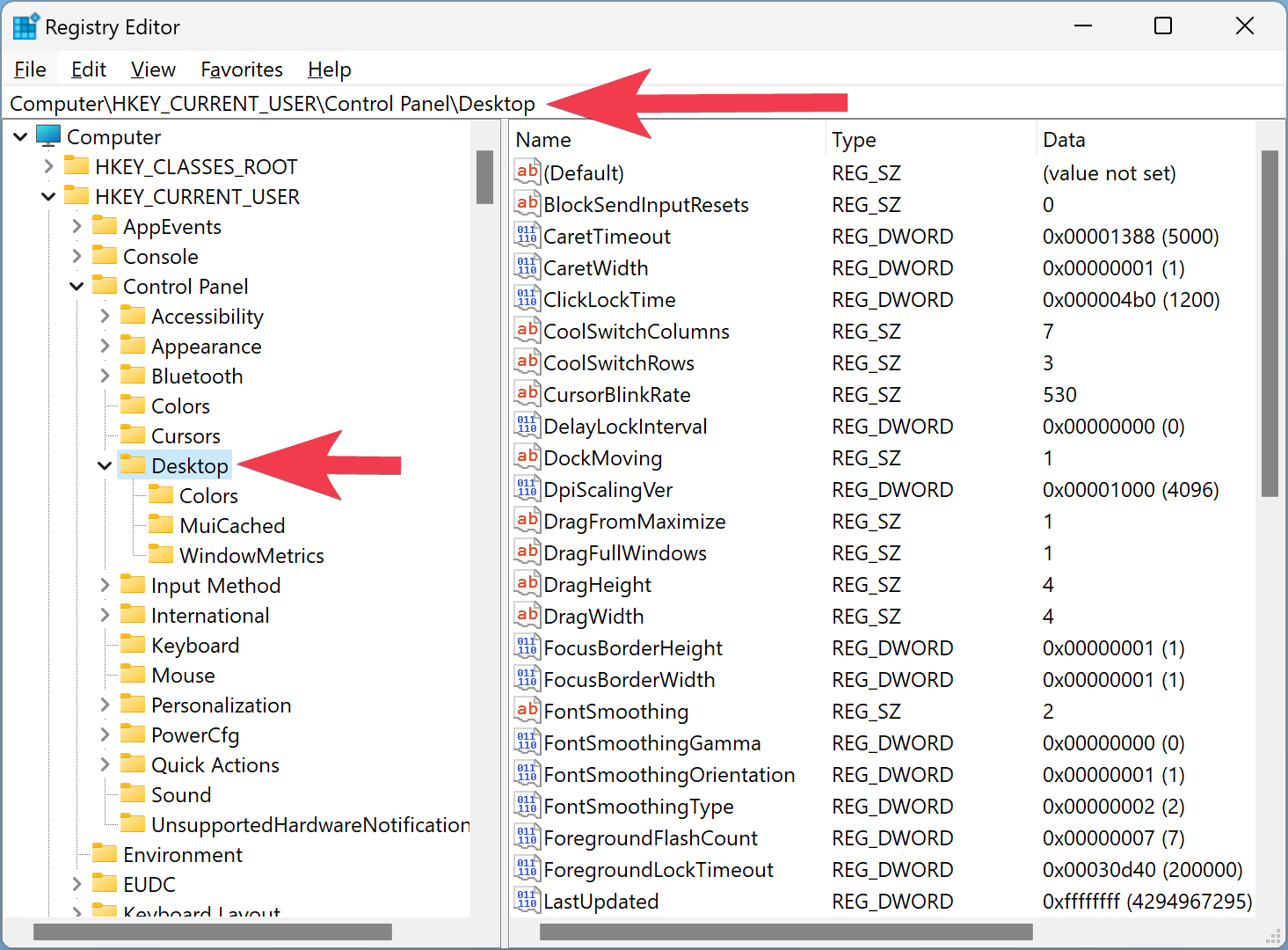
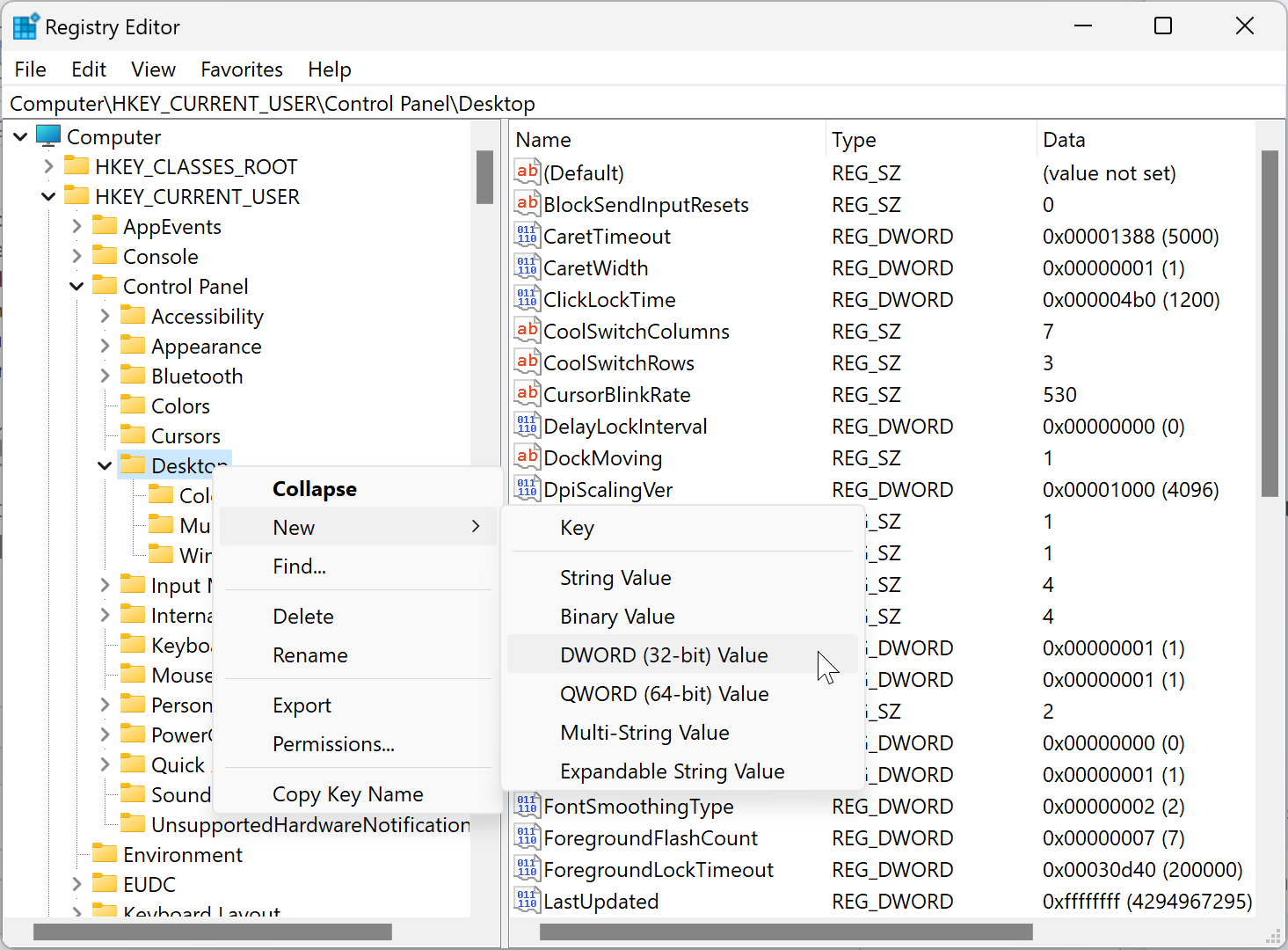
Step 3. Right-click the Desktop key, select New > DWORD (32-bit) Value.
Step 4. Name it LogPixels.
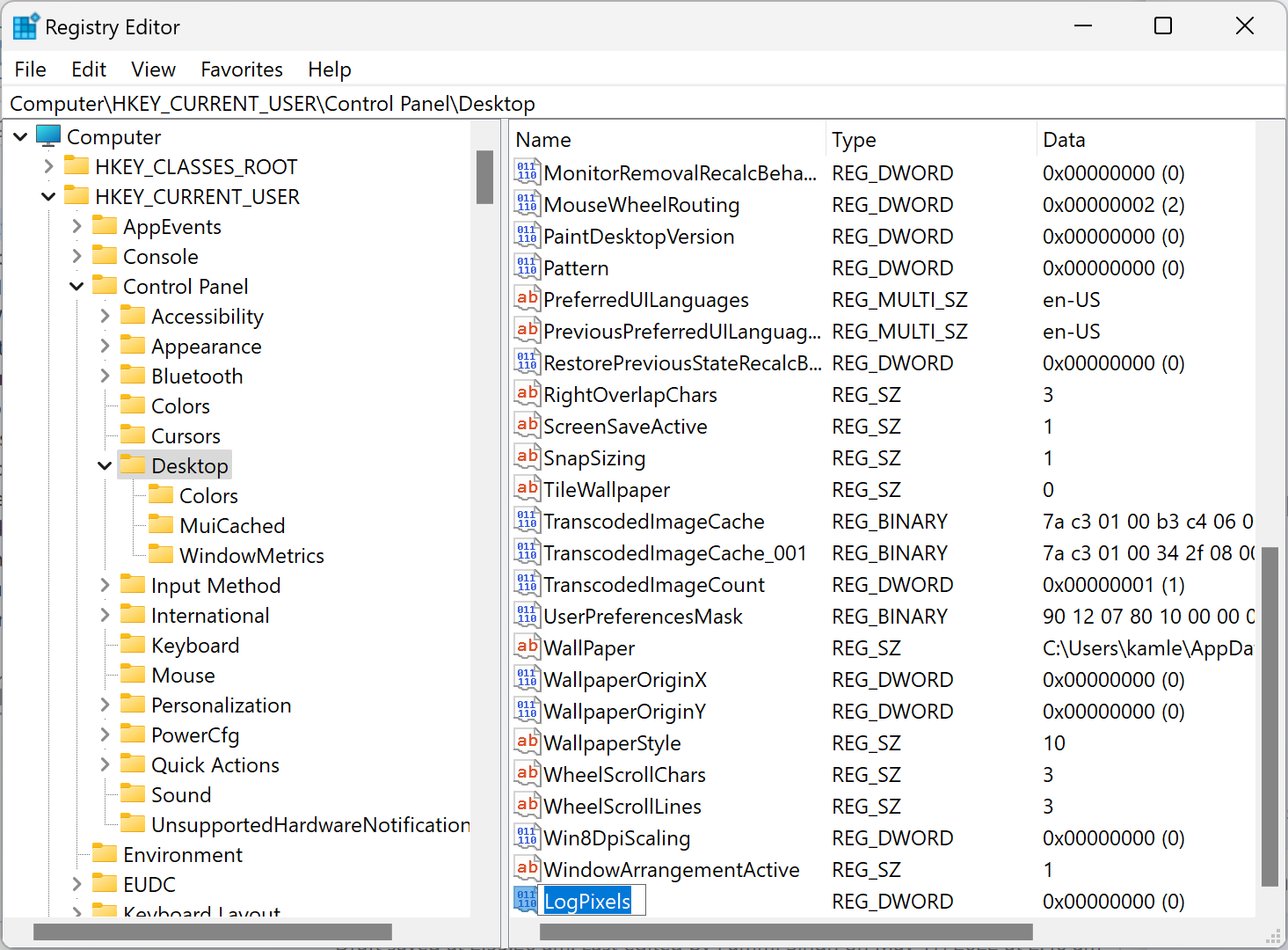
Step 5. Double-click LogPixels, set Base to Decimal, then enter a value from the list below:
- 96 = 100%
- 120 = 125%
- 144 = 150%
- 192 = 200%
- 240 = 250%
- 288 = 300%
- 384 = 400%
- 480 = 500%
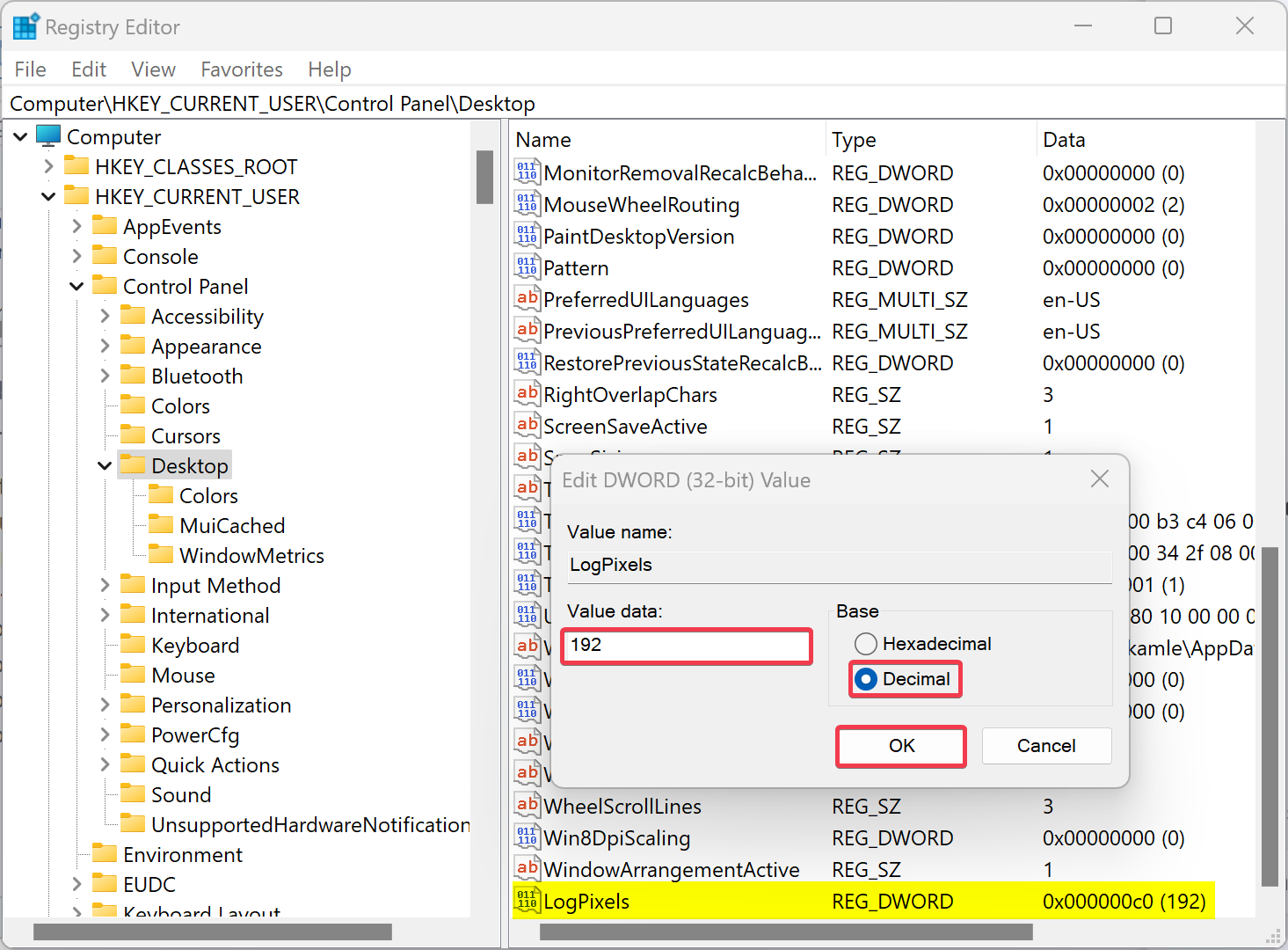
Step 6. Click OK.
Step 7. Find the Win8DpiScaling value and set its data to 1 if you’re using a value other than 96.
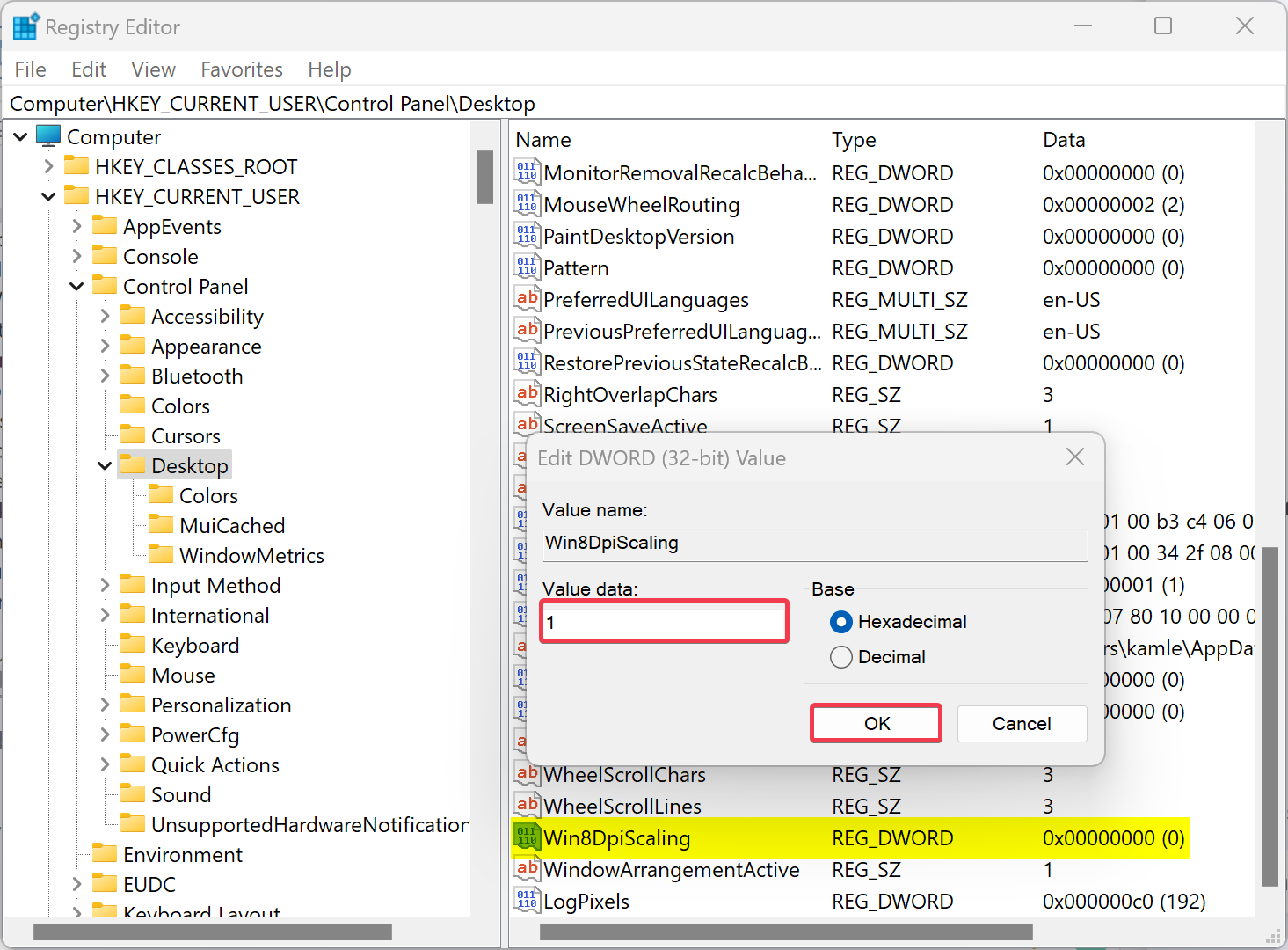
Step 8. Click OK again.
Step 9. Restart your computer to apply the new scaling.
Conclusion
In summary, DPI (Dots Per Inch) defines how text and UI elements scale on your screen. Windows 11 automatically adjusts scaling based on display resolution, but manual tweaks may be needed for comfort. You can adjust DPI scaling through the Settings app, set a custom value, or make advanced changes using the Registry Editor. These methods help improve readability and usability on high-resolution displays.
FAQ
What DPI scaling is best for 4K displays?
For 4K monitors, a DPI scaling of 150% to 200% is ideal for comfortable readability without losing screen real estate.
Will DPI changes affect all connected monitors?
No. DPI scaling is per-monitor in Windows 11. You need to configure each display separately through Display Settings.
Can DPI scaling cause blurry apps?
Yes, some legacy apps may appear blurry. You can fix this by enabling high DPI override in app compatibility settings.