

The default font in MS Office Word, Excel, and PowerPoint can be a bit dull and unappealing, and changing it can help make your documents and presentations more engaging. Fortunately, changing the default font in MS Office is an easy process that can be done in a few simple steps. In this guide, we’ll show you how to change the default font in MS Office Word, Excel, and PowerPoint for Windows 11/10/8/7.
First, we’ll discuss the importance of using an appropriate font in your documents and presentations. Choosing the right font can help convey your message effectively and make your content more readable. With MS Office, you can change the default font to one that suits your style and preferences. We’ll then provide step-by-step instructions on how to change the default font in MS Office Word, Excel, and PowerPoint for Windows 10/8/7, so that you can customize your documents and presentations to your liking. Whether you’re using Windows 11, 10, 8, or 7, you’ll be able to change the default font in MS Office with ease.
How to change the default font in Microsoft Office applications?
In this article, we’ll guide you to change the default font in:-
- Microsoft Office Word
- Microsoft Office Excel
- Microsoft Office PowerPoint
Change the Default Font in a Microsoft Office Word Document
Follow these steps to change the default Font in a Microsoft Office Word Document:-
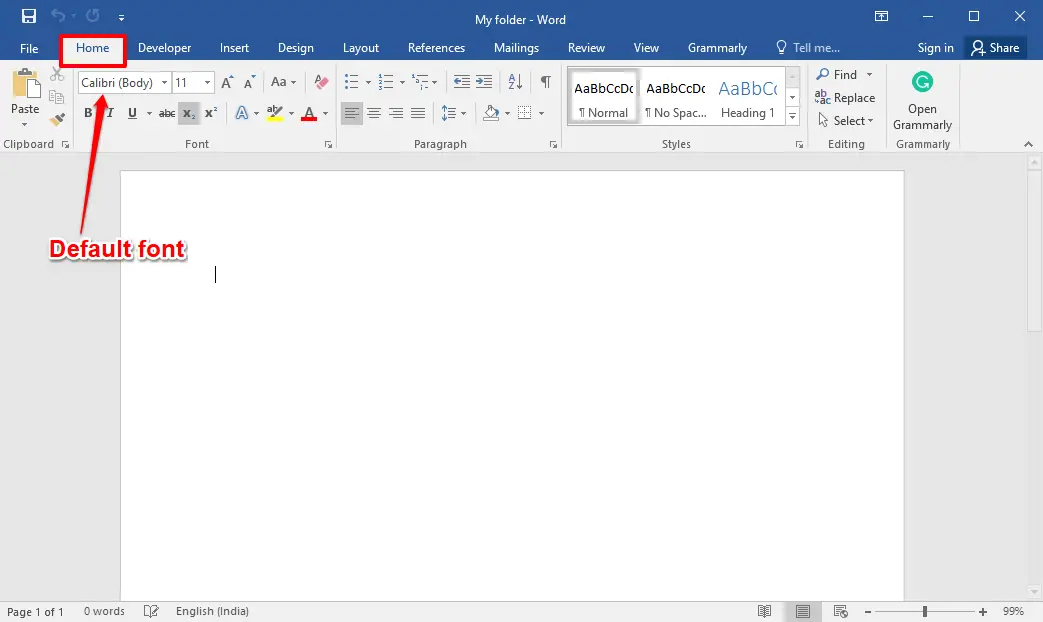
Step 1. Launch the Microsoft Word document and click the Home tab.
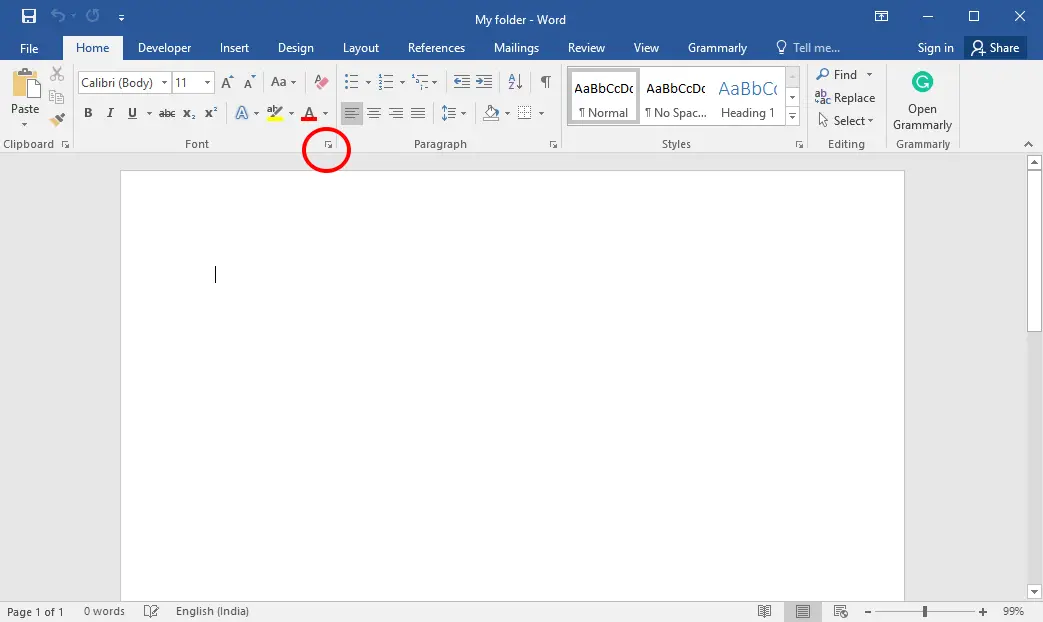
Step 2. Click the dialog box Launcher arrow in the Font group.
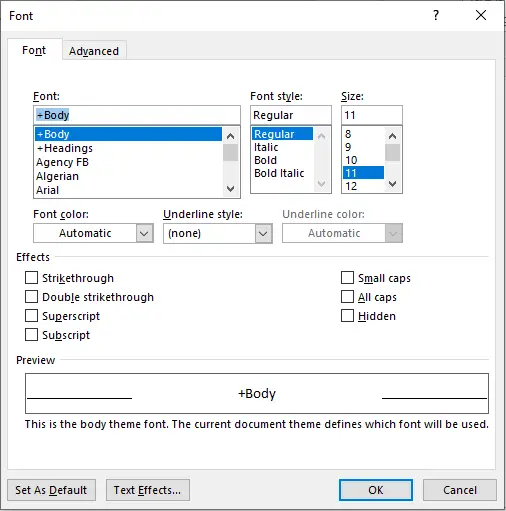
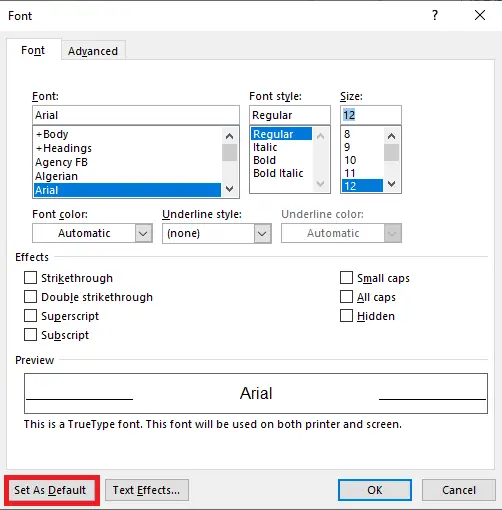
 Step 3. A new window with a Font heading will open.
Step 4. Select the “Font, Font Style, and Size” from the Font tab, which you prefer to use as the default in the Microsoft Word document.
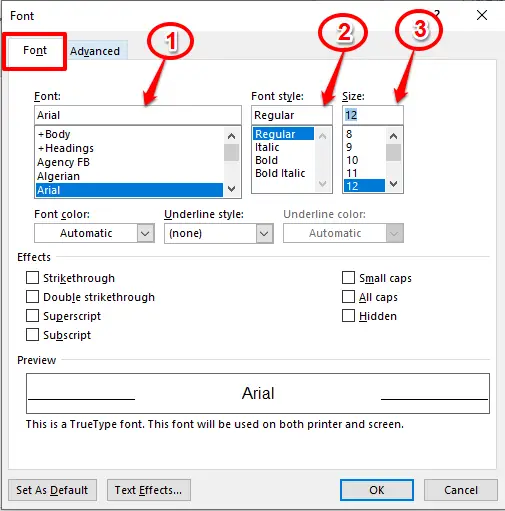 Step 5. Finally, click on the button “Set As Default” in the bottom left corner.
 Step 6. A new window will open; select the radio button labeled “All documents based on the Normal template?”
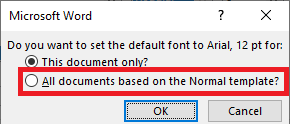 Step 7. Once you have selected the “All documents based on the Normal template?“, click the OK button.
Close the Microsoft Word document and save the changes.
From now on, when you open a new Microsoft Word document, you will notice the default set of Font that you have set.
Change the Default Font in Microsoft Office Excel Worksheet
Follow these steps to change the default Font in Microsoft Office Excel Worksheet:-
Step 1. To change the Default Font in Microsoft Excel, launch the MS Excel Worksheet.
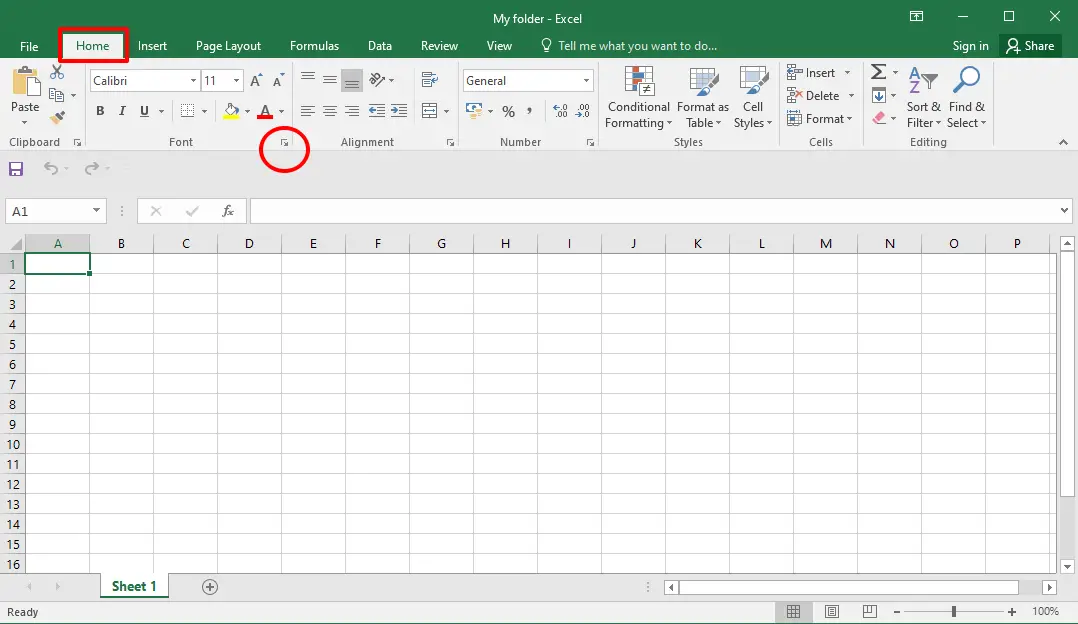 Step 2. Switch to the ‘Home’ tab and click the Dialog Box Launcher arrow in the Font group.
Step 3. On the window “Format Cells” that opens after clicking on the Launcher arrow, switch to the “Font” tab. Select Font, Font Style, and Font Size.
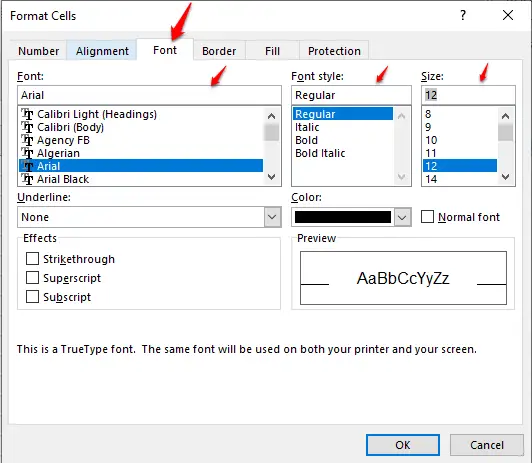 Step 4. Finally, hit the OK button to apply the changes.
Change the Default Font in Microsoft PowerPoint.
To set the default font in Microsoft PowerPoint, you need to set up the Font in two areas: Title and Subtitle. Let us see how it works.
Step 1. Open a new PowerPoint document.
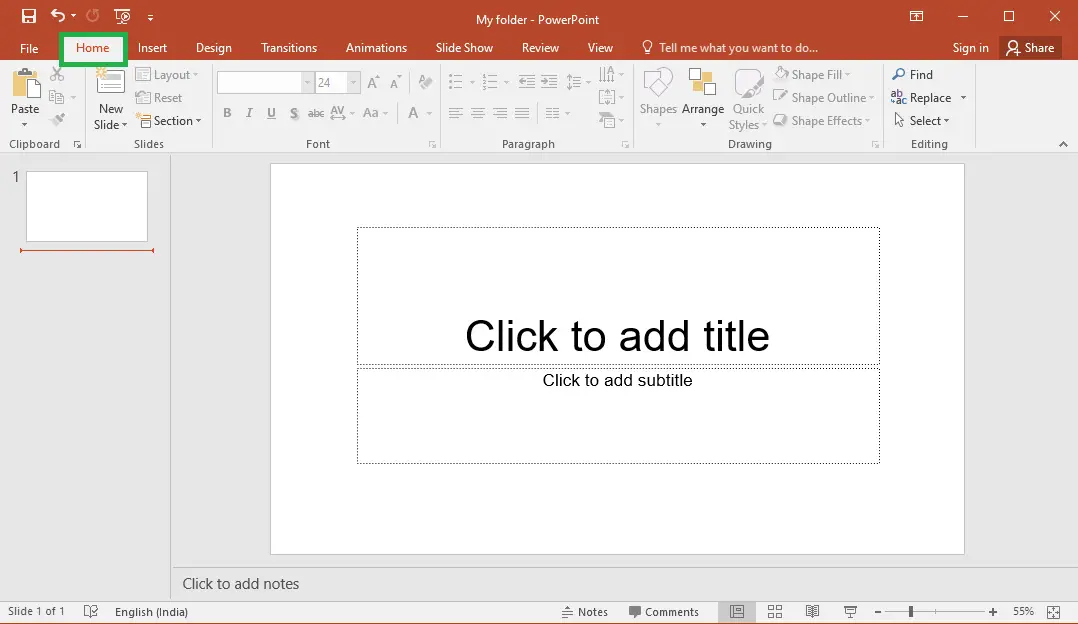
Step 2. Switch to the Home tab.
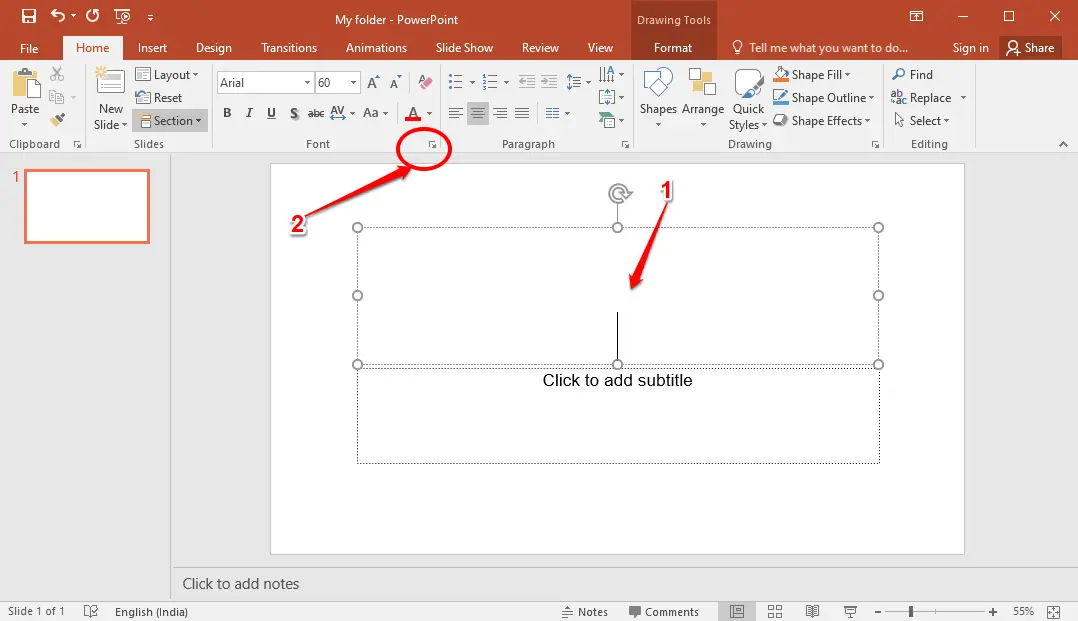
 Step 3. Click on the “Click to add title” area, then click the Dialog Box Launcher arrow in the Font group.
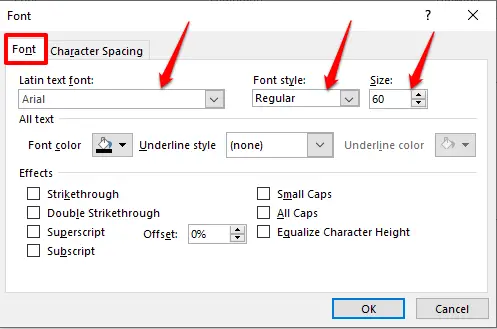
 Step 4. From the Font tab, set the Font, Font Style, and Size.
 Step 5. Click the OK button to apply the changes.
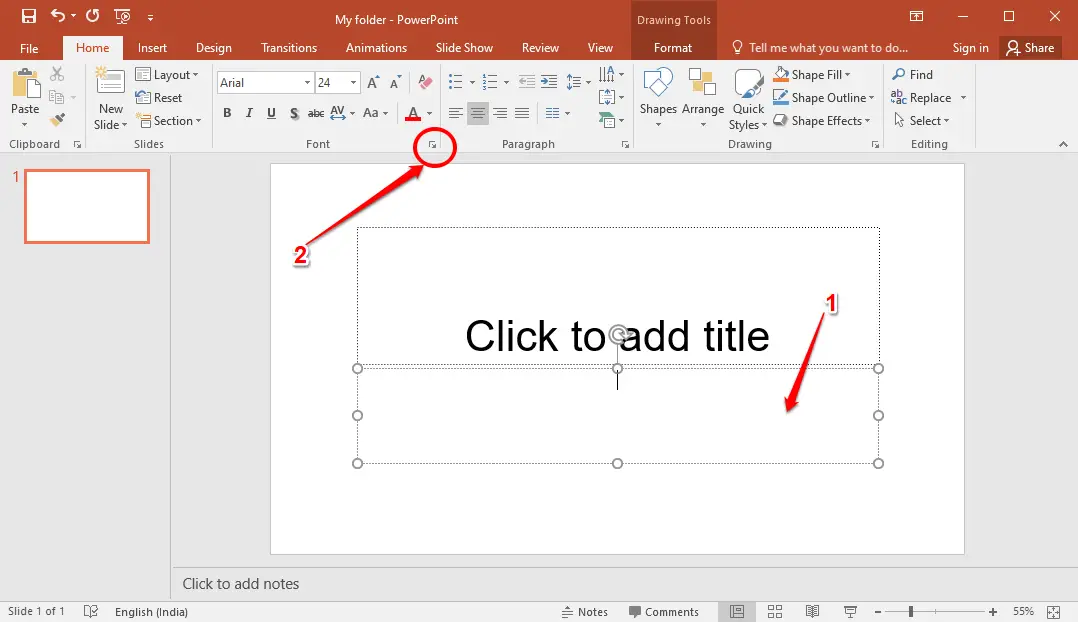
Step 6. Similarly, to set the default Font details in the PowerPoint document’s subtitle area, click the Dialog Box Launcher arrow in the Font group.
 Step 7. From the Font tab, set the Font, Font Style, and Size.
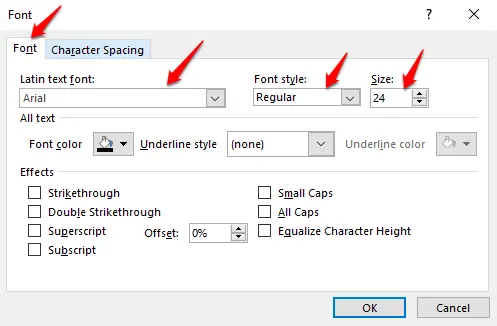 Step 8. Finally, click the OK button to apply the changes.
FAQs
Why should I change the default font in Microsoft Office?
Using a font that matches your style improves readability and creates a consistent look across your documents, worksheets, and presentations. It also saves time because you do not have to manually change the font every time you start a new file.
Does changing the default font affect existing documents?
No. The change applies only to new Word, Excel, or PowerPoint files created after you update the default font. Existing files keep their original formatting unless you modify them manually.
Can I revert to the original default font?
Yes. Simply repeat the same steps and choose the original default fonts, such as Calibri or Cambria, then save the settings as default again.
Do I need administrator rights to change the default font?
No. Any user can update the default font for Word, Excel, or PowerPoint because the change is stored in templates, not in system-wide settings.
Why are there separate steps for Word, Excel, and PowerPoint?
Each Office app uses its own templates and formatting rules. That is why you must set the default font individually in Word, Excel, and PowerPoint.
Will changing the default font speed up my workflow?
Yes. If you frequently change fonts manually while working, setting a default saves time and ensures a consistent look across all new files.
Can I choose any installed font as default?
Yes. Any font installed on your Windows PC is available for use as the default font in Microsoft Office applications.
Why doesn’t my new default font appear in PowerPoint?
PowerPoint uses separate font settings for titles and subtitles. Both must be updated to ensure your chosen font appears everywhere in new slides.
Conclusion
In conclusion, changing the default font in Microsoft Office Word, Excel, and PowerPoint can make a big difference in the appearance and readability of your documents and presentations. By following the simple steps outlined in this guide, you can easily customize the default font to your preferences, ensuring that all your new documents and presentations use the font you prefer. Whether you’re using Windows 10, 8, or 7, changing the default font in MS Office is a quick and easy process that can enhance the look and feel of your work.