

VLC Media Player is a versatile and popular media player that supports a wide range of video and audio formats. In addition to its playback capabilities, VLC Media Player also includes a built-in video conversion tool that allows you to convert video files from one format to another with ease.
In this article, we will show you how to convert videos using VLC Media Player on a Windows 11/10 PC.
How to Convert Videos using VLC Media Player on Windows 11/10?
To convert videos through VLC Media Player, follow these steps:
Step 1. First, if you don’t already have VLC Media Player installed on your Windows 11/10 PC, download it for free from the official VLC website. Once downloaded, run the installer and follow the on-screen instructions to complete the installation.
Step 2. After installation, launch VLC Media Player by double-clicking its desktop icon or by searching for it in the Start menu.
Step 3. To access the media conversion tool, click on the “Media” menu and select “Convert / Save,” or press “Ctrl + R” on your keyboard. This will open the Open Media wizard.
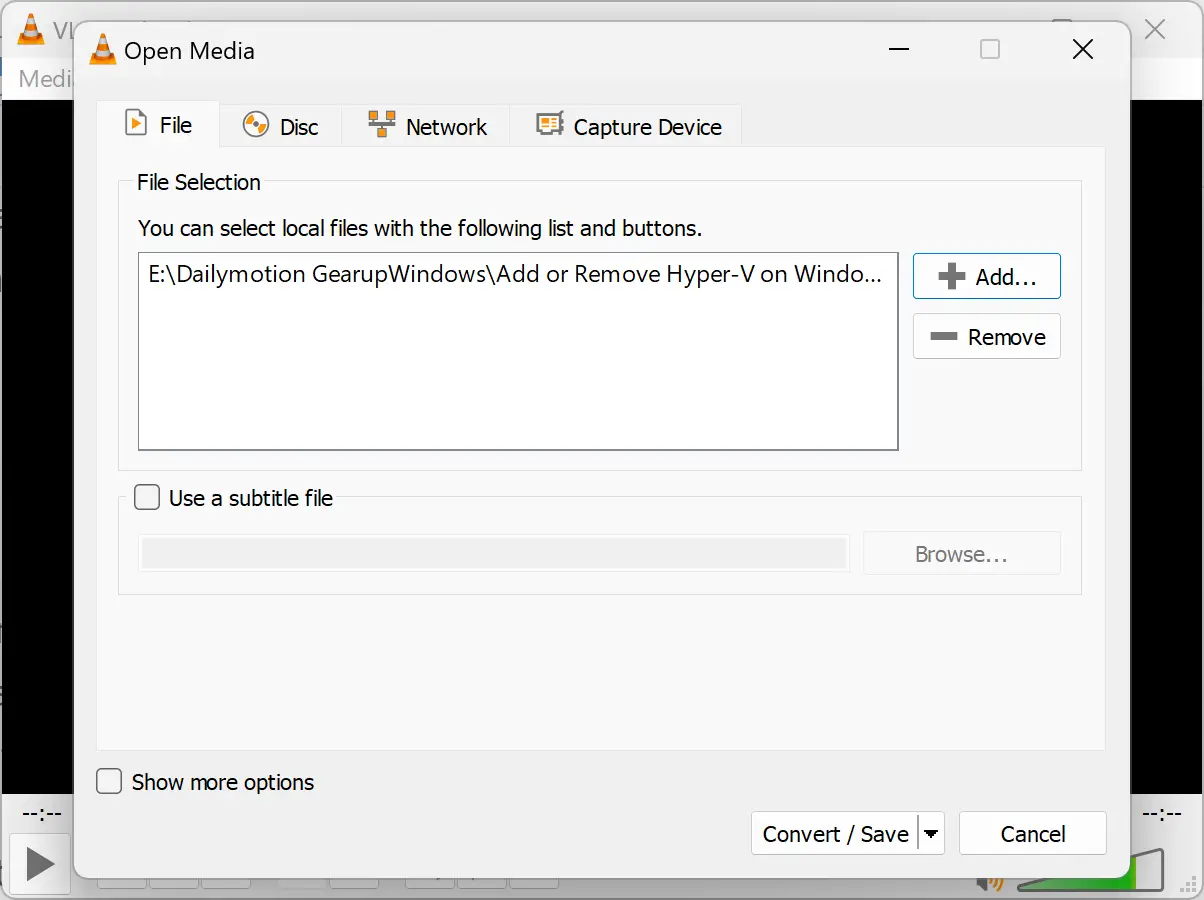
Step 4. In the Open Media window, click on the “Add” button to browse and select the video file you want to convert. After selecting the file, click on “Open” to add it to the conversion list.
Step 5. Once the file is added, click on the “Convert / Save” button.
Step 6. In the next window, select the output format for your video file from the Profile drop-down menu. VLC supports various formats, including MP4, AVI, WMV, and FLV. Choose the format that suits your needs.
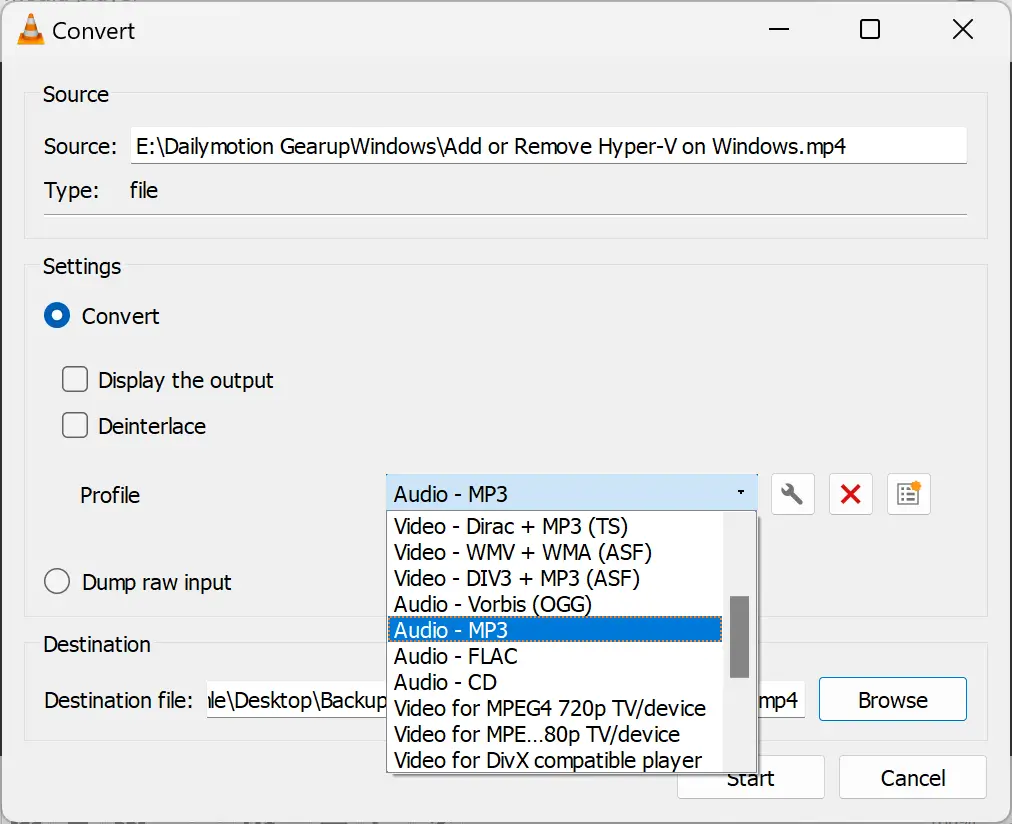
Step 7. Now, choose the destination folder where you want to save the converted file. Click on the “Browse” button next to the “Destination file” field and select the folder and filename for the output.
Step 8. After selecting the format and destination, click the “Start” button to begin the conversion process. The time required will depend on the file size and the performance of your PC.
Once the conversion is complete, you can play the converted file using VLC Media Player or any other media player that supports the selected format.
Conclusion
VLC Media Player is not just a media playback tool but also a powerful video converter. With just a few simple steps, you can easily convert videos to different formats without needing additional software. Whether you’re compressing video sizes or changing formats for compatibility, VLC makes the process fast and hassle-free.