

Trash is a designated folder where deleted files are temporarily stored before permanent removal. In Windows 10, files and folders are automatically sent to the trash without displaying a confirmation dialog box. To enable the deletion confirmation dialog, you can adjust the Recycle Bin settings.
While some users prefer the safety net of the trash, others want to permanently delete files right away. When a file or folder is deleted directly from a disk, it becomes unrecoverable.
If you’re someone who prefers to delete files permanently without a confirmation dialog, this guide will show you how to do that in Windows 10.
Note: To permanently delete a file or folder without sending it to the Recycle Bin, select it and press Shift + Delete on your keyboard. This action will bypass the Recycle Bin and remove the item permanently from your system.
How to delete files directly without sending them to the Trash on Windows 10?
Follow these steps to delete files permanently without sending them to the Trash on Windows 10:
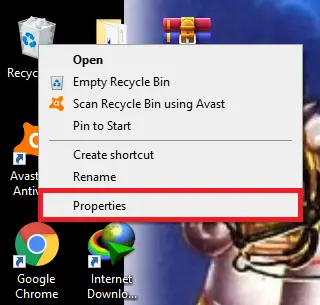
Step 1. Right-click on the Recycle Bin icon on your Desktop, and from the context menu, select Properties to open the Recycle Bin Properties window.
Step 2. Choose the disk drive from which you want to delete files permanently. Then, select the option “Don’t move files to Recycle Bin. Remove files immediately when deleted.”
Note: If your system has multiple partitions, repeat this step for each one.
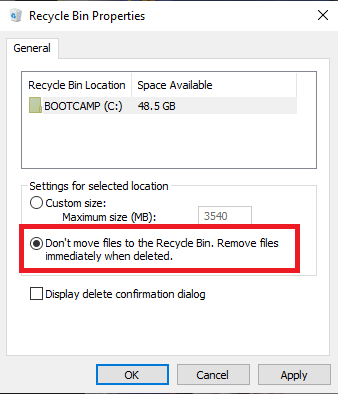
Step 3. Click Apply, then click OK to save your changes.
After completing these steps, any files or folders deleted from the selected drive will bypass the Recycle Bin and be permanently deleted from your computer.
FAQs
Does disabling the Recycle Bin affect all drives?
No. You must configure the settings individually for each partition. Only the selected drive will bypass the Recycle Bin.
Can I recover a file deleted after disabling the Recycle Bin?
Once files are deleted permanently, recovery becomes extremely difficult and often impossible without specialized tools.
Is Shift + Delete the same as disabling the Recycle Bin?
Shift + Delete always bypasses the Recycle Bin for individual files, while disabling the Recycle Bin makes all deletions permanent for that drive.
Can I re-enable the Recycle Bin later?
Yes. Simply return to Recycle Bin Properties and uncheck the “Don’t move files to Recycle Bin” option to restore default behavior.
Why don’t I see the confirmation dialog when deleting files?
Windows 10 disables the delete confirmation dialog by default. You can enable it from the Recycle Bin Properties.
Conclusion
In conclusion, deleting files directly without sending them to the trash can speed up your workflow and free up storage faster. By adjusting Recycle Bin settings or using the Shift + Delete shortcut, Windows 10 users can permanently delete files without additional prompts. This method is especially helpful for users who want more control over file management and system space.