

Windows 11 has been announced by Microsoft, and its final version is expected to launch in November 2021. Until then, several builds will be released for users to test. If you have installed Windows 11 on your PC and want to display the version number on the desktop to tease your friends, it’s possible through a simple registry hack. By making a small change in the Windows 11 Registry, you can show the build number of your operating system directly on the desktop.
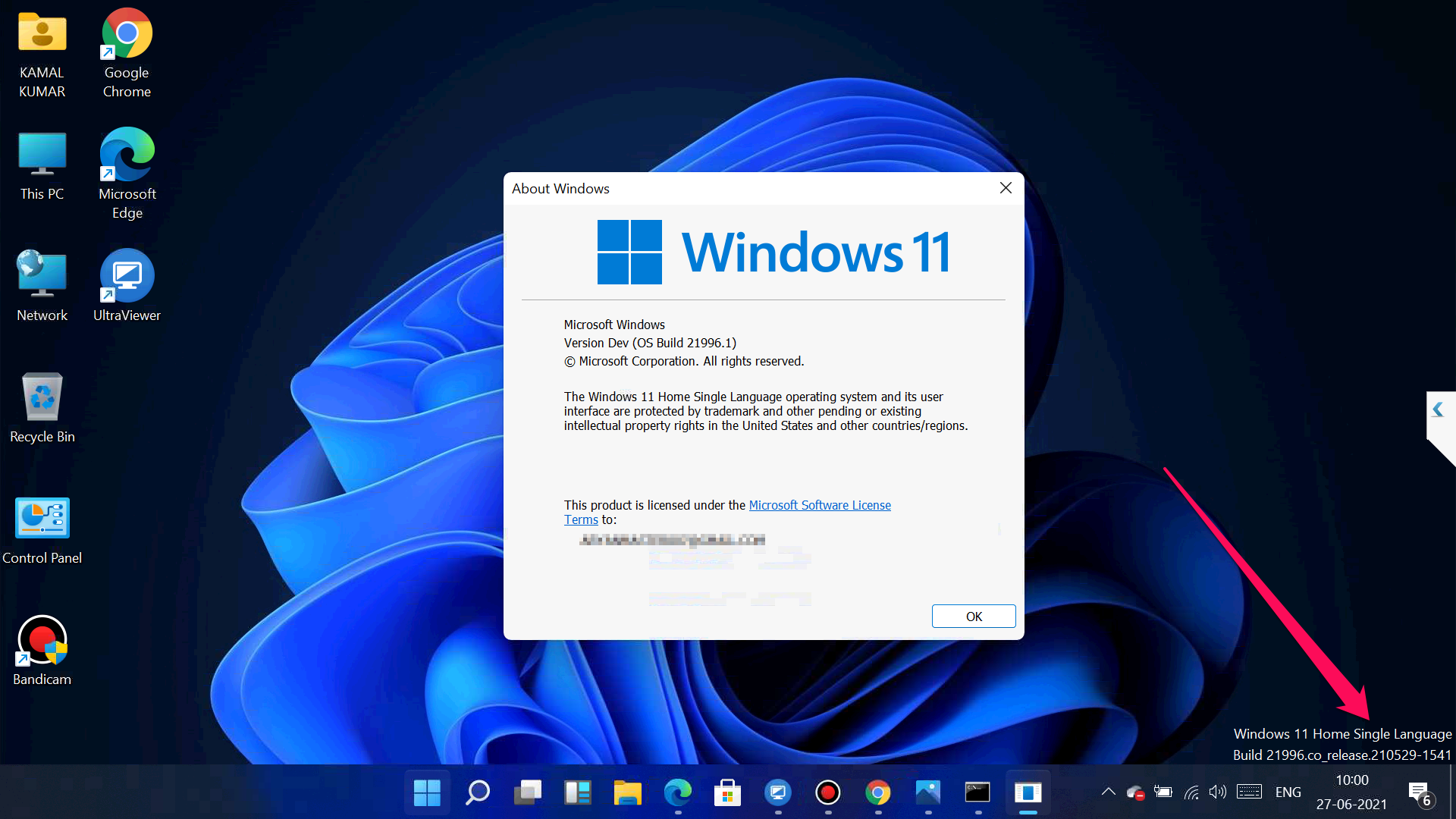
How do I show the Windows 11 build number on the Desktop?
On Windows 11, it is also possible to show the build number in the bottom right corner of the Windows Desktop. It is not a new concept. Using a similar method, you can display the build number on the right bottom screen for Windows 10/8/7. To achieve the task, you need to modify the Windows Registry. So, before proceeding with the steps, we recommend taking the Registry file full backup and creating a system restore point. In case something goes wrong, you can revert your PC to its previous working state.
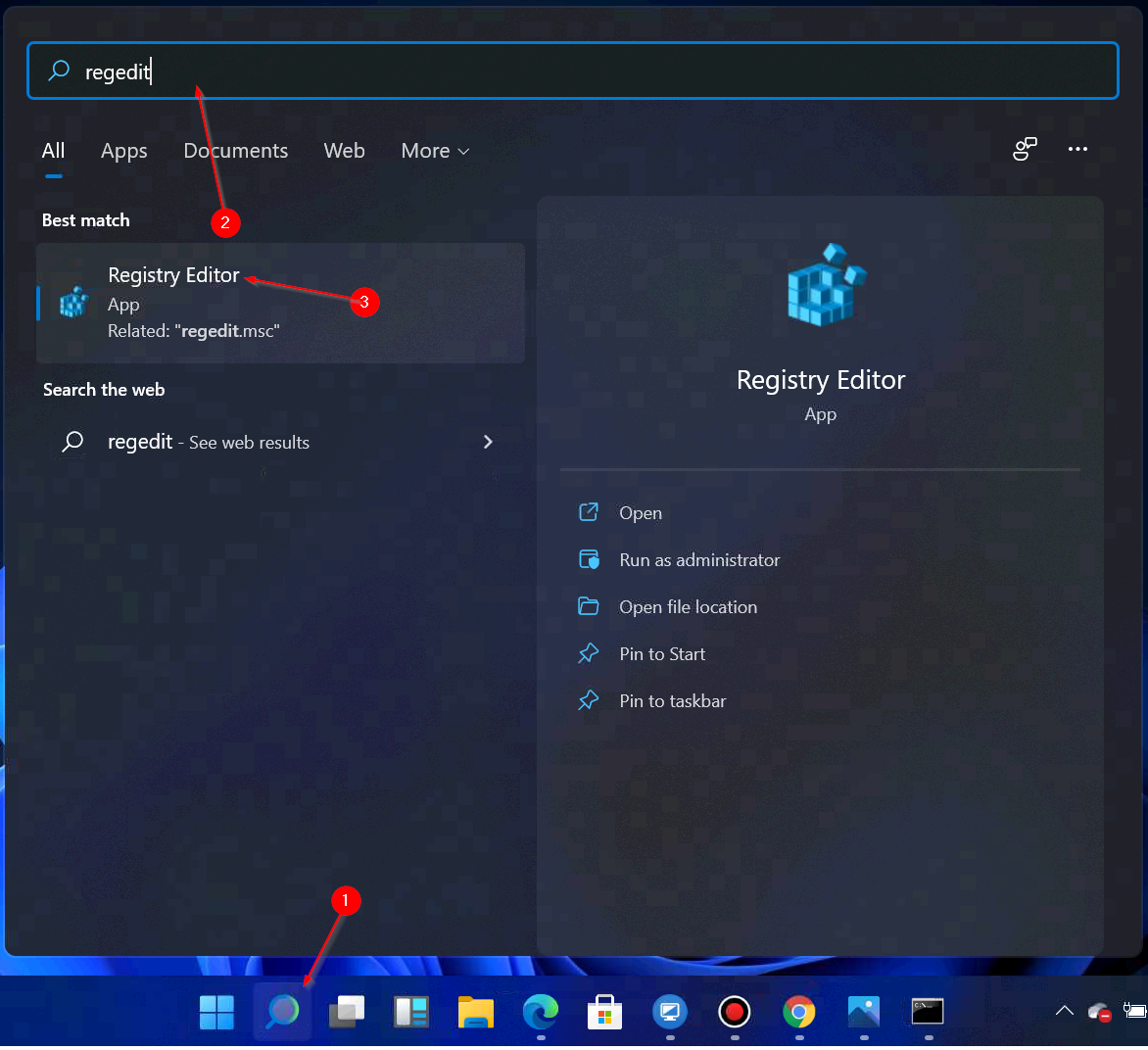
Step 1. Click on the Search icon on the taskbar and type regedit in the search box. From the available results, click on the Registry Editor to open it.
Alternatively, press the Windows + R keys simultaneously from the keyboard to launch the Run command box. In the Run box, type regedit and press Enter on the keyboard to open the Registry Editor window.
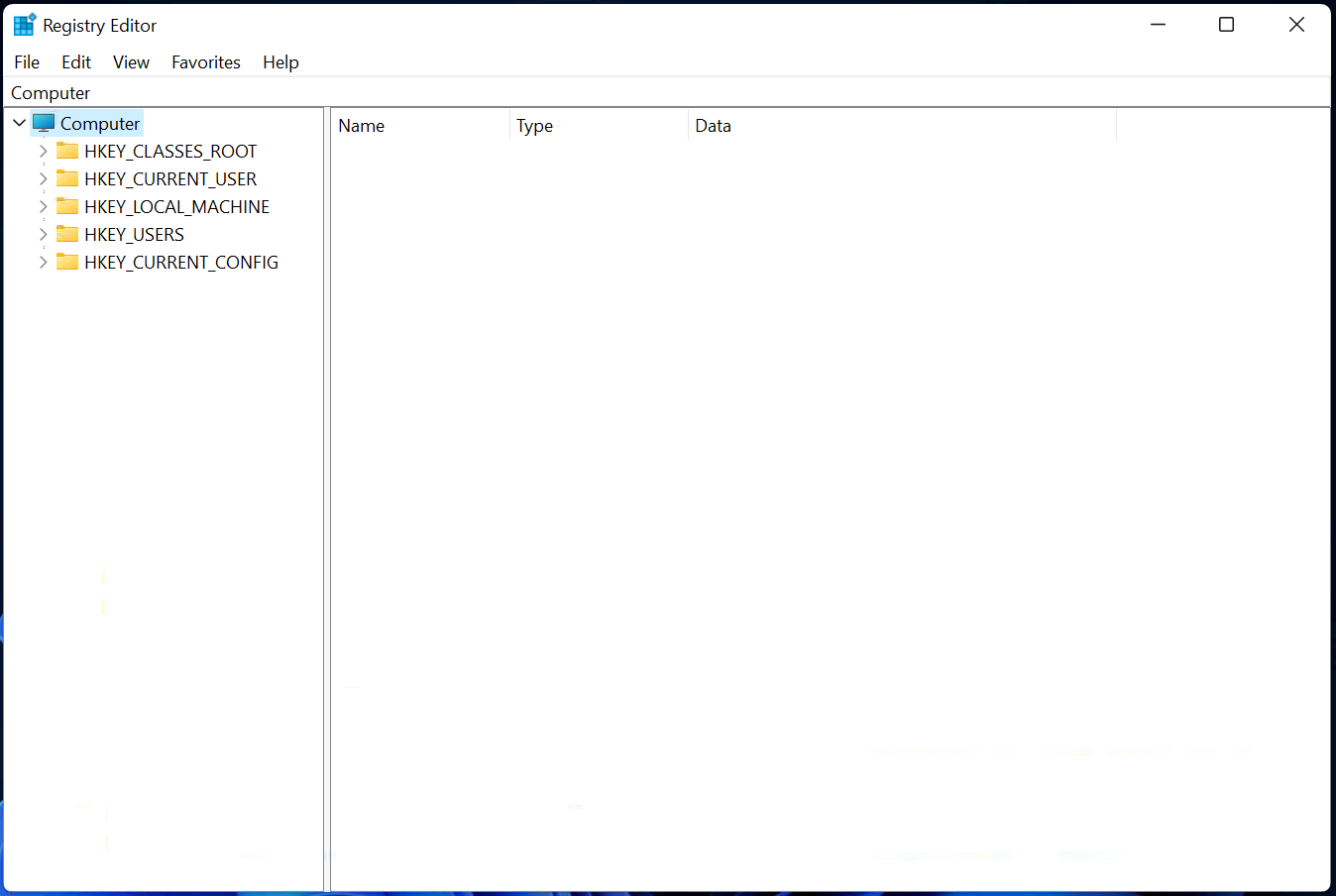
Step 2. In the Registry Editor window, navigate to the following registry key from the left side pane:-
HKEY_CURRENT_USER\Control Panel\Desktop
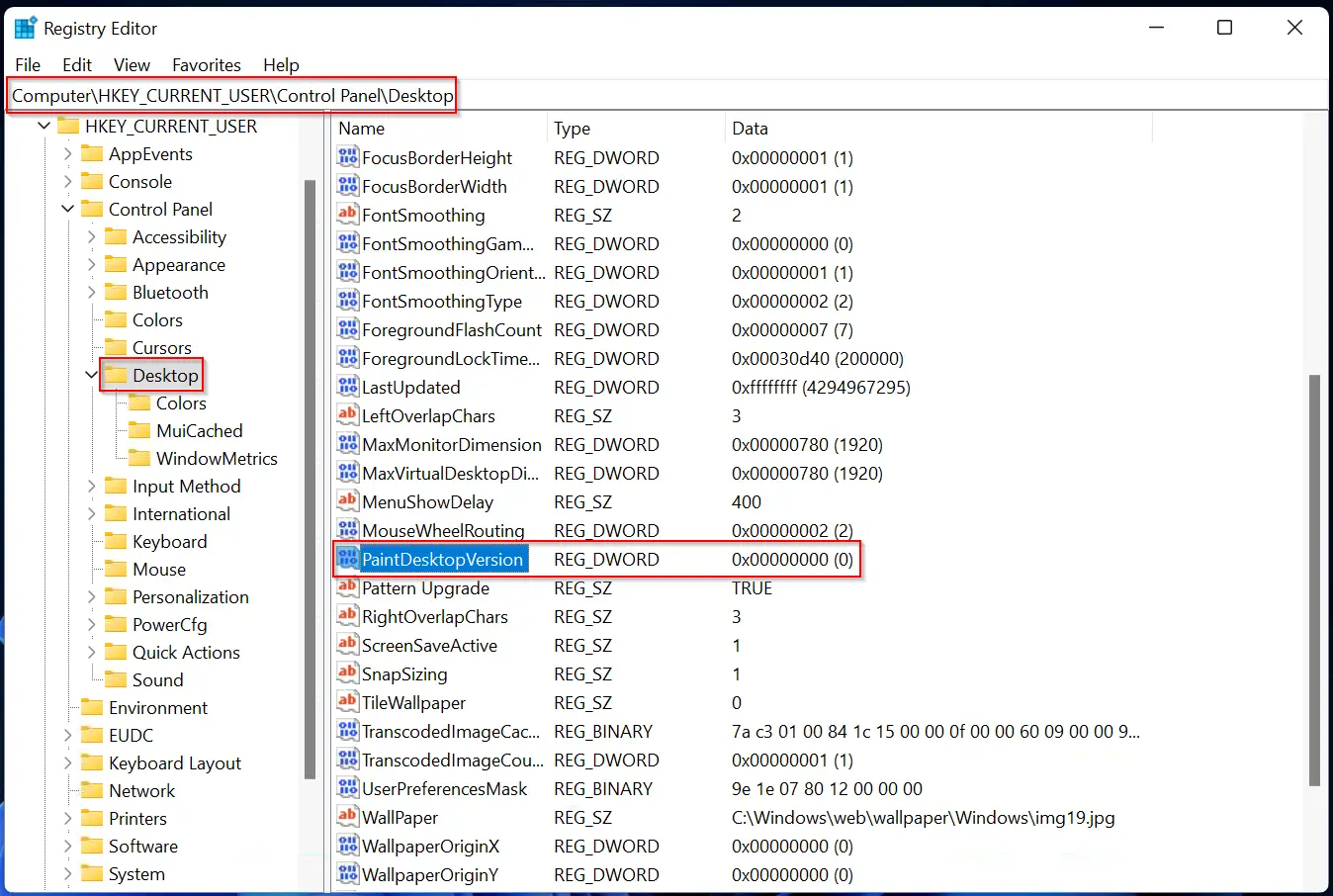
Step 3. On the right side of the Desktop key, look for the entry PaintDesktopVersion and double-click on it to edit. Replace the Value data from 0 to 1 to show the build version on the Windows 11 Desktop.
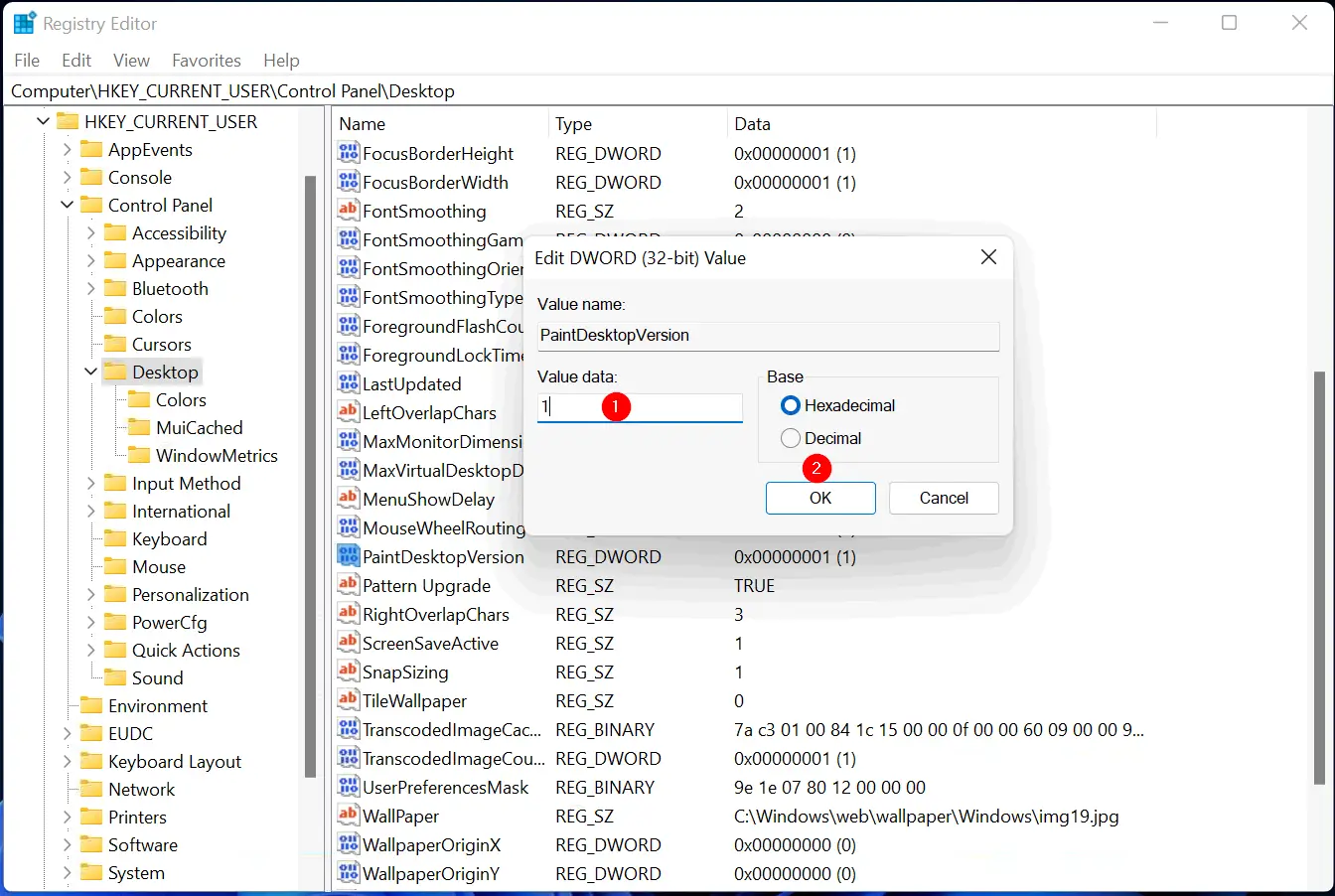
Step 4. Click OK.
Step 5. Usually, the changes are immediate, but if the build number is not displayed on your Windows 11 Desktop, a reboot is sufficient.