

A lot of free remote access applications are available in the market, and AnyDesk is one of them. It is free for personal use. However, you need to purchase a license for professional use after 14 days of trial.
AnyDesk for Windows 11/10
As mentioned above, AnyDesk is a freeware application to gain or provide remote access over the internet. You need to download and install it to use on Windows and Android platforms. After installing, you can allow your remote desktop access or gain other remote computer access with the help of this application.
The software uses minimal space on your Windows 11/10 PC. To use this application, you’ll require an internet connection.
How to Use AnyDesk Remote Access Application for Windows 11/10?
Suppose you are an IT expert and want to access your client’s computer desktop. Then, you and your client both should install and open the AnyDesk software. Then, to use this application on Windows 11/10, do the following steps:-
Steps for Client and IT Expert
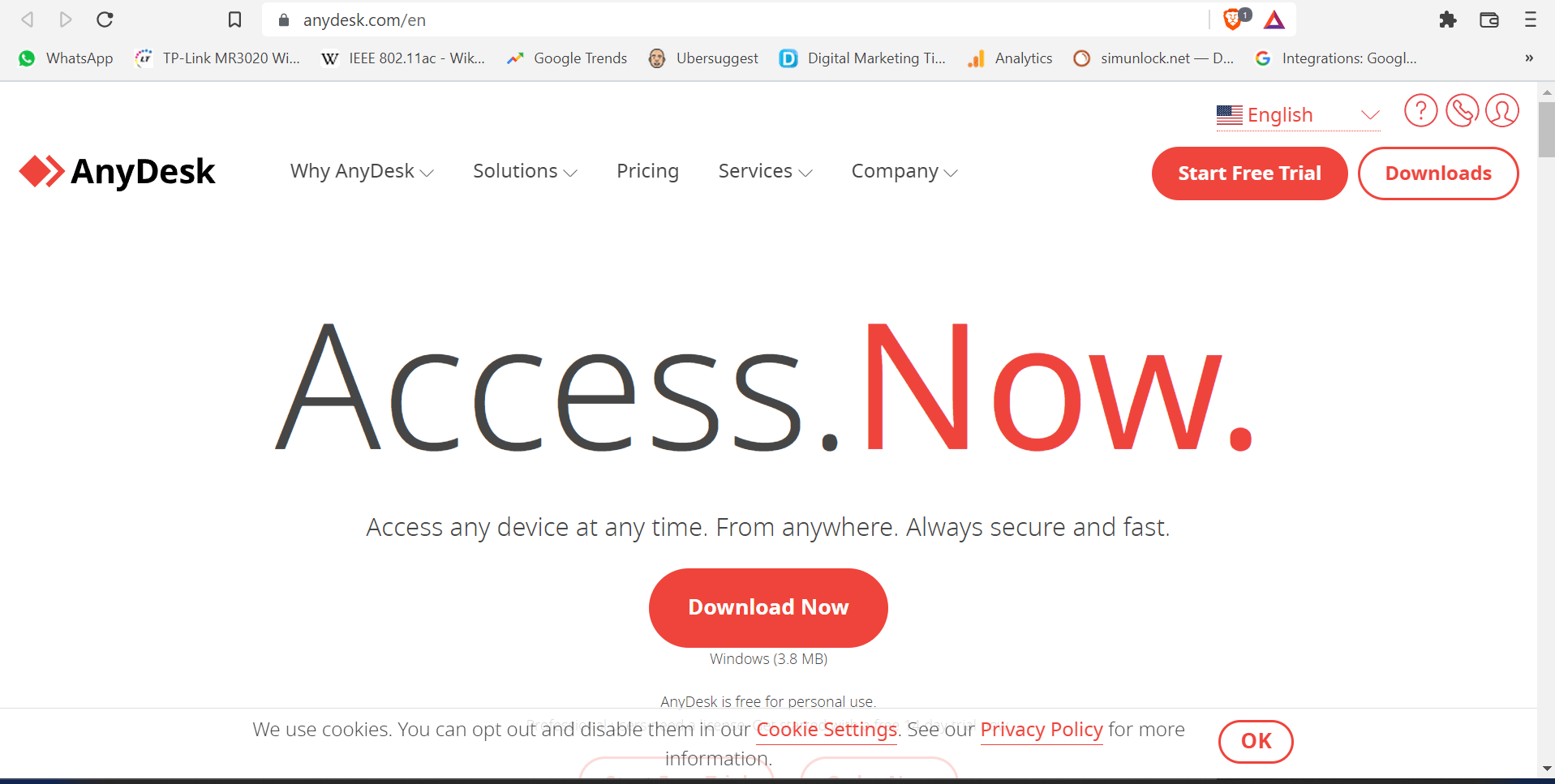
Step 1. First, download the AnyDesk remote desktop application from its official website by clicking on the Download Now button.
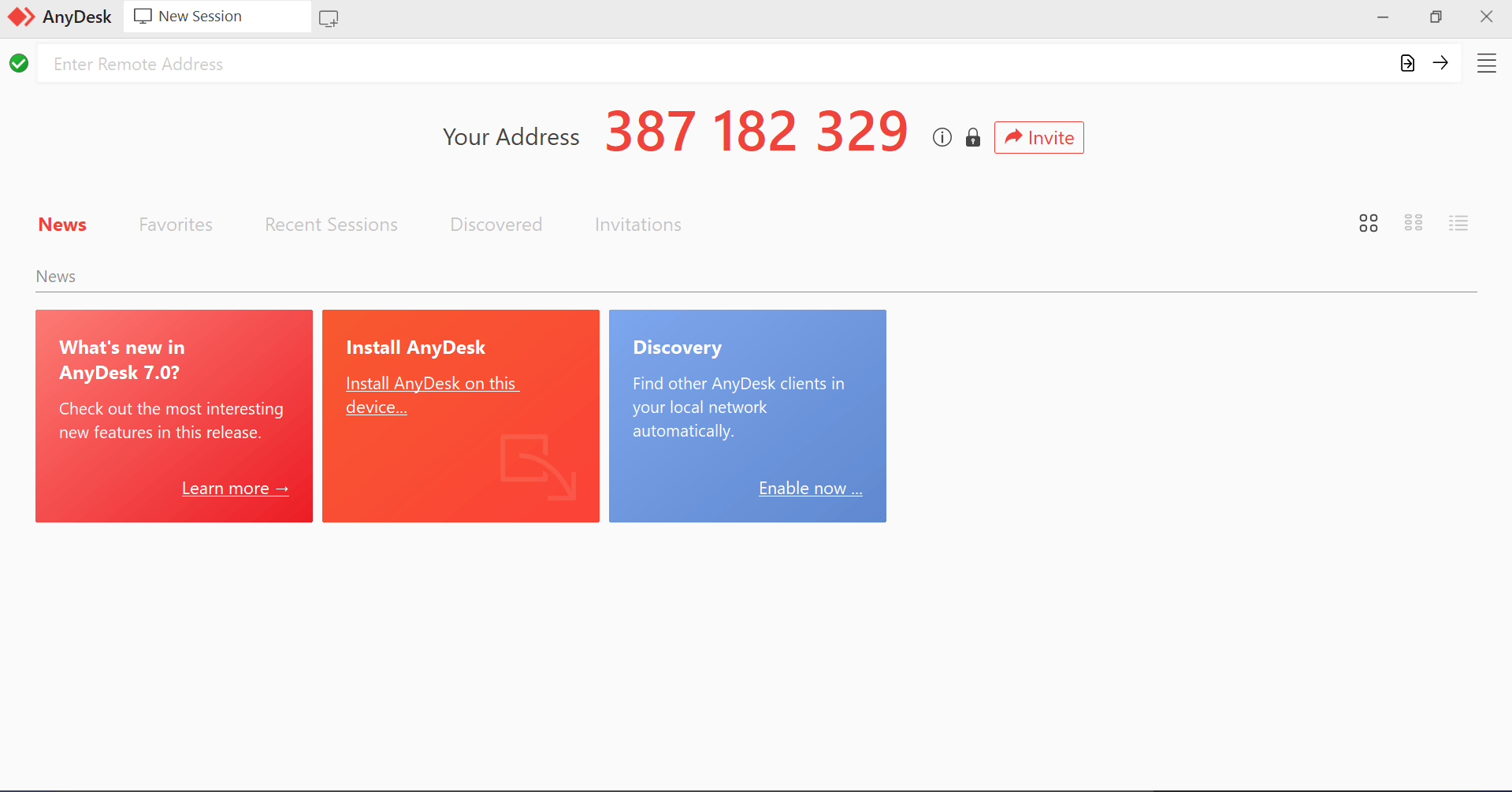
Step 2. When downloading is completed, double-click on the file to install and open it on your computer.
Steps for Client
Step 3. To provide your PC desktop to an IT expert, note down the 9-digit number beside the “Your Address” option on the screen.
Step 4. After that, share the Anydesk address with your IT EXPERT from whom you want to take help or like to share your desktop screen.
Steps for an IT Expert
Step 5. Open the AnyDesk app.
Step 6. Then, click on the Invite button at the top of the screen.

Step 7. After doing the above steps, a new pop-up window will appear. Here, in the “Invite” box, fill in the “AnyDesk address” of your client’s computer.
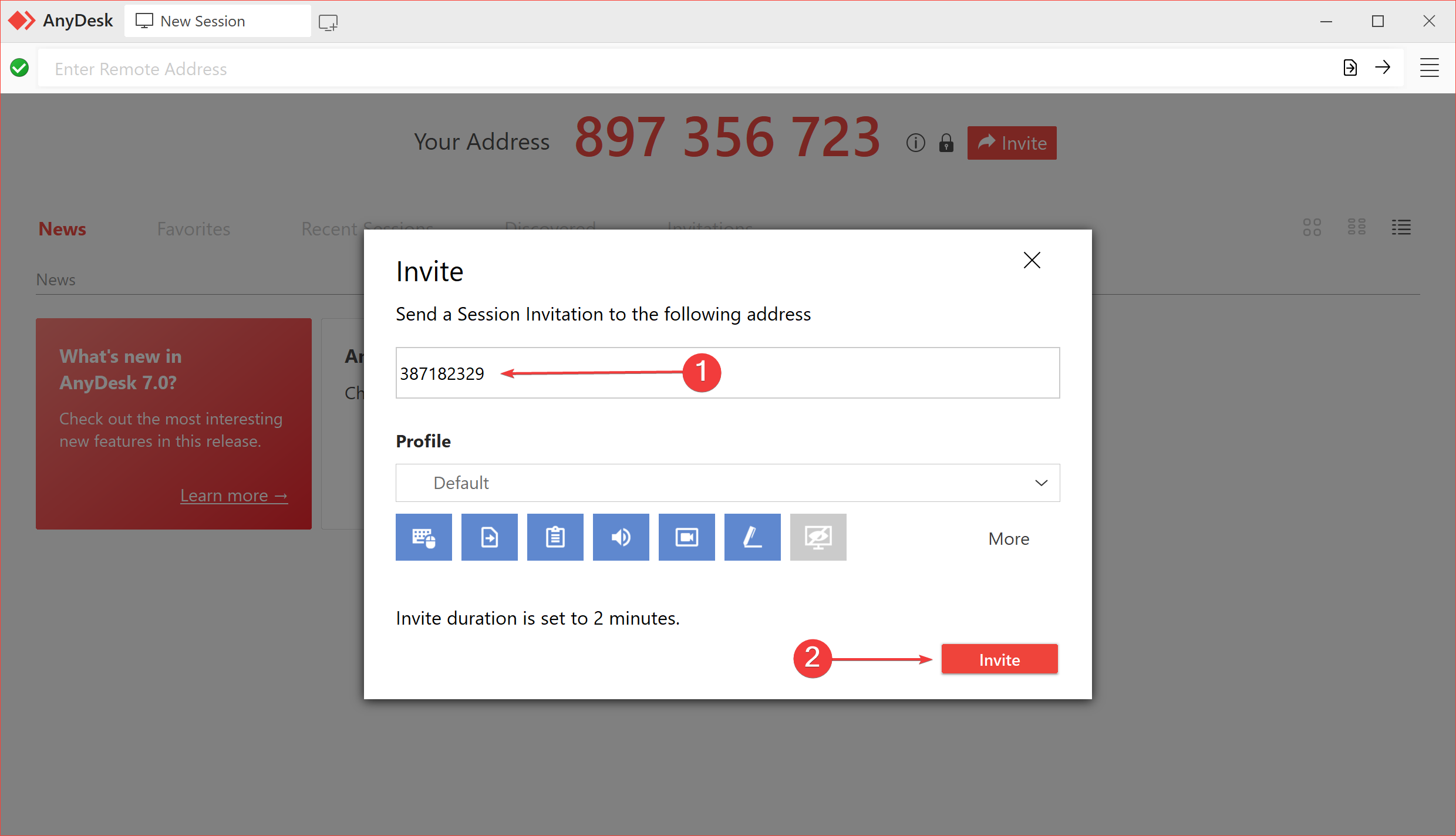
Step 8. Then click the Invite button.
After doing the above steps, your client will receive a message to accept the invitation. When your client allows you, you will see your client’s desktop screen on your PC. Depending upon the permission your client has granted you, you can make the changes to the client’s PC.
If you cannot work correctly on the client’s computer, you need to ask your client to give you full access to use AnyDesk.
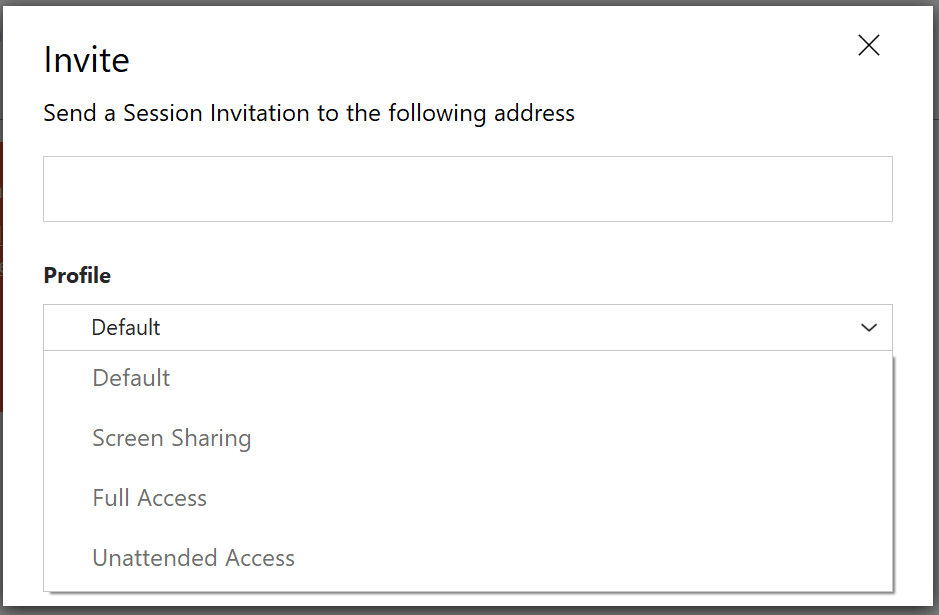
Then, your client will click on the Profile drop-down menu and select Full Access as required.
Below the AnyDesk profile, you will see seven icons to allow or disallow permissions. These are the following:-
- Control the device’s keyboard and mouse,
- Access the device’s clipboard to transfer files,
- Access the device’s clipboard,
- Hear the device’s sound output,
- Allow record sessions,
- Draw on the device’s screen,
- Enable privacy mode.
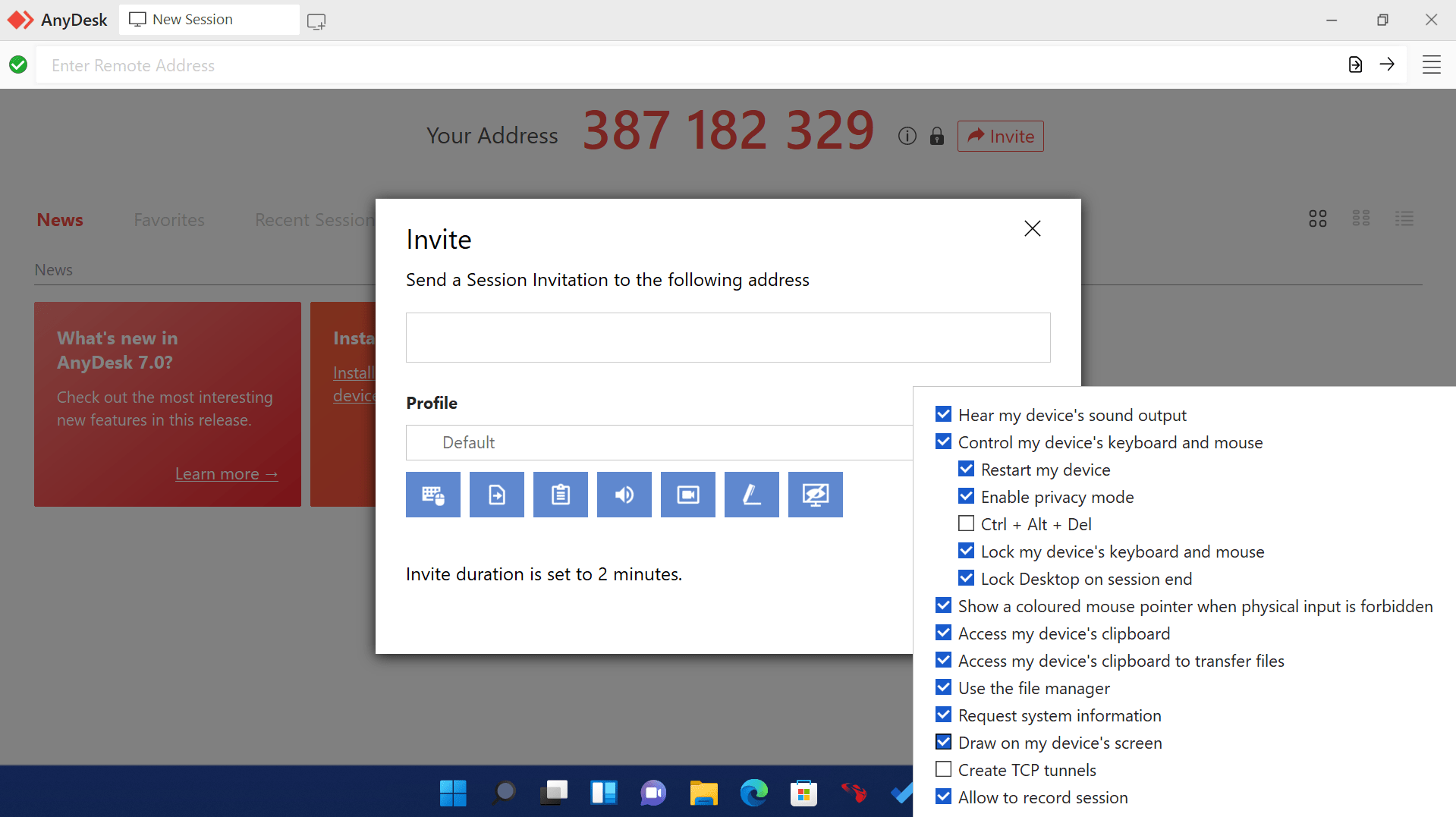
Apart from that, there are many other permissions that you can allow or disallow:-
- Restart the device,
- Lock the desktop on session end.
- Use the file manager,
- Request system information,
- To show a colored mouse pointer when physical input is forbidden,
- Create TCP tunnels.
Download Anydesk
You can download AnyDesk from here.
Conclusion
In conclusion, AnyDesk is a free remote access application that allows users to connect with their clients or colleagues remotely. It is available for both Windows 11 and Windows 10 and can be downloaded from the official website. It is easy to use and requires minimal space on your computer. With its various features, users can easily gain or provide remote access and perform various tasks on their clients’ computers. However, for professional use, a license needs to be purchased after the 14-day trial period. Overall, AnyDesk is a great option for those looking for a reliable and efficient remote access application.