

Since 1991, when the World Wide Web (www) was introduced to the general public, we’ve witnessed remarkable improvements in how we connect and interact online. Today, multiple devices such as routers, modems, and smartphones provide seamless internet access. The internet has become an integral part of our daily lives—we rely on it for education, banking, shopping, communication, and more.
While the internet is essential, there may be times when you want to temporarily disable it on your PC. For example, you might want to prevent your child from playing online games, focus on an important project without distractions, or isolate your system if it’s infected with malware. Whatever the reason, having control over your PC’s internet access can be very useful.
Net Disabler is a free and simple tool that allows you to quickly enable or disable internet access on your Windows computer. It’s user-friendly and effective, making it a handy utility for anyone who wants to block internet access without changing complicated system settings. You can also explore DNS Jumper – instantly change your DNS for faster and safer browsing if you want more control over your network’s DNS behavior.
Net Disabler for Windows 11/10
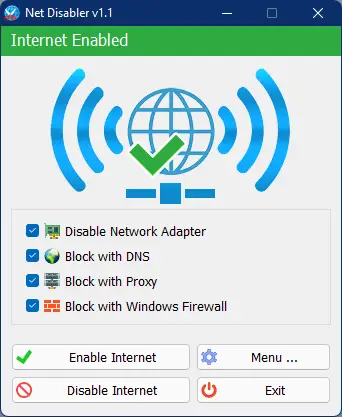
Net Disabler is a freeware application that allows you to temporarily disable or block internet access on your computer or laptop. If you want to cut off internet connectivity for a while or during specific situations, Net Disabler makes it easy. This lightweight, portable tool requires no installation—just download, run, and you’re ready to go.
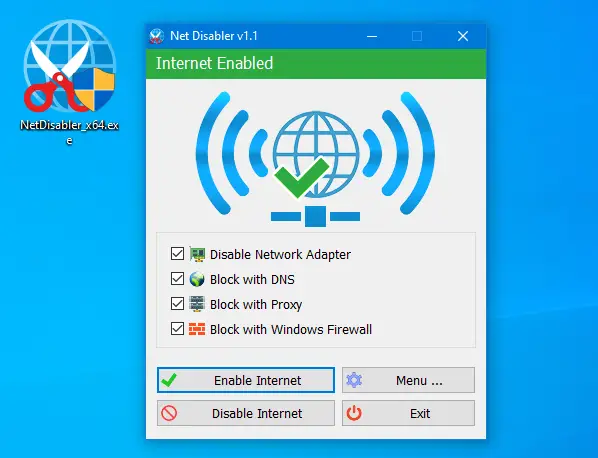
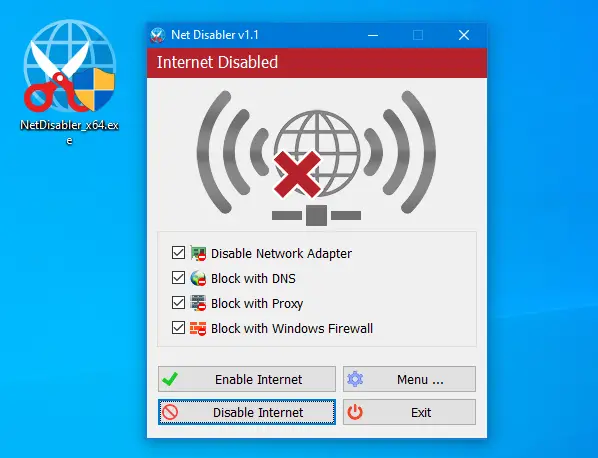
Once launched, the application displays the current internet status—either Internet Enabled or Internet Disabled—right on its interface. With a single click, you can quickly turn internet access on or off, offering a simple yet effective way to control connectivity whenever needed.
Internet Enabled
Internet Disabled
Net Disabler comes with a straightforward user interface so that a novice can also use it. It includes four Internet blocking methods. You can choose one or all of them, or you can use a combination.
- Disable Network Adapter
- Block with DNS
- Block with Proxy
- Block with Windows firewall
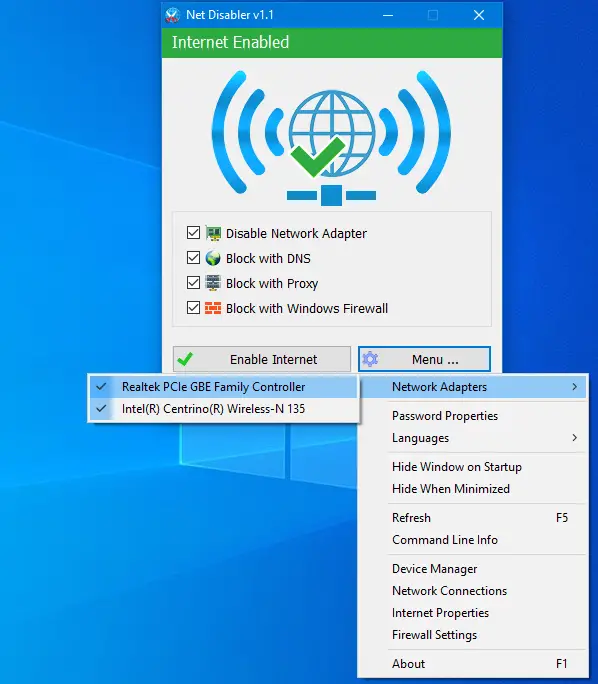
To turn off the internet on your PC, select the desired method and then click on the “Disable Internet” button. To bring back the internet access, run the Net Disabled app and click on the “Enable Internet” button. Is it not so simple to enable or disable the internet? Under the menu button, you can choose your Network Adapters; you can set a password, open Device Manager, Network Connections, or Firewall settings. For quick fixes and troubleshooting, the Network Doctor tool is another handy option to resolve common network and adapter issues.
You can choose your Network Adapters, set a password, open Device Manager, Network Connections, or Firewall settings by clicking on the Menu button.
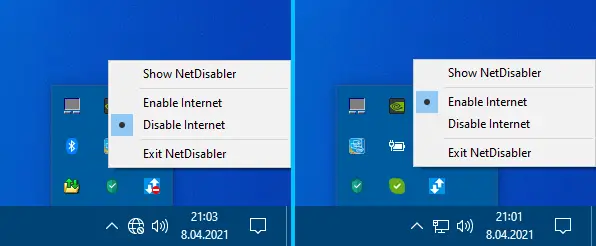
When you run Net Disabler, it sits in the system tray of the taskbar. By right-clicking on the Net Disabler icon in the taskbar, you can easily enable or disable internet access. You can also monitor system performance with one-click utilities while keeping control over system tools from the taskbar.
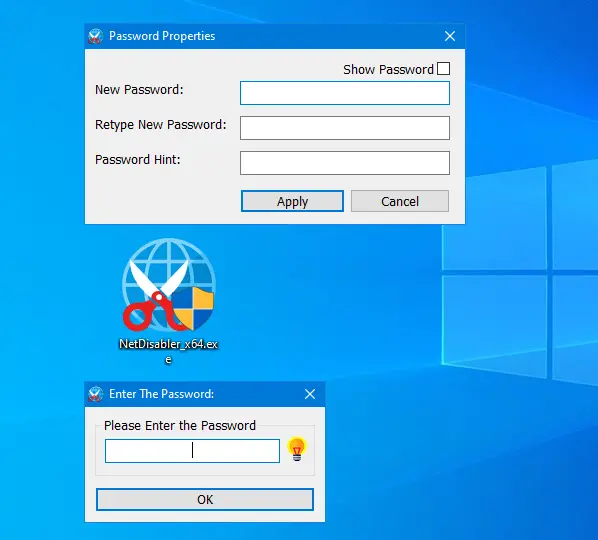
To ensure no one can use the internet, you can set a password to protect your settings. This adds an extra layer of security, much like the best free USB security tools for Windows that protect your devices and data from unauthorized access.
The Net Disabler program supports several languages. Furthermore, it is compatible with all versions of Windows, including Windows 11, 10, 8.1, 8, 7, Vista, and Windows XP (both x86 and x64).
Download Net Disabler
You can download this free and portable utility, Net Disabler, from its official website. For additional parental control or safe browsing, try DNS Angel – a simple tool to block unsafe websites.