

Microsoft now includes the Accent Color feature directly in modern Edge versions, allowing you to personalize the interface with your preferred color. This color is applied across the toolbar, tabs, and other parts of the browser UI. Earlier, Accent Color required enabling a hidden flag, but now the option is available for everyone through the standard Settings page.
What is the Accent Color feature in Microsoft Edge?
The Accent Color feature lets you customize the look of your Edge browser using preset color styles. These colors update various interface elements such as the tab bar, toolbar, and new tab background. This makes the browser more visually appealing and consistent with your Windows theme or your personal color preference.
How to enable and use Accent Color in Microsoft Edge
You no longer need to modify flags or experimental settings. Modern Edge includes the Accent Color option by default. Follow these steps:
Step 1. Open the Microsoft Edge browser.
Step 2. Click on the three-dots menu and select Settings in the drop-down menu.
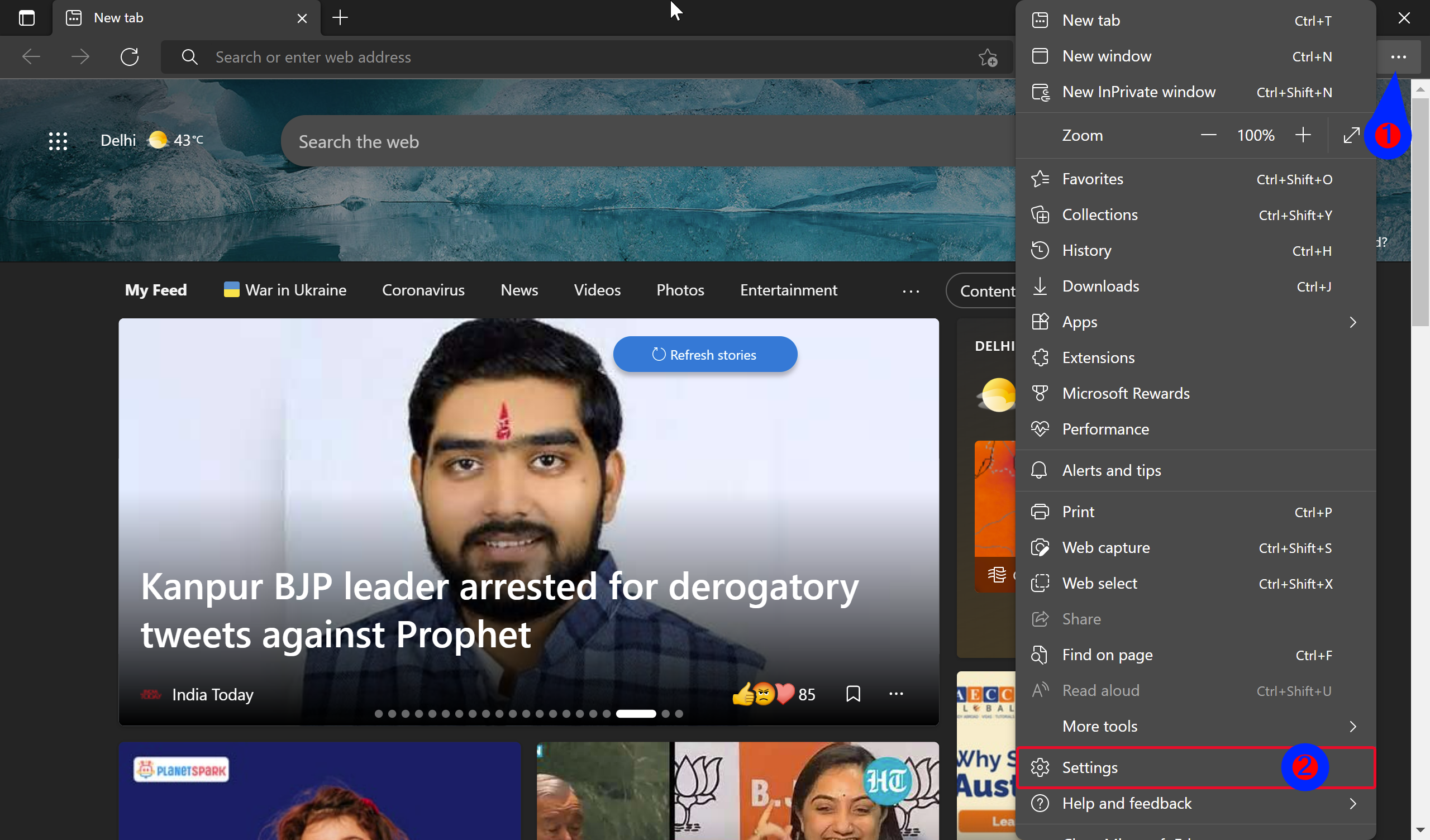
Step 3. Under the Settings page, click the Appearance tab in the left sidebar. You can also directly access the Edge Appearance page by navigating to the following:-
edge://settings/appearance
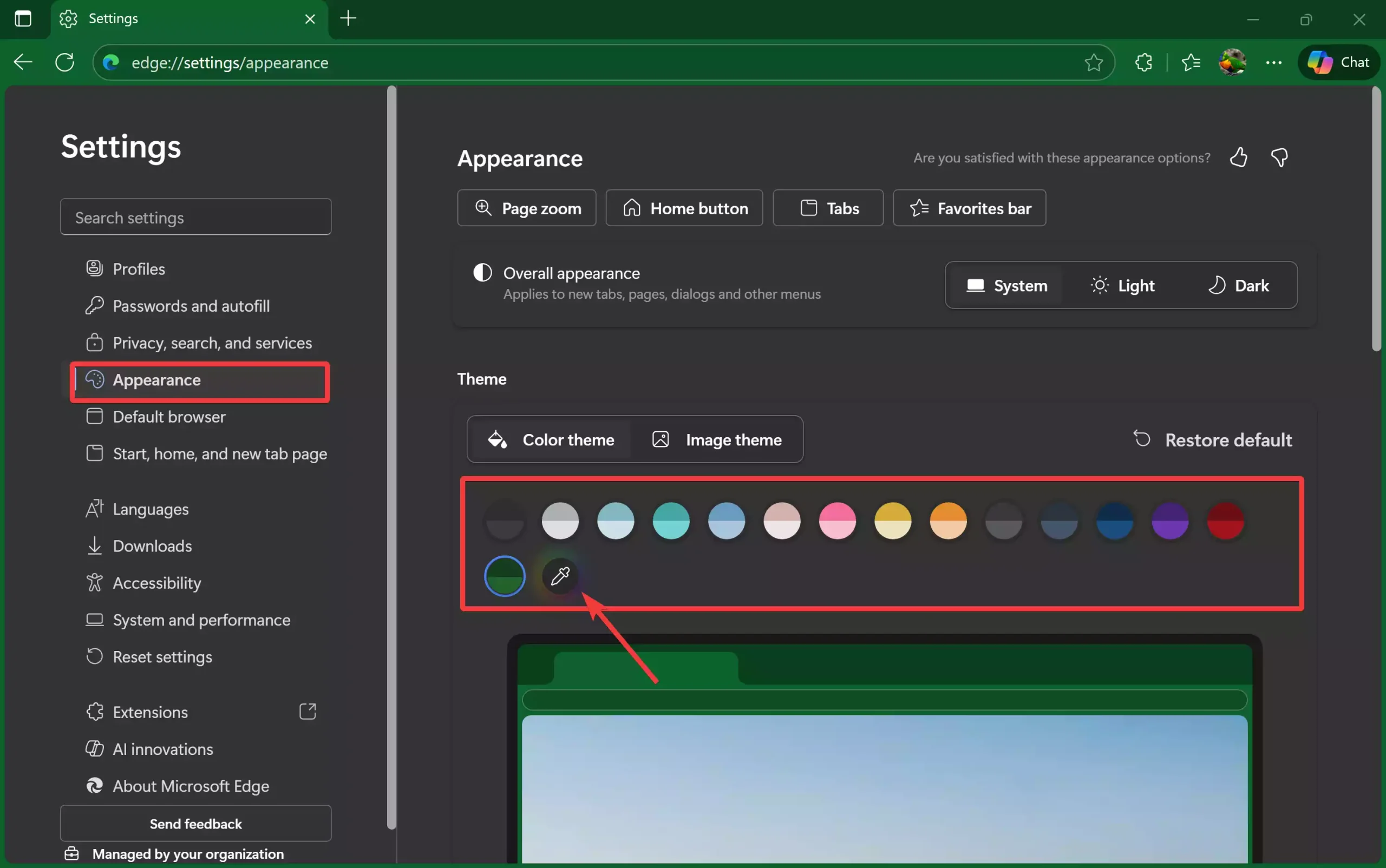
Step 4. Scroll to the Theme and click an Accent color of your choice. Accent color will be immediately applied to your Edge browser, and you will see the same on the opened tab. If you’re not happy with the default Accent color, you can use the color picker and select a color of your choice.
Step 5. Close the Settings tab.
Your selected Accent Color will instantly apply to supported areas of Microsoft Edge.
Pros
- Easy interface customization
- No experimental flags needed
- Works with light, dark, and system themes
- Makes the browser visually consistent with Windows accents
Considerations
- Accent colors apply only to supported UI areas
- Older Edge versions may not show the option
Similar Freeware Tools You May Like
- Color Picker – HEX, RGB, HSL, CMYK Converter
- 8 Best Free Windows 11/10 Themes from Microsoft Store
- How to Use WinPaletter to Colorize Windows 11/10 Accents
- Ultimate Windows Tweaker 5 – Customize and Optimize Windows
FAQs
Where can I find the Accent Color option in Microsoft Edge?
You can find it under Settings > Appearance on all modern Edge versions.
Do I still need to enable flags to use Accent Colors?
No. The Accent Color option is now built-in and does not require any experimental flags.
Why don’t I see Accent Color in my Edge browser?
You may be using an outdated version of Edge. Update the browser to the latest stable release.
Does Accent Color work with dark mode?
Yes. Accent Color applies to both light and dark themes.
Will changing Accent Color affect performance?
No. Accent Color is a lightweight UI customization feature and does not impact performance.
Conclusion
Accent Color in Microsoft Edge provides an easy way to personalize your browsing experience. Since the option is available directly in the Appearance settings, you can apply your preferred color in just a few clicks. Whether you use light mode, dark mode, or the system theme, Accent Colors help you create a more visually consistent and engaging browser interface.