

In this gearupwindows guide, we’ll walk you through enabling auto-adjust video brightness based on ambient lighting in Windows 11. This feature smartly adjusts video brightness for different environments and helps save battery life during playback—no third-party apps required.
Why Enable Auto‑Adjust Video Brightness?
- Improved visibility: Automatically enhances clarity in bright conditions and dims video in darker settings.
- Battery savings: Dimming video playback conserves battery on laptops and tablets.
- Comfort: Prevents harsh brightness changes that can cause eye strain during long viewing sessions.
How to Enable Auto-Adjust Video Brightness via Settings?
Follow these simple steps to enable the feature using Windows Settings:
Step 1. Press Windows + I to open Settings.
Step 2. Click Apps from the left-hand pane.
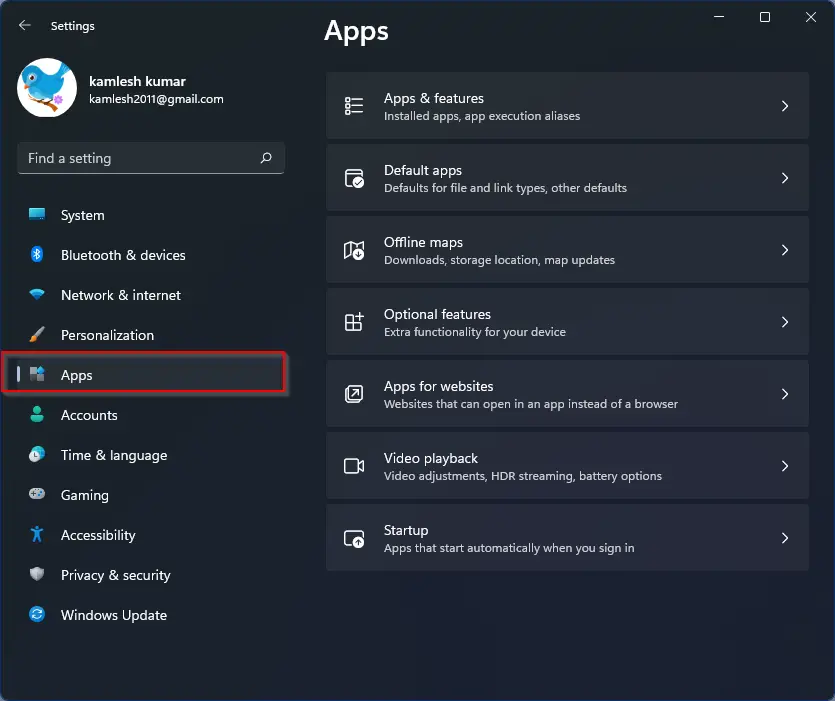
Step 3. Select Video playback on the right side.

Step 4. Turn on the toggle labeled Adjust video based on lighting around me.
Step 5. If you want this feature to remain active even when on battery power, uncheck Don’t adjust video based on lighting when on battery.
How to Enable Auto-Adjust Video Brightness via Registry Editor?
If the setting does not appear in your Settings app, you can force-enable it using the Registry Editor:
Step 1. Press Windows + R, type regedit, and press Enter to open Registry Editor.
Step 2. Navigate to the following path:
HKEY_CURRENT_USER\Software\Microsoft\Windows\CurrentVersion\VideoSettings
If the VideoSettings key doesn’t exist, right-click on the CurrentVersion folder, select New > Key, and name it VideoSettings.
Step 3. In the right pane, right-click and choose New > DWORD (32-bit) Value. Name it EnableOutsideModeFeature and set its value to 1.
Step 4. Similarly, create another DWORD named DisableAutoLightingOnBattery and set its value to 0.
Step 5. Close Registry Editor. Then sign out and sign back in (or restart your PC) to apply the changes.
When the Option Is Missing
- Your device may lack an ambient light sensor, in which case Windows won’t show this option.
- The feature may not be supported on your current Windows build or graphics driver.
Need More Video Playback Tweaks?
If you’re also looking to improve video playback quality or reduce data usage, check out our guide on how to enhance video playback in Windows 11 automatically.
Final Thoughts
Enabling Adjust video based on lighting around me improves viewing comfort and can help extend battery life. Use the built-in Settings method if available, or apply the Registry workaround if the toggle is missing. This feature is a small but effective way to make your media experience smoother and more efficient in Windows 11.