

In this gearupwindows guide, we’ll show you how to generate and read a detailed battery report on Windows 11 or 10. If your laptop doesn’t last as long as it used to or shuts down faster than expected, it may be time to check your battery’s health. This guide will help you get accurate battery stats and performance history—so you can decide if it’s time for a replacement or service.
Laptops and tablets use rechargeable lithium-ion batteries. Like all batteries, they have a limited lifespan. Over time, you’ll notice slower performance or shorter usage time. Eventually, the battery may stop charging altogether. Most laptop batteries deliver full performance during the first year. However, if you feel the battery isn’t lasting long—even early on—it could be due to a defect or software issue. In such cases, generating a battery report helps identify the problem.
Windows 11 and 10 include a built-in feature called Battery Report. This tool shows detailed battery information, including charge history, usage patterns, and estimated lifespan. If your system is still under warranty and your battery is faulty, the report can support a replacement request.
The battery report includes specs like manufacturer name, cycle count, and design vs actual charge capacity. It also shows how your battery has degraded over time. You can create this report using the powercfg command in Command Prompt, Windows Terminal, or PowerShell.
Besides battery details, you can also generate an energy report using powercfg /energy. It gives suggestions to improve your system’s power efficiency and extend battery life.
If you’re looking for third-party tools to go even deeper, check out Battery Optimizer for improving battery life or BatteryCare for tracking charge cycles. Another great option is BatExpert, which provides real-time battery stats.
How to Generate a Battery Report in Windows 11 or 10?
To generate a battery report, follow these steps:
Step 1. First, open Command Prompt, PowerShell, or Windows Terminal.
Step 2. Type the following command and press Enter:
powercfg /batteryreport
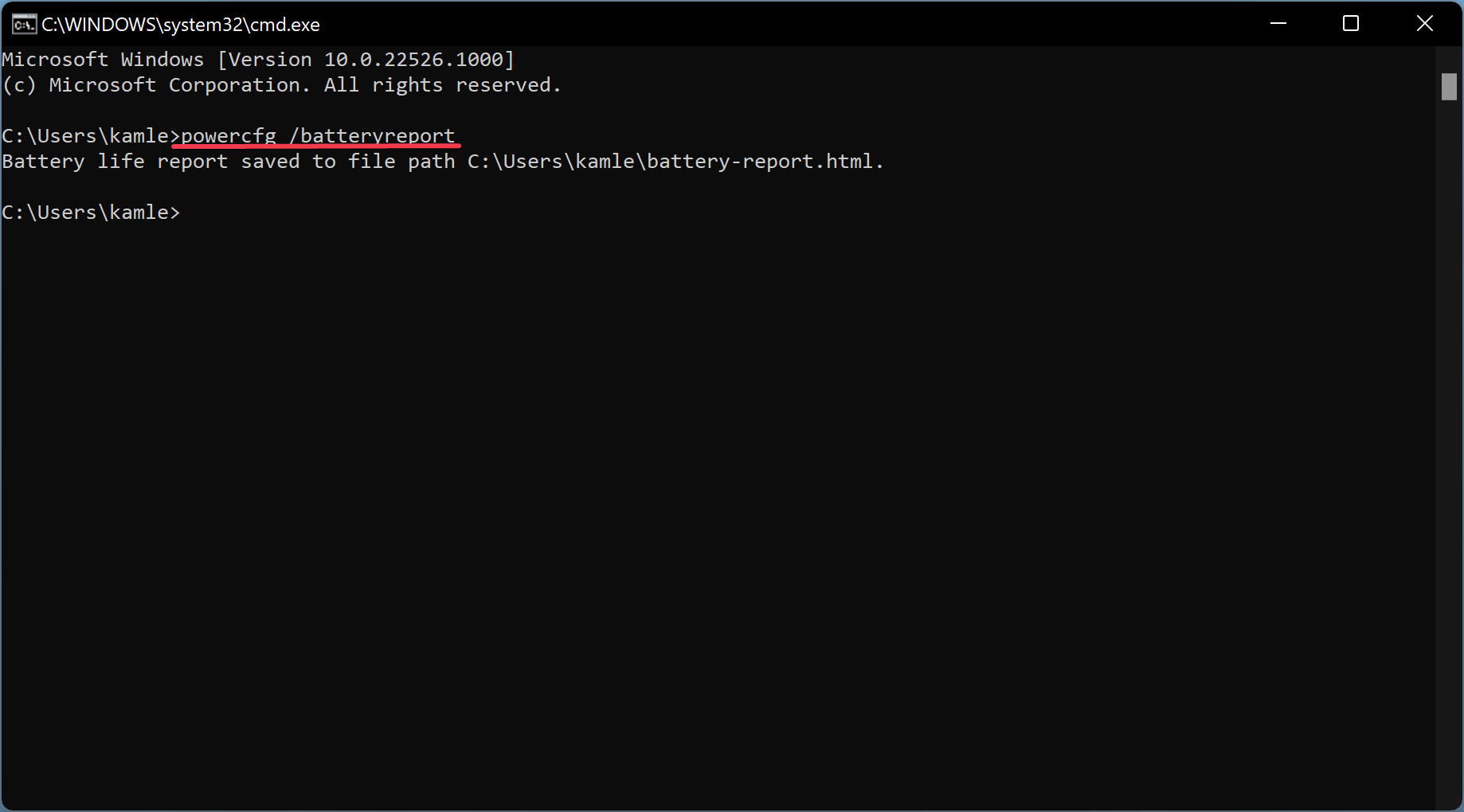
After running the command, Windows will save the battery report here:
C:\Users\UserName\battery-report.html
This file contains battery details like name, manufacturer, serial number, chemistry, and cycle count.
How to Read the Battery Report?
Open File Explorer and navigate to:
C:\Users\UserName\battery-report.html
Double-click the file to open it in your default browser.
Battery report
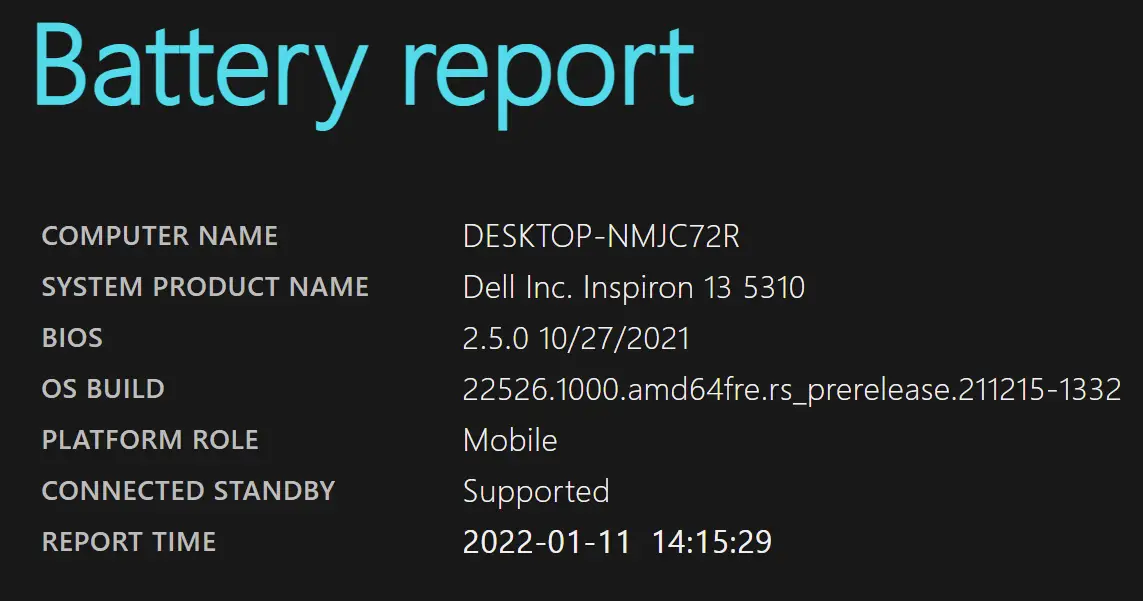
The report opens in a single HTML page. The top section shows system info, including computer name, BIOS version, OS build, and report generation time.
Installed batteries
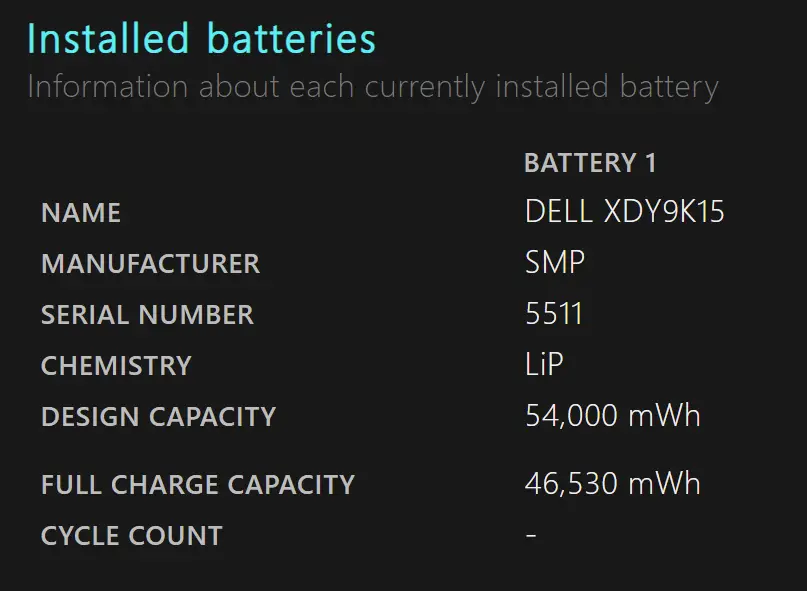
The next section shows the installed battery’s technical details, including name, manufacturer, chemistry type, design capacity, full charge capacity, and cycle count.
This part is crucial. For example, the screenshot shows a design capacity of 54,000 mWh and a full charge capacity of 46,530 mWh. This means the battery holds less charge now than it did originally—evidence of natural wear over time.
Note: A brand-new battery may briefly show a full charge capacity higher than its design capacity. That value settles over time due to battery chemistry changes.
Recent Usage
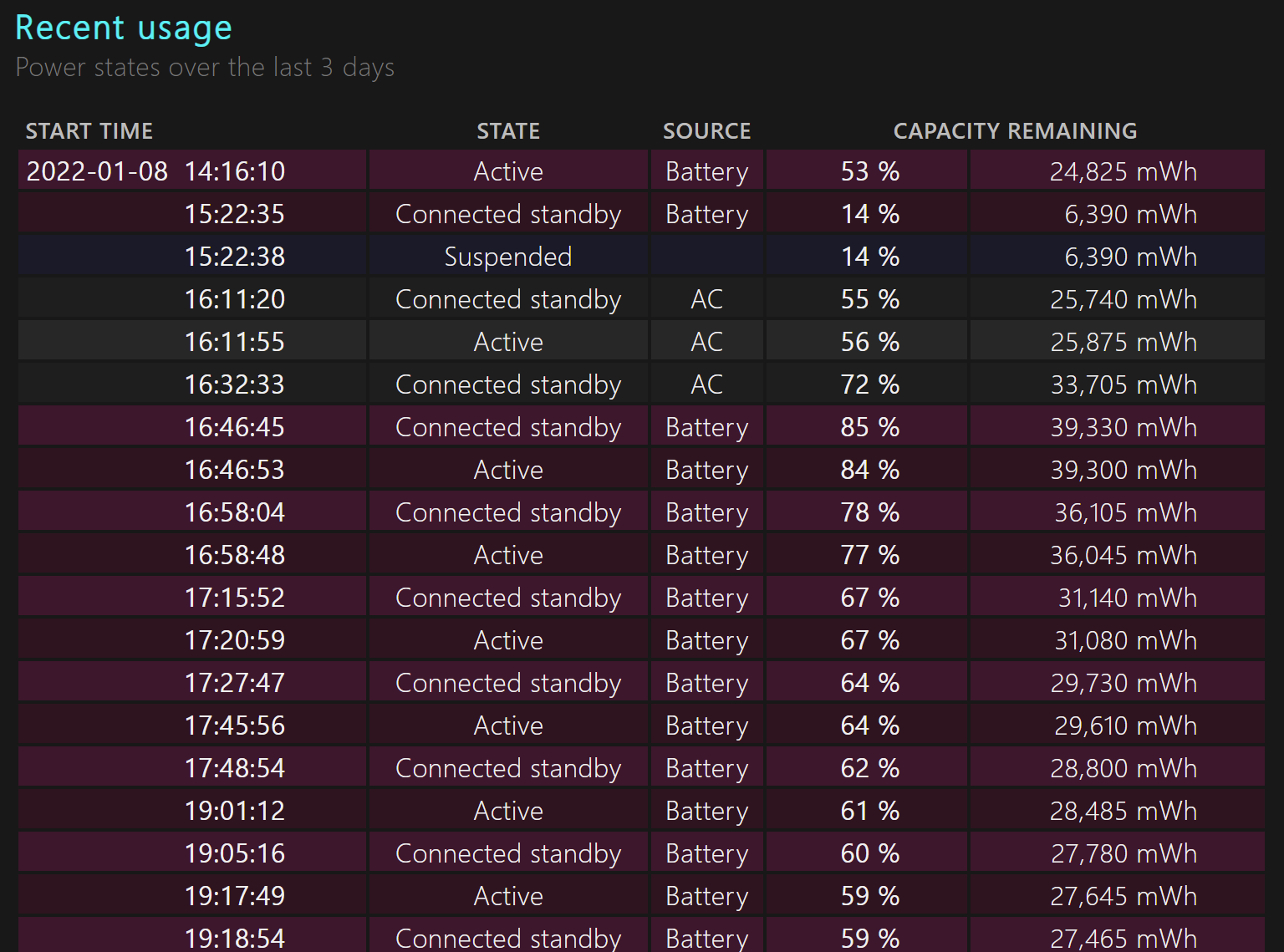
This section logs your system’s power states over the past three days. It shows when the device was active, suspended, or shut down—and how much charge was used during that time.
Battery usage
This area includes a graph showing battery drain over time. It also focuses on the last three days of activity.
Usage history
The usage history section tracks how long the device was used on battery power versus plugged into a charger. It begins with the first setup of your device.
Battery capacity history
This shows a timeline of how your battery’s full charge capacity has changed compared to its original design. It helps you track long-term battery health.
Battery life estimates
This section provides average battery life estimates based on actual usage. It compares the real battery life at full charge with theoretical estimates at design capacity.
Conclusion
Generating a battery report in Windows 11 or 10 is a quick and reliable way to check your device’s battery health and performance history. Whether you’re troubleshooting poor battery life or just want to understand how your battery is aging, the built-in powercfg command gives you all the insights you need.
If the report shows significant battery wear, consider using tools like Battery Optimizer or BatExpert to extend battery life. For real-time monitoring, BatteryInfoView and BatteryCare are excellent options. Stay informed and proactive to make the most of your laptop’s battery.
For more battery-related tips, you can also show battery percentage on the Windows 11 taskbar to check charge status in real-time.