

Since Windows 10, Microsoft has been using a new sound volume flyout. However, it is a touch-friendly panel, and not everyone likes its modern look. On a Windows 10 computer, you can restore the classic sound applet for the volume tray icon. But in Windows 11, Microsoft has made a lot of changes to the shell. Now, it is not possible to restore the classic sound applet for the volume tray icon. For more information on adjusting audio controls, you can refer to our guide on how to change sound volume on Windows 11.
Notification Center and Quick Actions are now two different flyouts. Also, Quick Actions has been renamed to Quick Settings in Windows 11. It’s a new panel that hosts quick action buttons along with the brightness and volume sliders. The brightness and volume sliders open when you click on the network, sound, or power tray icon. On Windows 11, the network, sound, and power tray icons act as a single unified button.
Quick Tips: You can quickly increase or decrease the volume on a Windows 11 PC by placing the cursor on the sound icon in the taskbar system tray and scrolling the mouse wheel upward to increase the volume or downward to decrease it. To learn more sound control methods, check out this guide on changing sound volume on Windows 11.
Since the Registry tweak is not working on Windows 11 to restore the classic sound applet for the volume tray icon, Team Winareo has developed a new tool called Classic Volume Control. Using this small freeware tool, you can bring the good old sound mixer back to the latest OS.
Classic Volume Control for Windows 11
The Classic Volume Control is a freeware and portable application. Once you download and double-click on the executable file, an additional sound icon will appear in the system tray. This volume icon follows the dark and light taskbar appearance and automatically applies the appropriate icon when you switch between dark and light mode. If you enjoy customizing light and dark themes, try the Dark Mode Switcher for Windows 11/10 to toggle system themes quickly.
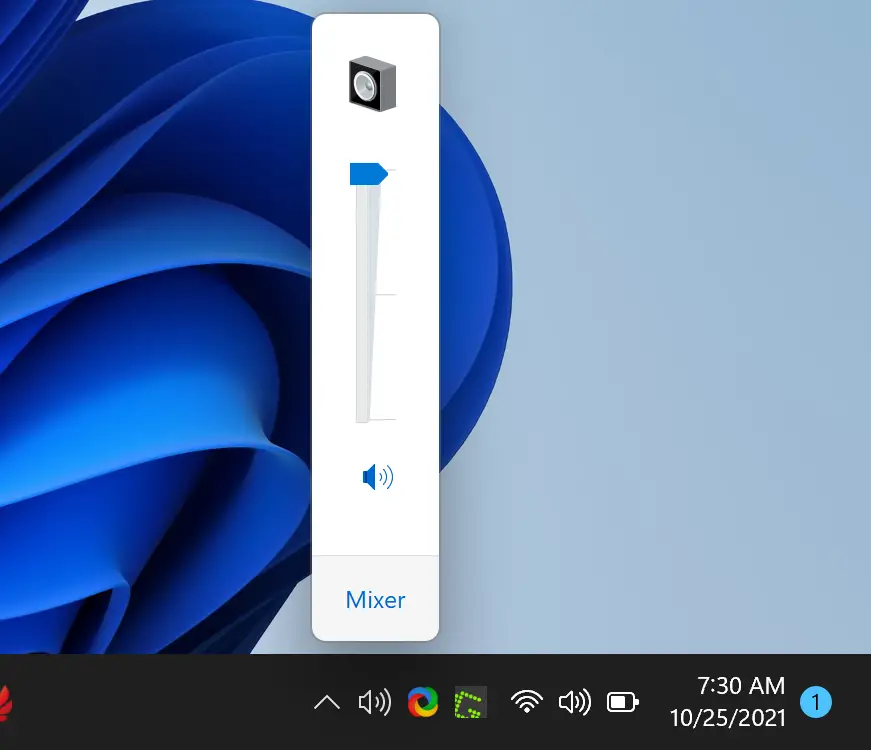
Single-clicking on the tray icon opens the classic volume slider. Right-clicking on the icon expands its menu, giving you access to various sound-related functions and mixer settings.
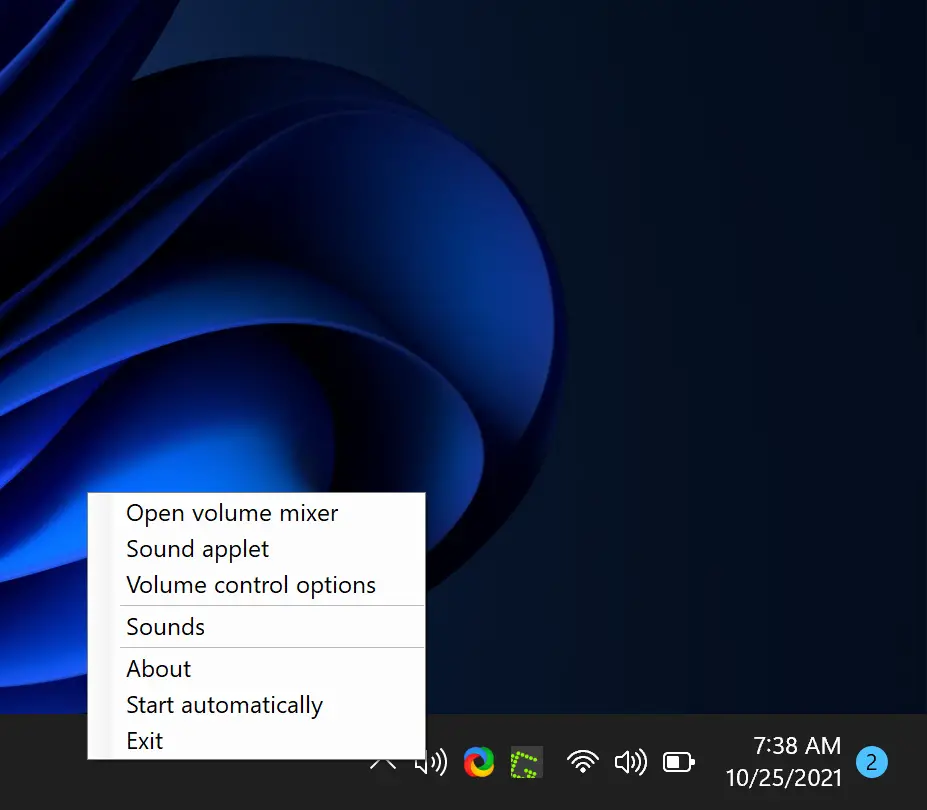
If you use Classic Volume Control frequently, enable the option “Start automatically,” so it launches each time you sign in to Windows. For users who prefer a quieter experience at startup, here’s how to turn off the startup sound on Windows 11.
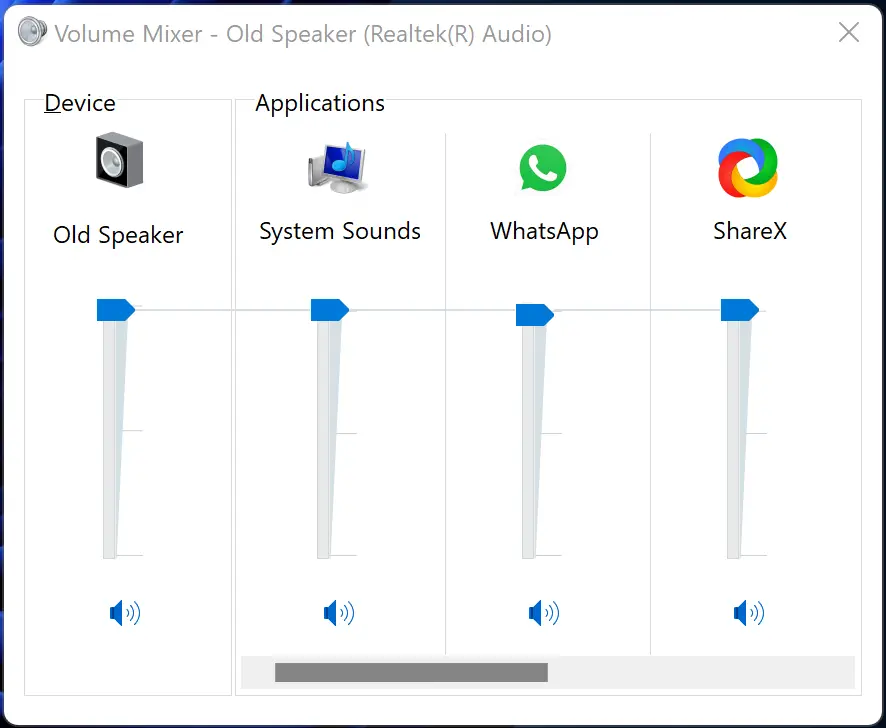
The right-click menu also includes a Volume Mixer that allows you to control the sound of your audio devices and various apps individually. To further refine your sound management, you can also learn how to change volume of different apps on Windows 11.
Download Classic Volume Control
If you think this tool is useful, you can grab the latest version of Classic Volume Control from the WinAero website. It’s completely free and lightweight, making it an excellent choice for those who miss the traditional Windows audio interface.
Conclusion
Classic Volume Control brings back the nostalgic sound mixer that many users loved in previous versions of Windows. It’s portable, simple, and blends beautifully with both dark and light themes. Whether you prefer traditional sliders or just want faster access to your audio settings, this tool offers a clean, efficient solution for managing sound on Windows 11.
Alternative is to use Volume2