

Tiny11 is an unofficial, lightweight custom ISO of Windows 11 (based on 22H2) that’s been stripped of many default apps and services so it can run on low-end or unsupported hardware. It keeps essential protections like Microsoft Defender Antivirus, Firewall, Core isolation, and disk encryption, while removing Microsoft Edge — so you’ll want to install your preferred browser after setup. For a quick demo, watch this video (opens on YouTube). YouTube: Tiny11 walkthrough
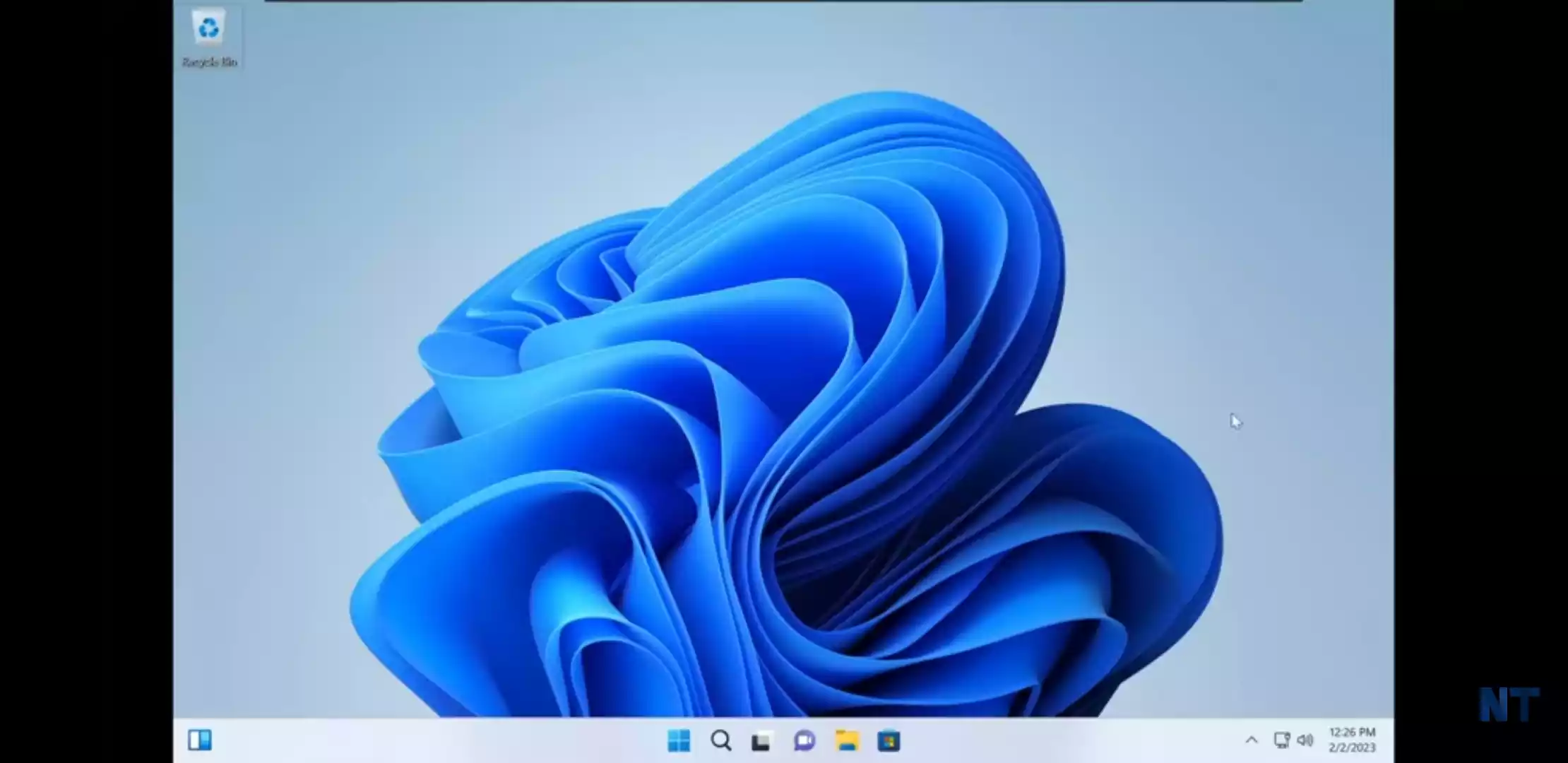
What is Tiny11?
Tiny11 is a compact Windows 11 ISO created for users who want a minimal, faster experience on older or low-spec PCs. The image removes many non-essential services and Store apps to reduce RAM and storage requirements while retaining core Windows security features.
Key Features
- Based on Windows 11 22H2 (unofficial custom ISO).
- Stripped of bloat: default store apps and extra services removed.
- Includes Microsoft Defender Antivirus and Firewall.
- Supports Core isolation and data encryption where hardware allows.
- Bypasses TPM 2.0 and Secure Boot requirements for installation on unsupported hardware.
System Requirements (typical for Tiny11)
- CPU: 1 GHz or faster (older CPUs often work thanks to removed checks).
- RAM: as low as 2 GB (2–4 GB recommended for a usable experience).
- Storage: minimum ~8 GB free (16 GB+ recommended after updates and apps).
- Graphics/Display: Compatible with basic Windows 11 display drivers.
Get Started
Follow these steps to create a bootable USB and install Tiny11. If you prefer official sources, you can first learn how to download the official Windows 11 ISO from Microsoft.
Step 1. Download the Tiny11 ISO.
Step 2. Use a USB creation tool to make a bootable flash drive. Rufus is a fast, beginner-friendly option and has a step-by-step guide on our site.
If you need to bypass TPM / Secure Boot / RAM checks during USB creation, see our Rufus guide for disabling those checks while creating a Windows 11 USB. How to Use Rufus to Disable TPM, Secure Boot, and RAM Checks
Installation Notes
Installation follows the regular Windows setup flow once the PC boots from USB. Because Tiny11’s images remove the enforced TPM and Secure Boot checks, it is commonly used for clean installs or upgrades on older machines that would otherwise be blocked. For an alternative ultra-slim project and builder tools, check these related Nano11 resources for more context on minimal Windows 11 builds and builders:
- Nano11 — A Lightweight Windows 11 Experience for Low-End PCs
- Nano11 Tool — Build Ultra-Slim Windows 11 ISOs (Official Nano11 Builder)
Note: Removing the official checks does not change how Windows functions post-install — update behavior, driver support, and security features depend on your hardware and drivers.
Security & Missing Components
Tiny11 intentionally removes many built-in apps and some components (including Microsoft Edge). While Microsoft Defender and Firewall are retained, you should:
- Install a modern web browser after setup (Edge is removed by default in Tiny11 builds).
- Confirm Windows Update behavior — some custom ISOs may alter update paths; check settings after installation.
- Keep backups of important data before attempting any OS install or upgrade.
Pros
- Lightweight and faster on low-end or older hardware.
- Reduced storage and memory footprint compared to stock Windows 11.
- Preserves key security features (Defender + Firewall + Core isolation when supported).
- Good option for testing, education, or lightweight daily tasks on vintage PCs.
Considerations
- Unofficial build: Tiny11 is not supported by Microsoft — use at your own risk.
- Updates: Windows Update behavior may differ; some custom images require manual update handling or support tweaks.
- App compatibility: Removing store components may affect some UWP apps or Microsoft Store features.
- Legal/Support: Confirm license terms and understand there’s no official Microsoft support for modified ISOs.
- Browser: You must install a browser after installation; Tiny11 removes Edge by default.
Frequently Asked Questions (FAQs)
Q. Can I use Tiny11 to upgrade from Windows 10?
Some users report success upgrading from Windows 10, but a clean install is the most reliable approach. Upgrades can carry over drivers and settings that may conflict with the trimmed image.
Q. Will Windows Update still work?
Windows Update may work, but behavior can vary depending on how the ISO was modified. After installation, check Windows Update settings and confirm updates manually for the first cycle.
Q. Is Tiny11 safe to use?
Safety depends on the source and how the ISO was built. The Tiny11 images you’re likely to find often keep Defender and Firewall enabled, but only download ISOs from trusted archives and verify checksums whenever possible.
Q. Do I need TPM 2.0 and Secure Boot?
No — Tiny11 images are commonly used because they bypass those checks, enabling installation on hardware without TPM 2.0 or Secure Boot. Remember that bypassing those checks may reduce certain security guarantees tied to TPM features.
Q. Which browser should I install?
Choose a lightweight browser for low-end hardware (examples: Opera, Vivaldi, or midweight options). Install the one that balances performance and features for your hardware.
Conclusion
Tiny11 is a practical option for breathing new life into older PCs where official Windows 11 requirements block installation. If you value minimalism and speed on constrained hardware and accept the trade-offs of using an unofficial build, Tiny11 can be very effective. For related ISO and image utilities, consider the Universal Disk Image Tool for advanced ISO handling and tweaks.