

Microsoft understands how its users prefer to interact with the Windows operating system. With Windows 11, you can see significant changes to the user interface. Although it’s currently not possible to fully revert Windows 11 to look like Windows 10, several tweaks can help you feel more at ease.
If you’re among those who don’t like the new Windows 11 interface, you can easily bring back the Windows 10 look using ExplorerPatcher.
ExplorerPatcher for Windows 11
ExplorerPatcher is a free, lightweight utility that restores the familiar Windows 10 interface. As the name implies, this tool modifies your Windows 11 system to resemble Windows 10. It enhances usability without requiring complex configurations.
Since this tool makes changes to your system, it’s recommended to create a system restore point before using it.
How to make Windows 11 look like Windows 10?
To make Windows 11 look like Windows 10, start by downloading ExplorerPatcher from GitHub. After running the tool, several changes will take place automatically:
- The Taskbar moves to the left corner like in Windows 10.
- The Windows logo is replaced with the classic Windows 10 version.
- The Control Center reappears in the system tray.
You can also fine-tune the Taskbar settings. To begin customization, right-click on the Taskbar and select Properties.
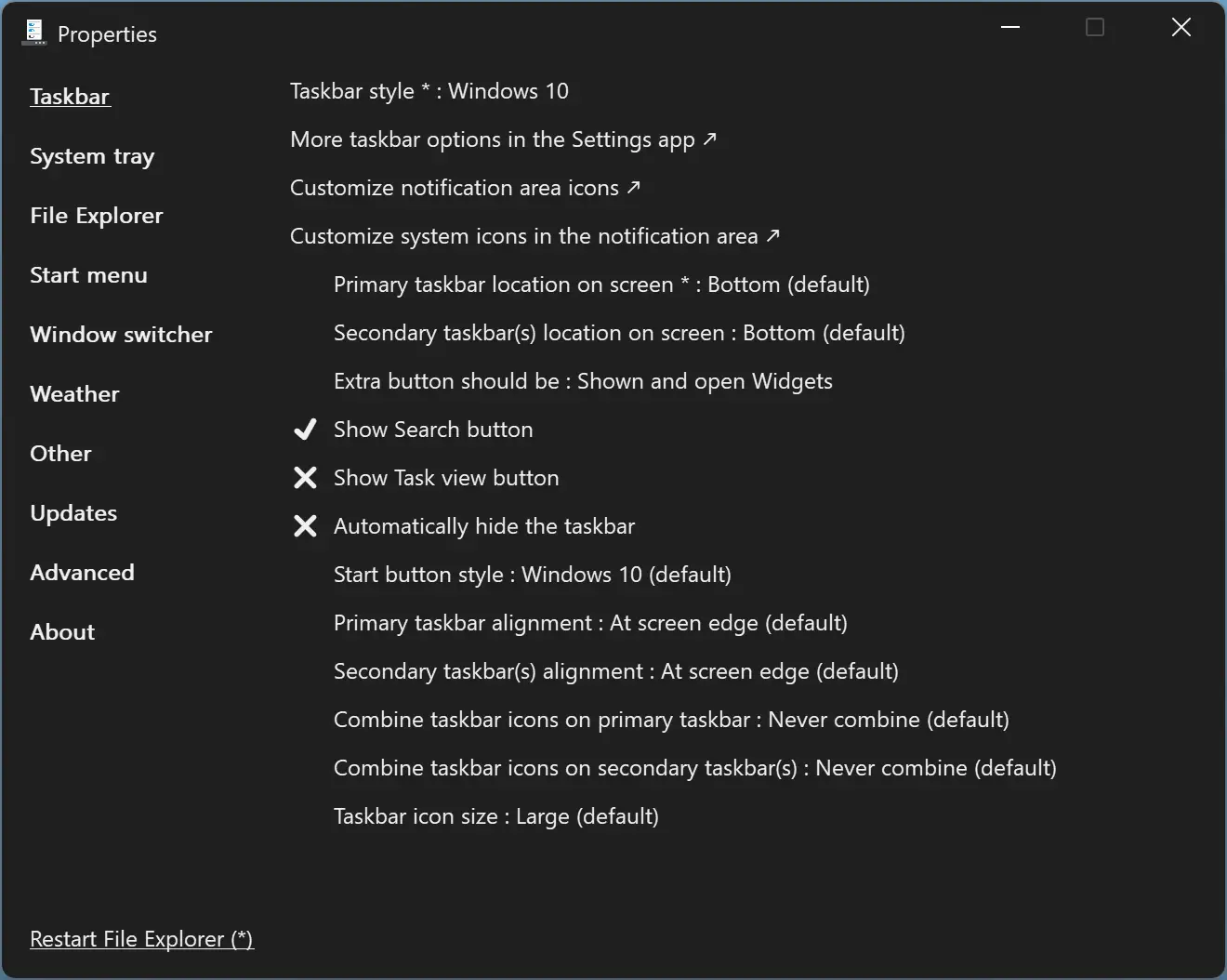
Navigate to the Taskbar tab, where you can:
- Switch between Windows 11 and Windows 10 Taskbar styles.
- Move the Taskbar to any side of the screen.
- Show or hide the Search and Task View buttons.
- Automatically hide the Taskbar.
- Change the Start button style to Windows 10 or 11.
- Adjust icon alignment and size.
- Combine Taskbar icons as desired.
After making your changes, click the Restart File Explorer button at the bottom of the software to apply them.
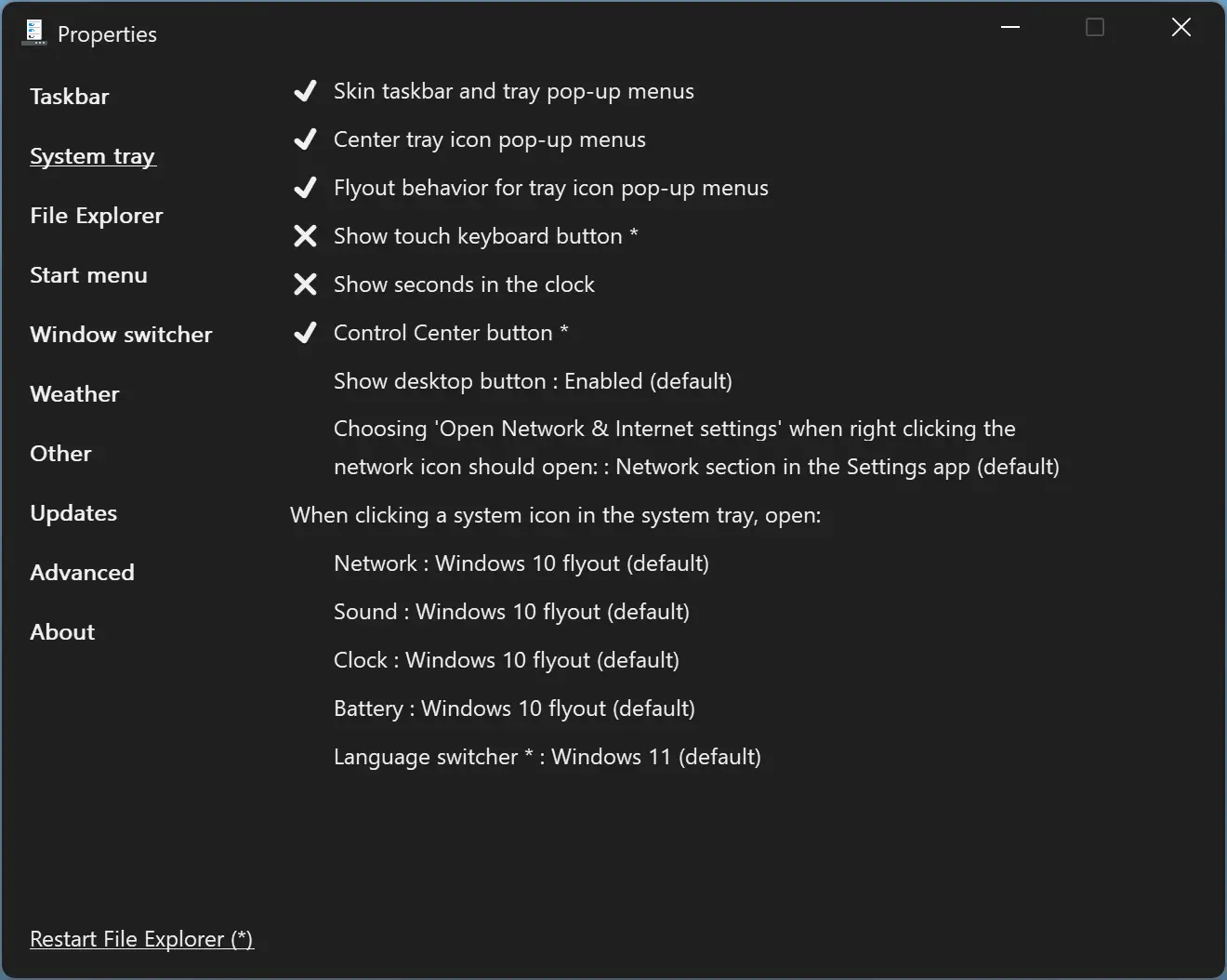
In the System tray tab, you can manage visibility for several items. Available options include:
- Show or hide the touch keyboard button.
- Display seconds in the clock.
- Adjust flyout behavior for tray icons.
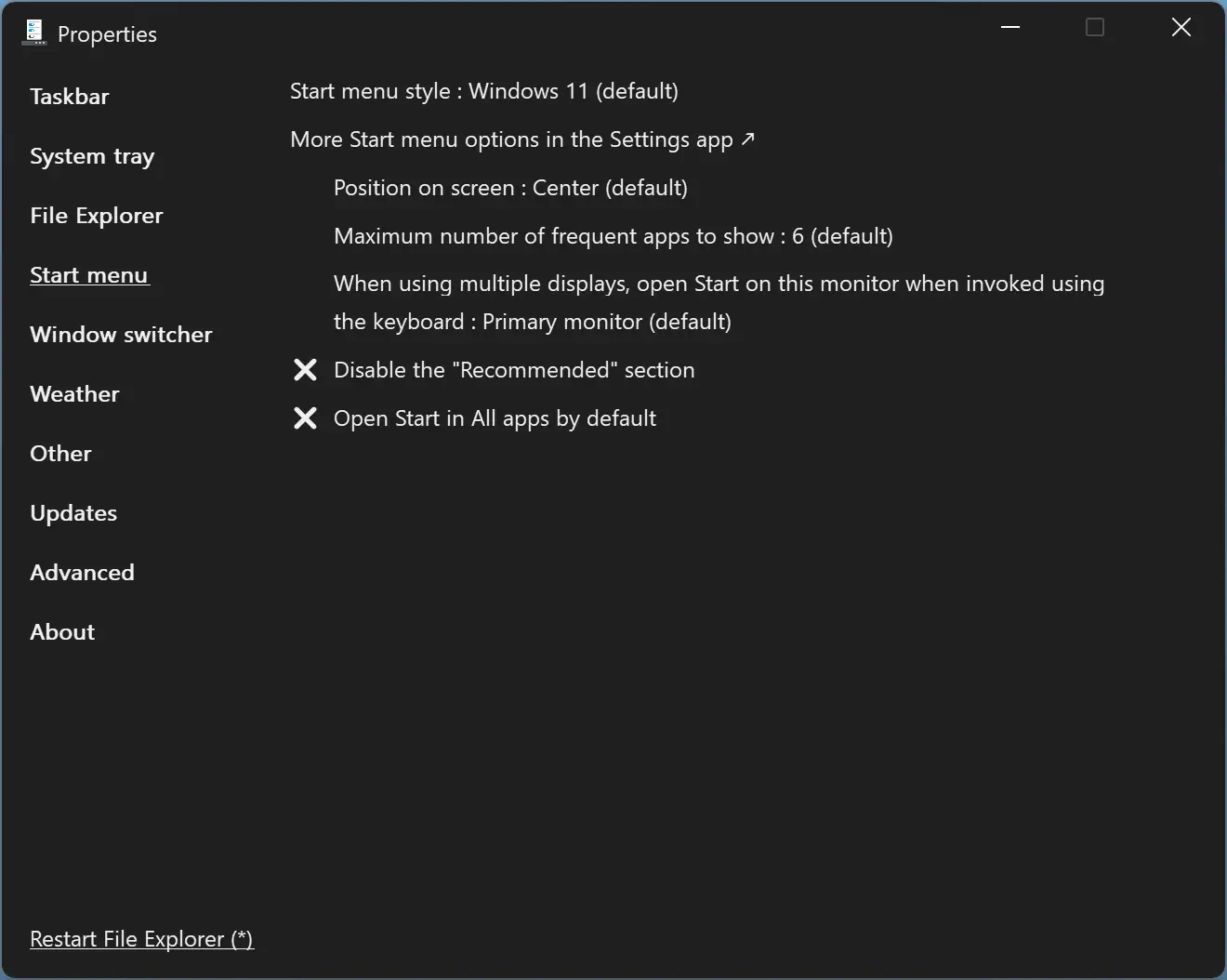
By default, the Start menu uses the Windows 11 layout. If desired, you can switch to the Windows 10 style from the Start menu tab. The Start menu will appear in the center, but changing the “Position on screen” setting to “At screen edge” will align it to the left, just like in Windows 10.
You can also:
- Control how many frequently used apps appear.
- Disable the Recommended section.
- Enable the full app list view in the Start menu.
The Weather tab enables the classic Windows 10-style weather button on the Taskbar, along with related settings.
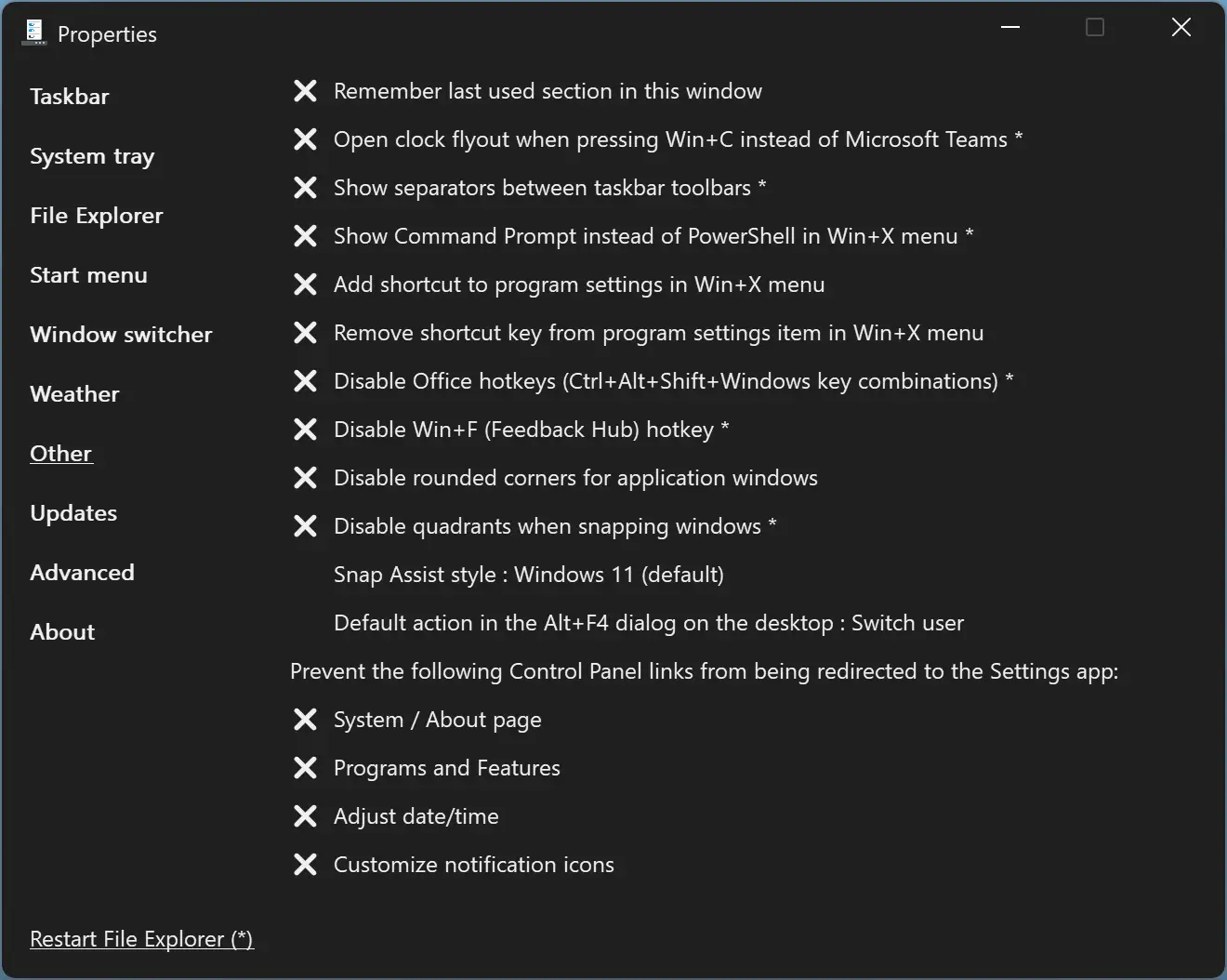
In the Other tab, you can enable or disable various visual features such as:
- Show Snap Assist in Windows 10 style.
- Remove rounded corners for square window shapes.
- Show/hide separators between Taskbar toolbars.
- Use Command Prompt instead of PowerShell in the Win+X menu.
ExplorerPatcher is a powerful utility that helps you bring back the look and feel of Windows 10 to your Windows 11 PC.
If you’re unhappy with the changes, you can uninstall the program and return to the default Windows 11 interface anytime.
Download ExplorerPatcher
If you need it, you can download the latest version of ExplorerPatcher from GitHub.
Conclusion
In conclusion, Windows 11 introduces a new user interface that may not suit everyone. ExplorerPatcher is a free and effective tool that lets you revert to a Windows 10-like experience by customizing your Taskbar, Start menu, system tray, and more. Before making changes, remember to create a system restore point. If you’re not satisfied, you can always uninstall the tool and return to the default setup. ExplorerPatcher is an ideal solution for users who want the Windows 10 interface on their Windows 11 system.