

In this gearupwindows guide, we’ll show you how to open the Command Prompt with elevated rights on Windows 11, 10, 8, and 7. Sometimes, opening Command Prompt as a standard user is enough. But for certain commands, you need administrative privileges to proceed.
Also Refer: How to Open Command Prompt (CMD) in Windows 11?
This post will walk you through four simple methods to launch Command Prompt as an administrator:
- Using Start Menu
- Via Run Box
- Through Power Users (Windows + X) Menu
- From File Explorer
How to Open Command Prompt as Administrator Using Start Menu?
Follow these steps to use the Start menu method:
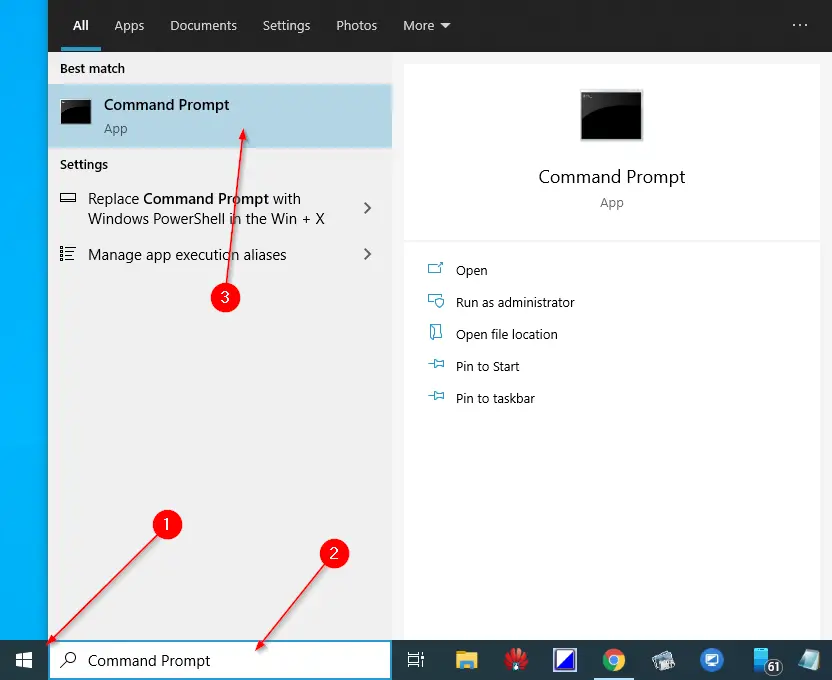
Step 1. Click the Start menu on Windows 10/11 (or Start screen on Windows 8/7), then type “Command Prompt.”
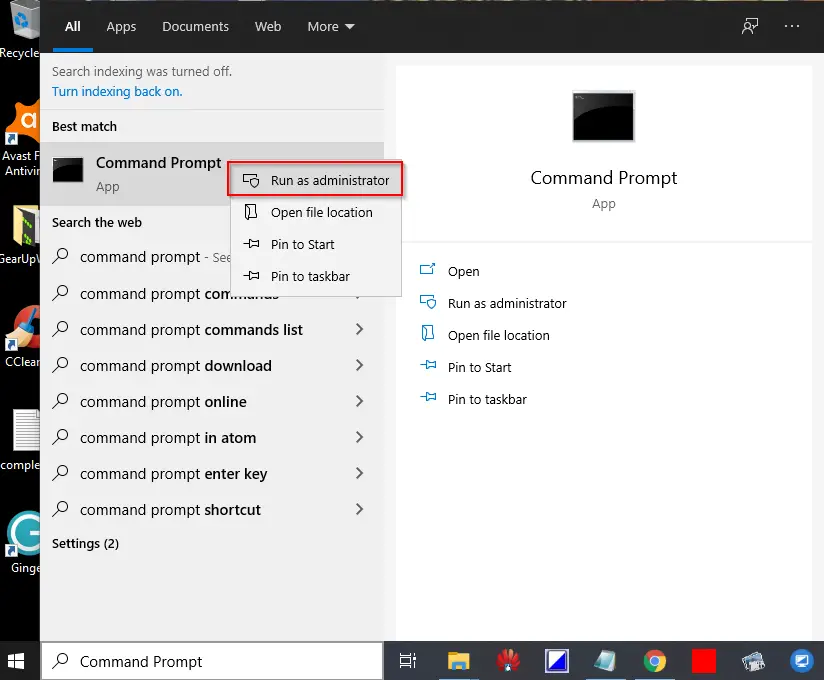
Step 2. In the search results, right-click Command Prompt and select Run as administrator.
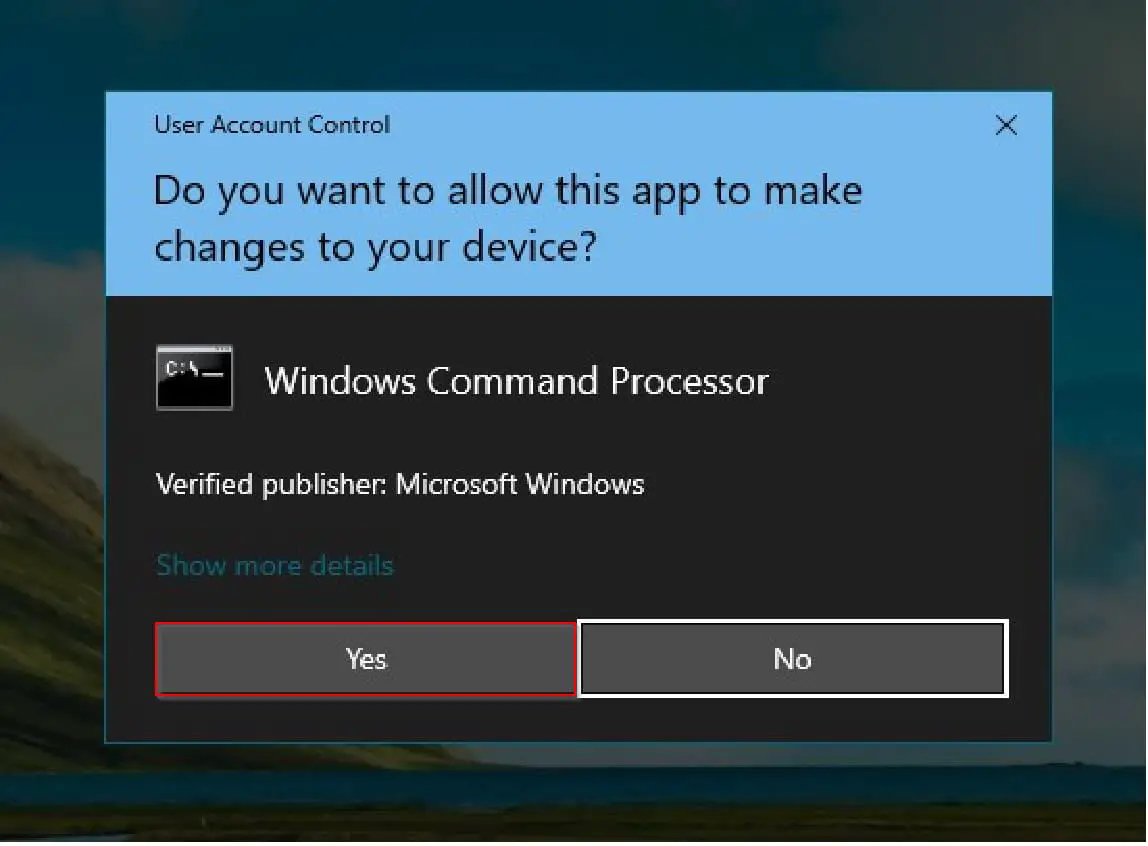
Step 3. If prompted by the User Account Control window, click Yes.
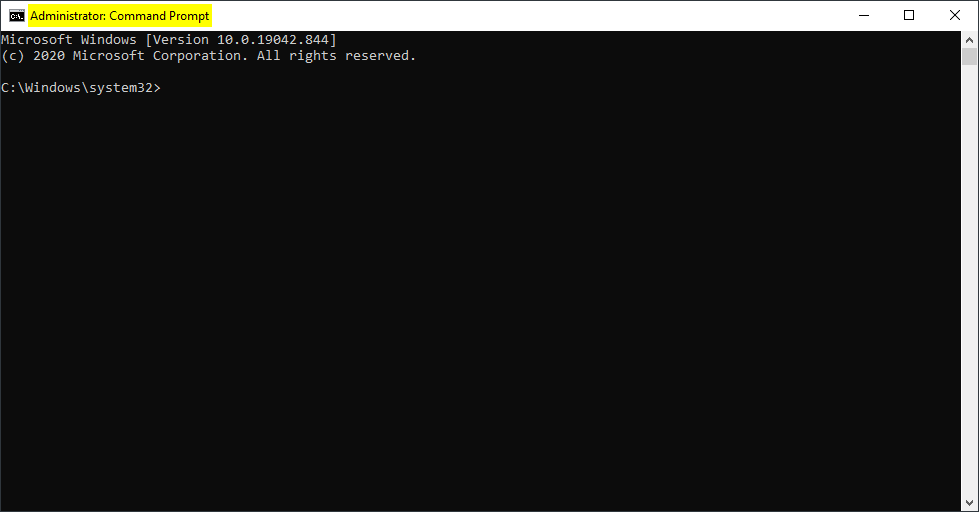
You’ll now see the Administrator: Command Prompt window.
How to Launch Command Prompt with Elevated Rights Using Run Box?
Here’s how to open it using the Run box:
Step 1. Press Windows + R to open the Run dialog.
Step 2. Type cmd and press Ctrl + Shift + Enter.
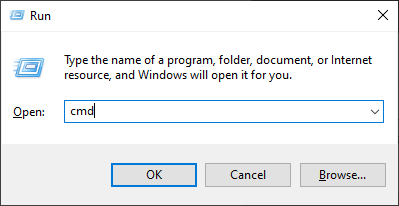
This keyboard shortcut launches Command Prompt with admin rights. It works on Windows 7, 8, 10, and 11.
How to Access Command Prompt as Administrator Using the Power Users (Win + X) Menu?
To use the Power Users menu:
Step 1. Press Windows + X or right-click the Start button.
Step 2. Click Command Prompt (Admin) from the menu.
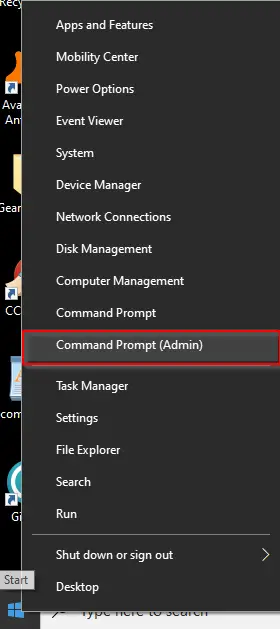
Note: If you see PowerShell instead, you can switch back to Command Prompt on the WinX menu.
How to Open Command Prompt as Administrator from File Explorer?
You can also access Command Prompt directly from File Explorer:
Step 1. Open File Explorer and go to C:\Windows\System32.
Step 2. Locate the cmd.exe file. Right-click it and choose Run as administrator.
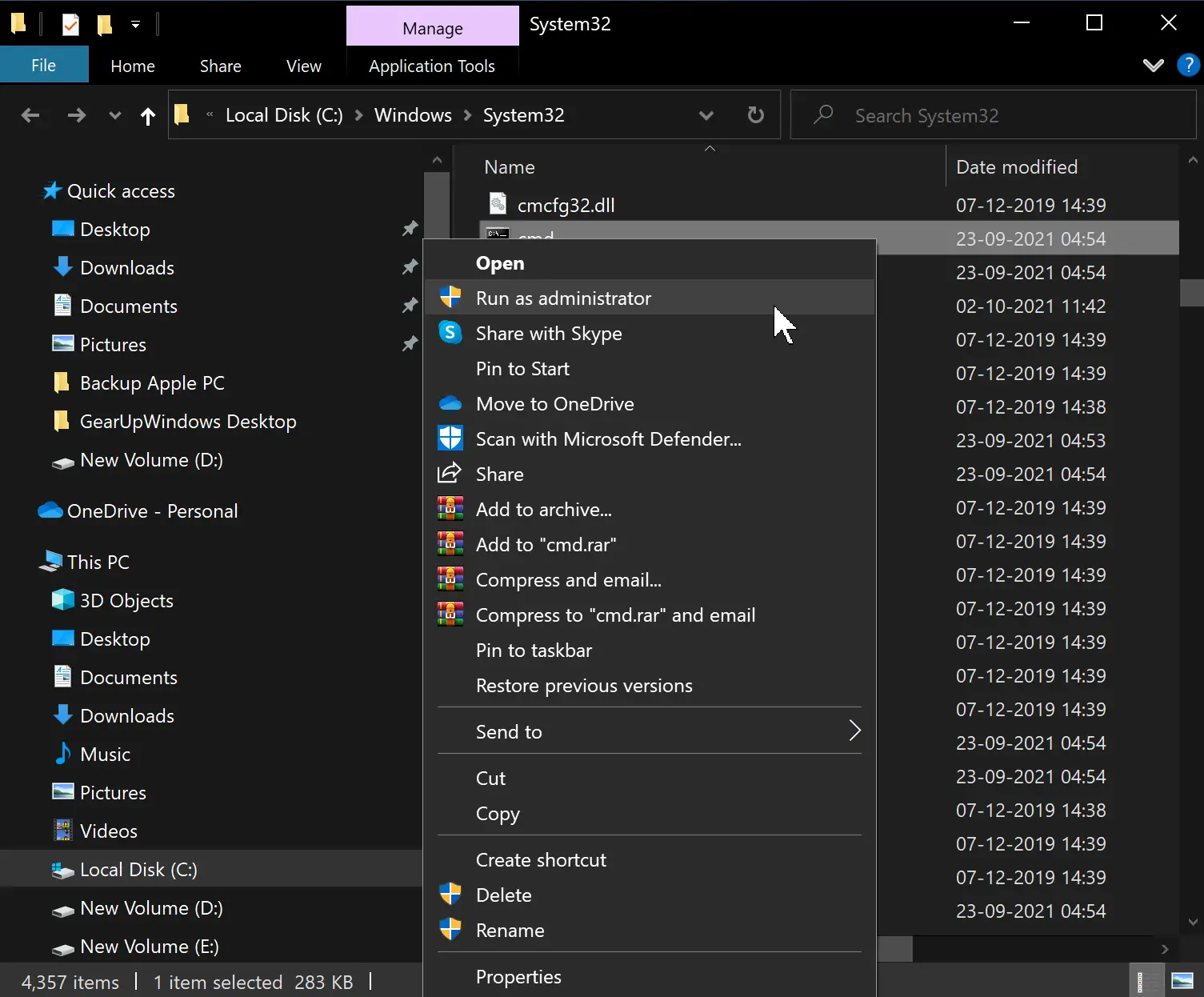
This method works reliably across all supported Windows versions.
Conclusion
Opening Command Prompt with elevated privileges is essential for executing many system-level tasks on Windows. In this guide, we showed you four easy ways to launch Command Prompt as an administrator—via the Start menu, Run box, Power Users menu, and File Explorer.
By knowing these methods, you can quickly perform advanced operations on your Windows PC without running into permission issues.