

PC Settings was first introduced in Windows 8 and has since been rebranded and made center-stage in Windows 10 and Windows 11. Microsoft completely redesigned the Settings app to be more user-friendly. Though the classic Control Panel still exists in Windows 10, most settings have been migrated into this modern interface. Some legacy settings remain in the Control Panel, but Microsoft intends to phase that out in future Windows releases. For now, Control Panel still exists in Windows 11.
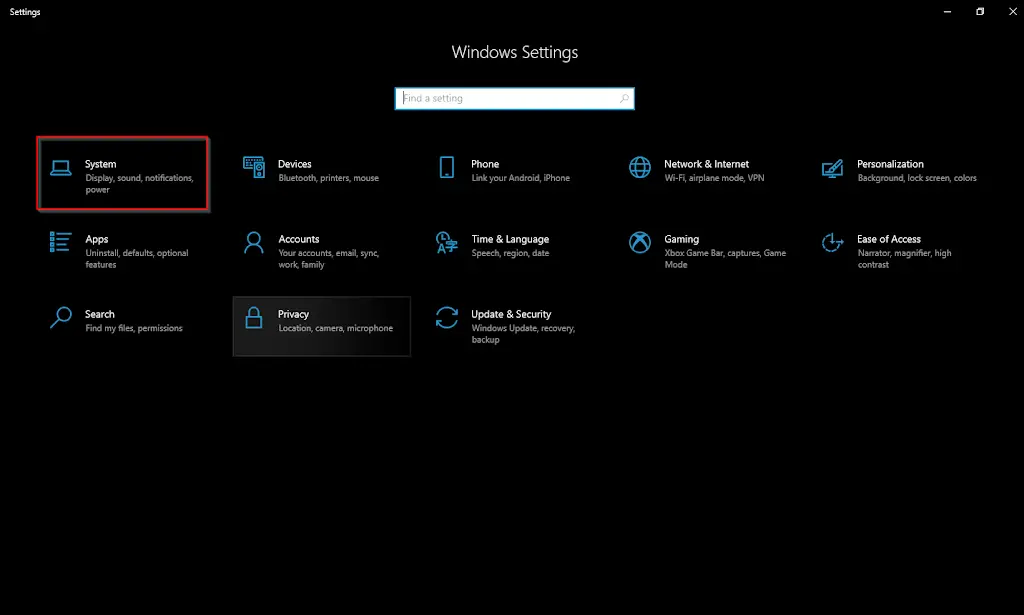
Windows 10 Settings app looks:
Windows 11 Settings app looks:
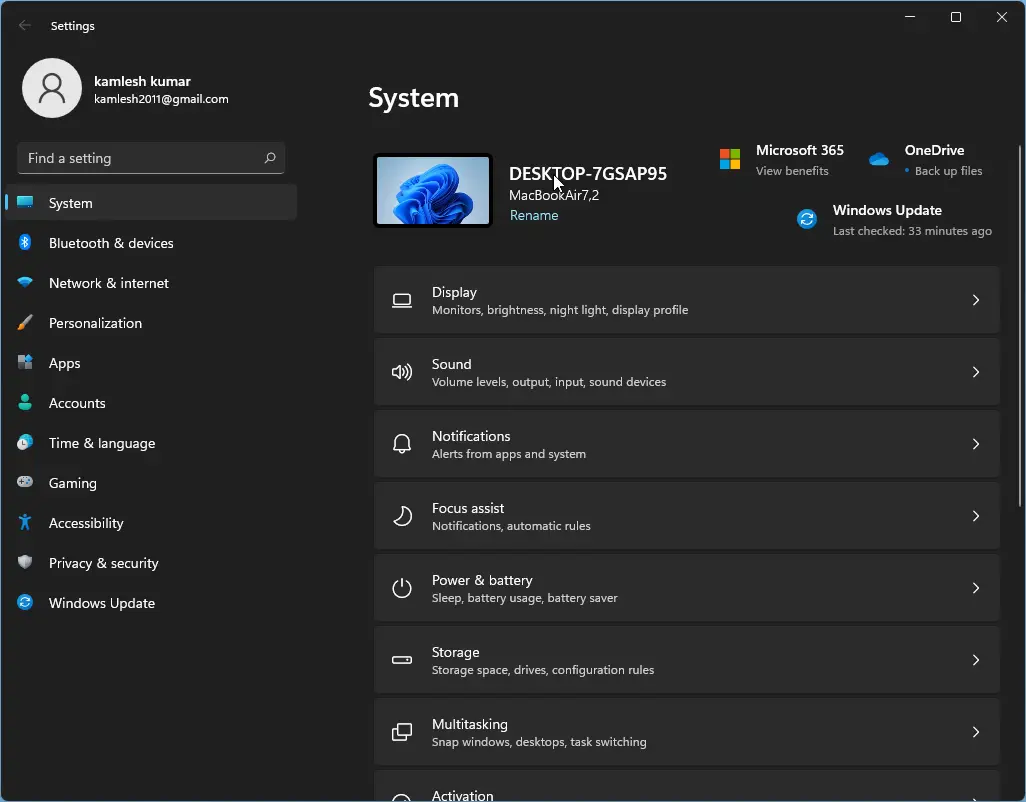
The Settings app is a powerful hub that helps users customize and configure every aspect of their system—installing new devices, changing keyboard language or desktop wallpaper, updating Windows, adjusting privacy settings, and more. Users can personalize the Start menu or screen, lock screen, and frequently accessed settings by pinning them for quick access.
To make it easier to find what you need, Settings are organized into 13 main categories:
- System
- Devices
- Phone
- Network & Internet
- Personalization
- Apps
- Accounts
- Time & Language
- Gaming
- Ease of Access
- Search
- Privacy
- Update & Security
There are at least thirteen different ways to open the Settings app in Windows 10. This guide explains each method in detail:
- Using a keyboard shortcut
- Via the Start menu
- From the Command Prompt (CMD)
- Using Windows PowerShell
- Through the WinX power menu
- Using Windows Search
- Through the Run dialog box
- By creating a desktop shortcut
- From File Explorer
- Using the Action Center
- Pinning to the Start menu or taskbar
- From the desktop context menu
- From the taskbar settings
Note: This guide focuses on Windows 10, but most of the methods also apply to Windows 11. If you’re using Windows 11, be sure to check our dedicated guide: How to open Settings in Windows 11.
How to Open the Settings App in Windows 10
1. Using a Keyboard Shortcut
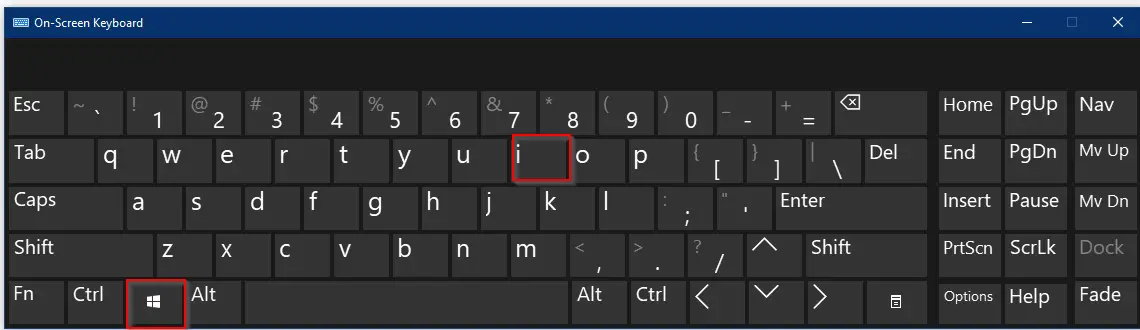
This is the quickest method: simply press Windows + I on your keyboard to launch the Settings app instantly.
2. Via the Start Menu
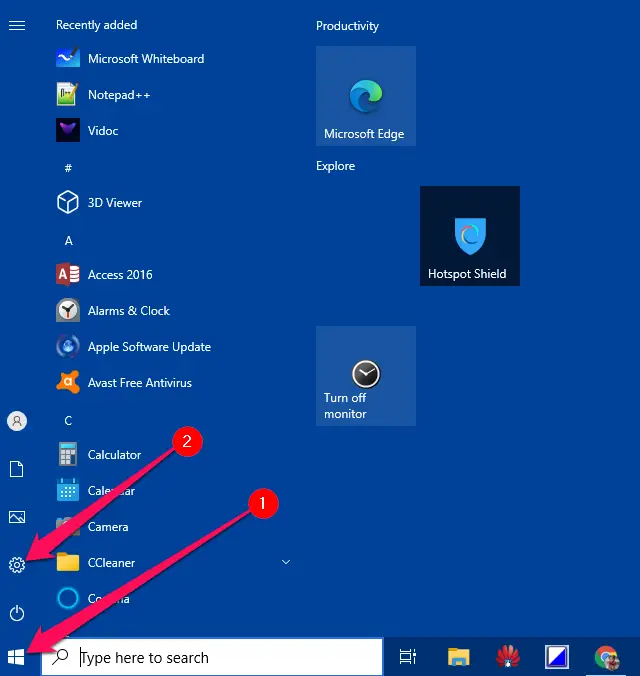
Click the Start button, then click the Settings (gear) icon located above the Power icon to open Settings.
3. From Command Prompt (CMD)
If you prefer using the Command Prompt, it’s easy to open Settings with a single command:
- Open Command Prompt by typing “command prompt” in the Start menu and selecting it.
- Type
start ms-settings:and press Enter.
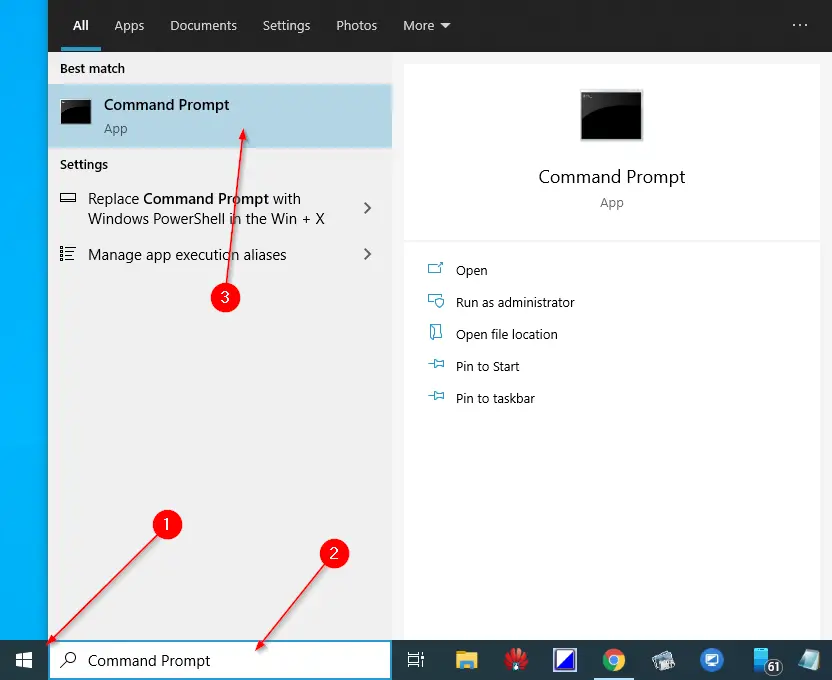
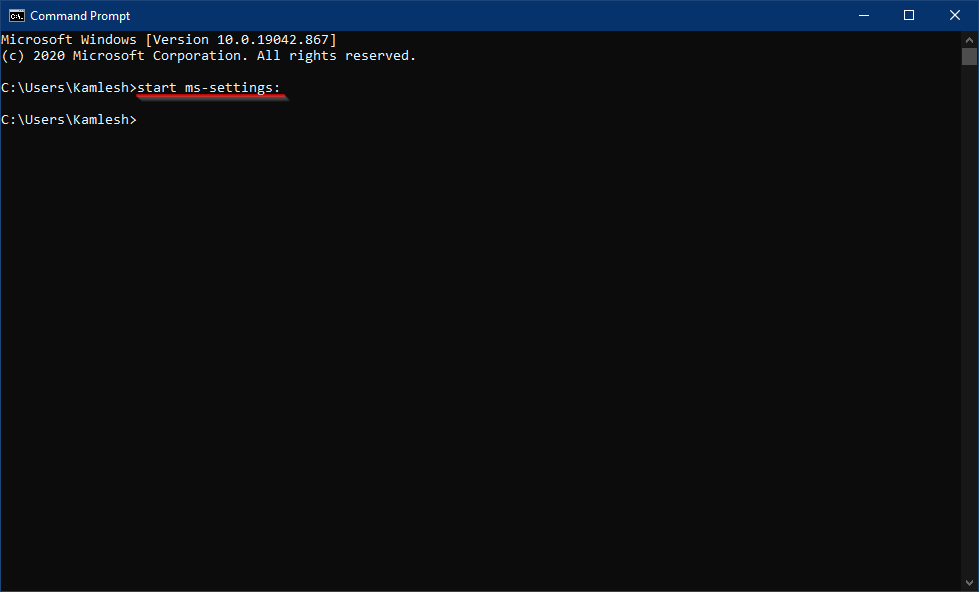
4. Using Windows PowerShell
PowerShell users can also launch Settings the same way:
- Open PowerShell via the Start menu.
- Type
start ms-settings:and press Enter.
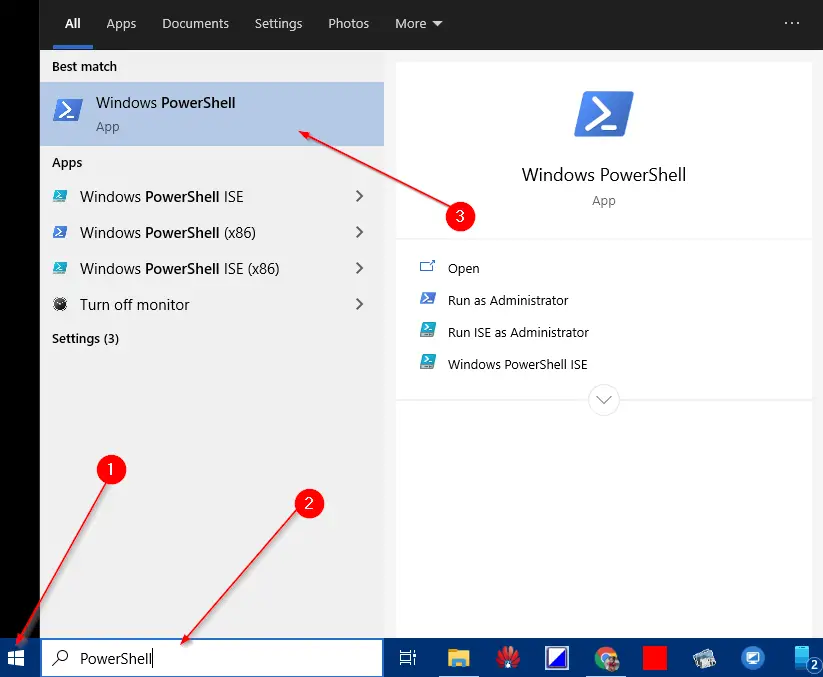
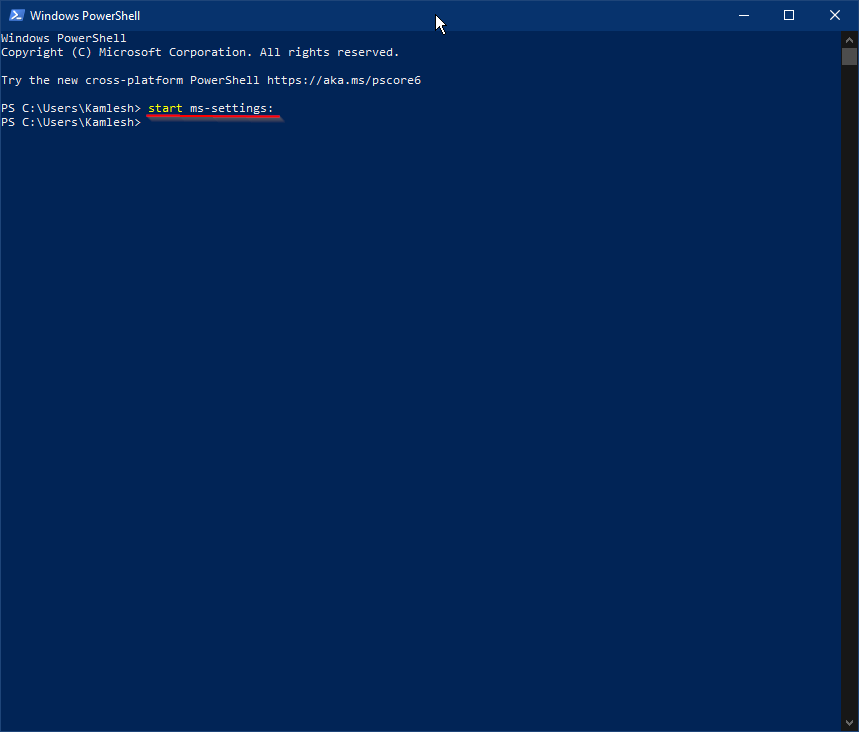
5. Through the WinX Power Menu
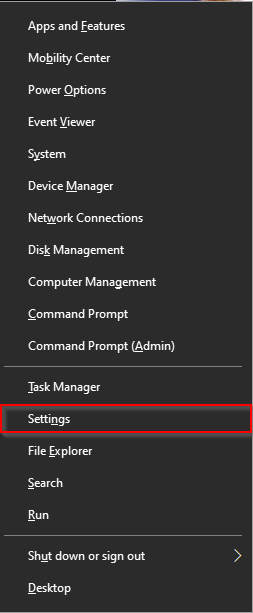
Press Windows + X or right-click the Start button, then click Settings from the power menu.
6. Using Windows Search
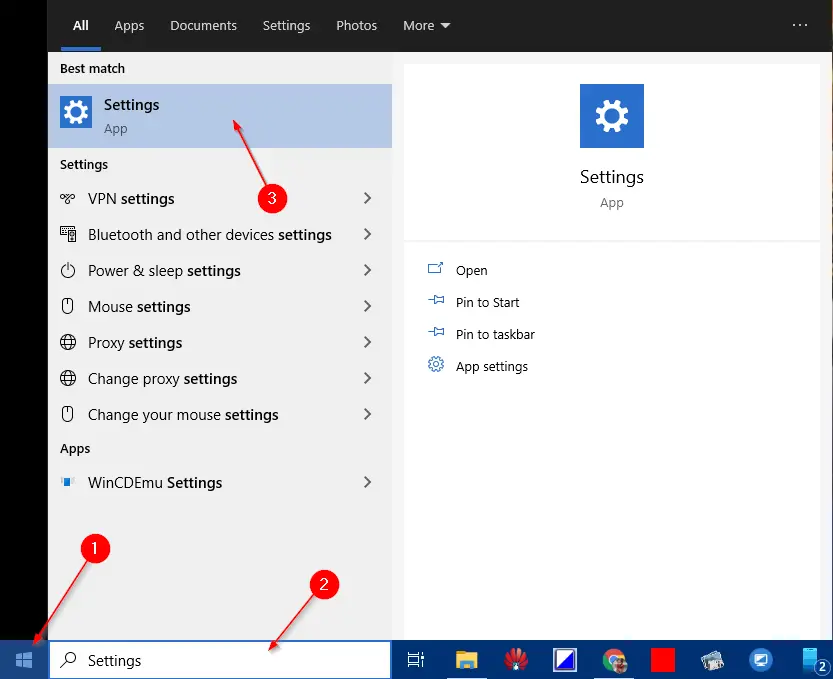
Click the Start button, type “settings,” and select the Settings app from the search results.
7. Through the Run Dialog Box
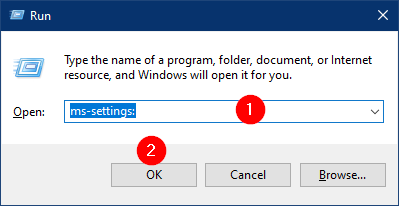
Press Windows + R, type ms-settings:, and press Enter to open Settings.
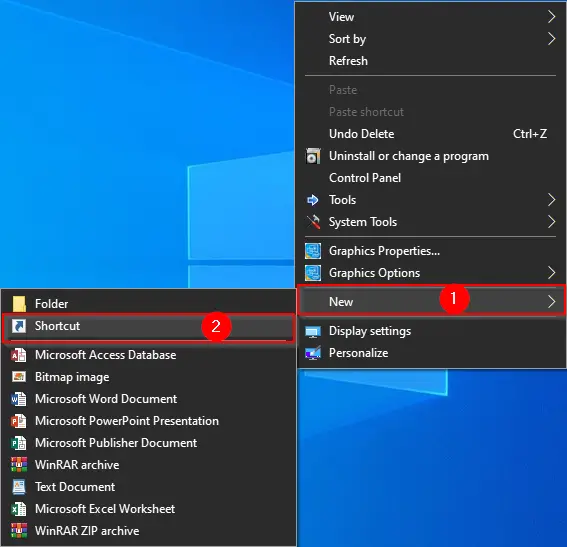
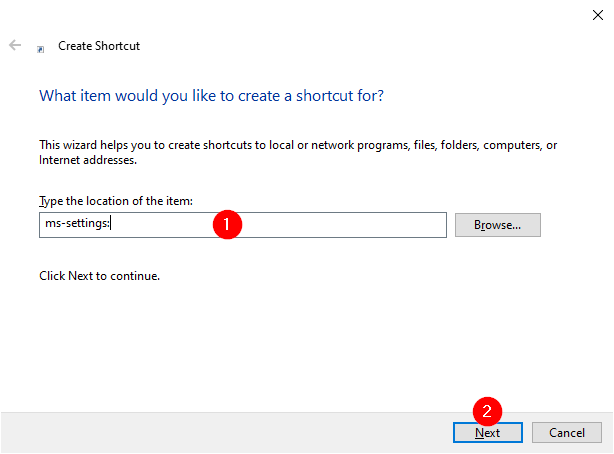
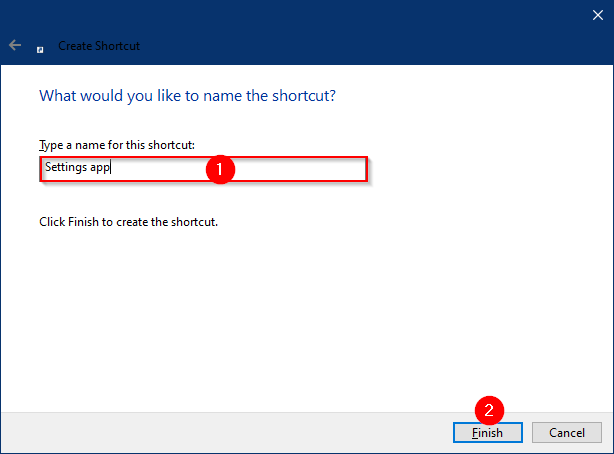
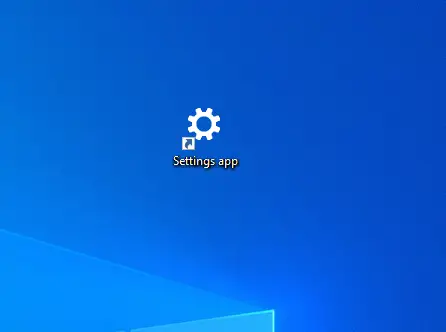
8. By Creating a Desktop Shortcut
To create a clickable shortcut on your desktop:
- Right-click an empty area on your desktop → New → Shortcut.
- Enter
ms-settings:in the “Type the location of the item” field. - Click Next, type a name like “Settings app,” and click Finish.
9. From File Explorer
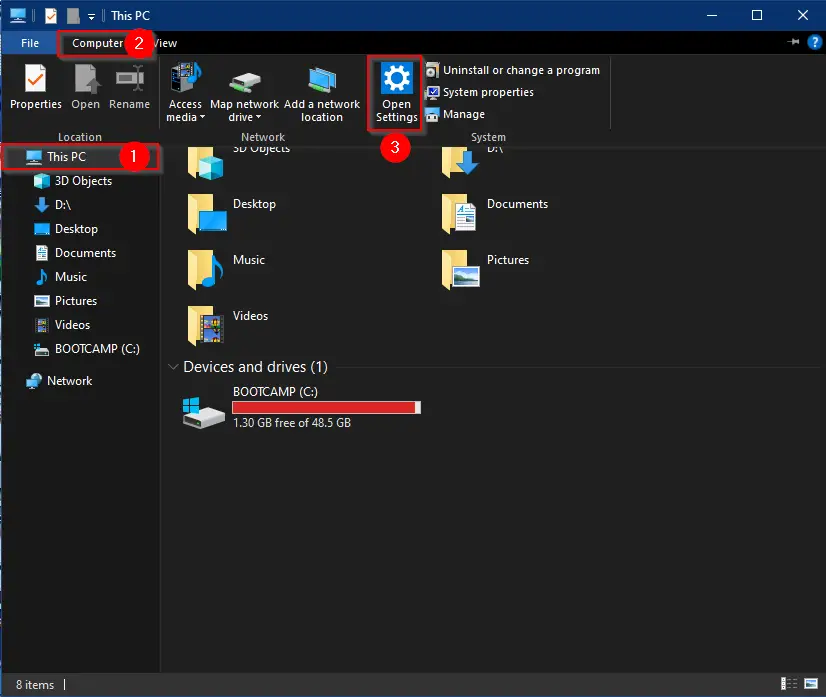
Open File Explorer (Windows + E), click This PC, go to the Computer ribbon, and click Open Settings.
10. Using the Action Center
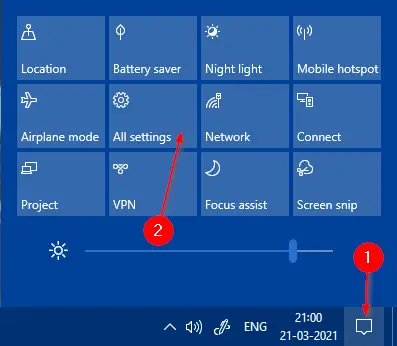
Click the Action Center icon on the taskbar or press Windows + A. Then click All settings at the bottom.
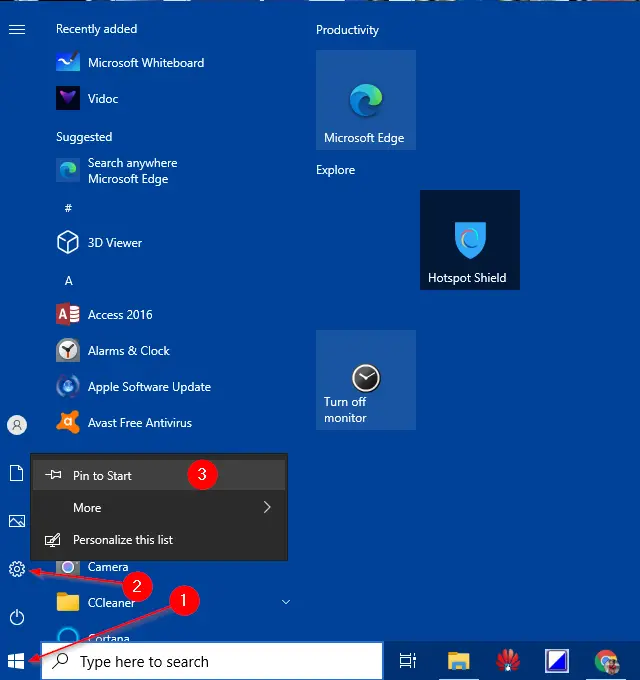
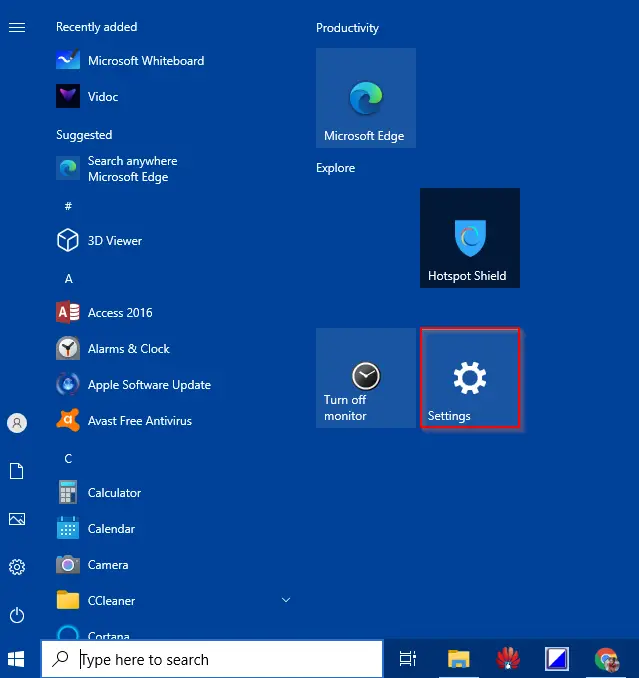
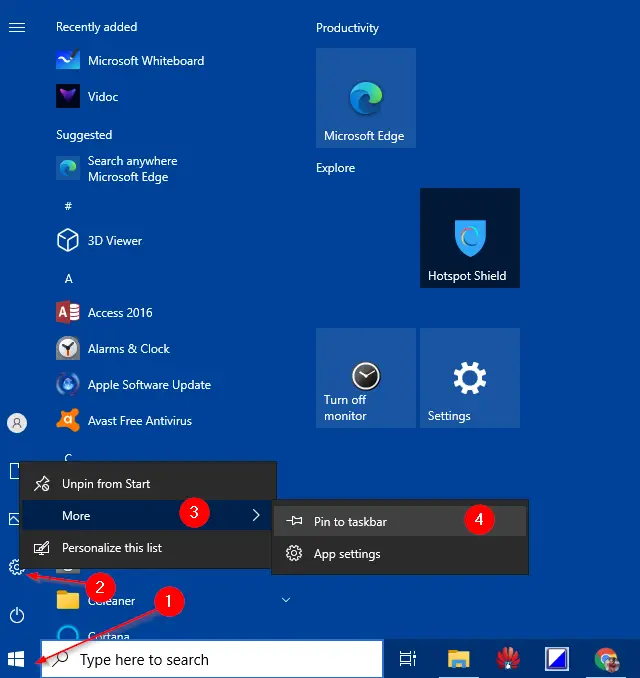
11. Pin to Start Menu or Taskbar
To keep Settings handy:
- Open Settings using any method above.
- Right-click the Settings icon in the taskbar or Start menu.
- Select Pin to Start or go to More → Pin to taskbar.

12. From the Desktop Context Menu
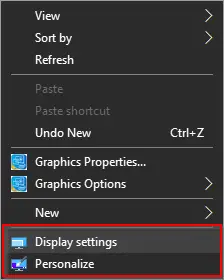
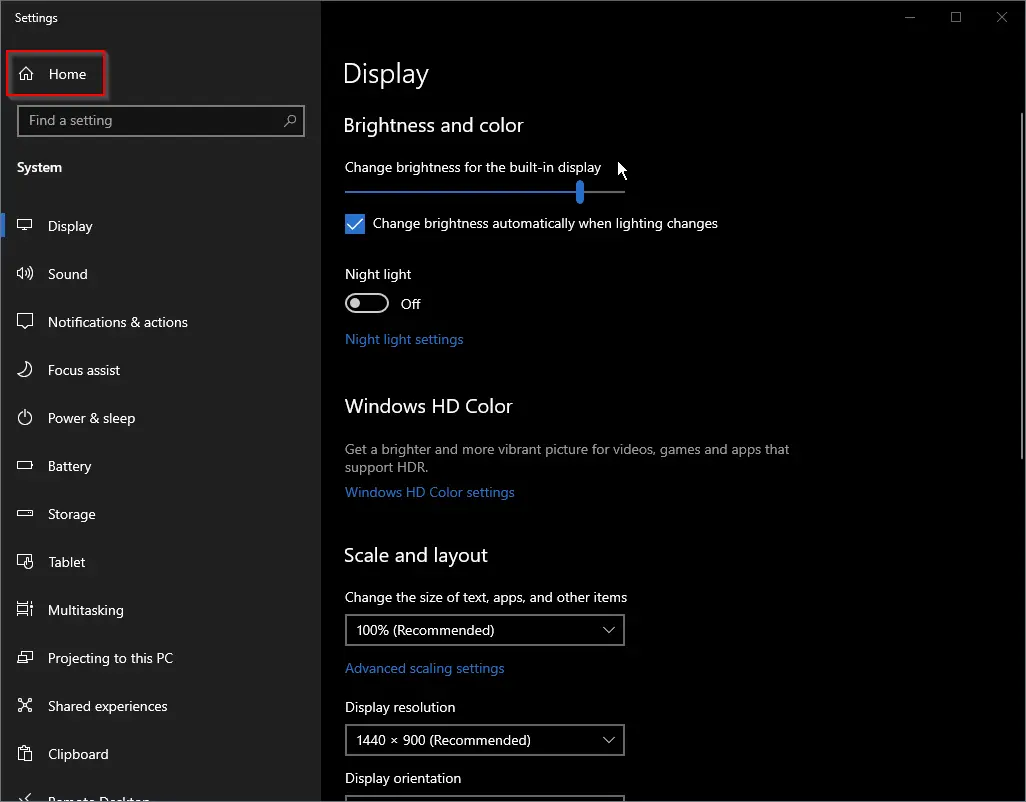
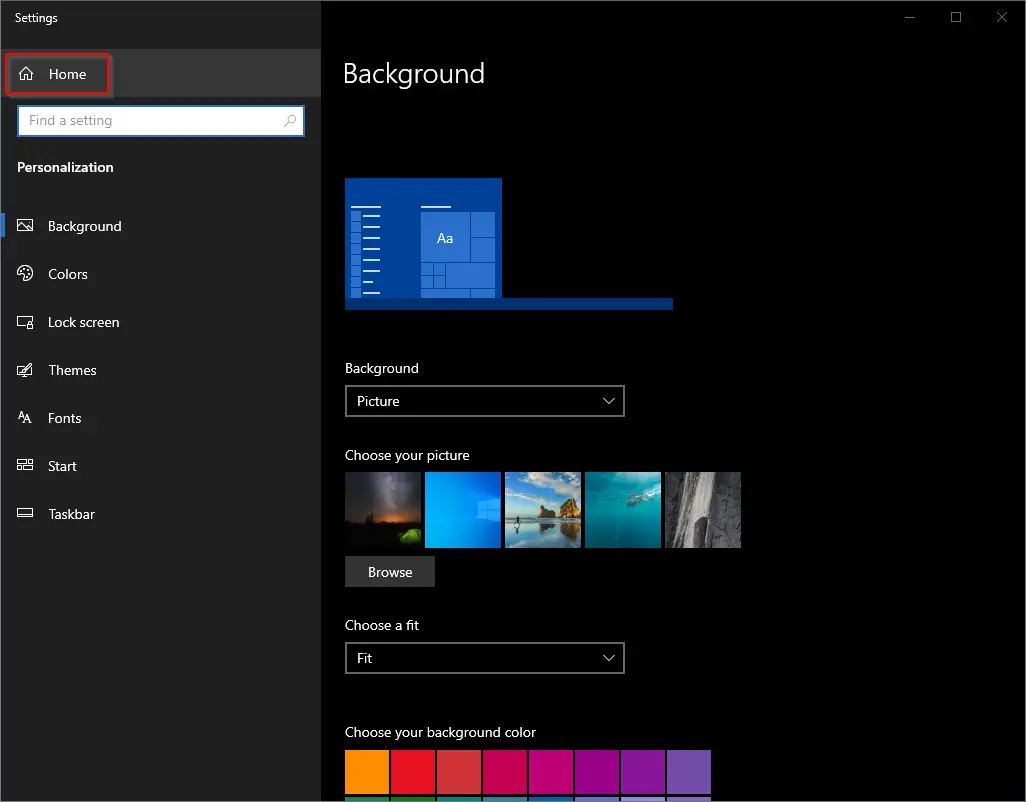
Right-click on the desktop and choose either Display settings or Personalize. Once either opens, click the Home link to return to the Settings main screen.
13. From the Taskbar Settings
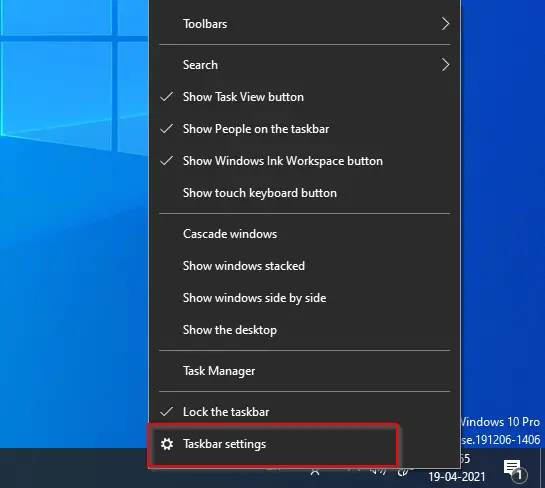
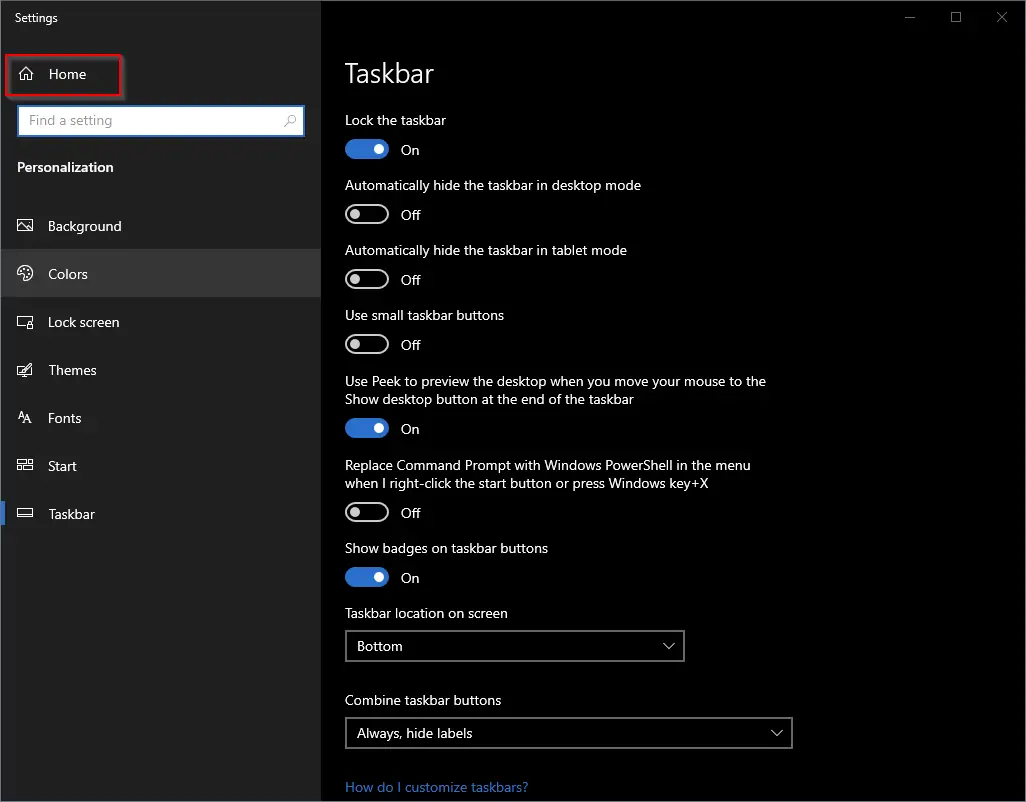
Right-click any empty space on the taskbar and click Taskbar settings. Then click Home in the top-left corner to return to the main Settings screen.
Conclusion
The Settings app in Windows 10 and Windows 11 is a comprehensive and user-friendly tool for system customization. With 13 different access methods and well-structured categories, it’s far more intuitive and efficient than the traditional Control Panel. Knowing these multiple ways to open Settings helps streamline your workflow, giving you faster control over your system’s personalized settings and preferences.