

How do I switch to my desktop quickly? In today’s fast-paced world, everyone is busy, and no one wants to wait for anything. Microsoft’s Windows 10 operating system supports multitasking and allows you to run multiple applications simultaneously. However, you might find yourself with too many open applications and want to access the desktop quickly without minimizing them one by one.
Fortunately, Windows 10 allows you to minimize all running applications at once, saving you the hassle of doing it manually. This feature helps you save time and quickly switch to your desktop whenever needed.
In this gearupwindows article, we will guide you through several ways through which you can access your Windows 10 desktop quickly and easily. There is no need to minimize the opened applications one by one. The following are the ways through which you can get the desktop quickly:-
- Using Aero Peek
- Through Keyboard Shortcut
- From Taskbar Context Menu
How to Quickly Access Windows 10 Desktop Using Aero Peek?
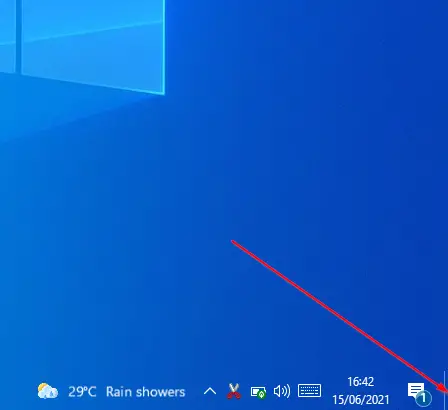
Windows 7, Windows 8, and Windows 10 come with a feature that is called Aero Peek. To use Aero Peek, move your mouse cursor to the bottom-right corner of the Taskbar and then tap or click with the mouse (refer to the image below for reference). It will quickly minimize all the opened windows at once. Then, clicking again on the taskbar’s rightmost bottom, you can restore all the opened application positions at once.
How to Instantly Access Windows 10 Desktop using Keyboard Shortcuts?
This is probably the easiest and best way to access Windows 10 Desktops quickly and easily. Just press the Windows logo + D keys together to reach the Desktop. Once you press the Windows logo + D keys altogether, all the opened windows get automatically minimized. Want to restore all the minimized windows again? Just press the same shortcut keys, Windows logo + D, together.
How to Immediately Access Windows 10 Desktop from Taskbar Context Menu?
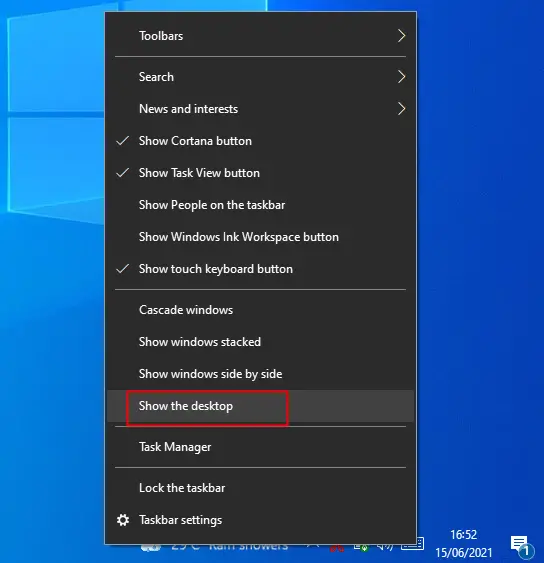
Having trouble opening Windows 10 Desktop using the above methods? Please right-click on the free space of the taskbar and select the Show the desktop option from the context menu. All the opened windows will get minimized automatically.
Conclusion
In conclusion, accessing the Windows 10 desktop quickly is essential for saving time and increasing productivity. There are several ways to minimize all open applications simultaneously, including using Aero Peek, keyboard shortcuts, and the taskbar context menu. By following the methods mentioned above, you can quickly and easily switch to your desktop without manually minimizing each open application one by one. These simple tricks will undoubtedly make your computing experience more efficient and convenient.