

Windows 11/10 ships with a white Start button by default, and nothing bad about that. But after using it for a long time, you could have been annoyed with the default Start button of Windows 11/10. You may also want to surprise your friend or family with a new Start menu.
Classic Shell is a freeware application that can replace the old Start button style of Windows 11/10 with a new Start button. The same application is used to restore the Start menu of Windows 11/10 to the Windows 7-style Start menu.
What is Classic Shell?
As stated above, the Classical Shell is used to return the Start menu’s appearance from Windows 11/10 to Windows 7. It is delivered with two start buttons: Aero and Classic. If you are not satisfied with these two Start buttons, there is an option to apply a customized Start menu.
How to Change the Old Start Button in Windows 11 or 10 with the Aero Start button?
To replace the old Start button in Windows 11 or 10 with an Aero Start button, use these steps:-
Step 1. Install the Aero Start button on a Windows 11/10 machine.
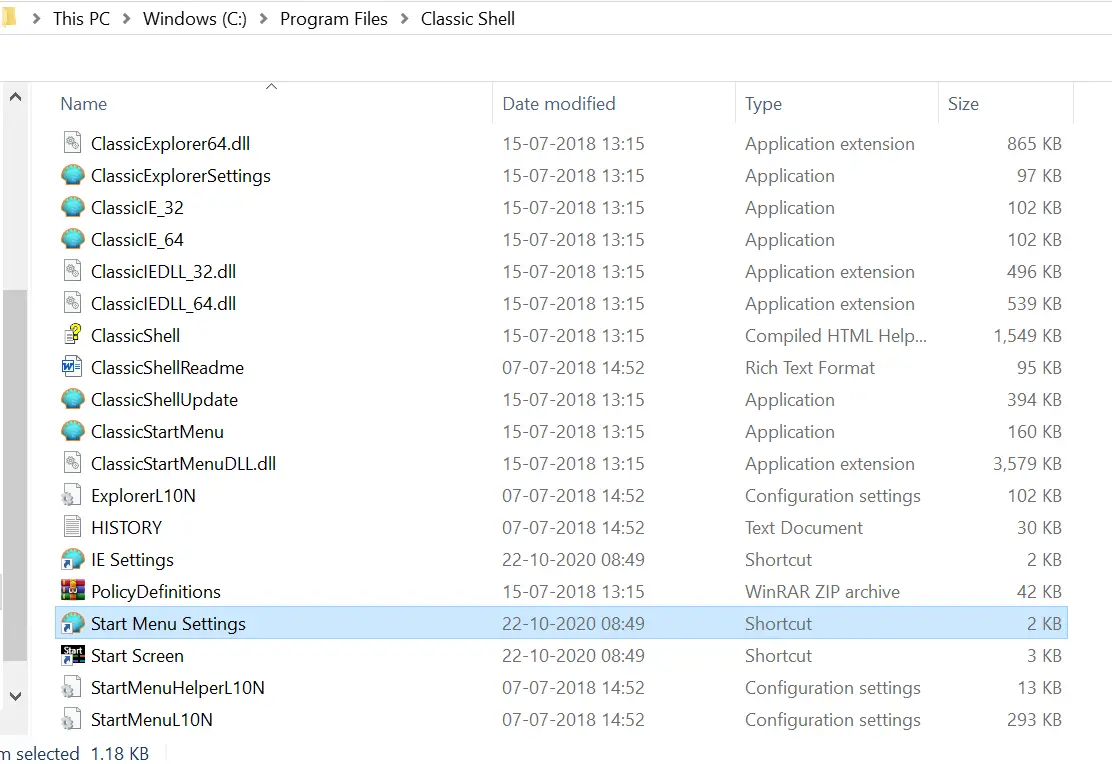
Step 2. To open the Classic Shell, access the installation folder, and double-click Start Menu Settings to launch the settings for Classic Shell.
Step 3. There are three start menu options available, i.e., Classic Style, Classic with two columns, and Windows 7 Style. Select the Start menu style.
In the lower pane, there are three options for the Start button. You can select between Aero, Classic, or Custom. Using the custom option, you can select your own startup button.
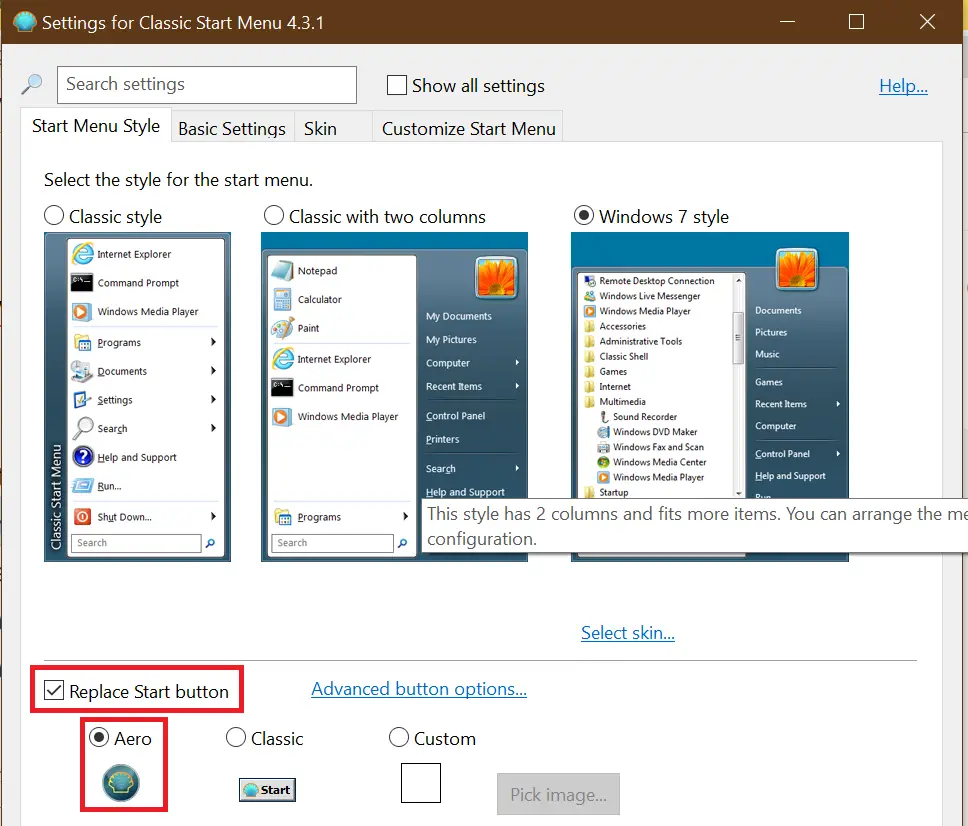
Step 4. Select the Start Menu Style and Aero (or other) Start button.
Step 5. Finally, select the Replace Start button and press the OK button to activate it.
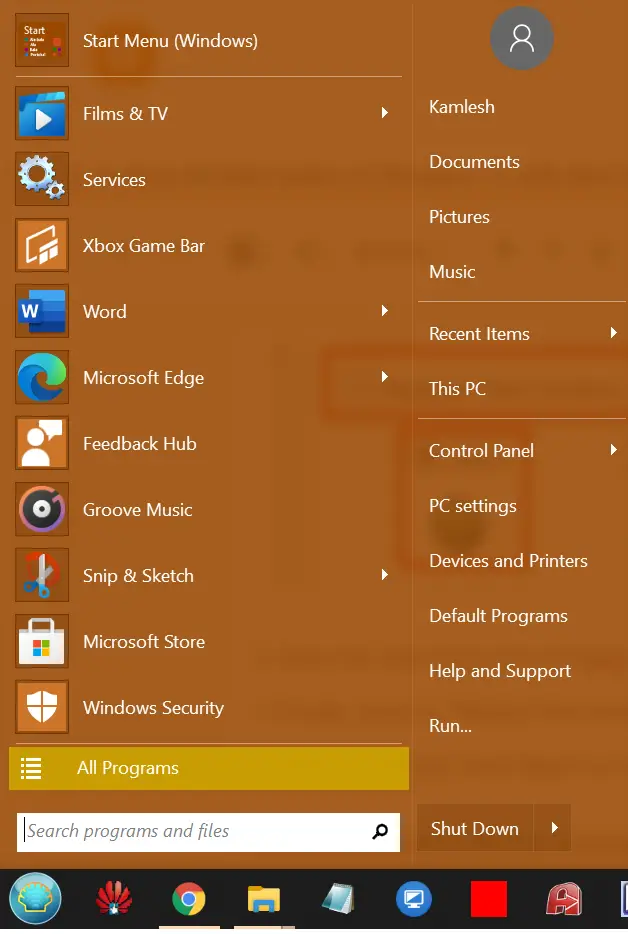
Step 6. Now, you can see that the “Start Menu” and “Start button” of Windows 11/10 have been changed.
 At any time, if you wish to access the Start menu and the Start button in Windows 11/10, right-click the Start button and select Exit.
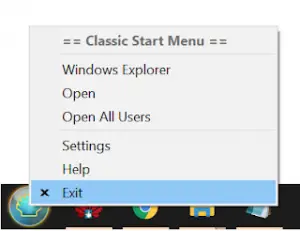 Now the Aero Start button will be disabled, and the default Windows 11/10 Start menu and the Start button are enabled.
How to Uninstall Classic Shell on Windows 11/10?
To uninstall Classic Shell on Windows 11/10, perform the following steps:-
Step 1. Click on the Start button and type appwiz.cpl.
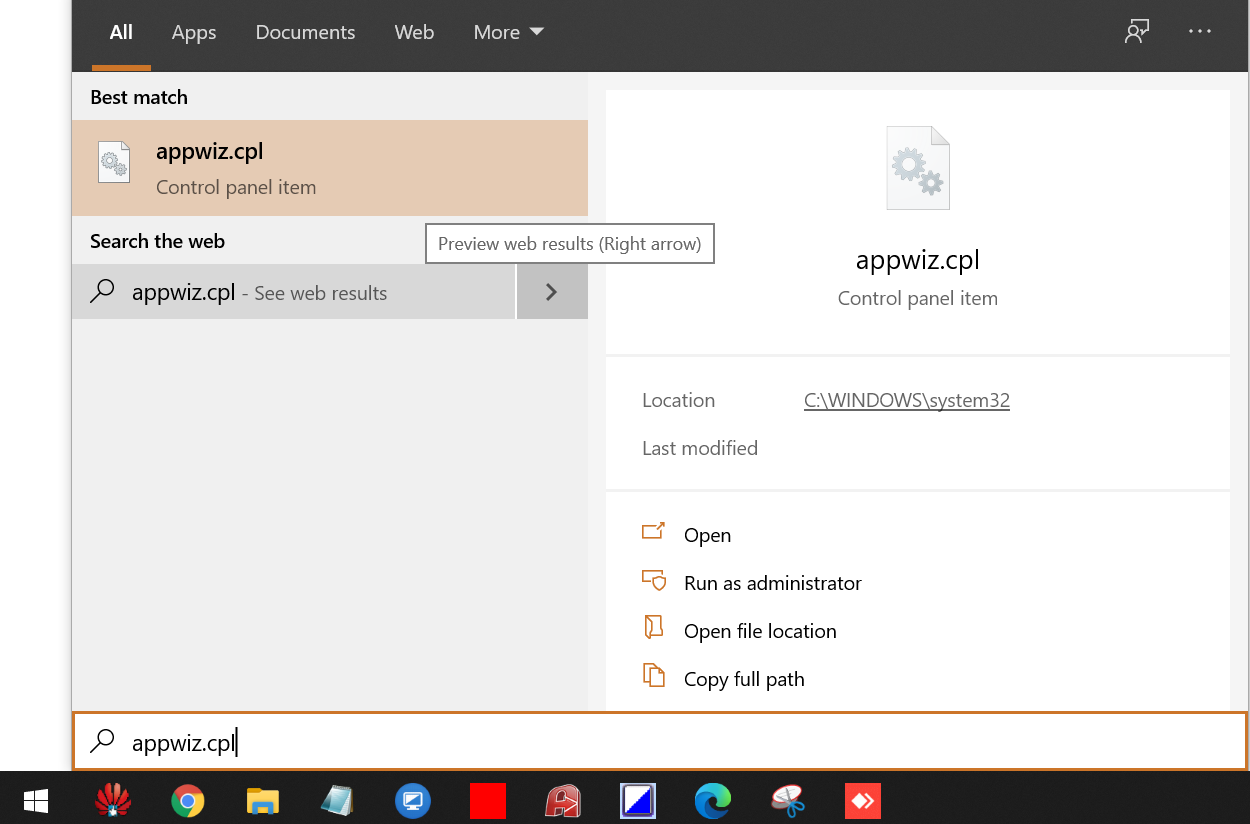 Step 2. From the available results, click on appwiz.cpl to launch “Programs and Features.”
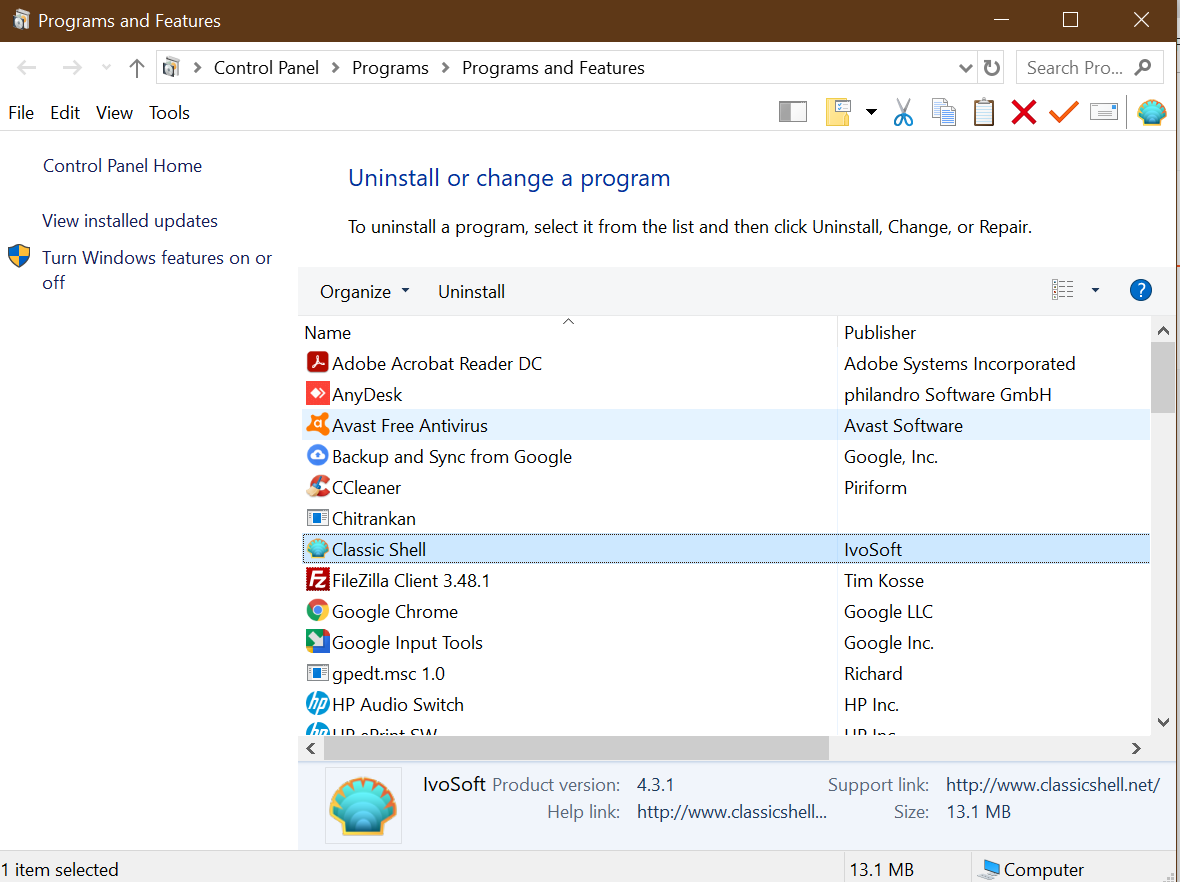 Step 3. From the available results, double-click on the Classic Shell.
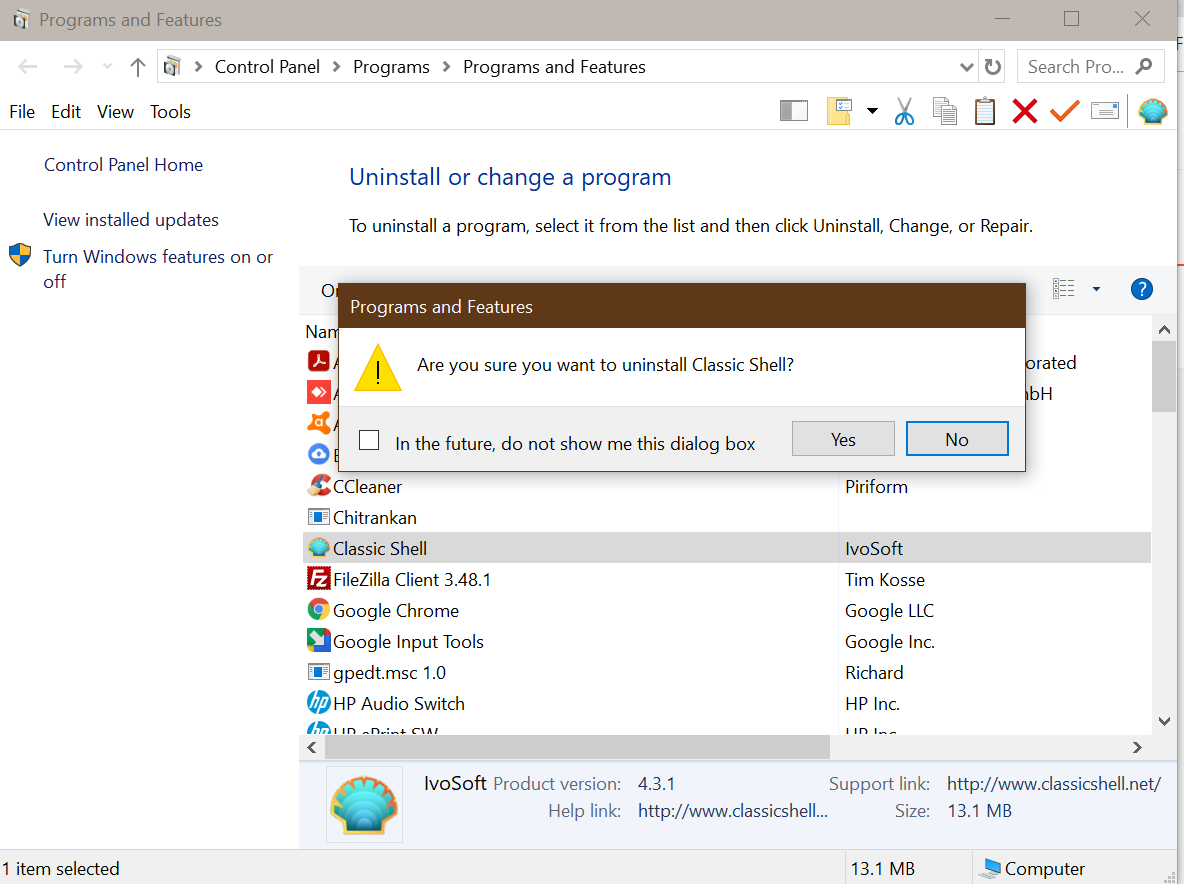 Step 4. Click the Yes button to remove Classic Shell from your Windows 11/10 PC.
Download Classic Shell
You can download the Classic Shell from here.
FAQs
What does Classic Shell do?
Classic Shell allows you to customize the Start menu and Start button in Windows 11/10, offering options like the Windows 7-style menu and multiple Start button designs.
Is Classic Shell safe to use?
Yes. It is a well-known freeware tool. As long as you download it from the official website, it is safe for everyday use.
Can I use my own custom Start button image?
Yes. Classic Shell provides a Custom option where you can browse and apply your own Start button graphics.
Does Classic Shell change system files?
No. It modifies Start menu behavior through standard Windows-supported customization methods without patching system files.
Will Classic Shell work on Windows 11?
It still works on many builds of Windows 11, though not officially optimized for it. Most users can apply the Start button and Start menu changes without issues.
Can I revert to the default Start button?
Yes. Simply exit Classic Shell or uninstall it to restore the original Windows 11/10 Start button and menu.
Does replacing the Start button affect performance?
No. Classic Shell is lightweight and uses minimal resources, so it does not slow down your system.
How do I uninstall Classic Shell?
You can remove it through Programs and Features. Once uninstalled, the default Start menu and button are restored automatically.
Conclusion
In conclusion, while the default white Start button in Windows 11/10 is perfectly fine, it can become monotonous after a while. Classic Shell is a freeware application that allows you to replace the old Start button with a new one or restore the Start menu to the Windows 7-style menu. With just a few simple steps, you can easily change the old Start button in Windows 11/10 with the Aero Start button or even create your custom Start menu using Classic Shell. If you decide to uninstall Classic Shell, the process is also straightforward. Overall, Classic Shell provides an easy and flexible way to customize the Start button and menu in Windows 11/10, and it’s worth trying if you want to freshen up the look of your desktop.
You might also be interested in our guide on disabling Aero Shake in Windows 10.