

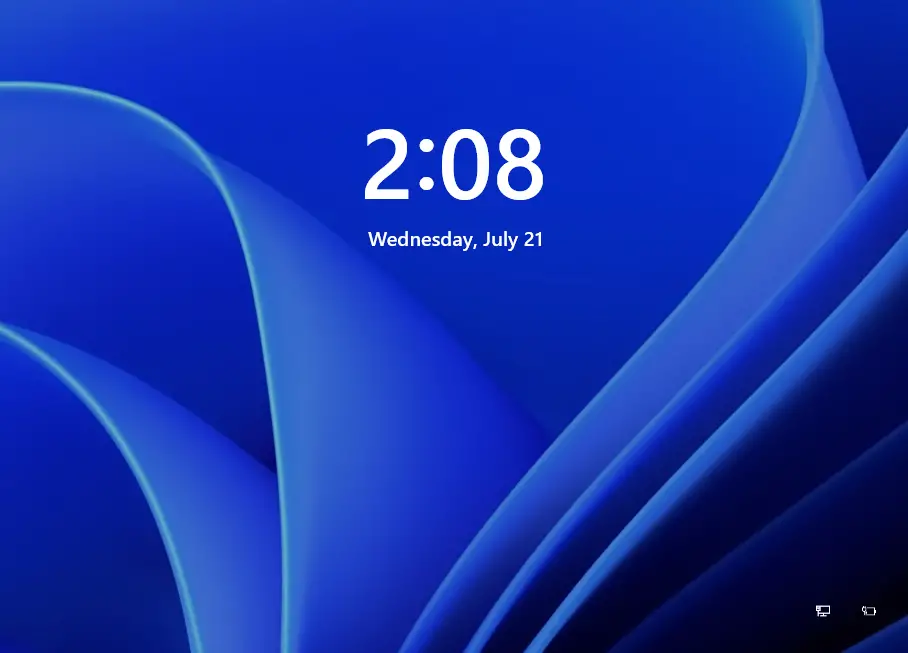
Once you boot your Windows 11 PC, it stops at the Lock Screen, where you click to get the Logon screen. Microsoft uses the same background image for both places, i.e., Lock Screen and Logon Screen. That means, if you change the Lock Screen background image, it will be automatically applied to the Logon or Login Screen. Although Microsoft uses a similar picture for the Lock Screen and Logon Screen, while the Lock Screen is crystal clear, you will see acrylic blur effects on the logon background image. However, if you want to see a clear Logon background image, Microsoft has provided an option.
Lock Screen Background Image on Windows 11:
Logon Screen Background Image on Windows 11:
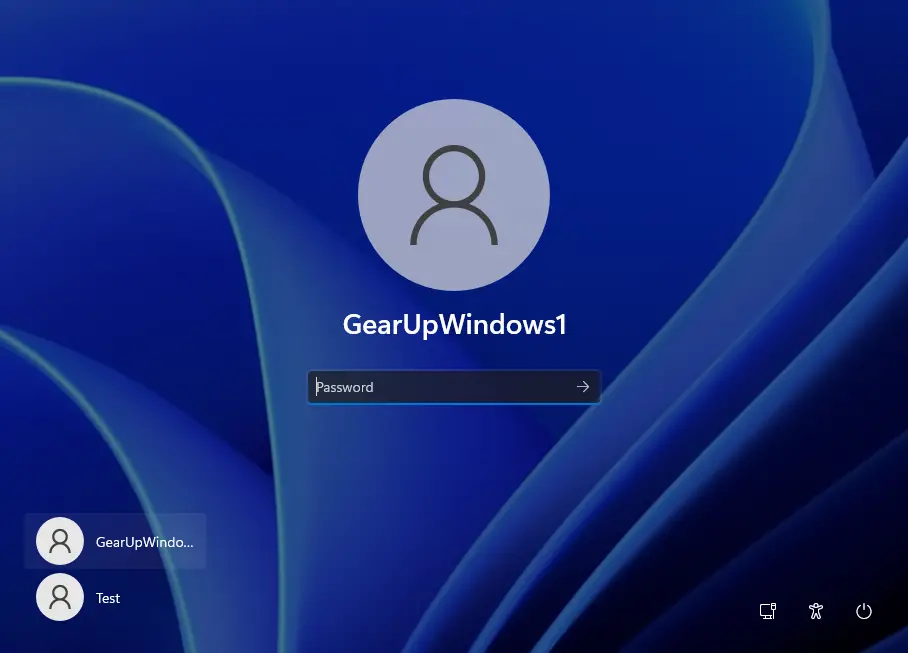
If you want to see a clear image on the Logon/Login screen on Windows 11, it is possible using the group policy editor. By tweaking the Group Policy of your PC, you can use a clear picture on the Logon background.
How to Show a Clear Logon Background Image on Windows 11?
Use these steps:-
Step 1. Open Local Group Policy Editor (gpedit.msc).
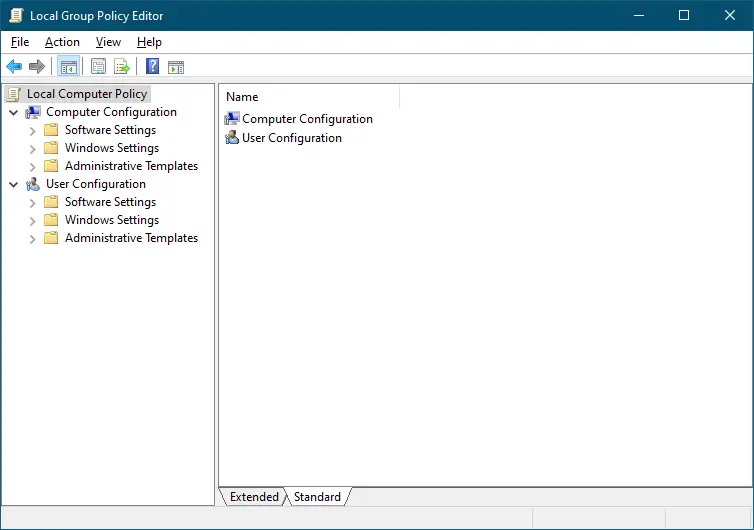
Step 2. Navigate to the following path in the Local Group Policy Editor window from the left side pane:-
Computer Configuration > Administrative Templates > System > Logon
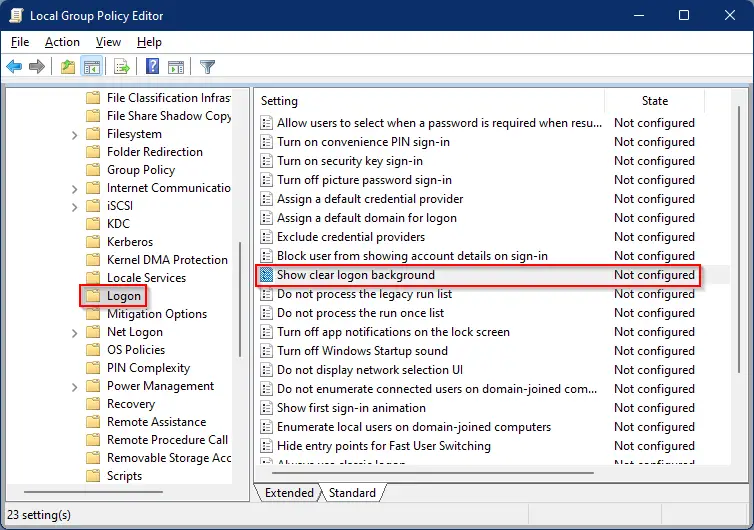
Step 3. On the right side of the Logon folder, look for the policy name, “Show clear logon background,” and double-click on it to open its settings.
According to Microsoft, “This policy setting disables the acrylic blur effect on the logon background image. If you enable this policy, the logon background image shows without blur. If you disable or do not configure this policy, the logon background image adopts the acrylic blur effect.”
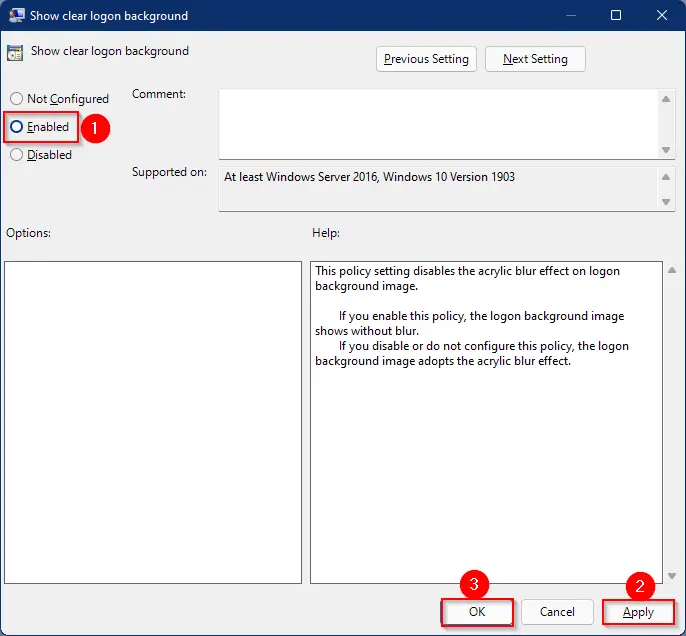
Step 4. Select Enabled.
Step 5. Click Apply.
Step 6. Click OK.
After executing the above steps, you should see a clear logon background image on Windows 11. No more blur effect on login background.
Good luck.