

Most of us use Mozilla Firefox as a primary browser for Windows PC. All of us know that the Firefox browser lets you save your Password every time you enter the password in the Firefox browser for any website. Whenever you log in to a website whose credentials aren’t stored in Firefox password manager, it prompts, ‘Would you like Firefox to save this login for that website?’ You are provided with two options: Save and Don’t Save. The Save password message appears every time you log in to the same or other sites. If you don’t want to use this feature, you can use Firefox options and turn off this panel.
This is a good option to log in to the specified webpage without typing the password again and again. In other words, when you try to log in to the webpage for which you have stored the password under Firefox, it will let you log in without typing the password. It is a good feature of Firefox, but if you are annoyed, you can stop prompting for password save features of Firefox.
This post will show the steps to stop the Save Password prompt in Firefox from appearing every time you save a password.
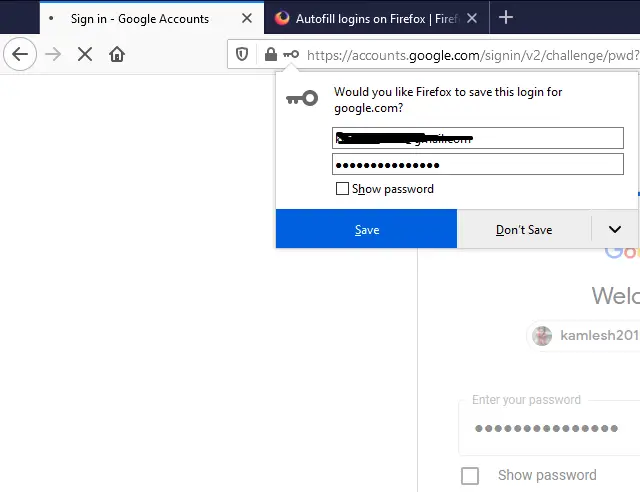
How to stop the ‘Save Password’ prompt in Firefox?
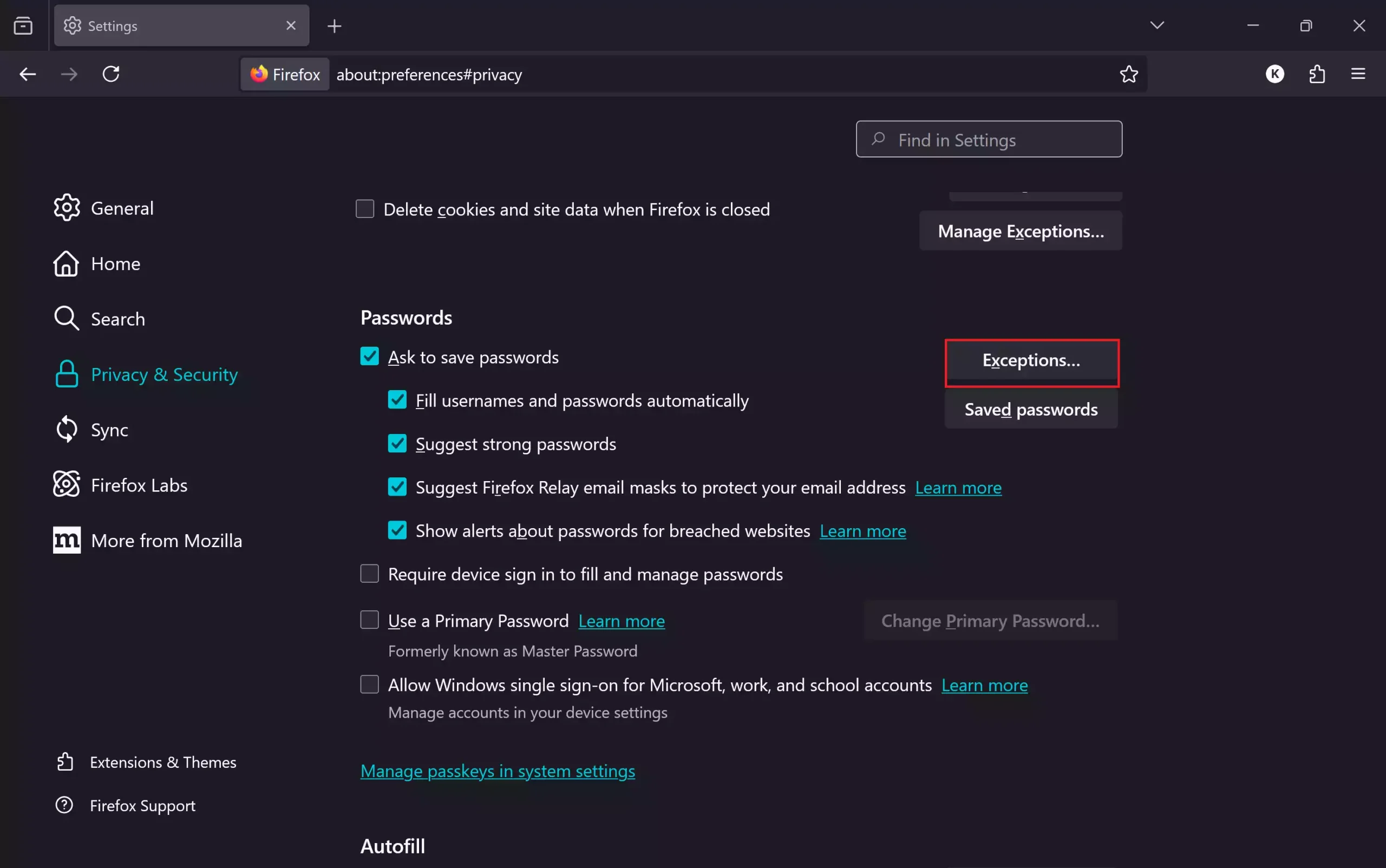
To stop the prompt to save the logins and passwords for any website, do the following:-
Step 1. Open the Firefox browser, click the three horizontal lines, and choose Settings in the drop-down menu to open the Settings page.
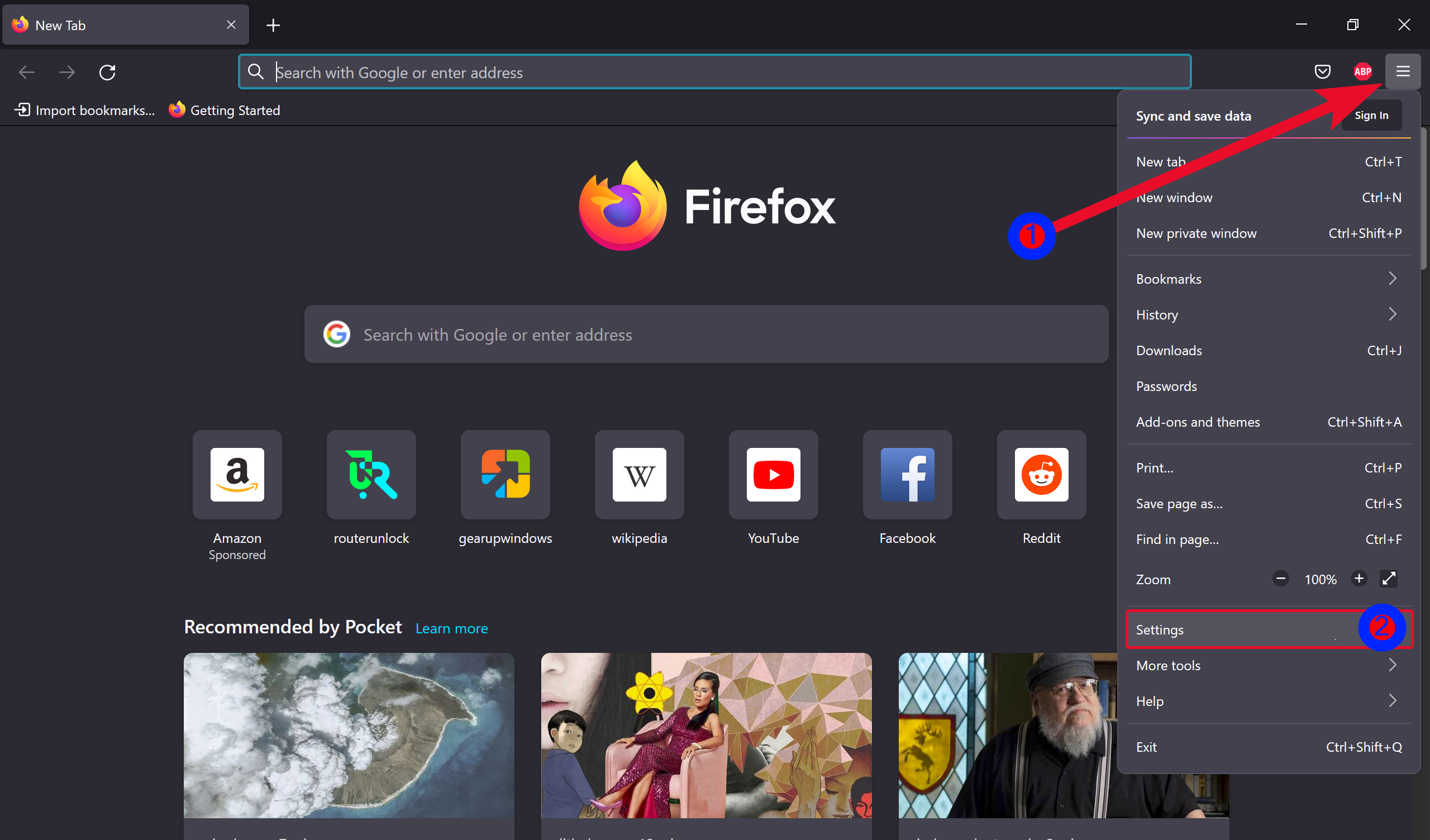
Alternatively, open Firefox and browse for the following:-
about:preferences
Step 2. Click the Privacy & Security from the left side menu.
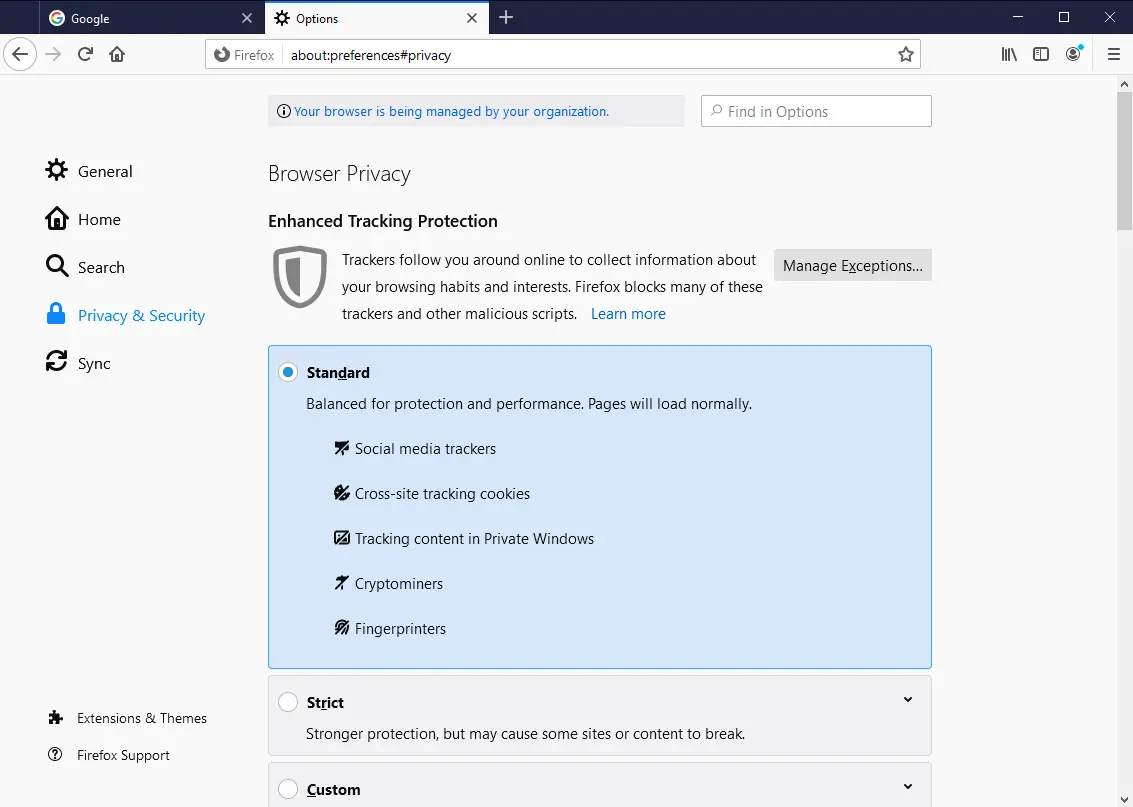
Step 3. Scroll down to the “Passwords” section.
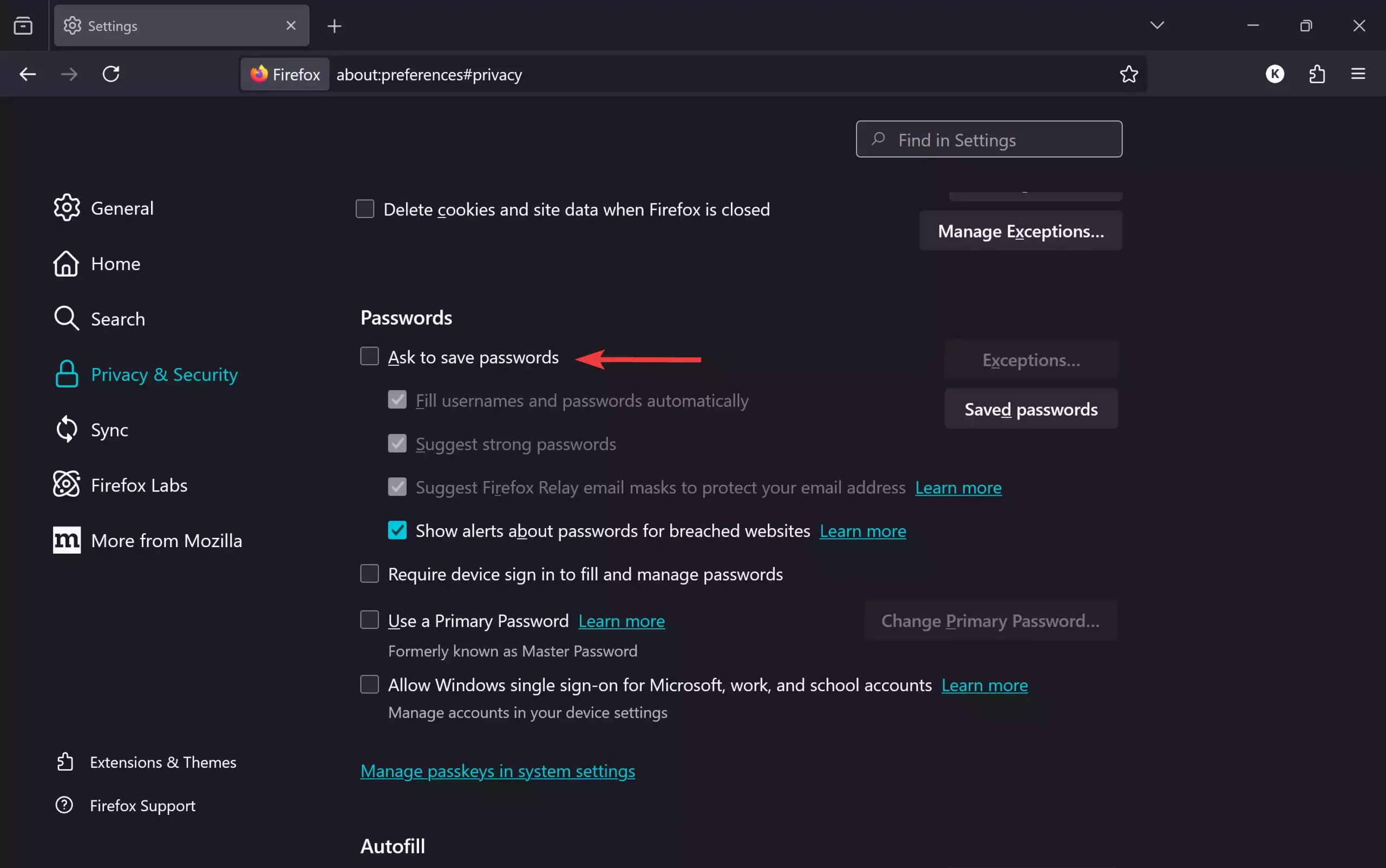
Step 4. Under the “Passwords” section, uncheck the “Ask to save passwords” option.
From now onwards, when you enter the login credentials on Firefox for any website, it will not prompt you to store them in the password manager.
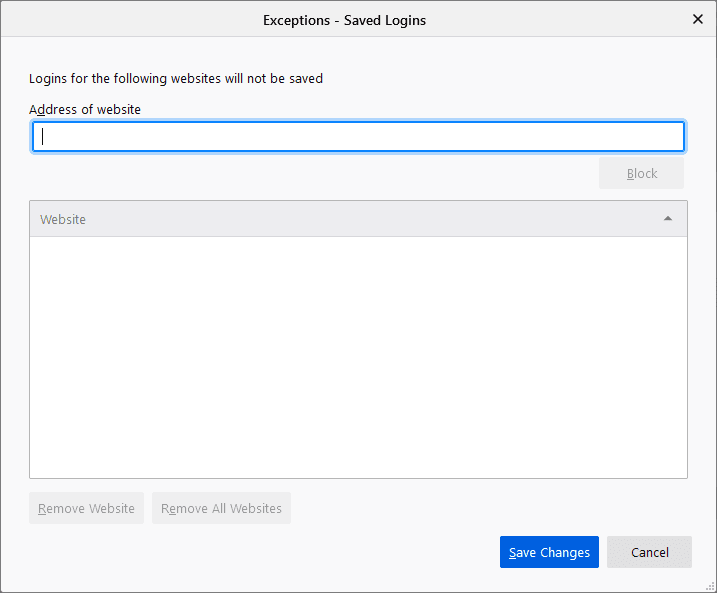
If you do not want to prompt Firefox to save login credentials for a selected website, in step 4, don’t uncheck the “Ask to save passwords” option. Click on the Exceptions button and add your desired website.
Add a website, and click on the Block button. You can repeat the steps for as many websites as you want. Finally, click on the Save Changes button. The websites added to the exemption list will not be stored for those logins and passwords.
FAQs
Why does Firefox keep asking to save my passwords?
Firefox displays the Save Password prompt whenever you log in to a website that is not stored in its password manager. This helps auto-fill logins in the future.
Can I disable the Save Password pop-up completely?
Yes. You can uncheck the Ask to save passwords option under Privacy & Security settings to stop Firefox from prompting you.
Can I block Firefox from asking to save passwords for specific websites?
Yes. Use the Exceptions button and add the website addresses you want Firefox to ignore. The browser will not ask to save logins for those sites.
Will disabling this feature delete my already saved passwords?
No. Disabling the prompt only stops Firefox from asking in the future. All previously saved passwords remain available in the password manager.
Can I re-enable the Save Password prompt later?
Yes. Just go back to Privacy & Security settings and check the Ask to save passwords box again.
Conclusion
In conclusion, the Firefox browser’s password-saving feature can be quite useful, but some users may find it annoying to be prompted to save passwords repeatedly. Fortunately, Firefox provides an easy way to disable this feature. By following the simple steps outlined in this post, users can turn off the “Save Password” prompt in Firefox and prevent the browser from asking to save logins and passwords for any website. Additionally, users can exempt selected websites from the list by adding them to the exception list. Overall, these steps will help users have a more personalized browsing experience with Firefox.