

How do I turn on or turn off the Settings app and Control Panel in Windows 10? Windows 10 comes with many features, and one of them is the Settings app. The classic Control Panel is still part of Windows 10, but the new Settings app offers distinct capabilities that are not available in the Control Panel. In Windows 10, you can use both the Control Panel and the Settings app to allow or restrict specific functions for users on your computer. This means both the Control Panel and Settings app let you control various aspects of your PC.
In normal scenarios, you typically won’t need to disable access to the Control Panel and Settings app. You can easily create a standard user account to limit access to these applications. The Settings app allows users to perform various tasks, such as adjusting screen resolution, checking for updates, personalizing themes, setting the lock screen, and adding or removing devices. In other words, it enables both basic and administrative tasks.
However, if for some reason you want to restrict access to the Control Panel and Settings app, it is possible in Windows 10. You can disable access to these applications using either the Group Policy Editor or by modifying registry values. Once disabled, the Settings app will briefly open and then close immediately when someone tries to access it. Meanwhile, the classic Control Panel will display a message stating that the operation has been canceled due to restrictions in effect on this computer and advise the user to contact the system administrator.
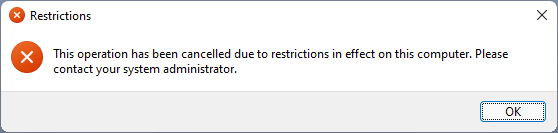
How to Disable Control Panel and Settings in Windows 10 using Group Policy?
Follow these steps to turn off or disable Control Panel and Settings in Windows 10 using Group Policy:-
Step 1. Open Local Group Policy Editor.
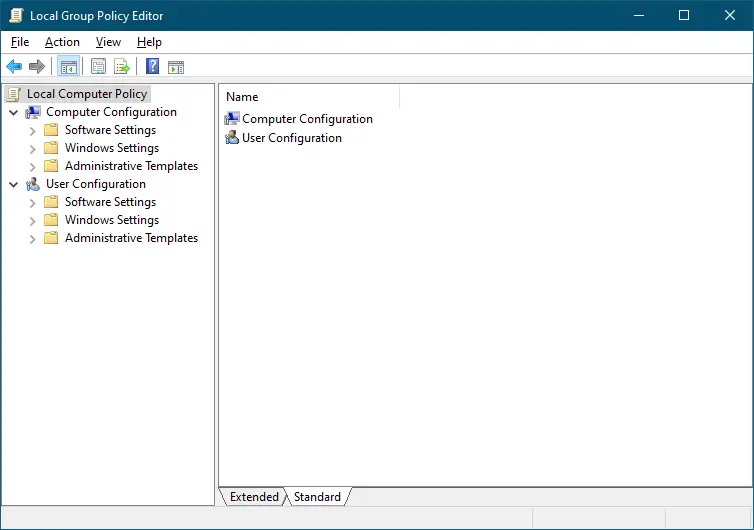
Step 2. In the Local Group Policy Editor window that opens, browse to the following path from the left side window:-
User Configuration > Administrative Templates > Control Panel
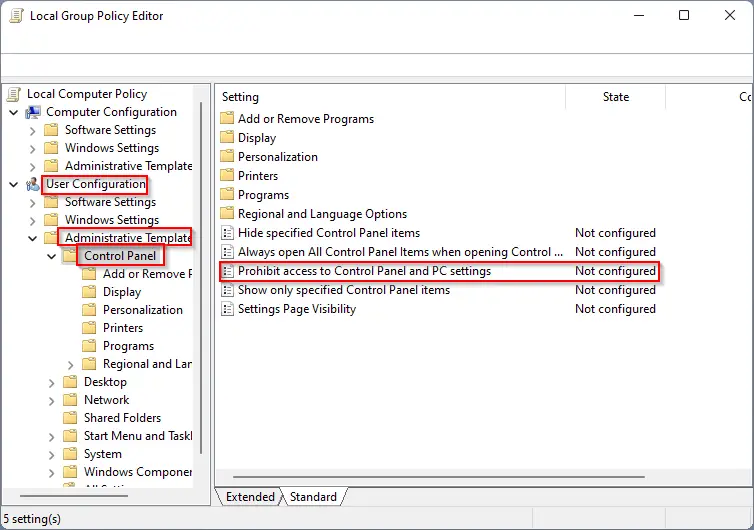
Step 3. On the right side pane of the Control Panel, look for the policy name Prohibit access to Control Panel and PC settings, and then double-click on it to open its settings.
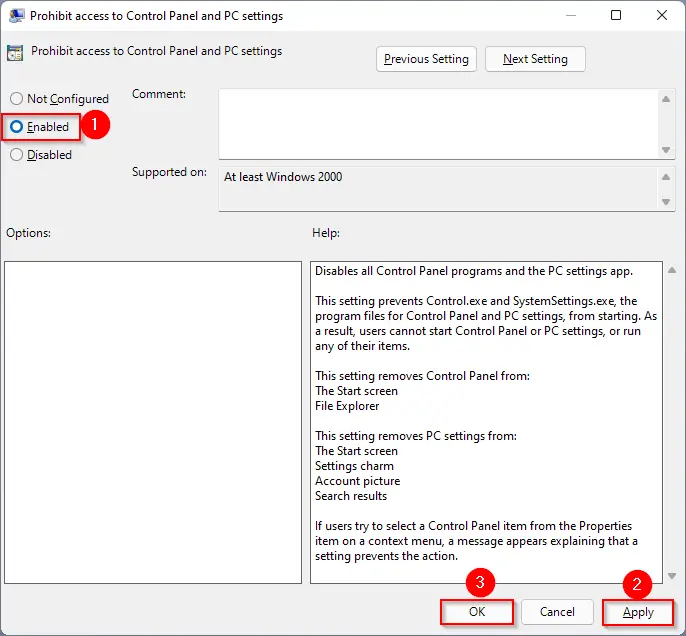
Step 4. Select the Enabled option.
Step 4. Click the Apply button.
Step 5. Click the OK button.
Step 6. Restart your computer or laptop.
After completing the above steps, the Control Panel and Settings app functions will be disabled on your PC. That means no user account on your computer can open it.
To lift the restrictions, repeat the above steps, and in step 3 above, select the Not Configured option.
How to Restrict Access to Control Panel and Settings app in Windows 11?
By modifying the Registry values, you can also apply the policy.
Step 1. Access Registry Editor.
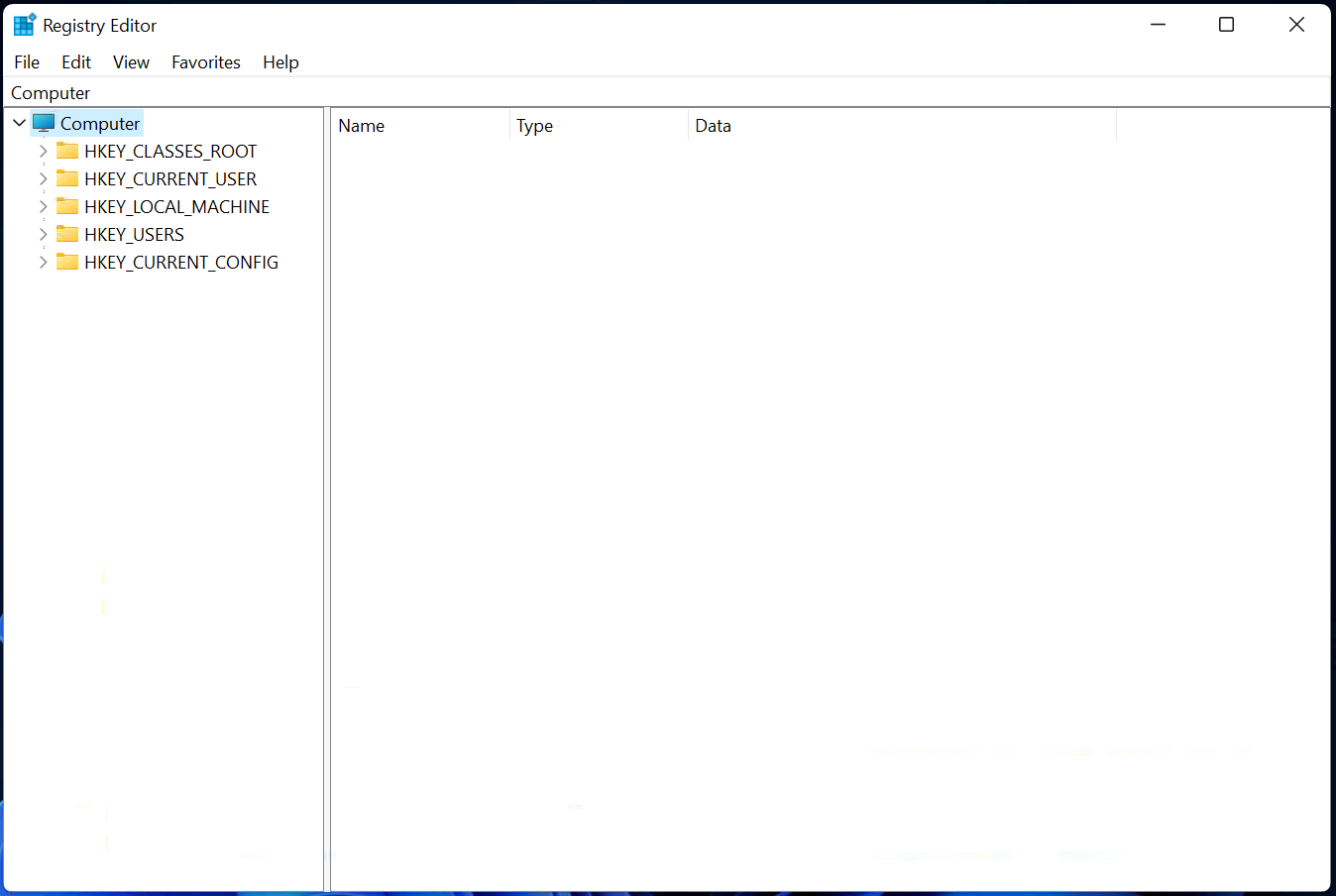
Step 2. Now, navigate or browse to the following key from the left side pane of the Registry Editor:-
HKEY_CURRENT_USER\Software\Microsoft\Windows\CurrentVersion\Policies\Explorer
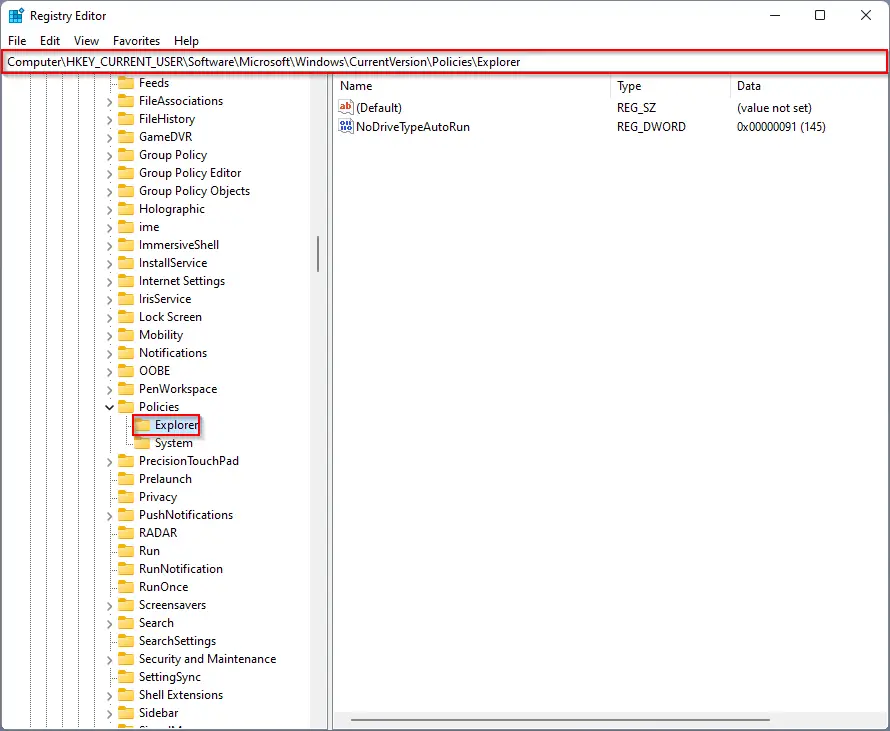
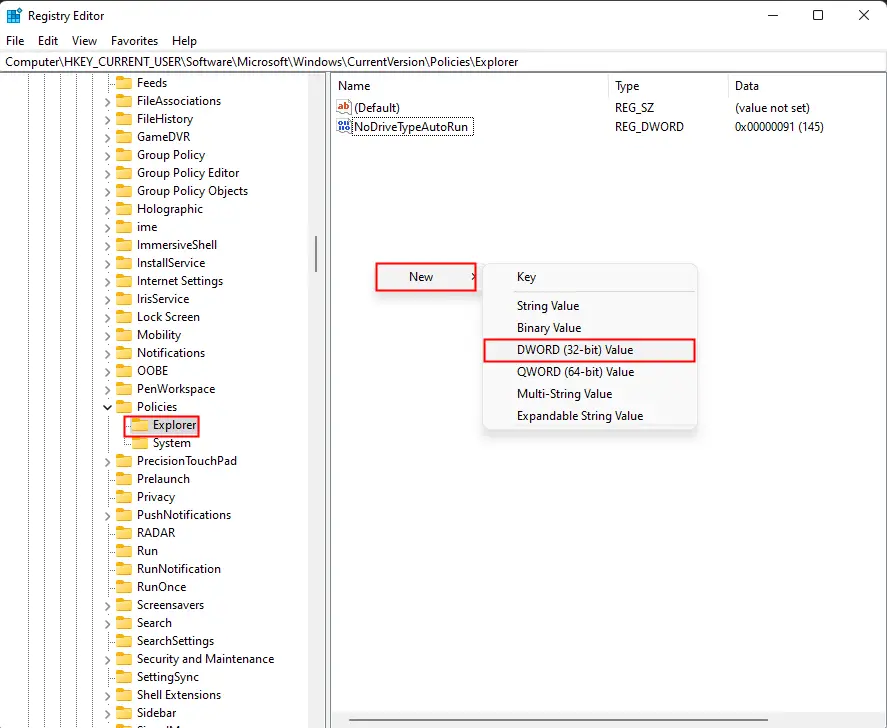
Step 3. On the right side pane of the Explorer key, right-click on the blank space and select New and then DWORD (32-bit) Value. Name it NoControlPanel.
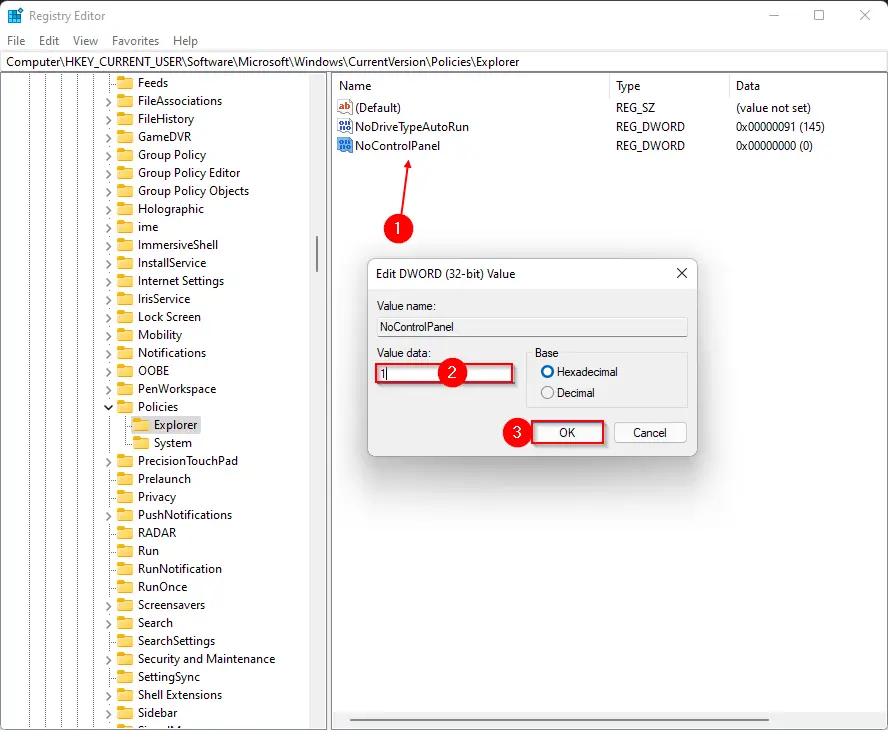
Step 4. Now, double-click on NoControlPanel and change its Value data from 0 to 1. Then, click the OK button.
Step 5. Again, navigate to the following registry key:-
Computer\HKEY_LOCAL_MACHINE\SOFTWARE\Microsoft\Windows\CurrentVersion\Policies\Explorer
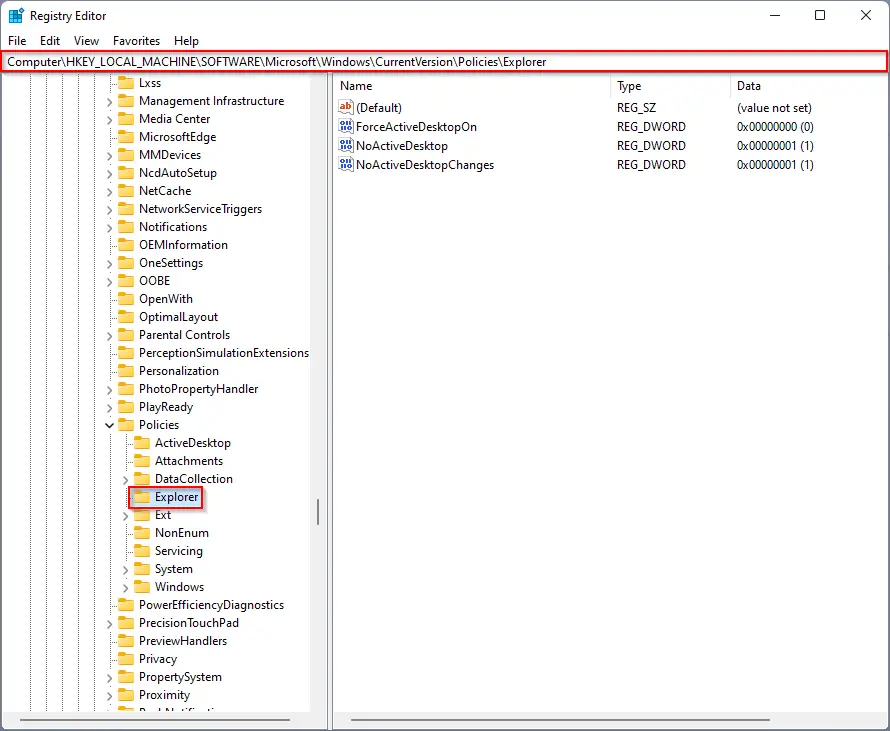
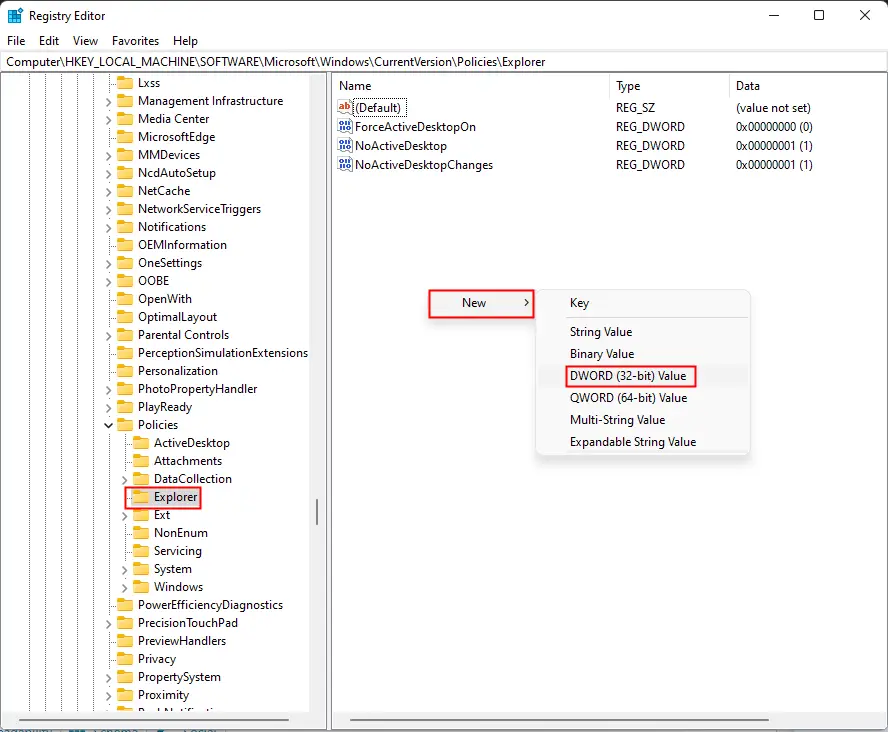
Step 6. On the right side pane of the Explorer key, right-click on the blank space and select New and then DWORD (32-bit) Value. Name it NoControlPanel.
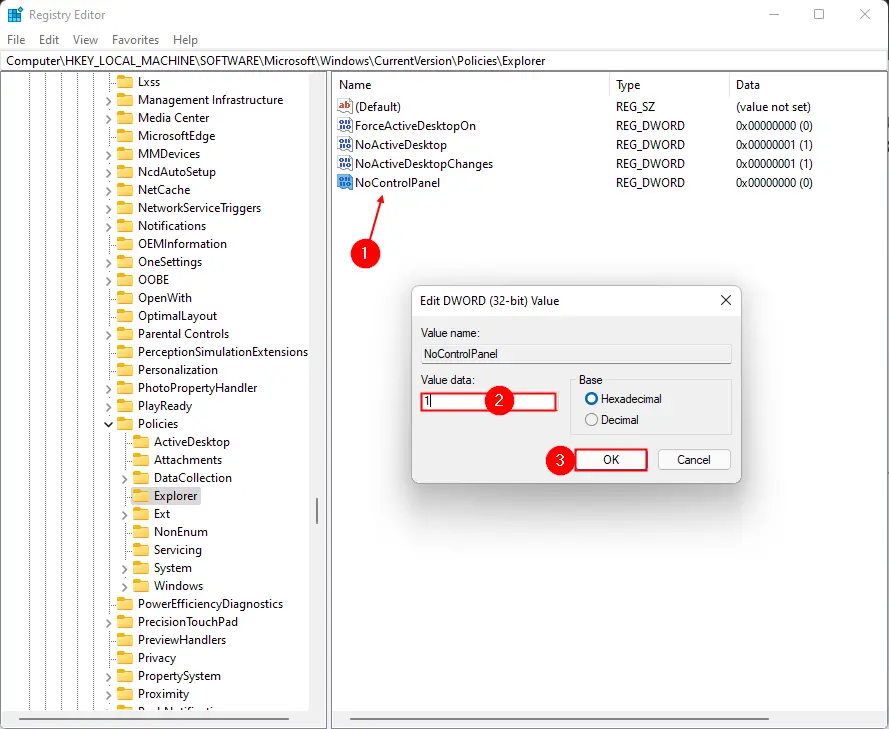
Step 7. Now, double-click on NoControlPanel and change its Value data from 0 to 1. Then, click the OK button.
Step 8. Finally, reboot your computer.
After executing the above steps, no one can open the Control Panel and Settings app on your computer or laptop.
Conclusion
In conclusion, Windows 10 offers two ways to control access to the Control Panel and Settings app on your computer. While both the Control Panel and Settings app provide a wide range of features, users may want to restrict access to these applications for various reasons. By following the steps mentioned above, users can quickly turn off or disable access to the Control Panel and Settings app using Group Policy or modifying the Registry values. It is important to note that restricting access to these applications can impact the functionality of your computer, and it should only be done after careful consideration. To lift the restrictions, users can follow the same steps and select the appropriate options to allow access to the Control Panel and Settings app.