

Although updated drivers may include new features and bug fixes, it’s not recommended to update them if you’re not facing any issues. If your device is working fine, a driver update could unexpectedly cause problems by introducing untested changes to your system.
For those new to Windows 11, it’s important to know that Windows automatically keeps many drivers up-to-date through Windows Update. Minor yet necessary updates for standard components like touchpads or USB controllers are installed automatically during system updates.
Additionally, some driver updates appear under “Optional Updates” in Windows 11. However, you should only install these updates if you are experiencing a known issue with a device. If you’re having trouble with a specific component, checking for optional updates might help.
How to Check for Optional Updates on Windows 11?
To view and install optional updates on your Windows 11 PC, follow these steps:
Step 1. Open Settings.
Step 2. Click Windows Update on the left sidebar.
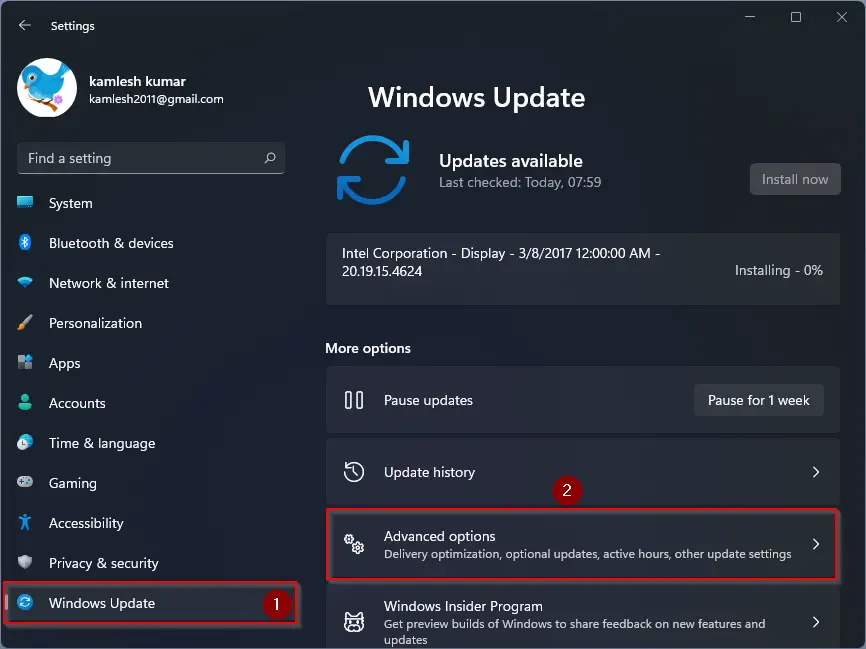
Step 3. On the right pane, click Advanced options.
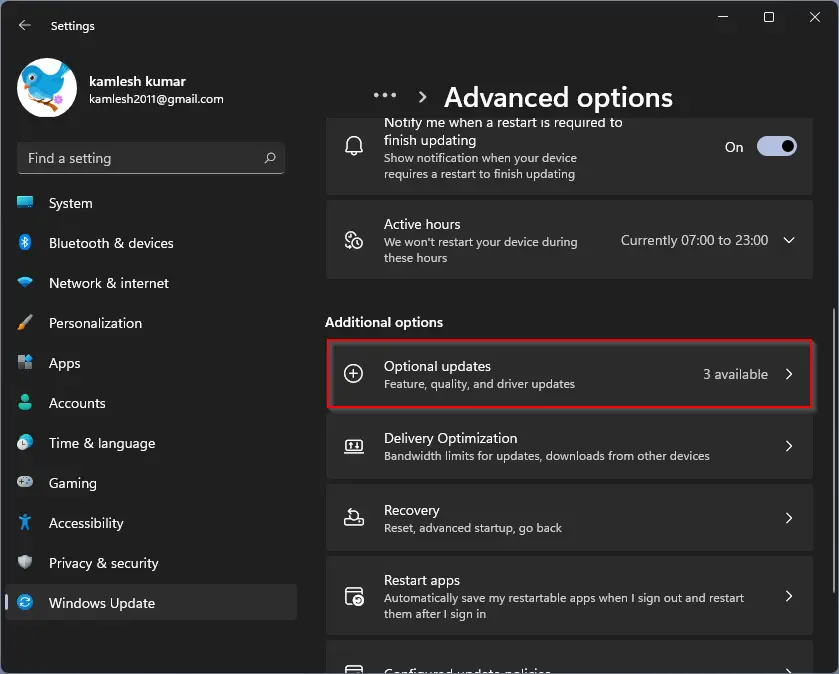
Step 4. Under the “Additional options” section, click Optional updates.
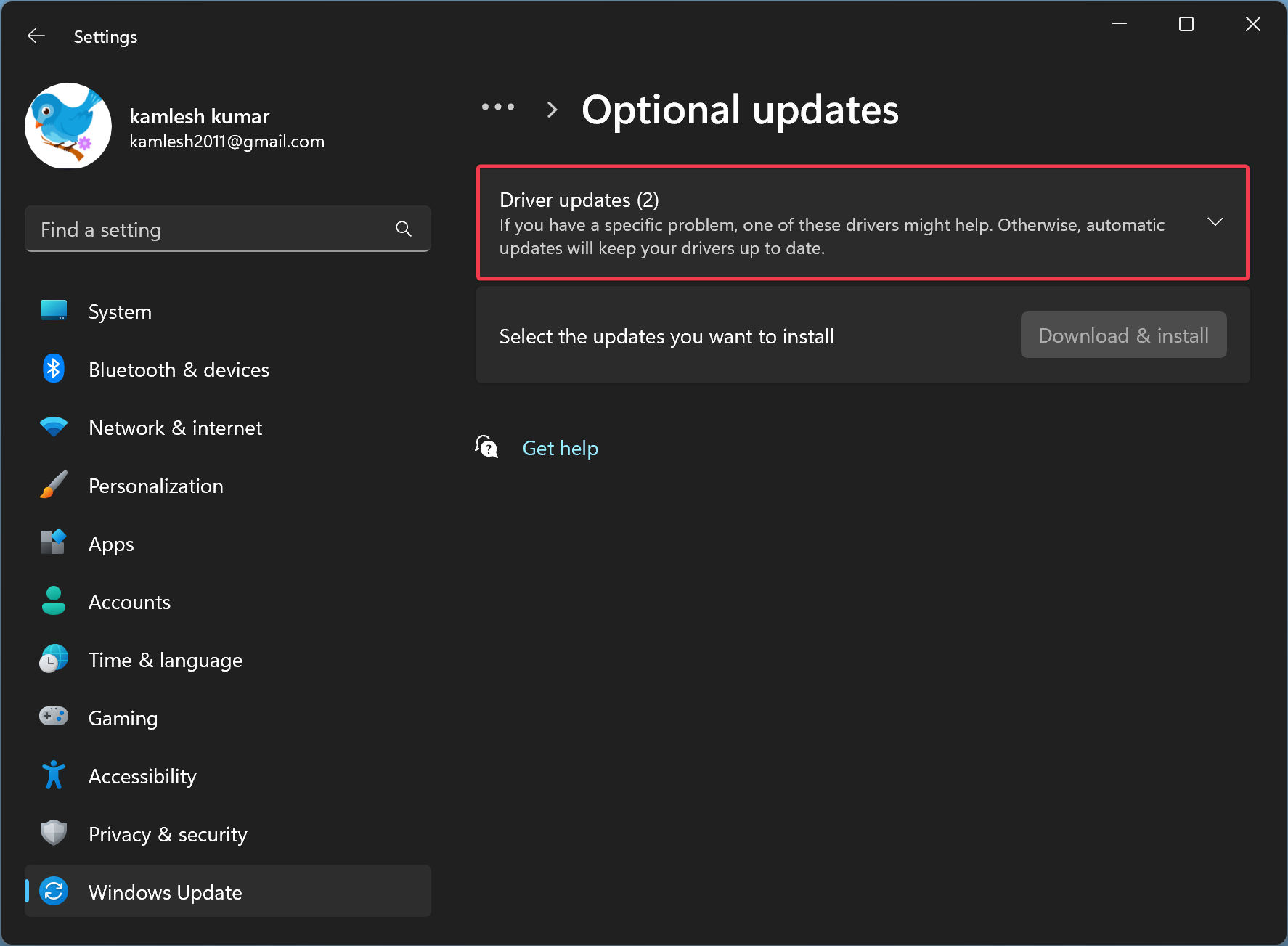
Step 5. Click Driver updates.
Step 6. Select the update(s) you want to install.
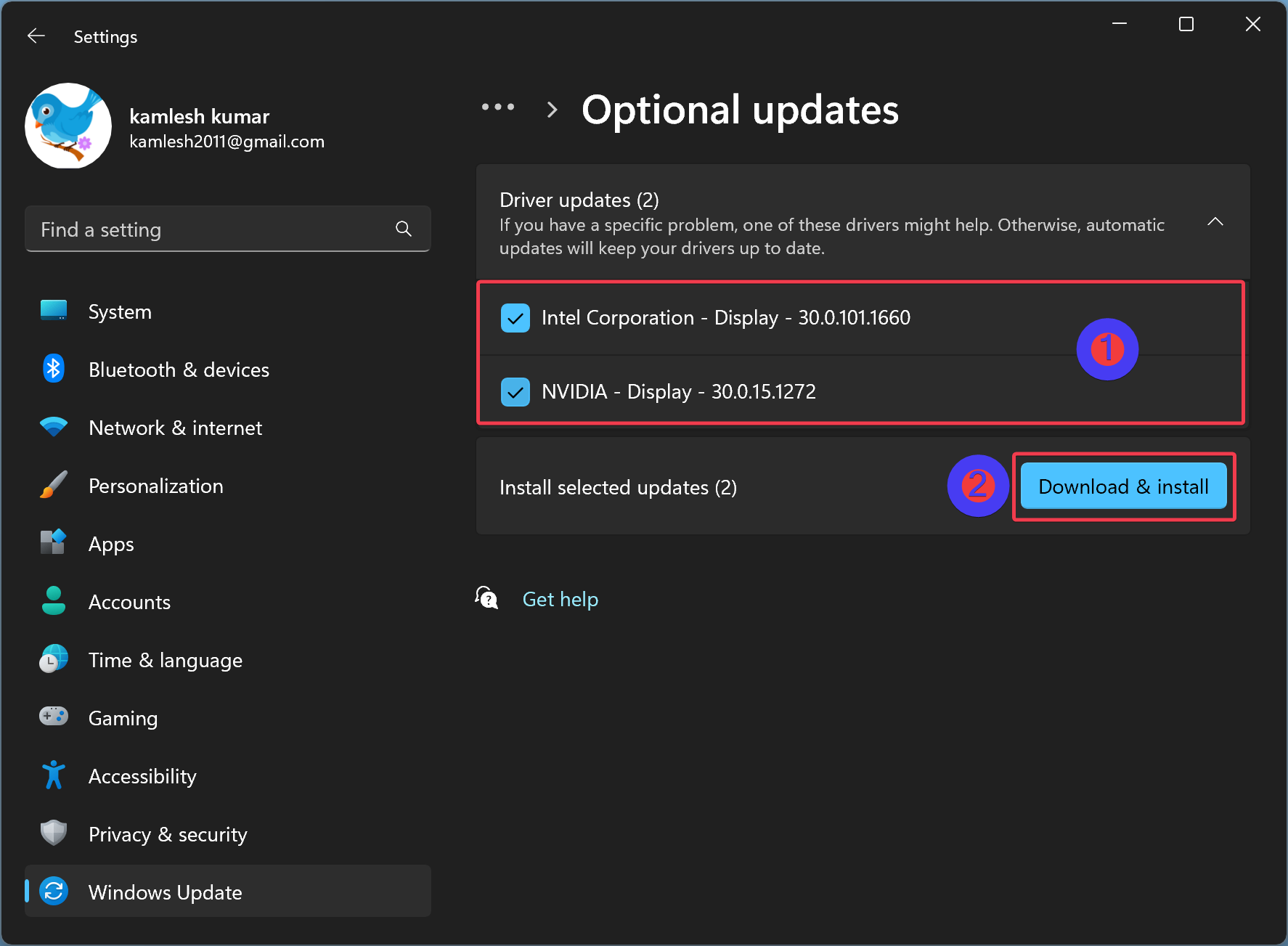
Step 7. Click Download & install.
After completing these steps, Windows will download and install the selected drivers.
How to Manually Update Drivers with Device Manager?
Windows 11 also allows you to update individual devices using Device Manager. Here’s how:
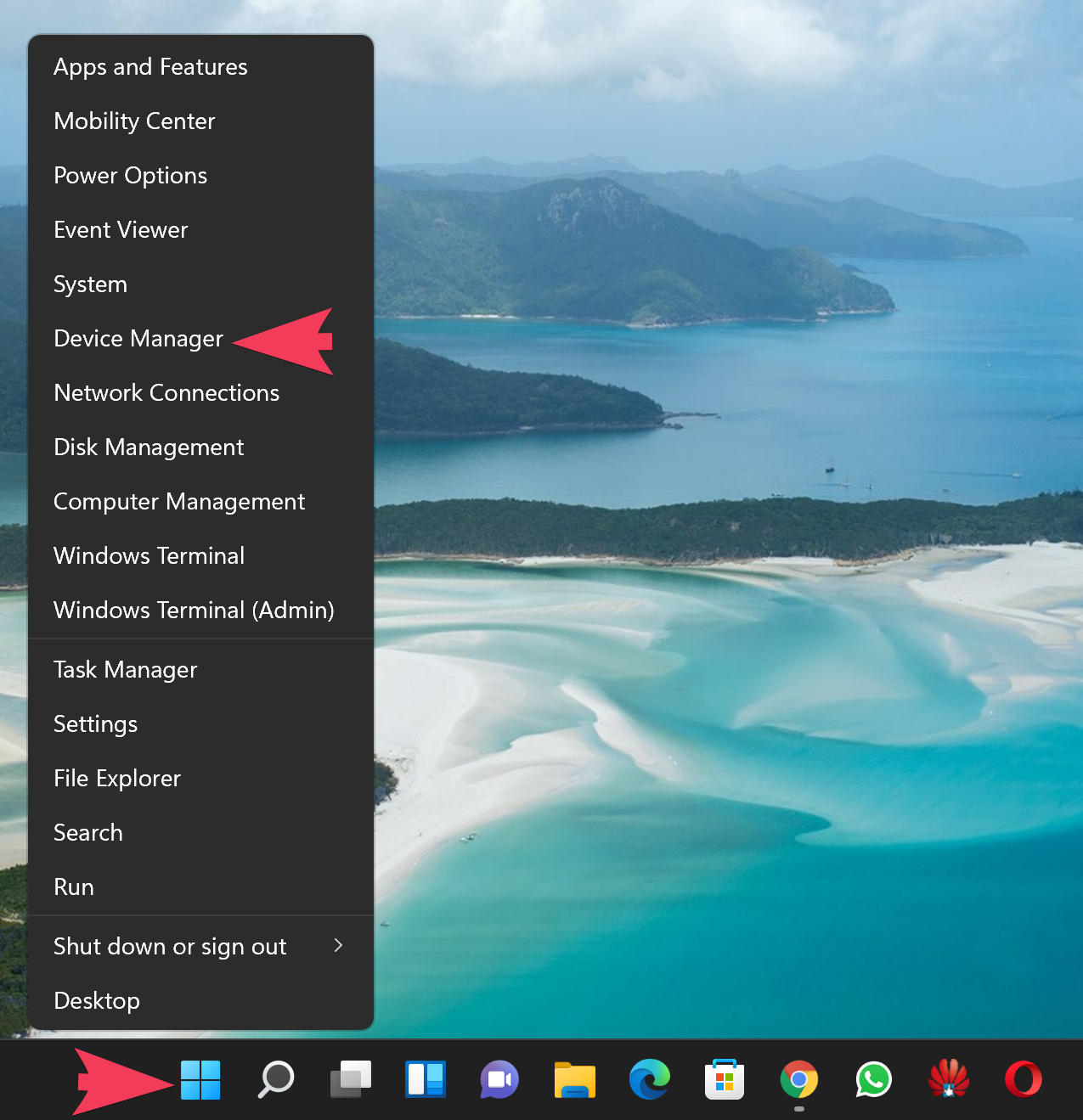
Step 1. Open Device Manager.
Right-click the Start button and select Device Manager from the menu.
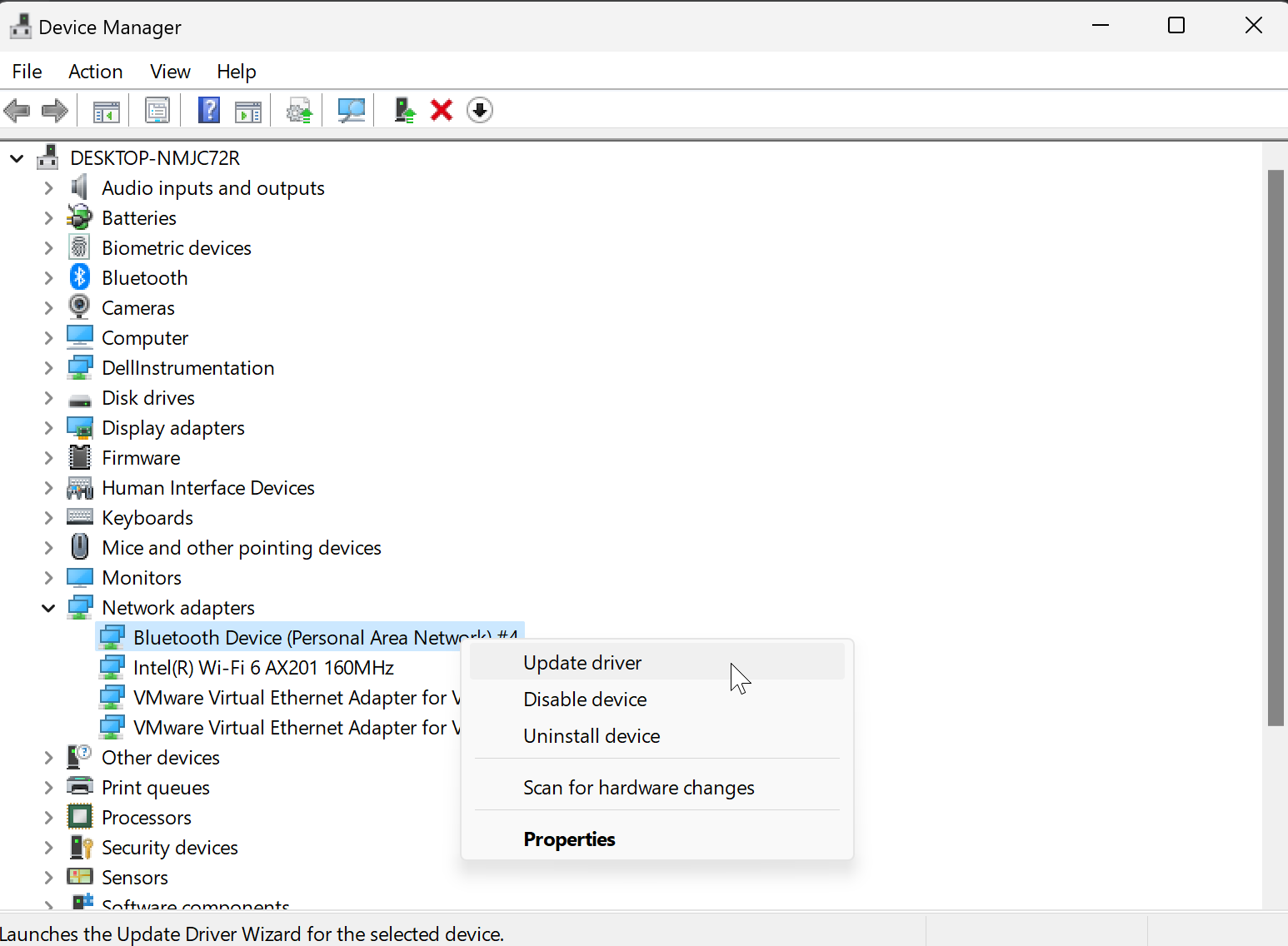
Step 2. In Device Manager, expand the device category, right-click the device you want to update, and choose Update driver.
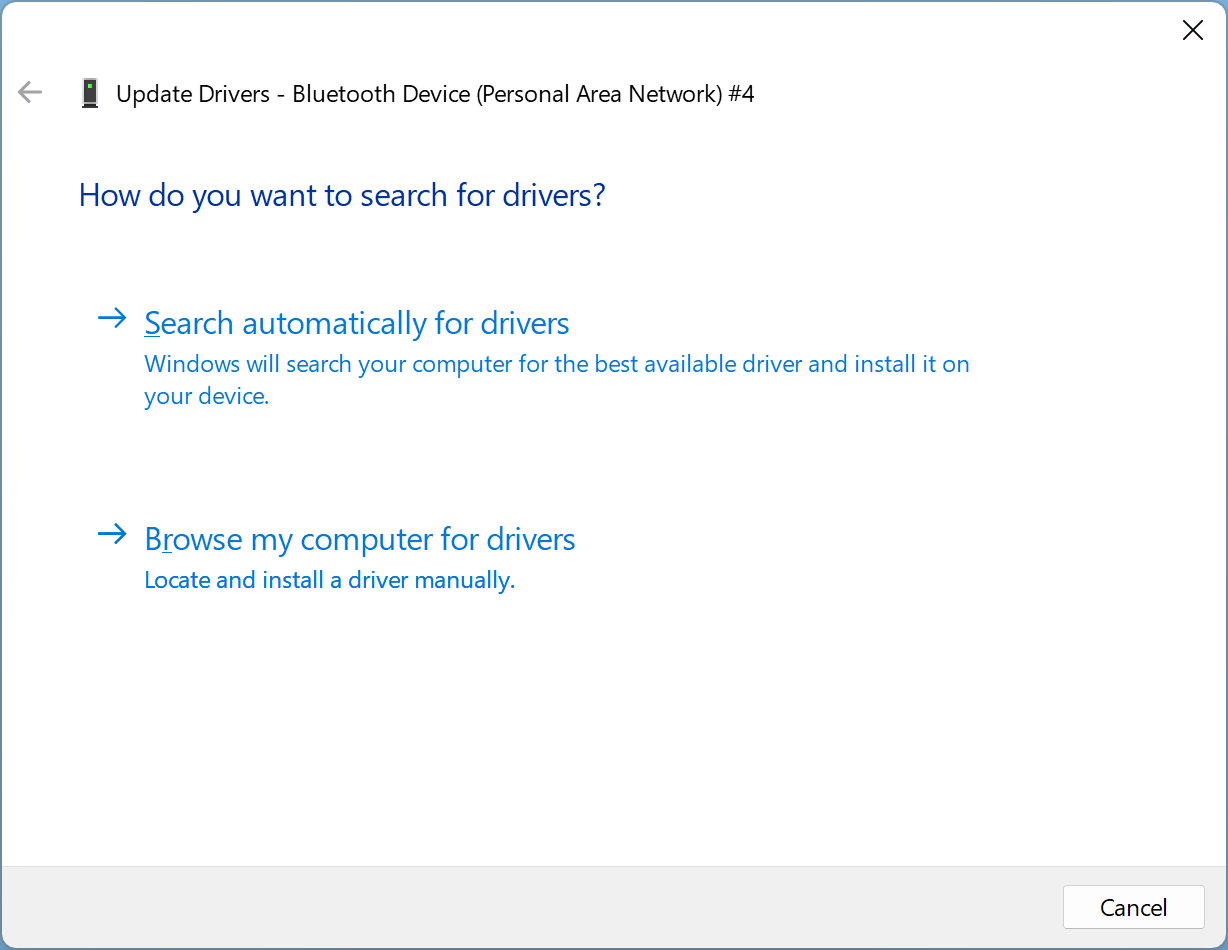
Step 3. In the “Update Drivers” window, choose one of the following:
- Search automatically for drivers: Windows searches for compatible drivers and installs them automatically.
- Browse my computer for drivers: Manually locate and install a driver from your PC. Useful if you’ve downloaded drivers from a manufacturer’s site or have them on a disc.
If you choose Search automatically for drivers, Windows will install any available drivers and may prompt you to restart your PC.
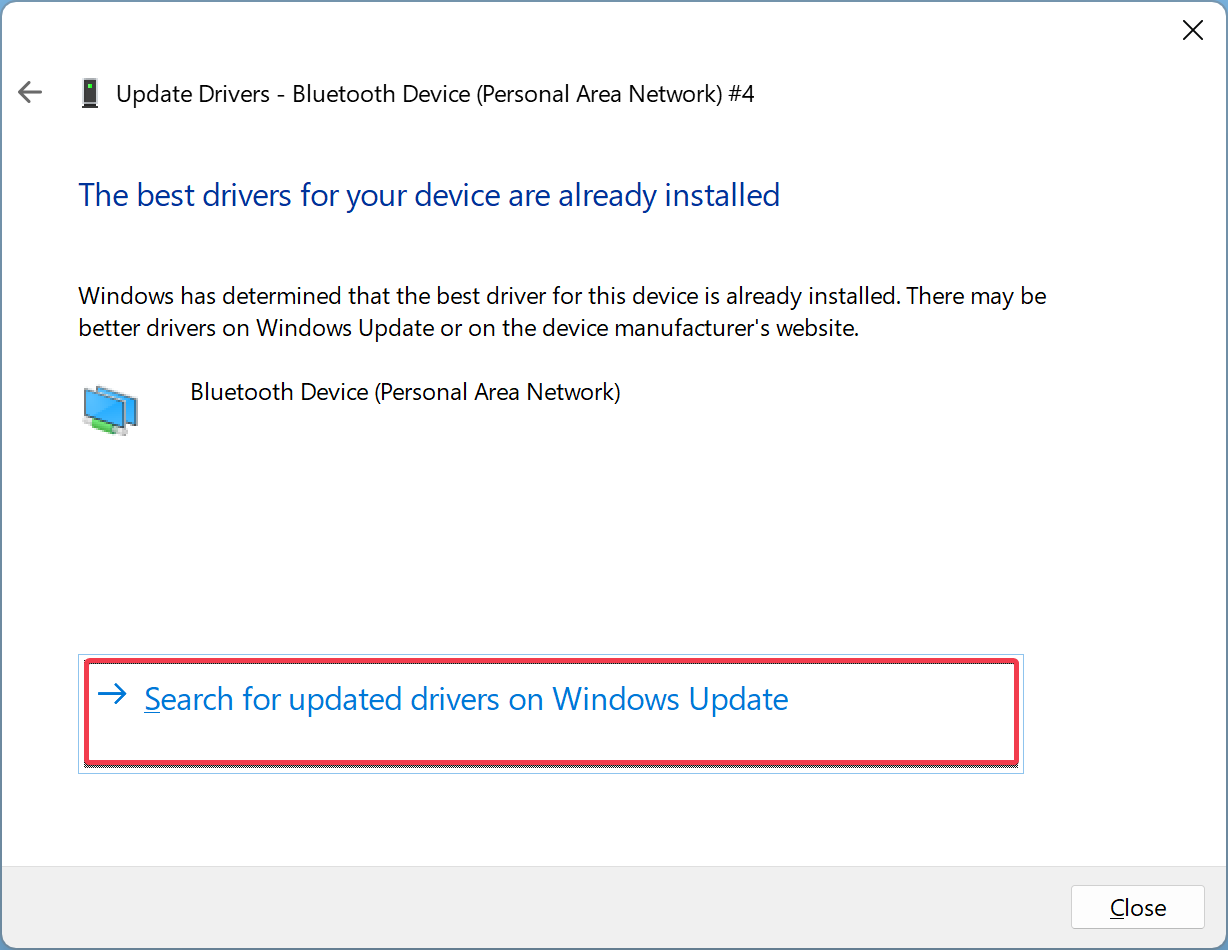
If Windows displays “The best drivers for your device are already installed,” click Search for updated drivers on Windows Update to check online.
If you select Browse my computer for drivers, click the Browse button to locate your files. You can also click Let me pick from a list of available drivers on my computer.
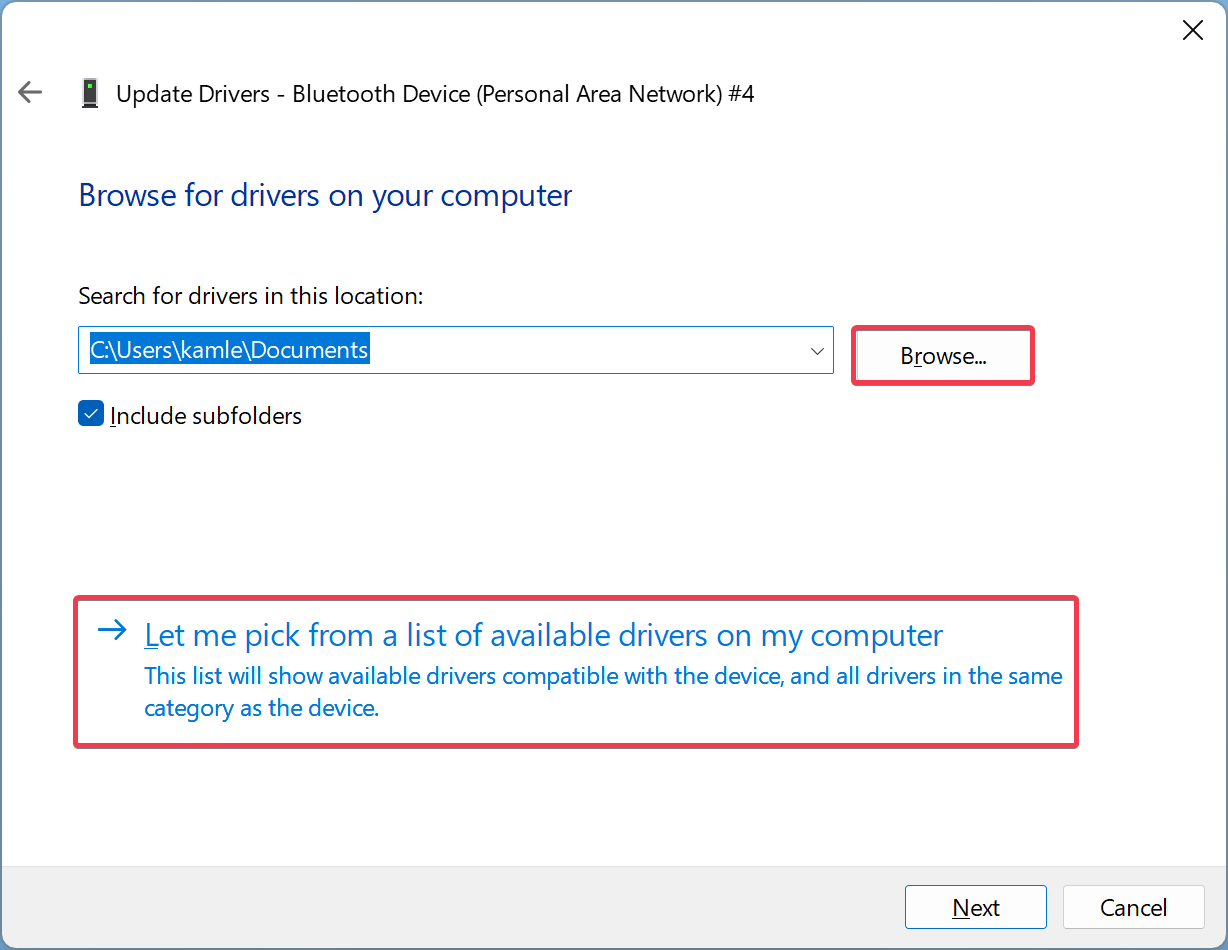
If Windows recognizes the files or your selection, it will show a list of compatible drivers. Select one and click Next.
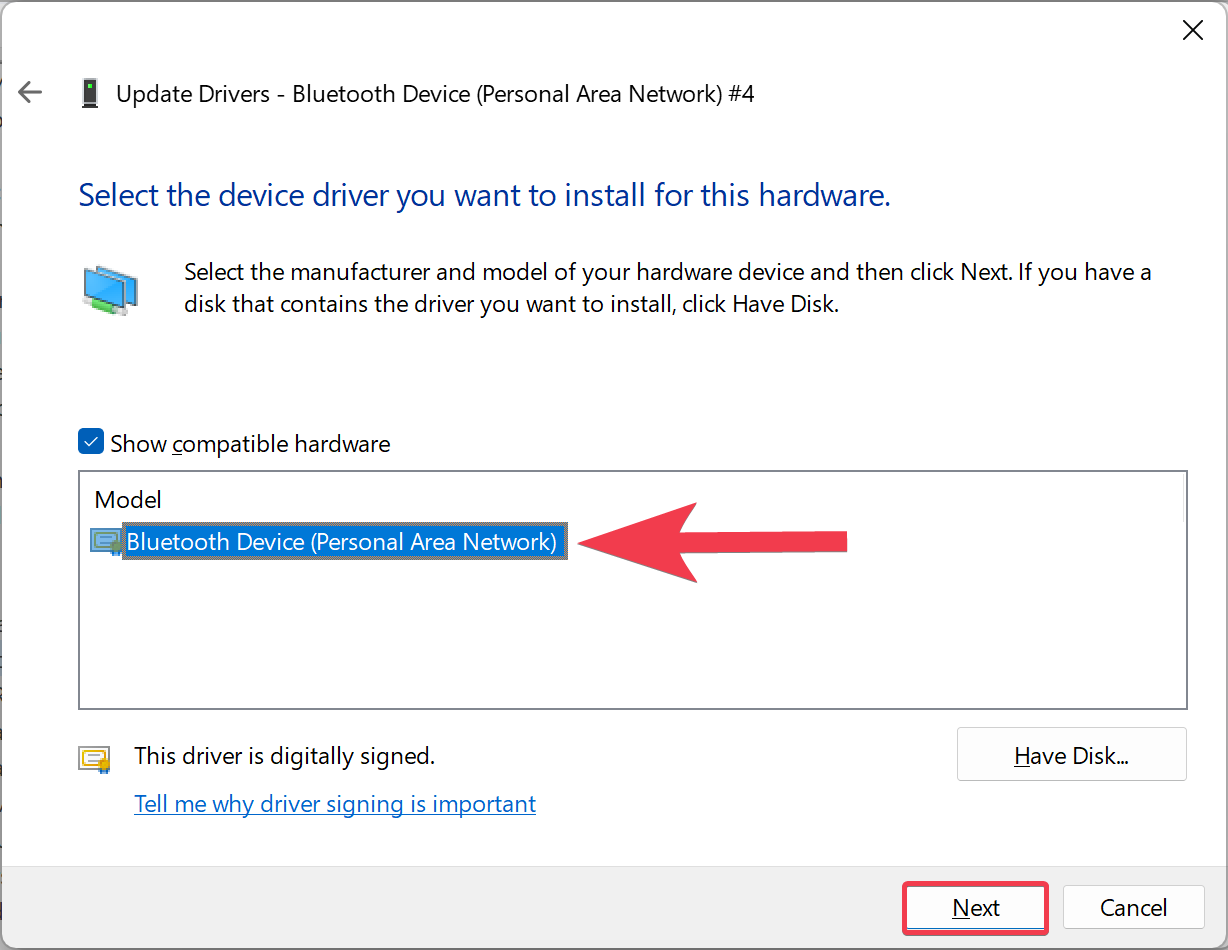
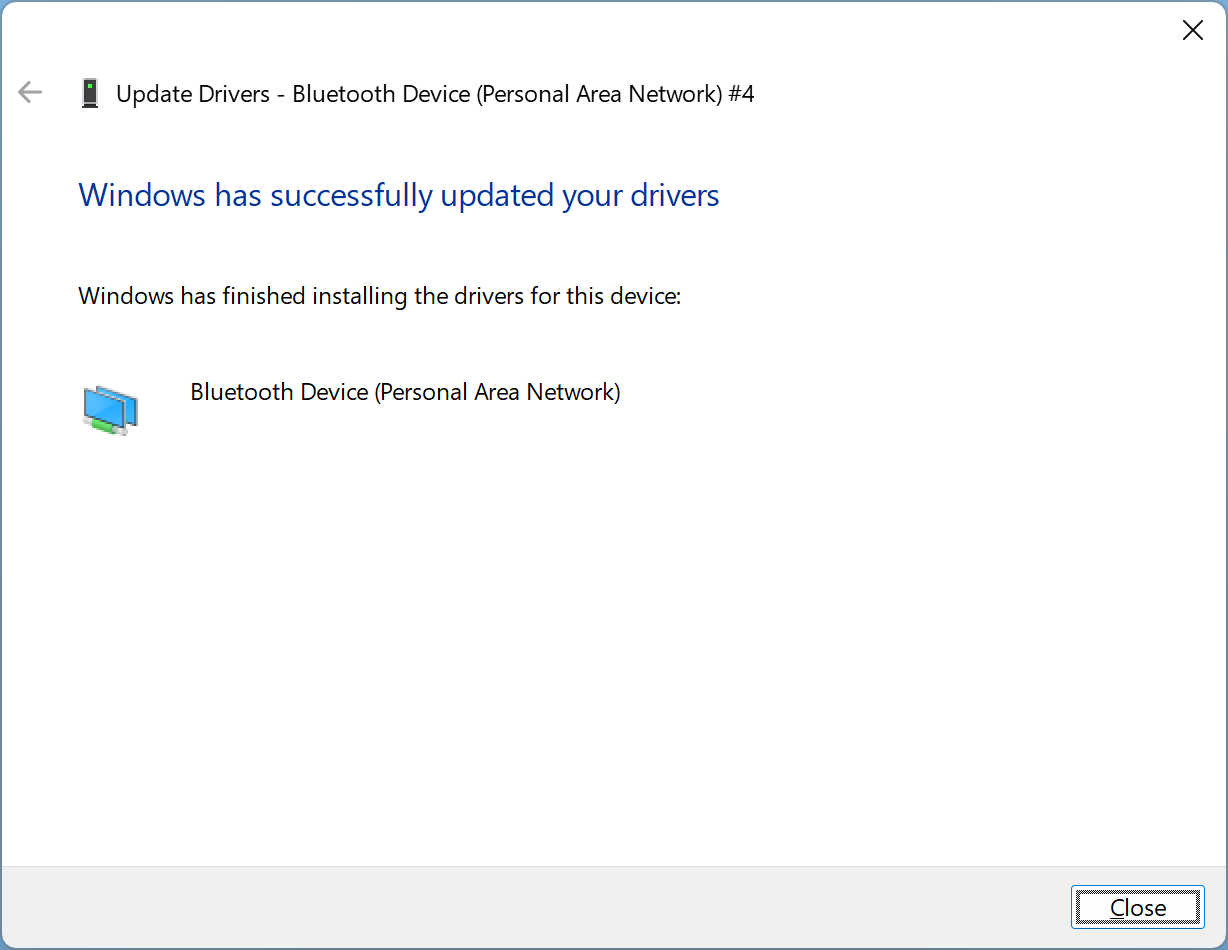
If no update is required, you’ll see “The best drivers for your device are already installed.” Otherwise, Windows will install the newer version and confirm with “Windows has successfully updated your drivers.”
Conclusion
In conclusion, updating drivers can fix bugs and improve performance, but it’s best not to update them unnecessarily. Windows 11 handles most driver updates automatically. Optional updates should be installed only if you’re experiencing a specific issue. You can follow the steps above to check for these updates or manually install drivers using Device Manager. If your system is working well, it’s safer to leave the drivers as they are to avoid potential problems from untested changes.