

If you’re concerned about your hard drive’s health or suspect your USB drive may be failing, a surface scan can help detect physical issues like bad sectors. Macrorit Disk Scanner is a completely free, portable utility for Windows that checks your drives for sector errors without altering any data. It’s lightweight, beginner-friendly, and supports all major file systems, including NTFS and FAT32.
What is Macrorit Disk Scanner?
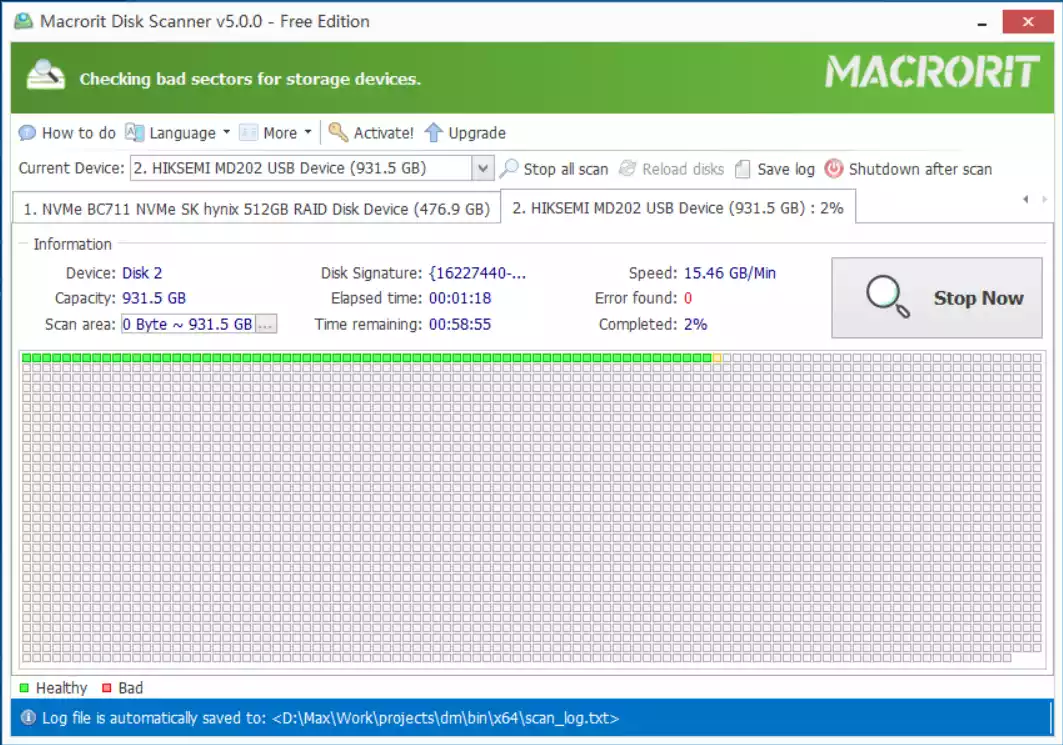
Macrorit Disk Scanner is a freeware tool designed to perform read-only scans on storage drives. It checks every sector for errors and displays a visual map of the disk, marking bad sectors in red and healthy ones in green. Since it doesn’t write anything to the disk, it’s safe to use even on critical or failing drives.
Key Features of Macrorit Disk Scanner
- Completely free for personal use
- Portable – no installation required
- Supports HDDs, SSDs, USB drives, memory cards, and external disks
- Graphical interface showing good and bad sectors
- Pause and resume scan options are available
- Compatible with Windows 11, 10, 8.1, 7, and older versions
How to Use Macrorit Disk Scanner on Windows 11/10?
Step 1. Download Macrorit Disk Scanner from the official website and extract the ZIP file.
Step 2. Launch the portable executable – no setup is needed.
Step 3. Choose the drive you want to scan from the list of available volumes.
Step 4. Click the Start Now button to begin the scan.
Step 5. Wait for the process to complete. Bad sectors will be highlighted in red, and the scan log can be saved afterward if needed.
Why Use Macrorit Disk Scanner?
If you’ve used tools like Ariolic Disk Scanner or HDDScan, you’ll find Macrorit Disk Scanner equally effective. It offers a clean interface and performs fast scans without compromising safety. Unlike command-line tools like CHKDSK, this utility doesn’t risk writing to disk or triggering recovery operations.
Complementary Tools
If you’re scanning a drive for bad sectors, it’s also a good idea to review its SMART status using a tool like HDDScan. To optimize performance or clean up space after identifying failing sectors, try using Glary Utilities Free.
Need to back up or compress your files from a failing drive? 7-Zip offers a fast and efficient way to archive them safely.
Final Thoughts
Macrorit Disk Scanner is a reliable freeware solution for detecting bad sectors on any storage device. Its non-destructive scanning method makes it a perfect choice for users who want to check disk health without risking data loss. Whether you’re troubleshooting issues or performing regular maintenance, this tool deserves a spot in your USB repair toolkit.
To explore more useful tools like this, don’t miss our roundup of free utilities to clean and optimize Windows 11/10 PCs.