

If your Windows PC still feels infected after a regular antivirus scan, Norton Power Eraser (NPE) is a small, portable tool designed to hunt down stubborn and deeply embedded threats. It uses aggressive detection methods to flag and remove malware and potentially unwanted programs (PUPs) that typical scanners might miss. This guide explains what it does, when to use it, and how to run it safely.
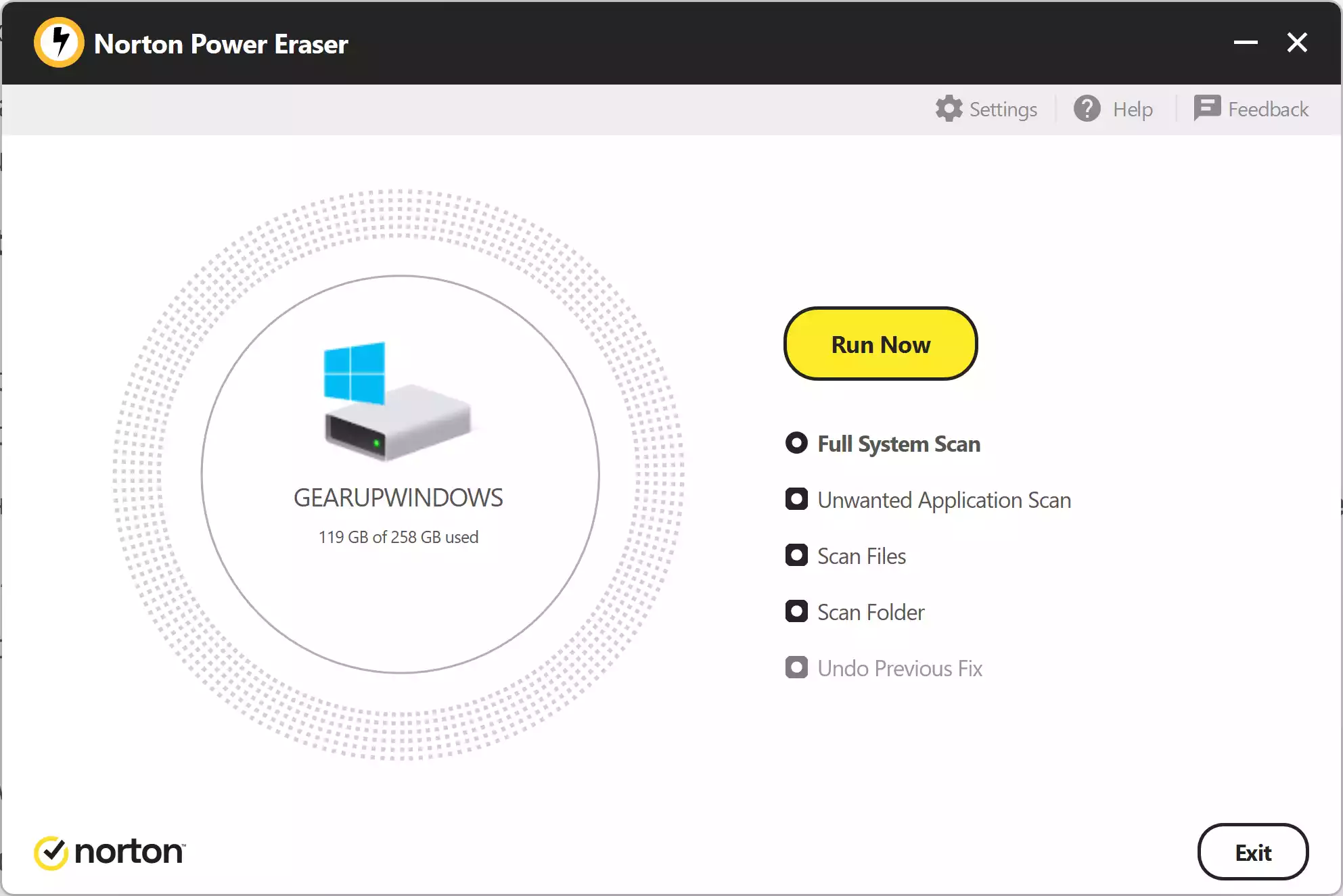
What Is Norton Power Eraser?
Norton Power Eraser is a free, standalone Windows utility from Norton. You download a single EXE and run it—no installation required. It targets hard-to-remove malware, rogue security apps, and other persistent threats using aggressive heuristics. Because it’s aggressive, it can occasionally flag legitimate items; you should always review detections before removing and use its built-in undo option if needed.
When Should You Use It?
- Symptoms persist after a normal antivirus scan (pop-ups, redirects, CPU spikes, unknown processes).
- Your main AV or a one-time scanner finds nothing, but you still suspect an infection.
- You need a portable cleaner you can run from a USB drive without installing services.
Tip: Before using aggressive tools, it’s smart to try a standard one-time scan as a baseline. We’ve covered two solid options: ESET Online Scanner and McAfee Malware Cleaner. If issues persist, come back to NPE.
Main Features
- Aggressive threat hunting: Targets crimeware and entrenched malware that evade normal scans.
- PUP cleanup: Can detect and remove potentially unwanted programs that cause ads or system changes.
- Rootkit option: Can scan below Windows (requires a reboot) to catch stealth threats.
- Portable & fast: Small download, quick scans, and no installation.
- Undo support: Review past repair sessions and undo if you removed something you need.
System Compatibility
Works on modern Windows PCs (Windows 7 SP1 and newer). It’s a Windows-only tool.
Download Norton Power Eraser
Get the latest build from the official Norton page: Download Norton Power Eraser.
How to Use Norton Power Eraser (Step-by-Step)
Follow these steps on Windows 11 or 10 (also works on supported older versions):
- Download NPE and save the EXE to your Desktop or Downloads folder.
- Run as administrator: right-click the EXE and select Run as administrator. Approve the UAC prompt.
- Accept the license to reach the home screen.
- Choose a scan mode:
- Full System Scan — full check of your PC (default).
- Unwanted Application Scan — quick cleanup for adware/PUPs.
- Scan Files — target specific files.
- Scan Folder — scan a chosen folder/drive (great for USBs or Downloads).
- (Optional) Enable rootkit scan: open Settings (gear icon) and turn on the rootkit/boot-time scan. NPE will ask to reboot so it can scan before Windows fully loads.
- Click Run Now to start the selected scan. If prompted, allow the cloud reputation check.
- Review results carefully: expand each item for details and uncheck anything you know is safe.
- Fix selected items: click Fix. NPE creates restore info and removes the selections. A restart may be required to finish cleanup.
- Undo if needed: open NPE again and choose Undo Previous Fix from the home screen to roll back the last repair.
If Malware Blocks the Tool
- Boot to Safe Mode with Networking, then run NPE again.
- Try a Microsoft Defender Offline scan that runs outside Windows: How to Perform an Offline Virus Scan using Microsoft Defender.
- Still unsure? Run a second opinion with another reputable one-time scanner and compare findings.
Best Practices After Cleaning
- Update Windows and installed apps. Remove unknown programs and reset browsers to default.
- Change passwords for email, banking, and social accounts once the PC is clean.
- Keep one real-time antivirus active (Microsoft Defender is fine). For an extra check any time, run Microsoft Safety Scanner (MSERT).
Frequently Asked Questions
Is Norton Power Eraser safe to use?
Yes—when used carefully. It’s intentionally aggressive and can flag legitimate items. Always review results before fixing, and use the built-in undo if you removed something needed.
Does it work on Windows 11?
Yes. NPE supports Windows 7 SP1 and newer, including Windows 10 and 11.
Do I need to install it?
No. It’s a portable EXE you run on demand. Delete the EXE to remove it.
What’s the rootkit scan, and why does it reboot?
Rootkits hide deep in the system. Enabling the rootkit option lets NPE scan before Windows fully loads, which may require a reboot to remove hidden threats.
Can I run it in Safe Mode?
Yes. If malware interferes, run NPE from Safe Mode with Networking and try again.
What if I think NPE flagged a false positive?
Uncheck the item and don’t remove it, or remove it and then use Undo in NPE to restore. You can also rescan with a second-opinion tool for confirmation.
Conclusion
Norton Power Eraser is a powerful last-resort cleaner for Windows that excels at catching threats other tools miss. Use it thoughtfully, review detections, and keep one real-time antivirus active. For peace of mind, pair NPE with occasional second-opinion scans and keep Microsoft Safety Scanner handy.