

Many users open several tabs at once in the Microsoft Edge browser for quick access as needed. While working with multiple tabs, you might accidentally close the browser. Or, your Windows 11/10 PC may shut down unexpectedly or restart manually—causing you to lose all the open tabs in Microsoft Edge. This is a common issue that many users face in their daily workflow.
If you’re one of those users who has ever closed the browser by mistake or restarted the PC while working online, there’s a simple way to restore your last opened tabs in Microsoft Edge.
This post will guide you on how to restart Microsoft Edge with your last browser session restored on a Windows 11/10 PC.
How to restart the Microsoft Edge browser with previously opened Tabs in Windows 11/10?
There is a built-in option in the Microsoft Edge browser to reopen or restore the previous session without losing past opened Tabs in Windows 11/10. To access this setting in the Microsoft Edge browser, perform the following steps:-
Step 1. Launch the Microsoft Edge browser.
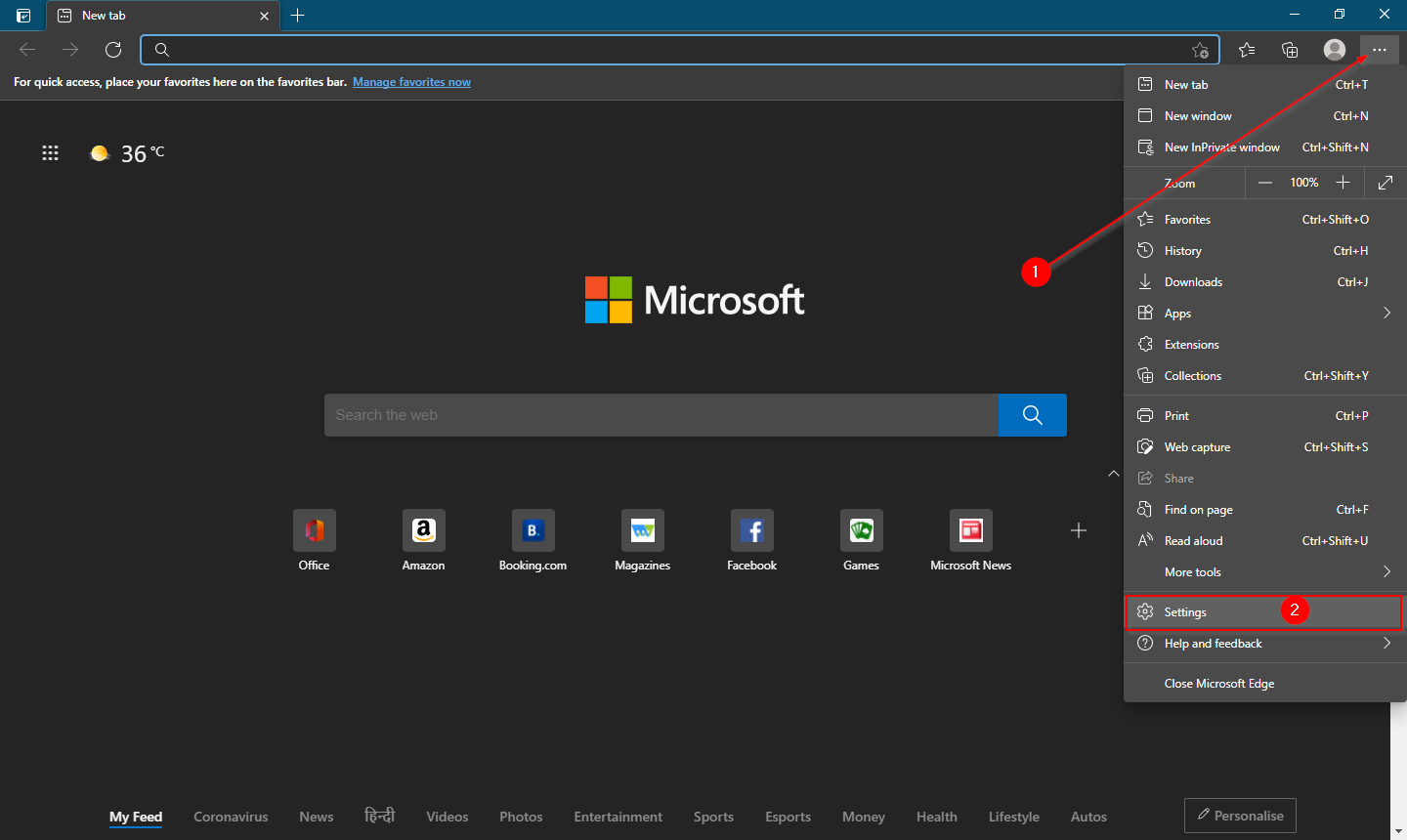
Step 2. Click on “Settings and more” (three dots) on the top right corner of the browser, and then click on Settings from the drop-down options.
Step 3. On the Settings page, in the left side pane, click on the “On startup” tab.
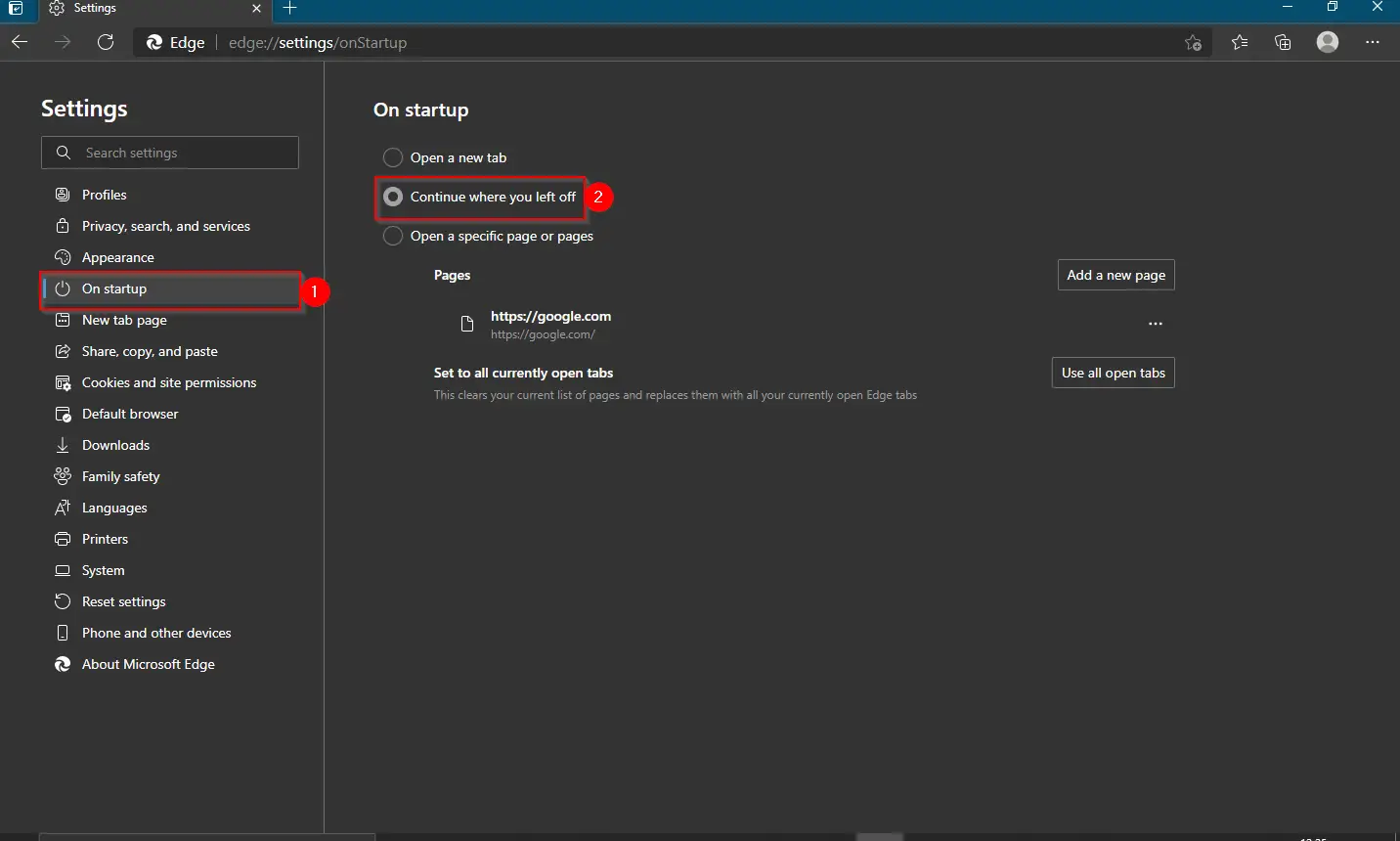
Step 4. On the right-side pane of the “On startup” tab, select the radio button labeled “Continue where you left off.”
Step 5. Close the Edge browser.
Once you complete the above steps, if you’re working with many tabs in the Edge browser and accidentally close it or your PC restarts unexpectedly, Microsoft Edge will automatically restore the previously opened session the next time you launch it. In other words, when you relaunch the Edge browser, it will reopen all tabs from your last session.
Alternatively, you can use the shortcut Ctrl + Shift + T to restore the previous session manually. Just open Microsoft Edge and press Ctrl + Shift + T to bring back all the tabs from your last browsing session.
Conclusion
In conclusion, losing all opened tabs in the Microsoft Edge browser due to a sudden shutdown or accidental closure can be frustrating. However, with the built-in option in the Edge browser to restore the previous session, users can easily reopen their last opened tabs without any hassle. By following the steps mentioned above, users can enable the “Continue where you left off” setting in the Edge browser, and the browser will automatically restore the previous session whenever launched. Additionally, users can use the shortcut Ctrl + Shift + T keys to restore the previous session of the Edge browser.
You might also be interested in a guide on how to restart the Google Chrome browser without losing previously opened Tabs in Windows 11/10.