

In the realm of personal computing, aesthetic customization plays a pivotal role in shaping the user experience. One of the primary interaction points with any Windows operating system is its taskbar. Over the years, the Windows taskbar has undergone significant changes, but with the arrival of NiceTaskbar, a new horizon of personalization opens up, all without putting a dent in your wallet.
For those who love tweaking and refining the Windows interface, Ultimate Windows Tweaker 5 is another excellent companion tool that helps users fine-tune every visual and performance aspect of Windows 11. Together, these utilities redefine what “personal” means in personal computing.
What is NiceTaskbar?
NiceTaskbar is more than just a tool; it’s an avenue to express yourself. With computers becoming an extension of our personalities, shouldn’t we have the freedom to personalize even the most mundane components like the taskbar?
Key Features
- No System Restart Needed: Unlike many other customization tools, which require you to restart your system for changes to take effect, NiceTaskbar eliminates this inconvenience. Make your changes and see them reflected instantly.
- Auto-Fade Effects: Add a touch of dynamism to your taskbar with auto-fade-in and fade-out effects. This subtle transformation gives a premium feel to the overall user interface. You can explore more such creative enhancements in RainbowTaskbar, which offers vivid color gradients and transitions.
- Personal Touch: The feature to customize the taskbar with personal images and text makes it an interactive canvas. Imagine having a cherished memory or a motivational quote right there on your taskbar!
- Enhanced Start Menu Personalization: While the taskbar transformation is the primary feature, NiceTaskbar doesn’t stop there. Users can even add their own photos to the Start menu, thereby ensuring a cohesive, personalized look.
- Tailored for Modern Windows: Designed to be compatible with Windows 8.1, 10, and the latest Windows 11, NiceTaskbar seamlessly integrates with the system. If you’re seeking even finer control over the Windows interface, learn how to change the taskbar size on Windows 11 using safe community tools.
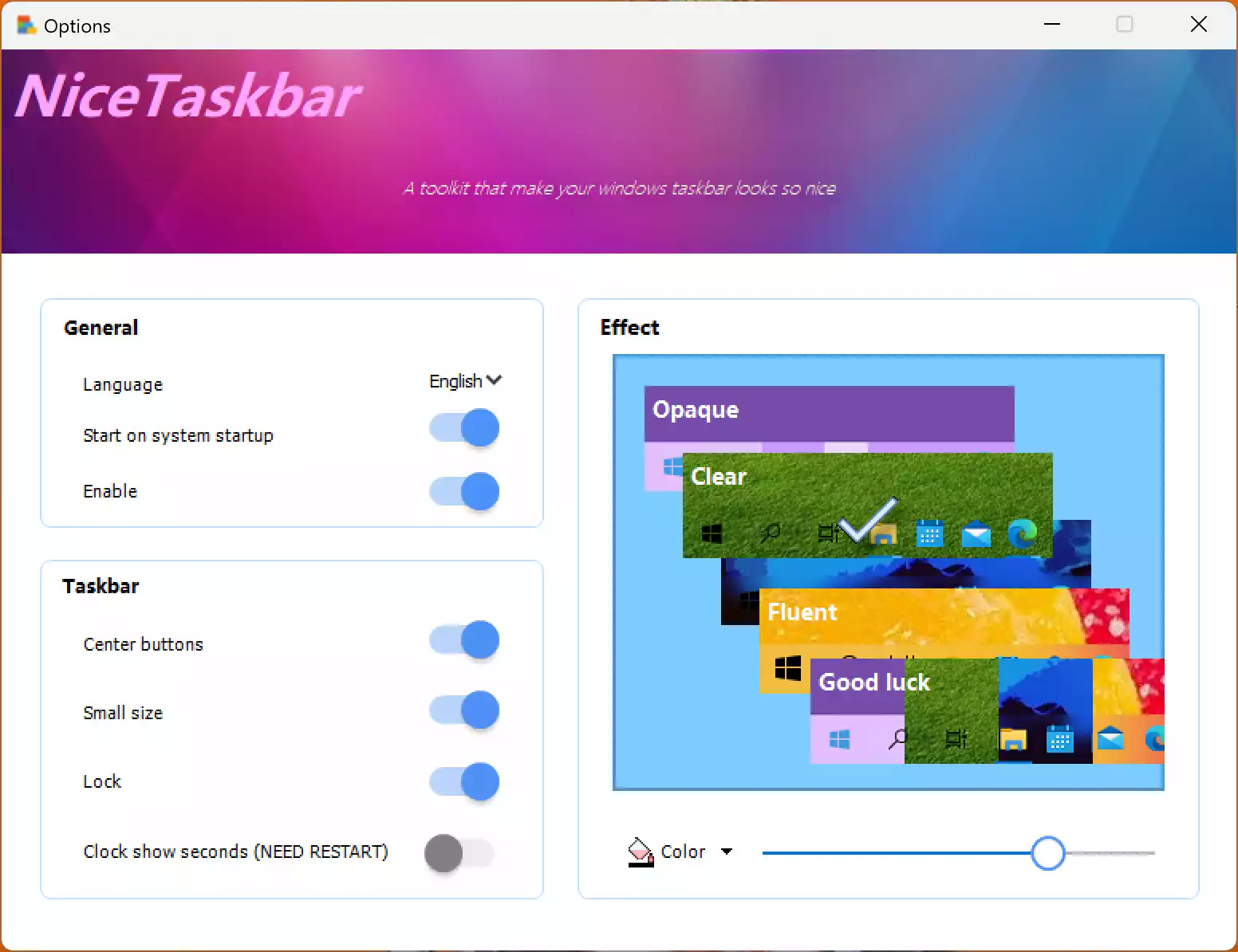
- Customization Galore: From enabling center buttons to adjusting the size and background color of your taskbar, the options are myriad. Whether you want an opaque, clear, blurred, or fluent effect, NiceTaskbar has got you covered.
For those concerned about the hassle of installation or compatibility issues, fret not. NiceTaskbar is available on the Microsoft Store, ensuring a smooth download and installation process. The user interface is intuitive, catering to both novices and seasoned tech enthusiasts.
Download NiceTaskbar
You can grab NiceTaskbar from the Microsoft Store.
In Conclusion
The personal computer’s interface is not just a set of icons and toolbars; it’s a reflection of the user’s style and preferences. With tools like NiceTaskbar, the realm of personalization extends beyond wallpapers and themes. It delves into the intricate details, ensuring that every pixel resonates with the user’s essence.
If you want to explore similar utilities that add flair and fluidity to your Windows workspace, consider trying Aqua Dock — a free tool that lets you bring macOS-like dock functionality to your Windows desktop.
And the best part? All these features come at the unbeatable price of free. Dive into the world of aesthetic computing with NiceTaskbar and let your Windows taskbar be an embodiment of your unique flair.