

SMPlayer is a free and open-source media player based on the MPlayer engine. It supports a wide range of video and audio formats and offers features like multiple subtitle tracks, adjustable playback speed, and a built-in equalizer. One of its most convenient options is the “Remember playback position” feature, which stores the last position where you stopped a file and resumes from that point the next time you play it. In this GearUpWindows guide, you’ll learn why this feature matters, how to enable it, and what else makes SMPlayer stand out.
Why Use the “Remember Playback Position” Feature?
Whether you’re watching a long movie, following an online course, or listening to a podcast, it’s natural to take breaks. Without a resume function, you’d have to note the exact timestamp and manually find it later. SMPlayer’s Remember playback position option solves this problem by automatically saving where you left off — for both video and audio files — and even tracking multiple files at once. This simple setting makes it easy to enjoy long movies or lectures without losing your place, and you can always disable the feature if you’d rather start from the beginning.
How to Enable “Remember Playback Position” in SMPlayer
Step 1. Open SMPlayer.
Step 2. In the menu, choose Options → Preferences, or press Ctrl+P.

Step 3. Under “General – Media Settings”, check “Remember settings for all files (audio tracks, subtitles…..” and “Remember time position” to make SMPlayer store the position of every file you play.
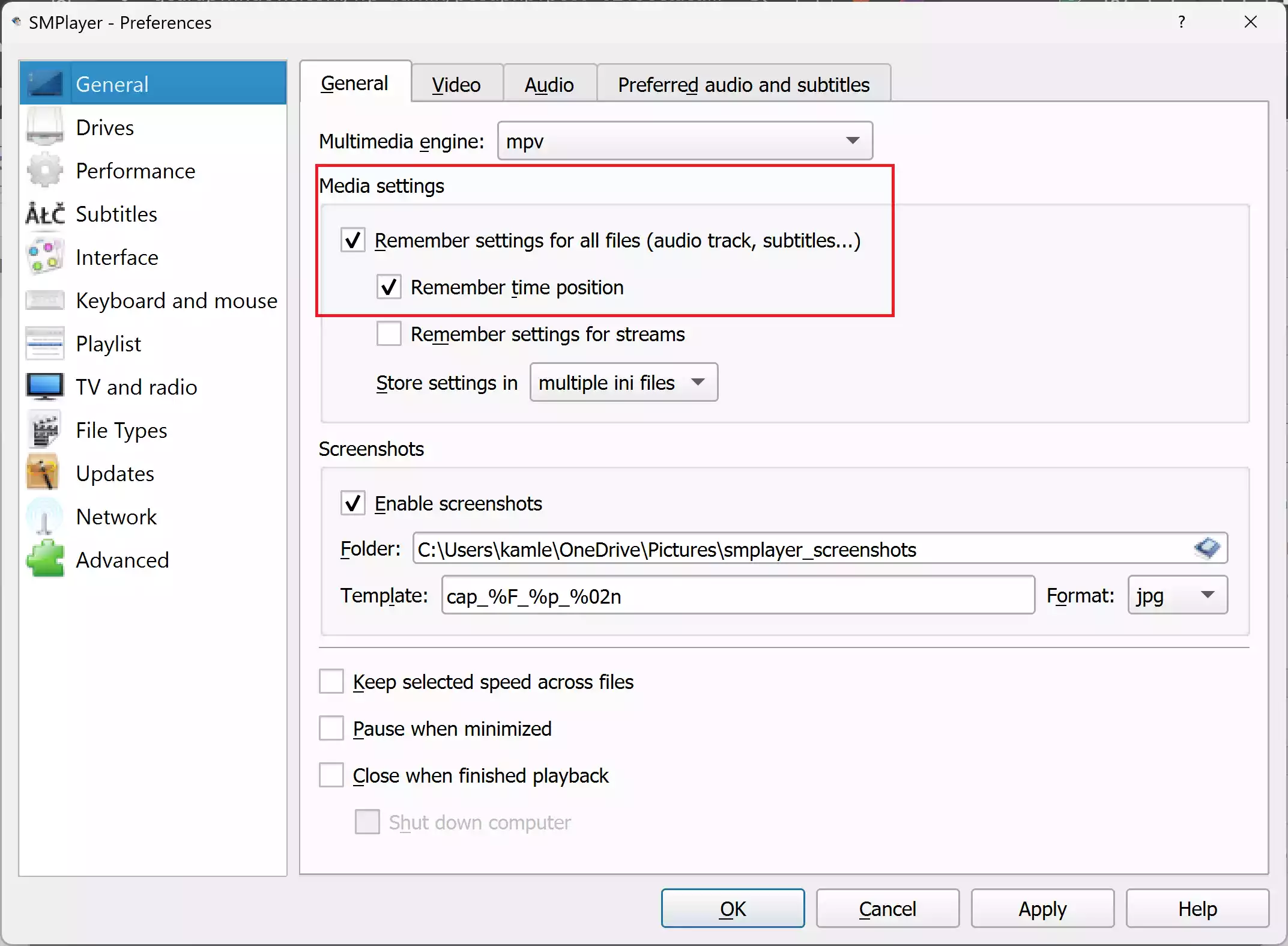
Step 4. Save your settings by clicking on the Apply/OK button and closing Preferences. SMPlayer will now automatically resume your videos and audio from the last spot.
Key Features of SMPlayer Beyond Resume Playback
- Open source and free: SMPlayer is completely free and cross-platform.
- Wide format support: Plays virtually any audio or video format without needing external codecs.
- Multiple audio and subtitle tracks: Easily select between multiple soundtracks or subtitles.
- Built-in equalizer and filters: Adjust audio levels, apply video filters, and tweak playback speed.
- YouTube and streaming: Can stream videos from YouTube and other sites with network stream support.
Pros and Cons of Using SMPlayer
Pros
- Free and open source; no ads or bundled software.
- Built-in resume function for multiple files.
- Highly customizable interface with themes, keyboard shortcuts, and skins.
- Lightweight and runs smoothly even on older PCs.
Cons
- The interface looks dated compared to more modern players.
- No native support for Blu-ray menus or DRM-protected content.
- Advanced settings may overwhelm new users.
Relevant GearUpWindows Articles & Helpful Links
- PotPlayer – Enable “Remember Playback Position” for Videos & Audio
- KMPlayer – Enable Remember Last Played Position
- VLC Media Player – Seamless Playback – Resume Where You Left Off
- Top 5 Free FLV Player Apps for Windows 11/10
Conclusion
SMPlayer is a capable, open-source media player that remembers where you left off. Enabling its “Remember playback position” feature ensures you never lose your place when jumping between files. Combined with its wide format support and customization options, SMPlayer is a great choice for anyone looking for a lightweight, reliable media player for both Windows and Linux.
Frequently Asked Questions about SMPlayer
Does SMPlayer support multiple resume files?
Yes. With the “Remember settings & playback position” option enabled, SMPlayer remembers positions for multiple files and resumes each one automatically.
Does SMPlayer play DVDs and Blu-ray discs?
SMPlayer can play standard DVDs without copy protection. It doesn’t support Blu-ray menus or DRM-protected discs; for Blu-ray playback, you may need a specialized player.
Can I stream YouTube videos in SMPlayer?
Yes. SMPlayer includes an integrated YouTube browser, and you can paste YouTube URLs to stream videos directly. Some features may require an up-to-date version of YouTube-dl or yt-dlp.