

GIMP, which stands for GNU Image Manipulation Program, is a free and open-source image editing software that makes a powerful alternative to commercial tools like Adobe Photoshop. GIMP runs on Windows, macOS, and Linux and offers a wide set of features for photo retouching, graphic design, and digital painting.
Why GIMP?
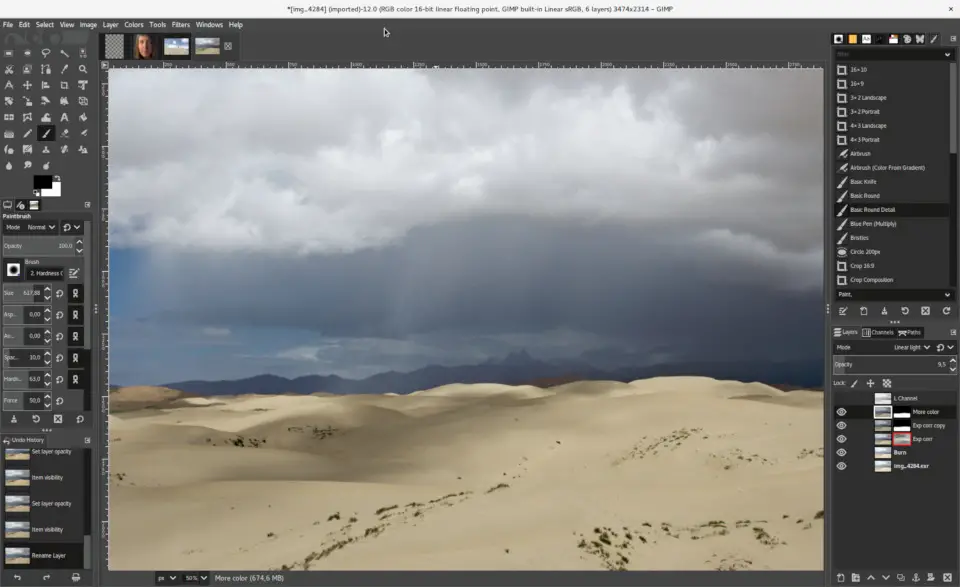
GIMP is popular because it combines advanced features with a zero price tag. Whether you’re retouching photos, preparing graphics for the web, or creating UI assets, GIMP’s flexible, customizable interface and extensible plugin system let you tailor the app to your workflow.
Key Features
- User Interface: The interface is highly customizable — move panels, create custom keyboard shortcuts, and install plugins and scripts to extend GIMP’s capabilities.
- Image Editing: Selection tools, paint tools, transformation tools, layers, masks, color adjustments, and many filters let you perform complex edits. For quick batch resizing or compressing before or after editing, try the Free Online Image Compressor & Resizer.
- Drawing Tools: Brushes, pencils, airbrushes, and pressure-sensitive tablets support digital painters and illustrators. If you want instant stylistic conversions, use the Photo to Pencil Sketch tool to create creative sketch effects from photos.
- Batch Processing: Automate repetitive tasks with scripts — batch convert, resize, or apply filters across folders of images.
- File Formats: GIMP supports JPEG, PNG, GIF, TIFF, BMP, and more. It also reads and exports PSD files in many cases. If you need to convert images into ICO for icons, use the ICO Preview tool to view and convert images to ICO format in your browser.
Supported Formats
GIMP handles most standard raster formats (JPEG, PNG, GIF, TIFF, BMP) and can import/export layered files like PSD with some limitations. For special conversions or format previews (icons, favicons), rely on light-weight online tools like the ICO Preview mentioned above.
Getting Started with GIMP
- Installing GIMP: Download GIMP from its official website and follow the installation instructions for your OS. Once installed, launch GIMP and explore the default workspace.
- Opening an Image: Click File → Open or drag-and-drop an image into the GIMP window.
- Editing an Image: Use selection tools, layers, and adjustment dialogs to edit. Try non-destructive edits using layers and layer masks.
- Saving an Image: Use File → Save to save in GIMP’s XCF format (preserves layers). Use File → Export to create JPEG/PNG/GIF or other final formats.
Lightweight Alternatives & Companion Tools
If you prefer lighter desktop editors, consider Paint.NET for quick and easy edits, or PhotoDemon for a very portable, fast editor. For simple creative edits and web-based sketching, the GUW Paintboard is a free online painting/drawing tool that complements GIMP for small tasks.
Tips & Best Practices
- Work in layers — name them clearly and keep adjustment layers separate.
- Use non-destructive edits when possible (masks instead of erasing).
- Save master files in XCF so you can return to layered work later.
- For repetitive output (icons, thumbnails, resized images), use the compressor/resizer tool linked above before publishing to reduce bandwidth and load times.
FAQs
Q. Is GIMP really free?
Yes. GIMP is open-source and free to download and use for personal and commercial projects.
Q. Can GIMP replace Photoshop?
GIMP covers most raster image editing needs and is an excellent free alternative for many users. However, some advanced Photoshop-specific features/plugins and certain PSD compatibility cases may be better handled in Photoshop.
Q. Where can I get plugins and brushes?
There are many community plugins and brushes available online. Always download from reputable sources and follow installation instructions carefully.
Q. How do I make icons for Windows?
Use GIMP to prepare image files and then convert them to ICO format with a tool like ICO Preview for perfect icon output.
Conclusion
GIMP is a robust, flexible, and free image editor suitable for hobbyists and professionals alike. With its extensible architecture and large community, you can accomplish most image editing tasks without purchasing commercial software. Combine GIMP with light-weight online tools (compressor/resizer, sketch converters, ICO preview) or portable editors like Paint.NET and PhotoDemon to build a fast, efficient editing workflow.