

If you’re an IT professional or a regular computer user, a reliable file copy tool can be an essential part of your toolkit. Whether you need to transfer files between laptops or desktops, free file copy tools can help you do it quickly and efficiently. And while copy-and-paste formulas, keyboard shortcuts, and drag-and-drop options can work for small files, they may not be suitable for larger files.
But don’t worry – there are plenty of free file-copying tools available for Windows that can handle even the biggest files with ease. In this article, we’ll introduce you to some of the best options on the market, so you can find the tool that’s right for you.
Whether you’re moving files around your own computer or transferring data between machines, a powerful file copy tool can save you time and frustration. So why wait? Read on to discover the best free file copy tools for Windows today!
Free File Copy Tools for Windows 11 and 10
Copy Handler
If you are looking for a free file copy tool that makes copying files from Windows to your clipboard, try Copy Handler. This powerful tool automatically handles the job for you. As files are copied, a small window will appear on the tool, providing all the essential details you need to keep track of your progress.
And if you need more information or want to dive deeper into your copying process, simply double-click on the window to access the full range of features and details. With this free file copy tool, you can copy files quickly and easily without sacrificing accuracy or control.
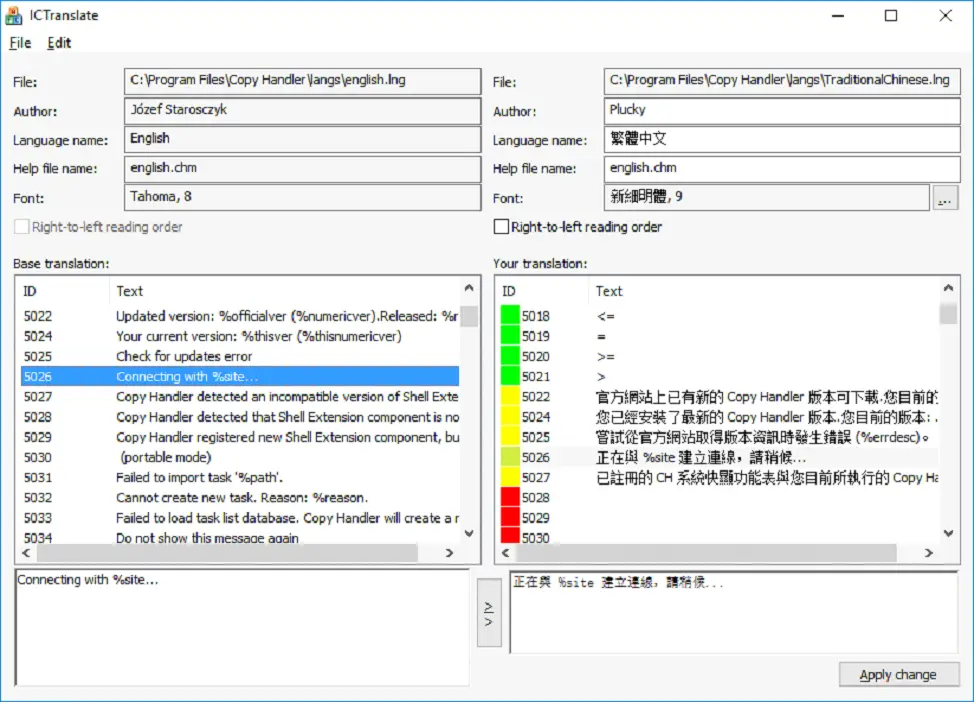
The Copy Handler is a powerful free file copy tool that gives you maximum control and flexibility. This innovative tool offers a wide range of features and options to help you copy files with ease.
Whether you need to add context menu entries, pause and resume file copy processes, or access detailed instructions and statistics, this tool has you covered. And with a full window of operations details and configurations, you can easily configure the program to meet your specific needs and preferences.
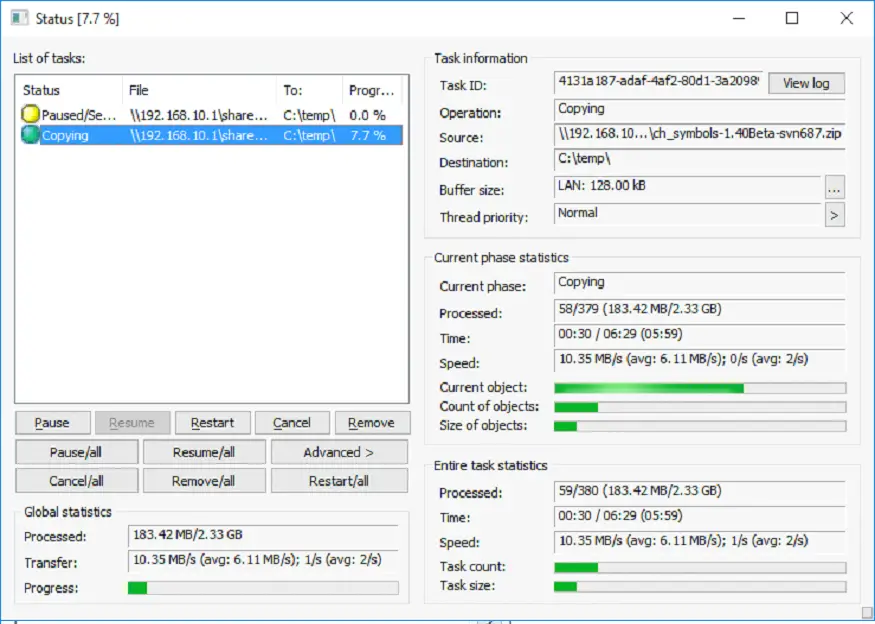
Copy Handler is a powerful open-source program that offers more than 60 configuration options and complete configurability to meet your specific needs.
With support for multiple languages, including English, Copy Handler is the perfect solution for users who need comprehensive data copy and shift options. Whether you’re copying large files or just need a more flexible file copy tool, Copy Handler has you covered with its advanced features and customizable settings.
UltraCopier
UltraCopier is a user-friendly and efficient free file copy tool with advanced features. This powerful tool offers a sleek interface, responsive design, and a wide range of capabilities.
With fast performance and the ability to transfer files to any location, this tool is perfect for users who need to move files quickly and efficiently. You can specify input and output directories and even see the full size of files and folders when you move to another location.
So whether you’re copying large files or just need a reliable file copy tool, this powerful software has you covered.
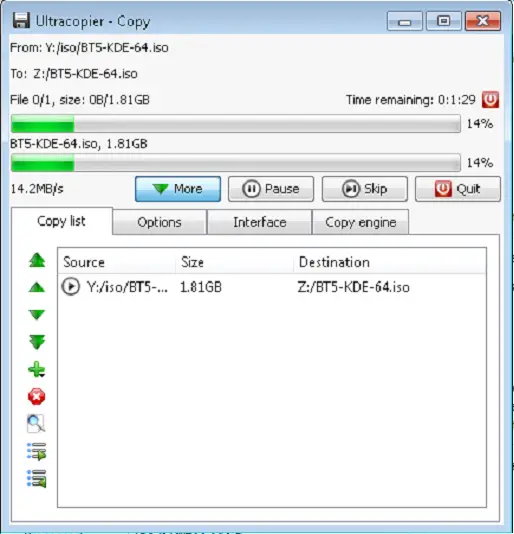
It provides users with an easy and efficient way to move files between folders and locations. This versatile tool makes it easy to transfer files whenever you need to.
Simply add the folders or files to the input window, select your destination, and click the Start button to begin the transfer process. UltraCopier acts as your default copy handler, making it easy to move files quickly and efficiently.
So, whether you’re a busy professional or just need to move files between folders, UltraCopier is the perfect solution for all your file transfer needs. Download it today and start enjoying its advanced features and intuitive interface!
FastCopy
FastCopy is an essential tool for users looking to quickly and easily move entire directories, folders, or files from one location to another. With its simple and intuitive interface, users can easily browse the source directory, select their files, and choose their destination.
Once the files have been selected, users can initiate the copy process by clicking the execute button. Fast Copy also allows users to manually set the buffer size for their operation, giving them complete control over the transfer process.
And with its easy installation and executable file, FastCopy is a hassle-free way to streamline your file transfer process.
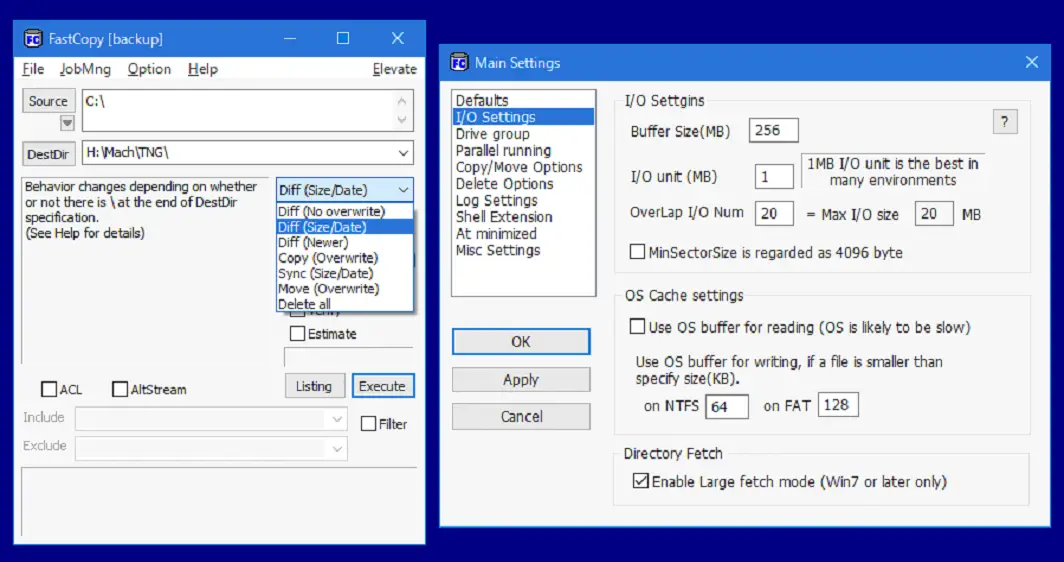
Moreover, this free file copy tool has pretty simple preferences and narrations, and you can freely download it for your Windows. This tool is an extraordinary tool for copying or transferring them.
FF Copy
FF Copy is a lightweight and easy-to-use free file copy tool for Windows that is considered one of the best options available. It allows users to quickly and efficiently copy and move files or folders between different locations. Multiple tasks can be added to its list, and the user can initiate the process by selecting the source files and their destinations. The file copying process can also be manually controlled. Additionally, FF Copy boasts an extremely high file copying speed, making it a top choice for users who value speed and efficiency.
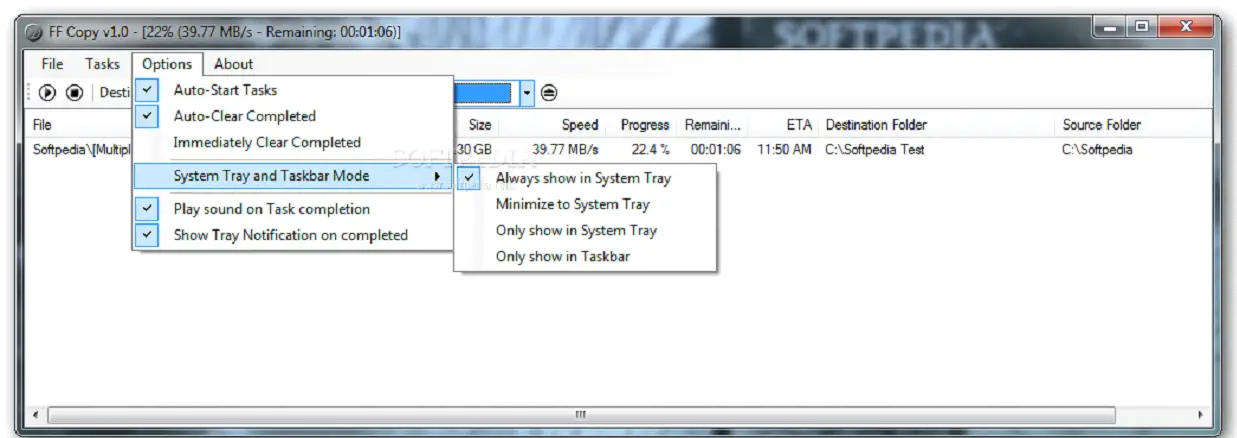
With the help of these free file copy programs, users can experience fast transfer speeds that accelerate the entire copying process. By adding the desired files to the transfer queue, they can be copied or moved sequentially, ensuring an organized and efficient process.
TeraCopy
Teracopy is an excellent free file copy tool for Windows that not only moves or copies files to a different location but also recovers any copy errors. In case it cannot recover the faulty files, it skips them, ensuring that the transfer process continues. Unlike other file copy tools that abort the entire transfer process if they encounter a faulty file, Teracopy cuts only the problematic file, allowing the remaining files to be copied or moved successfully. With its seamless integration with Windows Explorer, Teracopy makes file copying a hassle-free process.
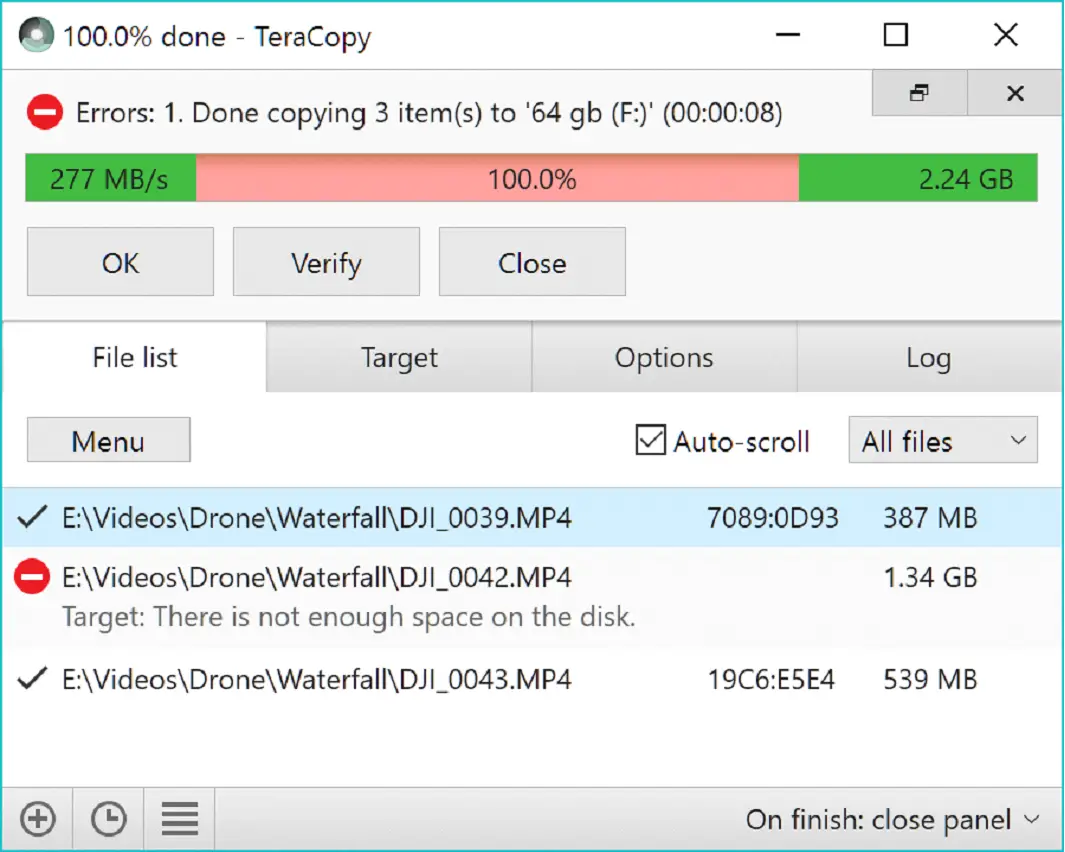
Teracopy provides users with a useful feature that can replace the standard copy function of Windows Explorer. This feature allows users to easily copy and move files from one location to another using Teracopy’s fast and efficient algorithms.
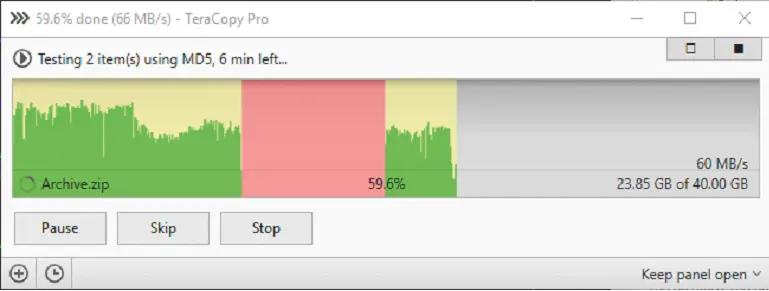
Copying or moving files can be a time-consuming task, but using a free file copy tool can save you precious time. These tools offer features like pausing and resuming the copy process, which can be incredibly useful if you need to interrupt the transfer. Moreover, they are lightweight and reliable, making them a great option for daily use. Some of these free file copy tools can also be used as portable software, which means that you can use them on multiple computers without installing them.
Conclusion
If you’re an IT professional or a regular computer user, having a reliable file copy tool is essential for efficient file management. While basic methods like copy-and-paste or drag-and-drop may work for small files, they may not be suitable for larger transfers. Luckily, there are excellent free file copy tools available for Windows that can handle even the largest files with ease.
In this article, we introduced you to several top-notch options, each offering unique features and capabilities to enhance your file transfer experience. Whether you need a tool that simplifies copying files from the clipboard, provides maximum control and flexibility, offers advanced customization options, or focuses on user-friendly design, there’s a tool for you.
With these free file copy tools, you can streamline your file transfers, save time, and ensure the integrity of your data. Whether you’re moving files within your computer or transferring data between machines, these tools will help you accomplish your tasks quickly and efficiently.
So why wait? Upgrade your file management and enjoy swift, reliable, and hassle-free file transfers today! Download the free file copy tool that best suits your needs and take your file copying experience to the next level.
Remember, these tools are lightweight, user-friendly, and compatible with Windows 11 and 10, making them ideal for both personal and professional use. Don’t let slow file transfers hinder your productivity – harness the power of these free file copy tools and experience the difference!
Used to use Goodync until they switched to subscription which is when management forced us to switch to something else (non-profit) with limited budget. A colleague referred us to GS RichCopy360 as he had a black Friday coupon which I used last month and still gave me 50%… chatted with their support to make sure the license would not get disabled and they validated it was perfectly fine as the number of licenses allocated has not been sold out. Coupon used BLKFSPL50 just apply it as you check out
I use a tool called Gs Richcopy360 , it is not free but worth every penny