

In this gearupwindows guide, we’ll show you how to use Avira Free Security to optimize and speed up your Windows 11 or 10 PC. Previously known as Avira System Speedup, this all-in-one suite now comes bundled with essential tools to clean junk files, boost performance, and enhance privacy—without needing multiple applications. It has both free and paid versions. I will only provide a detailed guide for the free features. So let me delve in depth.
What Is Avira Free Security?
Avira Free Security is a comprehensive suite that includes antivirus, system cleaner, startup optimizer, and privacy tools. Although it’s primarily promoted as an antivirus solution, it integrates the former Avira System Speedup functionality under the same interface.
When you install Avira Free Security, you’ll gain access to features that help improve system speed and overall performance. If you’re already using tools like Wise Care 365, IObit Advanced System Care, or Glary Utilities, this tool serves as a lightweight, modern alternative.
How to Download and Install Avira Free Security?
Follow these steps to get started with Avira Free Security on your Windows 10 or 11 computer:
- Visit the official Avira website and download the free version of Avira Free Security.
- Run the installer and follow the on-screen instructions to complete the setup.
- After installation, launch the program from the Start menu or desktop shortcut.
How to Use Avira Free Security to Speed Up Windows?
Once installed, you can access its optimization features through the left side tabs. Here you will find a total of six tabs: Status, Security, Privacy, Performance, More apps, and Mobile.
Status
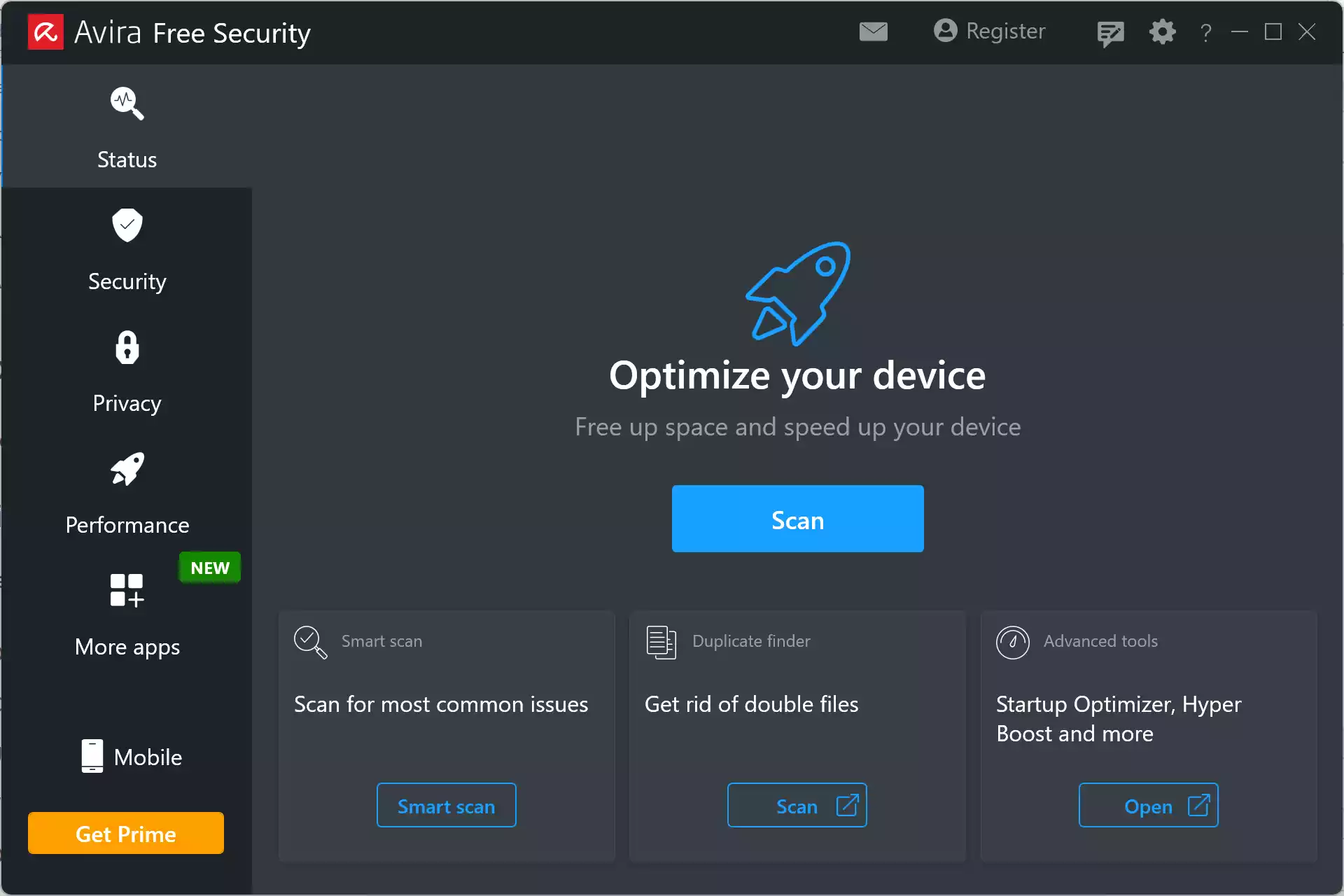
When you open Avira Free Security, click on the first tab, Status. Click the Scan button to run the Optimizer. It removes unnecessary files, speeds up your PC, and fixes broken registry entries.
Under this tab, you can also run a Smart scan for general issues. Use the Duplicate Finder tool to remove duplicate files and save storage.
Security

In the Security tab, you can check and update outdated software. It displays the current version, the latest version available, and any related security risks.
You can update each program individually or click “Update all” to install updates in bulk.
Privacy

The Privacy tab includes features like Browser Safety, VPN, Passwords, File Shredder, Privacy Settings, and Secure Browser.
- Browser safety: Adds a secure browser extension to protect against tracking and malicious sites.
- VPN: Offers free encrypted browsing (availability depends on regional policies).
- Passwords: Requires you to log in or register with Avira Password Manager.
- File shredder: Permanently deletes files. It ensures deleted files can’t be recovered, even by tools like MiniTool Power Data Recovery.
- Privacy settings: Let you apply recommended or custom privacy adjustments.
- Secure Browser: Offers faster loading, blocks ads and malware, and adds tracking protection.
Performance
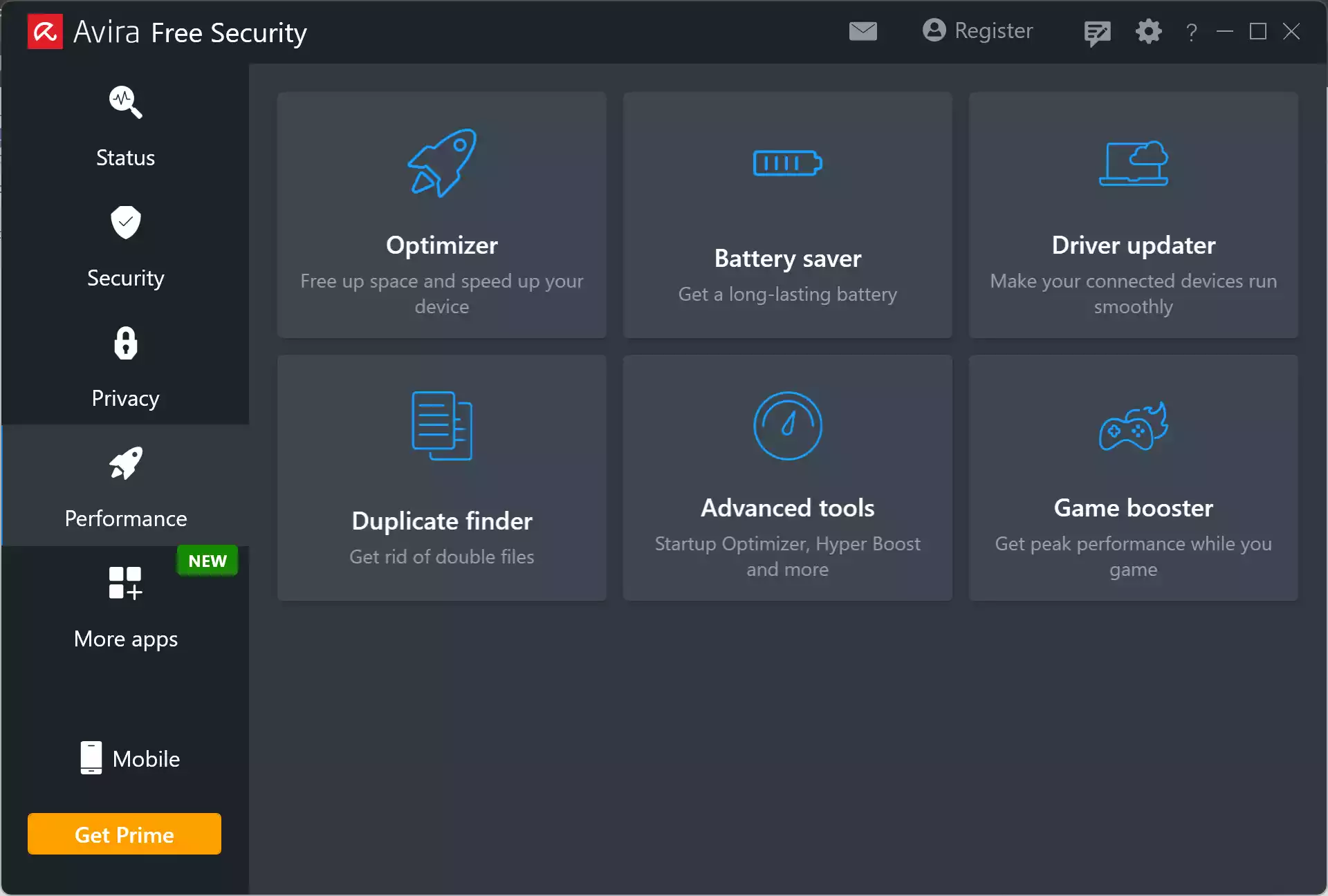
Click the Performance tab to access optimization tools like Optimizer, Battery Saver, Driver Updater, Duplicate Finder, Advanced tools, and Game Booster.
- Optimizer: Frees up space, removes junk files, and fixes registry errors to improve startup speed.
- Battery Saver: Adjusts power modes for performance or efficiency. It shows battery percentage and health—a great feature for laptop users.
- Driver Updater: Scans for outdated drivers. You can update them individually or use the “Update all” button to apply updates in one go.
- Duplicate Finder: Finds and safely removes identical files to free up space.
- Advanced tools: Helps optimize startup. It tracks boot time and notifies you about any delays or startup changes. You can enable notifications to monitor system boot time after startup.
Does Avira Free Security Replace Avira System Speedup?
Yes. Avira System Speedup is now merged into the all-in-one Avira Free Security suite. Trying to install the old version redirects to this newer interface. You can access all optimization features under the Performance tab.
Is Avira Free Security Enough for Speed Optimization?
For basic and moderate optimization tasks, yes. It’s a reliable and simple option for most users. However, power users may prefer Wise Care 365, IObit Advanced System Care, or Glary Utilities for advanced tweaks, deeper registry management, and scheduled cleanups.
Conclusion
If you’re looking for an easy, beginner-friendly tool to clean and speed up your PC, Avira Free Security is a smart choice. It offers one-click cleanup, startup optimization, and bonus security features, all under one dashboard.
You can use it alongside other tools like Wise Care 365, IObit Advanced System Care, or Glary Utilities to get the best possible performance from your Windows 10 or 11 PC.