

BulkFolderLocker is a lightweight yet powerful Windows utility that gives you complete control over folder access. Within seconds, you can lock multiple folders in bulk, ensuring your confidential data remains private and inaccessible to unauthorized users.
In this GearUpWindows guide, we’ll show you how to use BulkFolderLocker to secure your folders from unauthorized access in just a few clicks. Whether you’re using Windows 7, Windows 10, Windows 11, or even a Windows Server edition, this tool runs seamlessly on both 32-bit and 64-bit systems.
Once protected with BulkFolderLocker, your folders cannot be accessed via File Explorer, Command Prompt, network sharing, or any third-party software. This ensures that no one can open, view, delete, or transfer your files without your consent. For even tighter system control, you can also lock Windows Taskbar settings to prevent changes by unauthorized users.
Say goodbye to locking folders one by one. BulkFolderLocker enables you to lock or unlock multiple folders at once with a single click—making it an ideal solution for protecting your local data efficiently. You may also explore Folder Lock Lite as an alternative lightweight file protection option.
Note: BulkFolderLocker works only with local folders. It does not support folder locking on network or external drives.
Key Features of BulkFolderLocker
- Lock and unlock multiple folders in just 3 seconds
- Prevents access to files inside locked folders – see also Easy File Locker for an alternative solution
- Blocks folder access from File Explorer, Command Line, Shared Network, and other software
- Prevents accidental or unauthorized folder deletion
- One-click locking and unlocking for ease of use
- 100% offline software – no internet required
- Extremely lightweight – just 2.3 MB in size
- Portable ZIP version available (2.7 MB)
- Multilingual support: English, French, German, Greek, Italian, Spanish, Portuguese, Polish, Chinese, Korean, Danish, Dutch, Turkish, Arabic, Czech, Finnish, Hungarian
How to Lock & Protect a Folder from Being Accessed or Deleted by BulkFolderLocker on Windows?
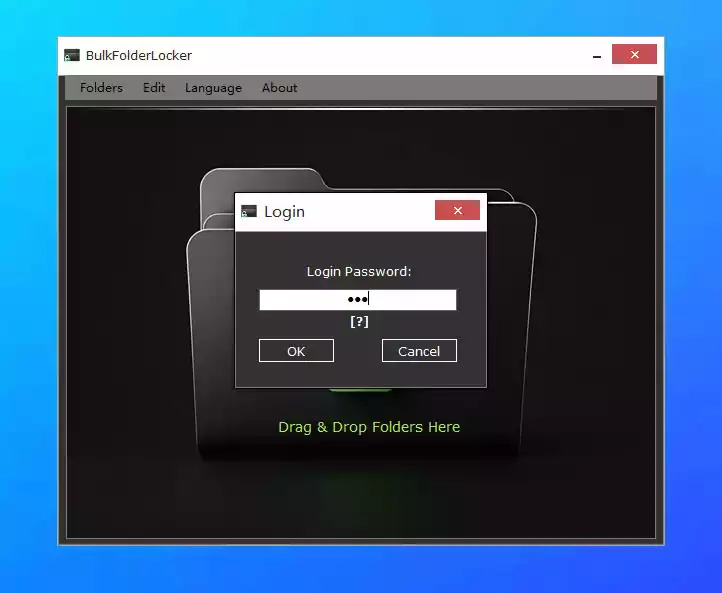
Step 1. When you first run the application, you’ll be prompted to set a login password and a hint text. This password is required only once. The hint helps in case you forget the password. To view the hint, click the small [?] icon on the login screen.

Step 2. Click the Add button (+ icon) or drag and drop your folders into the app window. The folders will show up as Unlocked in the list.
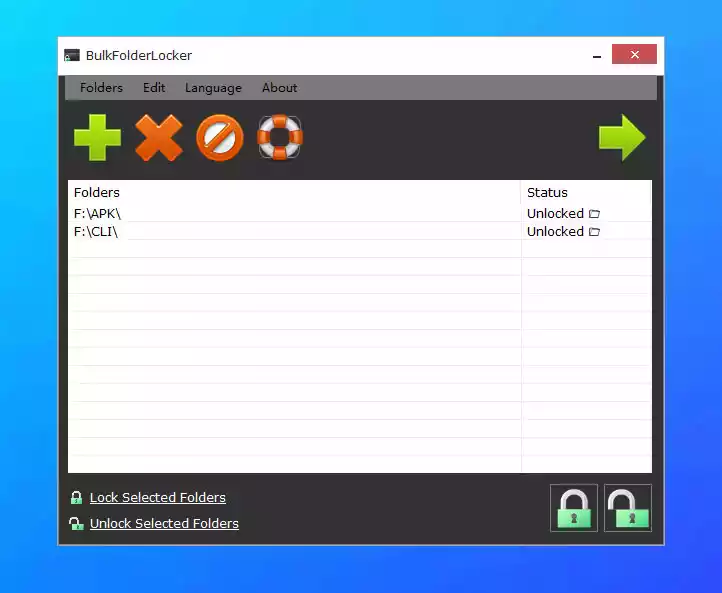
Step 3. Click on the Lock All Folders button at the bottom-right corner. Your folders will be locked in just 2–3 seconds. Once locked, these folders will be completely inaccessible—even from File Explorer or Command Prompt. For additional security, you can disable Command Prompt access entirely on Windows systems.
How to Unlock Folders?
Step 1. Launch the software, enter your password, and click OK to log in.
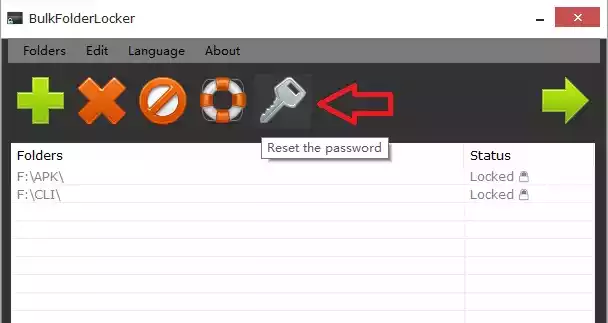
Step 2. You will now see your folders listed as Locked.

Step 3. Click the Unlock All Folders button at the bottom-right to instantly unlock all selected folders.
Step 4. Within a few seconds, your folders will be unlocked and fully accessible again.
To lock folders again, just log in and click the Lock button. It’s quick and hassle-free!
How to Change the Login Password?
The latest version of BulkFolderLocker features a Reset the Password option. Simply click this button to reset and update your login password.
Download BulkFolderLocker
You can download this freeware from its official website.
Conclusion
BulkFolderLocker is a dependable and lightning-fast tool that offers Windows users an easy way to lock down their sensitive folders. With one-click operation, strong password protection, and no need for an internet connection, it’s perfect for personal use, office environments, or shared computers.
If you’re looking for similar tools to enhance your privacy and file protection, check out our guide on the best free encryption tools for Windows. You can also try Stasher, another effective folder-hiding and password-protection freeware for Windows.
For related reading, see our roundup of free folder locker software for Windows.