

Context Menu in Windows is one of the most powerful yet often overlooked features for boosting productivity. It allows you to quickly access your favorite tools and commands by simply right-clicking on a free space on the desktop, inside a folder, or on a file. With a single right-click, you can rearrange desktop icons, adjust icon sizes, refresh your Windows Desktop, access display settings, and more. If you have Microsoft Office installed, you can even instantly create a new Word document, Access database, PowerPoint presentation, or Excel worksheet—right from the menu. In short, the Windows right-click Context Menu is a gateway to multiple everyday tasks without navigating deep into settings.
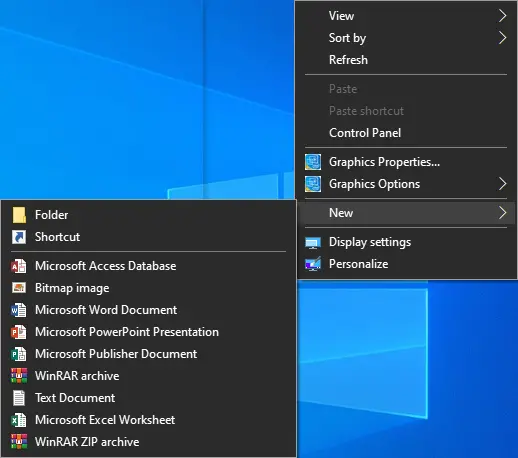
What is Context Menu Tuner?
Context Menu Tuner is a free Windows customization tool that lets you personalize and expand the right-click menu in Windows 10, Windows 8, and Windows 7. With this utility, you can add any Ribbon command to the context menu of files, folders, the desktop, or even specific file types. You can also include commands that aren’t normally available in the Ribbon by default.
Context Menu Tuner gives you complete control over how each new menu item appears. You can set its title, assign a custom icon, and even add command-line arguments for advanced functionality. You can also choose whether the item appears at the top or bottom of the menu, making your right-click options more organized and efficient.
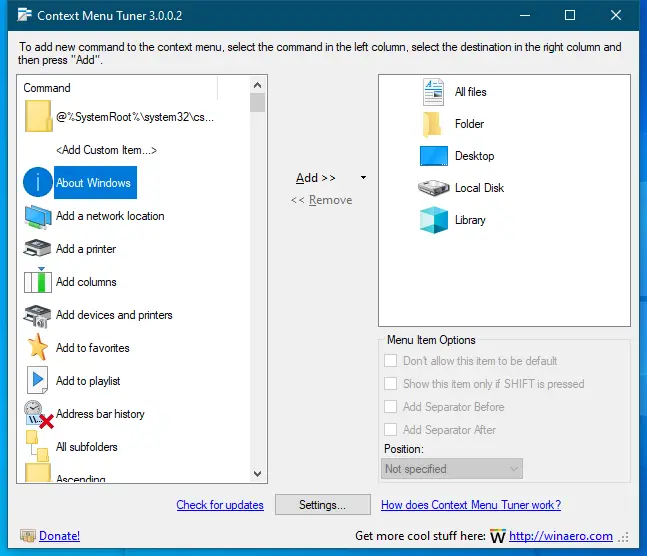
Additionally, this software allows you to insert separators before or after menu items for a cleaner look. As a portable application, Context Menu Tuner doesn’t require installation—just download, extract, and run. It supports both 32-bit and 64-bit editions of Windows 7, 8, 8.1, and 10.
How to Customize the Windows Context Menu Using Context Menu Tuner
Follow these steps to add or remove commands from your Windows right-click menu:
Step 1. Download Context Menu Tuner from the official Winaero page.
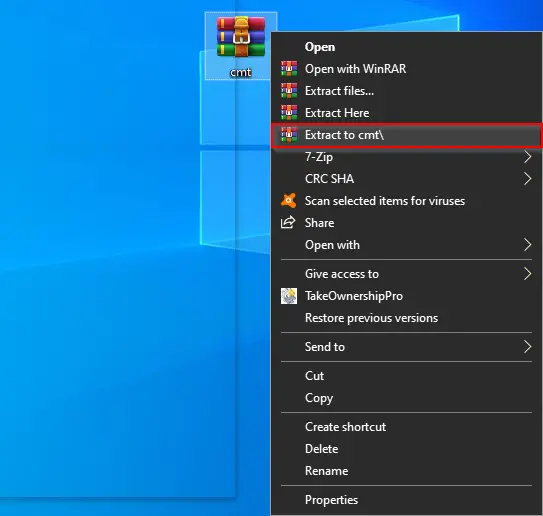
Step 2. Extract the downloaded ZIP file into a folder using WinRAR or any other extraction tool.
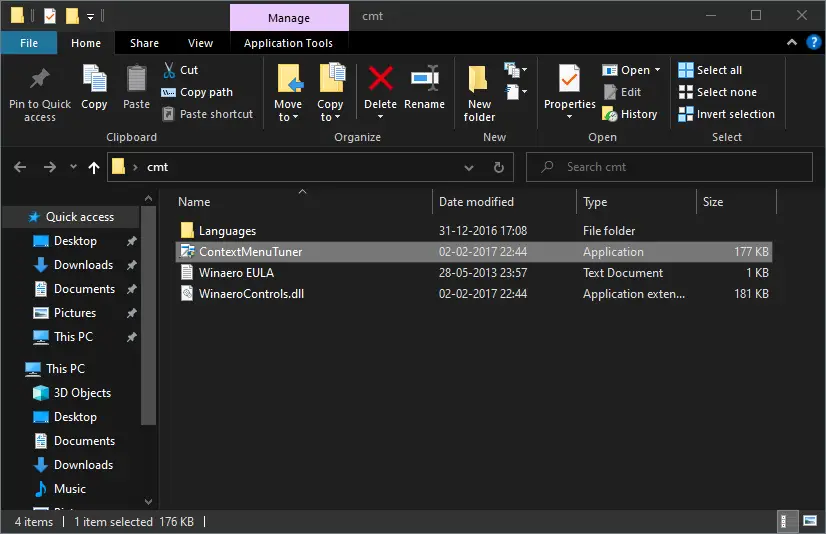
Step 3. Open the extracted folder and double-click the ContextMenuTuner application to launch it.
Step 4. From the left-side pane, select the command you want to add. For example, “Uninstall or change a program” is handy for quick software management.
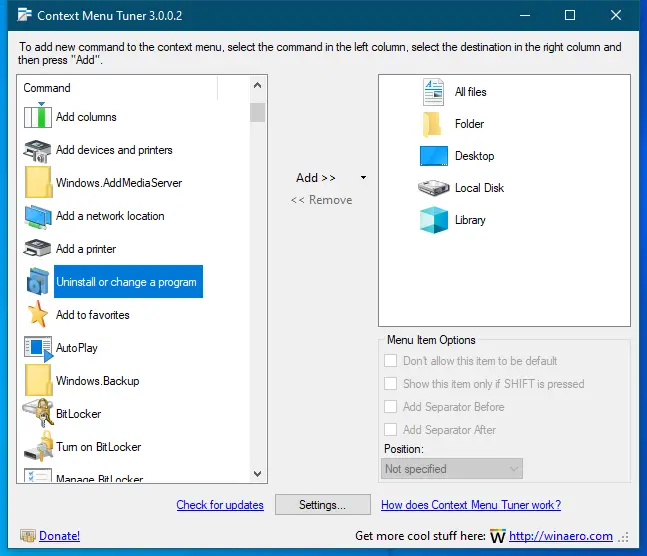
Step 5. In the right pane, choose the destination where this command should appear—options include All Files, Folder, Desktop, Local Disk, or Library.
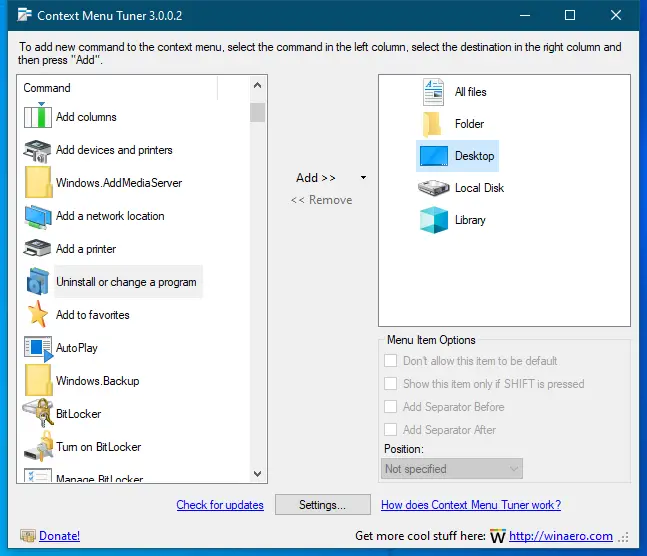
Step 6. Click the Add button in the center of the interface.
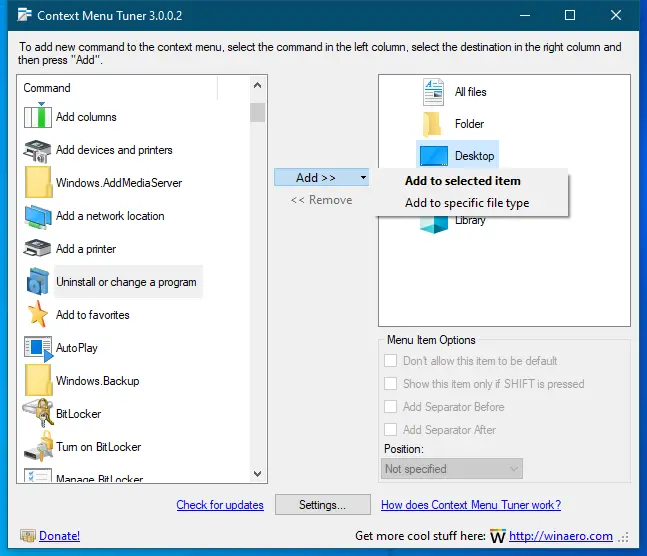
Step 7. Click “Add to selected item” to finalize the addition.
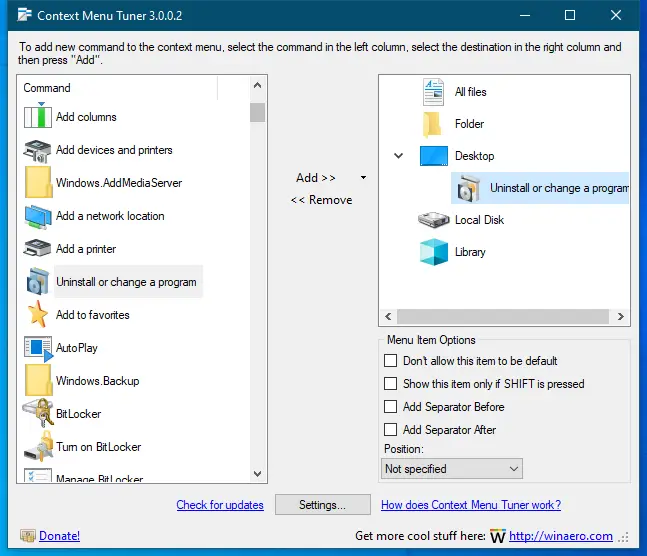
Step 8. For further customization, select the item in the right pane and adjust the “Menu Item Options” in the bottom-right corner. You can:
- Prevent the item from being the default option
- Show the item only when the SHIFT key is pressed
- Add a separator before or after the item
- Change the position (top, middle, bottom) in the menu
Step 9. To remove an item, select it in the right pane and click the Remove button in the center panel.
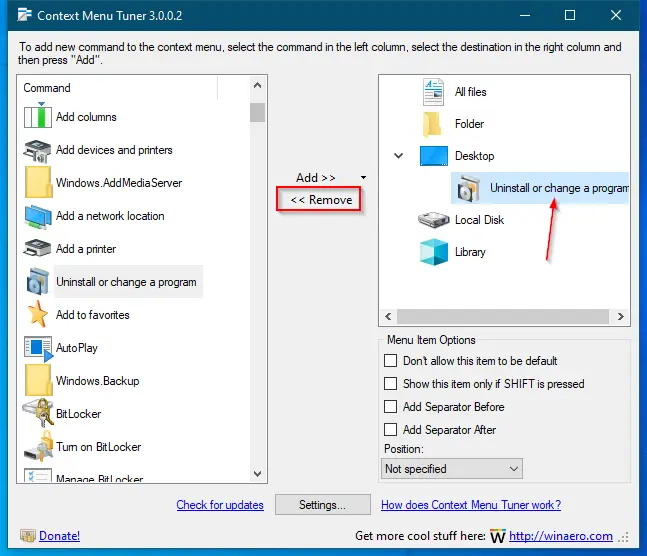
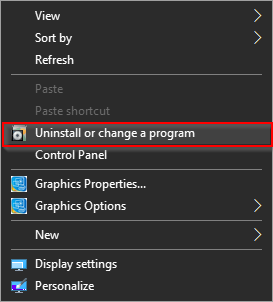
Once done, your chosen commands will appear in the assigned locations. For instance, here’s the “Uninstall or change a program” command added to the Desktop context menu:
Final Thoughts
With Context Menu Tuner, you can turn your Windows right-click menu into a personalized productivity hub. Whether you want quicker access to system tools, file operations, or custom app commands, this free and portable tool gives you full control. Try it out, experiment with different commands, and create a context menu that truly works for you.