

In this gearupwindows guide, we’ll show you how to use DNS Angel to quickly switch your DNS settings to family‑safe servers. This free tool helps block unsafe, adult, or malicious websites on your Windows PC with just one click.
Want the bigger picture? Check our Windows DNS guide covering free DNS changers and Secure DNS (DoH/WARP) with quick, beginner-safe steps.
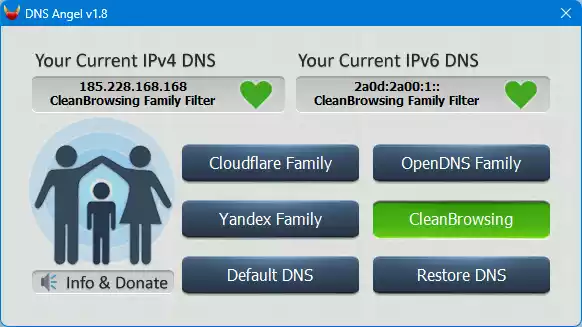
What Is DNS Angel?
DNS Angel is a free, portable tool created by Sordum. It helps parents and users protect their computers from harmful content by switching to family-safe DNS services. It’s simple to use—no installation needed, just download and run.
Why Use DNS Angel?
- Automatically blocks adult, phishing, gambling, and malware websites using secure DNS servers.
- Supports top family-safe DNS providers like OpenDNS, CleanBrowsing, Yandex Family, and Cloudflare Family.
- Requires no installation—it’s fully portable and works on Windows 11, 10, 8, 7, Vista, and XP (x86 & x64).
- Compatible with both IPv4 and IPv6, and includes DNS over HTTPS (DoH) support in version 1.8.
How to Set Up DNS Angel?
- Download the latest version from the Sordum website.
- Run the portable EXE file—no installation required.
- Select your preferred family-safe DNS provider from the main window to update DNS settings across all network adapters.
- To restore your original DNS, click the “Restore DNS” or “Default DNS” button.
Advanced Options in DNS Angel
- Enable or disable DNS over HTTPS (DoH) for IPv4 or IPv6. This option is available only on Windows 11. You can turn DOH features on or off for IPv4 or IPv6 individually.
- Option to mute all notification sounds within the app. To toggle the button sound, click the sound icon located to the left of the Info & Donate button in the bottom left corner.
- You can manually edit the DnsAngel.ini file to add custom DNS servers.
Tips and Considerations
- After changing your DNS settings, restart your browser—or sign out and back in—for changes to apply properly.
- While DNS Angel blocks unwanted sites, it doesn’t replace router-level filters. Other devices on your network won’t be affected.
- This tool only modifies DNS settings on the local PC. It won’t protect phones or tablets unless you configure DNS separately.
Limitations to Know
- DNS-based filtering blocks known threats only. New or obscure URLs might still bypass the filter.
- Tech-savvy users can manually reset the DNS settings, which could bypass protection.
- For stronger safety, consider enabling SafeSearch, using Kids Mode in Edge, or applying parental controls through your router.
Want DNS Control with Speed and Flexibility?
If you’re looking for more options to fine-tune your DNS setup—such as selecting from public servers, testing latency, or applying IPv4/IPv6 configurations—check out our companion tool DNS Jumper. It offers portable, one-click DNS switching, fastest server testing, and full control over DNS settings on Windows.
Conclusion
DNS Angel is a lightweight, reliable, and free tool that adds an extra layer of protection to your Windows PC. It’s ideal for families who want quick DNS-based filtering without technical setup. For even stronger control, combine it with user restrictions or network-level solutions.