

Easy File Locker is a powerful and free program that helps you protect sensitive files and folders from unauthorized access. It’s lightweight, easy to set up, and supports common file types on Windows. If you want a simple way to keep personal or work data private, this tool is a great starting point. For more options, see our roundup of free folder locker software on GearUpWindows.
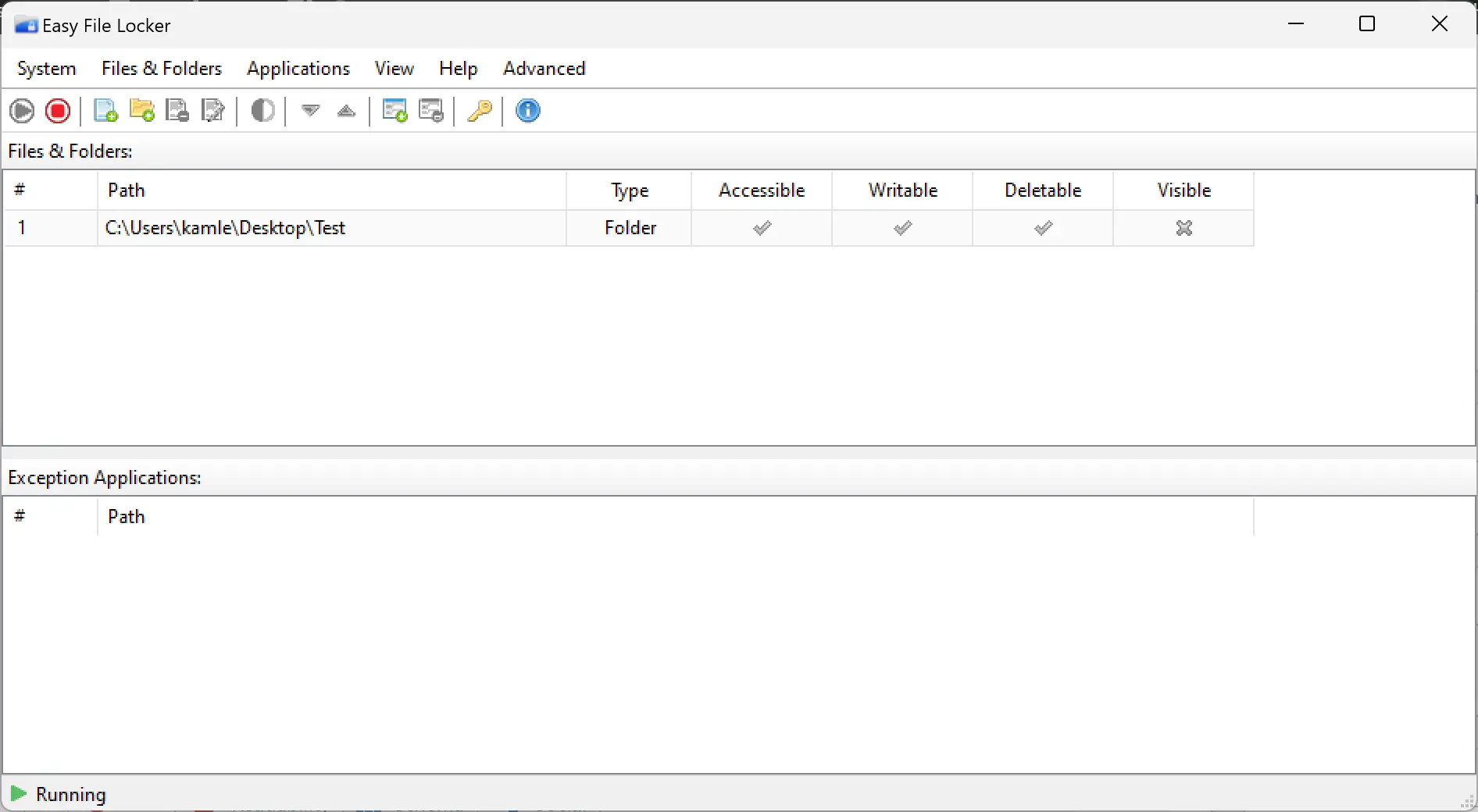
What is Easy File Locker?
Easy File Locker is a small, user-friendly security tool for Windows that can lock and hide files/folders. Once protected, items can be made invisible, unreadable, and undeletable without your password. It’s ideal for shared PCs or any situation where you want to keep data away from prying eyes with minimal setup.
Why Would a Beginner Use Easy File Locker?
Beginners appreciate Easy File Locker because it focuses on the basics: hide what you don’t want seen and block changes to important files. There’s no complicated configuration—just add items, choose visibility and access settings, and set a master password. It’s a quick, practical layer of protection for everyday privacy.
Main Features of Easy File Locker
- Password protection to stop unauthorized access.
- Hide, Deny Read, Deny Write, and Deny Delete controls for fine-tuned protection.
- Clean, simple interface—easy to add/remove files and folders.
- Stealth mode and taskbar visibility options.
- Works with common file types (documents, media, archives, and more).
- Freeware and lightweight, suitable for older PCs as well.
How to Use Easy File Locker
Step 1. Download and install Easy File Locker from its official website.
Step 2. Open the program and set a master password (recommended) so only you can change settings.
Step 3. Click the Add File or Add Folder button and select what you want to protect.
Step 4. Choose protection options—Visible, Readable, Writable, and Deletable. Turning options off increases protection (for example, not readable + not writable).
Step 5. Click Start Protection to apply. Your items will follow the rules you set (e.g., hidden, non-readable).
Step 6. To access or modify protected items, return to Easy File Locker, select the item, and use Stop Protection (you’ll be asked for the password if set).
Safe Use Tips for Beginners
- Remember your password. If you forget it, you may lock yourself out of your own data.
- Unlock before uninstalling. Always remove protection on all items before removing the app.
- Keep backups. File lockers are not a replacement for regular backups (local or cloud). Backups protect you from device failure or malware.
- Test on a sample folder. On newer Windows builds, test with non-critical files first to confirm behavior.
When Easy File Locker Can Help You
- Hiding private folders on a shared family PC.
- Blocking edits to a work-in-progress project folder.
- Keeping personal documents and photos out of sight during screen sharing or quick PC handoffs.
Need to lock several folders in one go? Try our in-house utility BulkFolderLocker to batch lock multiple folders quickly.
Download Easy File Locker
Get the latest official build here: Easy File Locker – Official Website
Frequently Asked Questions About Easy File Locker
Does Easy File Locker use encryption?
It primarily controls visibility and access (hide, read, write, delete). If you need cryptographic protection, pair it with file or full-disk encryption; see our guide to free encryption tools.
Can malware bypass a file locker?
If malware gains administrator rights, it can sometimes circumvent access controls. Keep your system updated, use reputable security software, and maintain offline/cloud backups.
What if I forget my master password?
Access may be lost. Store your password safely in a password manager.
Will it work on my version of Windows?
Easy File Locker is lightweight and works on many Windows versions. On the latest Windows builds, test with a sample folder first and keep backups in case of compatibility changes.
Conclusion
Easy File Locker gives Windows users a simple, free way to lock and hide files/folders with a few clicks. With smart settings, a memorable master password, and reliable backups, it’s an effective privacy layer for day-to-day protection. For broader coverage or bulk operations, combine it with our free resources like the My Lockbox and WinMend Folder Hidden for a complete toolkit.