

If you are encountering the “downloading proxy script” error in Google Chrome on your Windows 10 PC, you are not alone. This error typically occurs when Chrome is trying to connect to a website but cannot retrieve the necessary proxy script. This can be frustrating, especially if you rely on Google Chrome for your daily browsing activities. However, there are a few simple solutions that can help you fix this error and get back to browsing the web.
One of the easiest ways to fix the “downloading proxy script” error in Google Chrome is to disable the “Automatically detect settings” option in your Windows 10 network settings. Here is how to do it.
What is a proxy?
In simple and easy words, a web proxy, also known as a proxy server, is a way to filter the connection between the internet and the computer or laptop.
A web proxy or proxy server is used for security reasons. It protects private information and increases internal network performance.
Downloading Proxy Script error in Chrome on Windows 10
By default, the Google web browser is configured to use a proxy, but it will give you an error if it fails to locate a proxy script. For your information, it is not active by default in the commercial version of Google Chrome.
To fix the error, ‘Downloading Proxy Script,’ perform the following steps on your computer or laptop:-
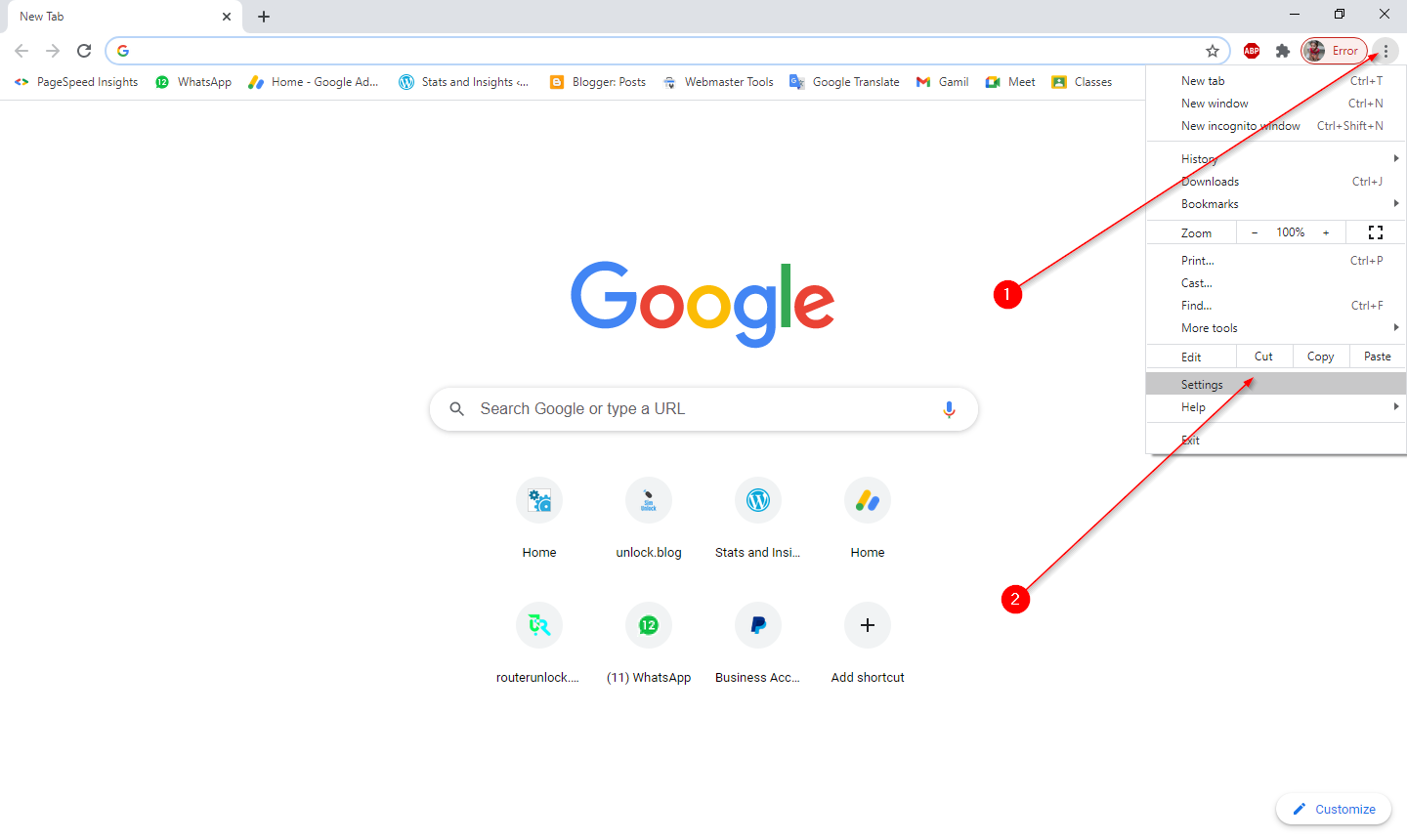
Step 1. Launch the Google Chrome browser, click on the menu (3 vertical dots), and select Settings from the drop-down menu.
 Step 2. In the Settings page that opens, scroll down to the end and click the System tab on the left sidebar.
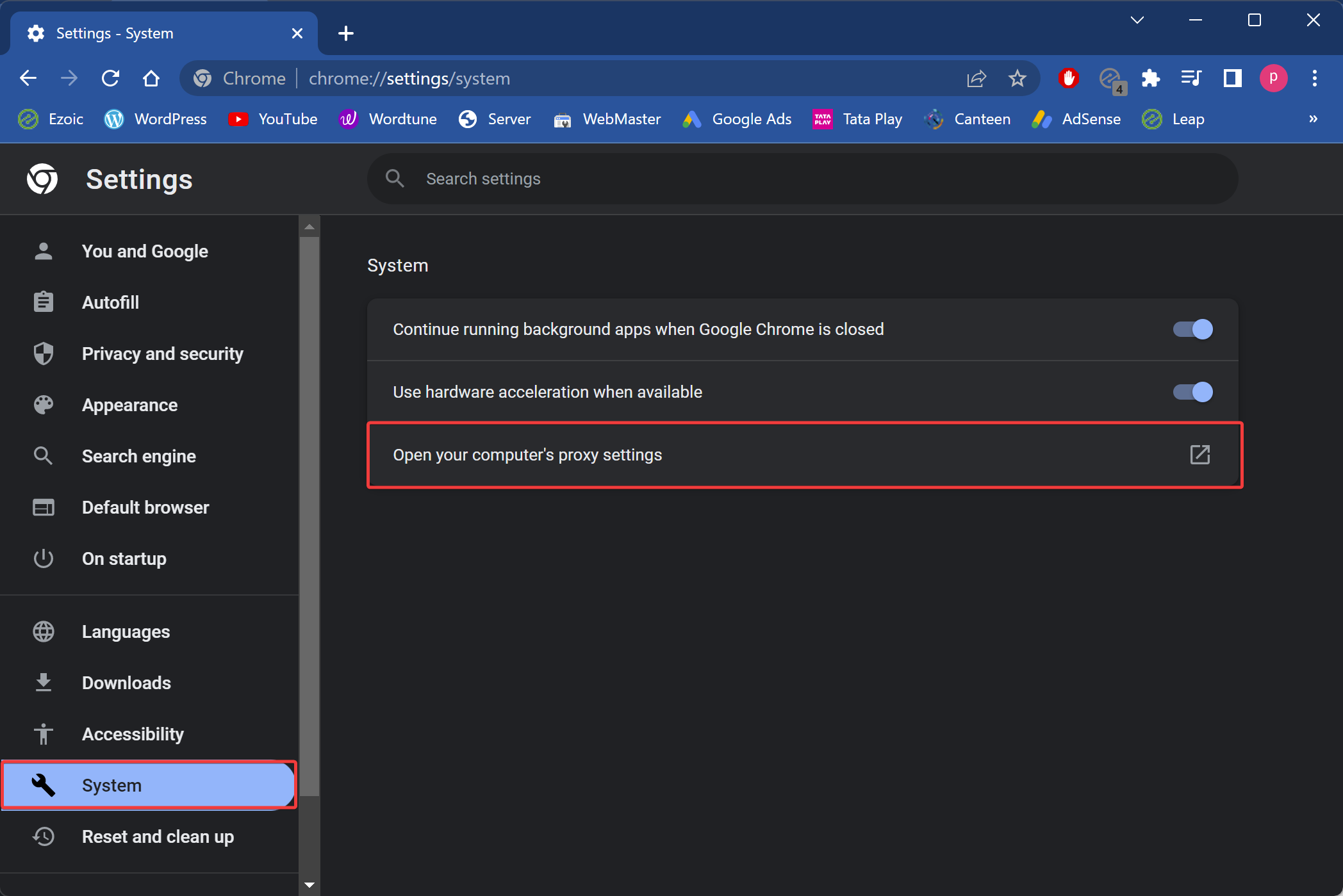
Step 3. On the right, click the option “Open your computer’s proxy settings.”
Step 4. The Proxy Settings of Windows 10 will be opened.
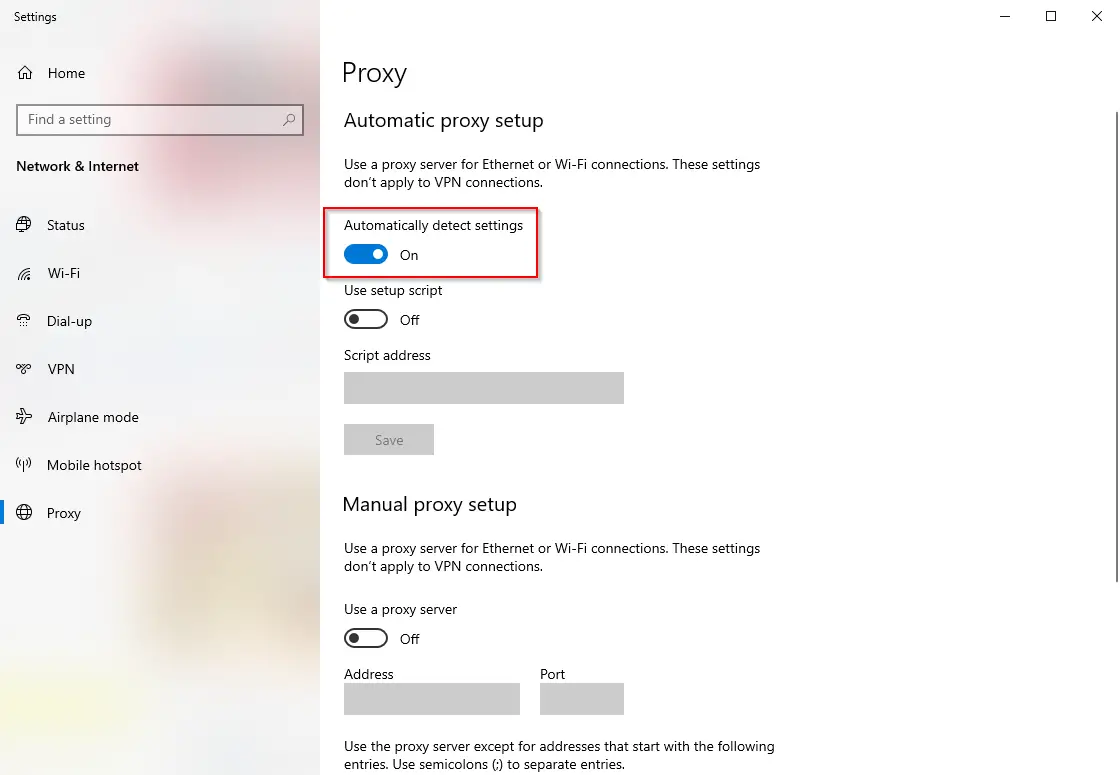 Step 5. Turn off the toggle next to “Automatically detect settings.”
Once you have completed the above steps, the downloading proxy script error should be fixed on your Windows 10 PC.
Frequently Asked Questions
Why does Chrome show the downloading proxy script error?
This error appears when Chrome attempts to load a proxy auto-configuration script but cannot retrieve it. Incorrect proxy settings in Windows are usually the reason.
Is disabling Automatically Detect Settings safe?
Yes, it is safe for most home and small office networks. This option is mainly required in enterprise environments where automatic proxy configuration is used.
Does this issue affect internet speed?
The error does not reduce speed, but it may delay page loading because Chrome waits while trying to download a proxy script.
Will resetting Chrome fix the downloading proxy script problem?
Resetting Chrome rarely helps because the issue originates from Windows proxy settings, not Chrome’s internal configuration.
Can this error appear on Windows 11 also?
Yes, similar proxy detection issues can occur on Windows 11 as well, but the steps to disable Automatically Detect Settings remain nearly the same.
Conclusion
In conclusion, the “downloading proxy script” error in Google Chrome can be an annoying issue, but it is fixable. Disabling the “Automatically detect settings” option in your Windows 10 network settings is a simple solution that can help you get back to browsing the web without encountering the error. A web proxy, or proxy server, is a helpful tool that filters the connection between the internet and your computer, protecting your private information and increasing internal network performance. By following the steps outlined in this post, you can easily fix the downloading proxy script error in Google Chrome on your Windows 10 PC.