

In this gearupwindows guide, we’ll show you how to restore missing image and thumbnail previews in File Explorer on Windows 11. If your pictures are only displaying as generic icons instead of previews, don’t worry—we’ll walk you through a few simple fixes.
Be sure to also check our related post on how to display thumbnail previews in Windows 11 for extra tips on setting views and thumbnail behavior.
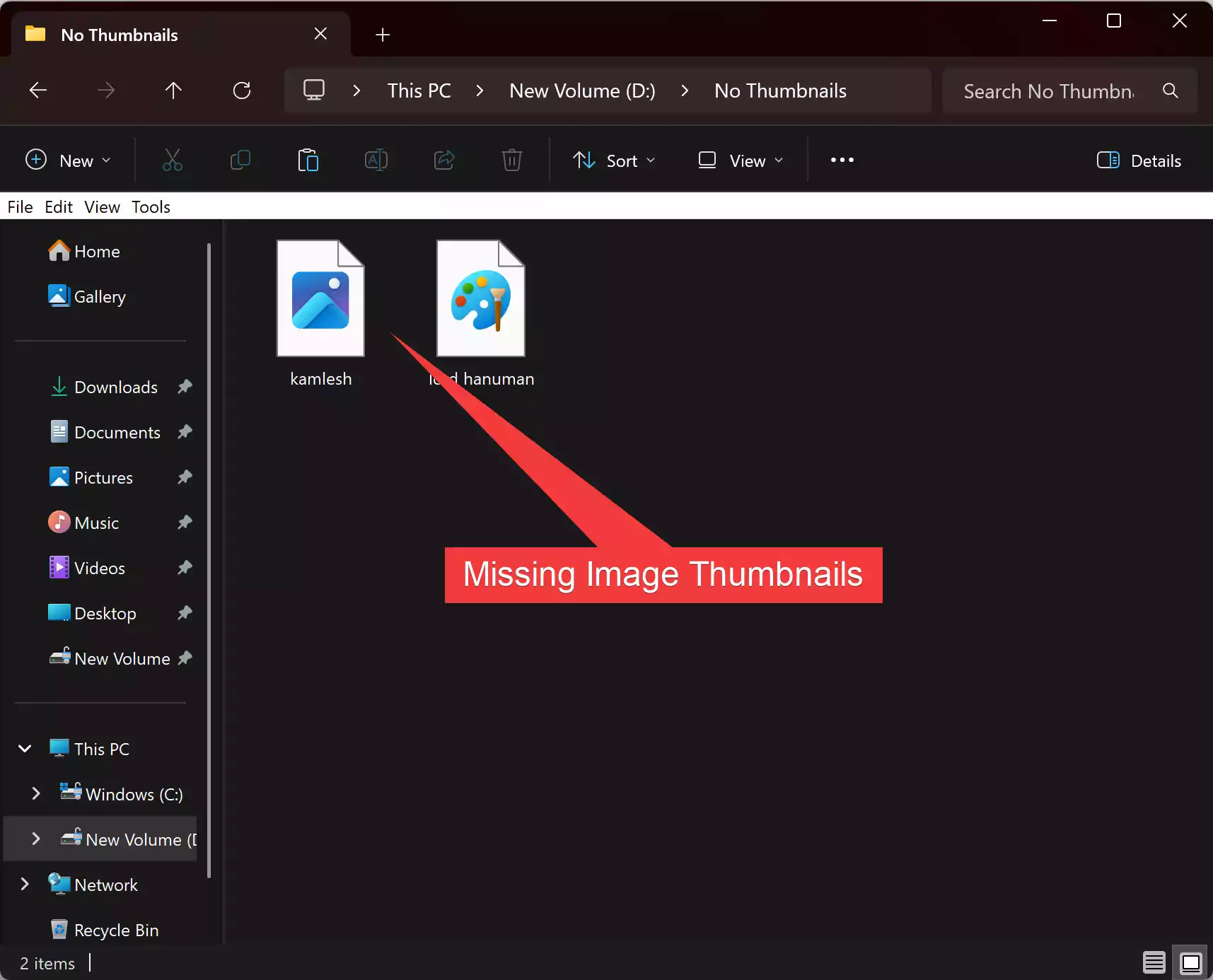
Why Are Image Previews Missing?
If File Explorer is showing only icons instead of image thumbnails, it usually means that thumbnail previews are disabled in your system settings. It could also be due to misconfigured folder options or performance settings that prioritize speed over visuals.
How to Fix Image Preview Not Showing in Windows 11?
Method 1: Enable “Show thumbnails instead of icons”
Step 1. Press Windows key + R to open the Run dialog box.
Step 2. Type the following and press Enter:
SystemPropertiesPerformance
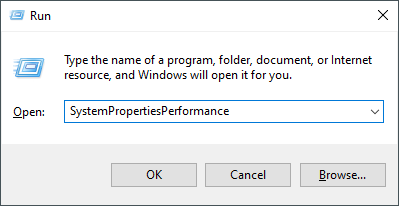
Step 3. In the Performance Options window, go to the Visual Effects tab.
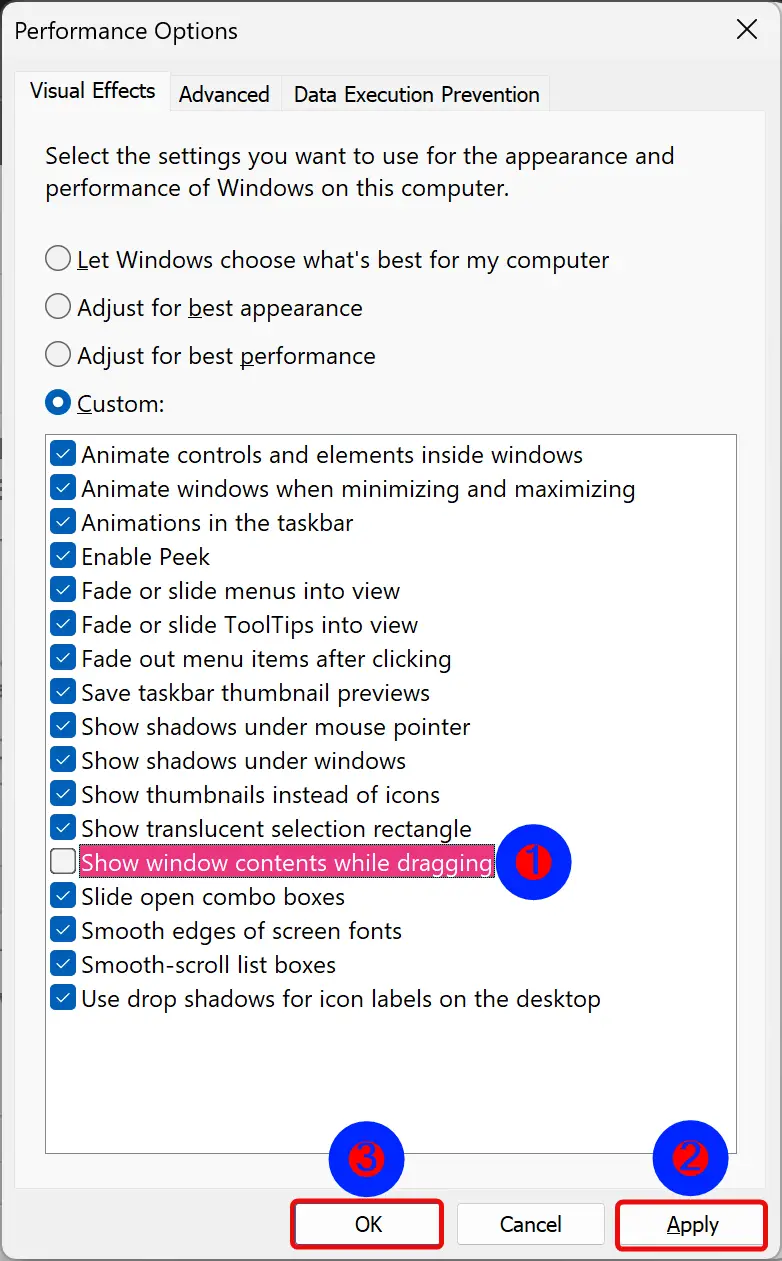
Step 4. Check the box next to Show thumbnails instead of icons.
Step 5. Click Apply, then OK to save your changes.
This ensures Windows displays actual thumbnails instead of generic icons.
Method 2: Turn off “Always show icons, never thumbnails” in Folder Options
Step 1. Open File Explorer and click the ⋯ (three-dots) icon on the top toolbar.
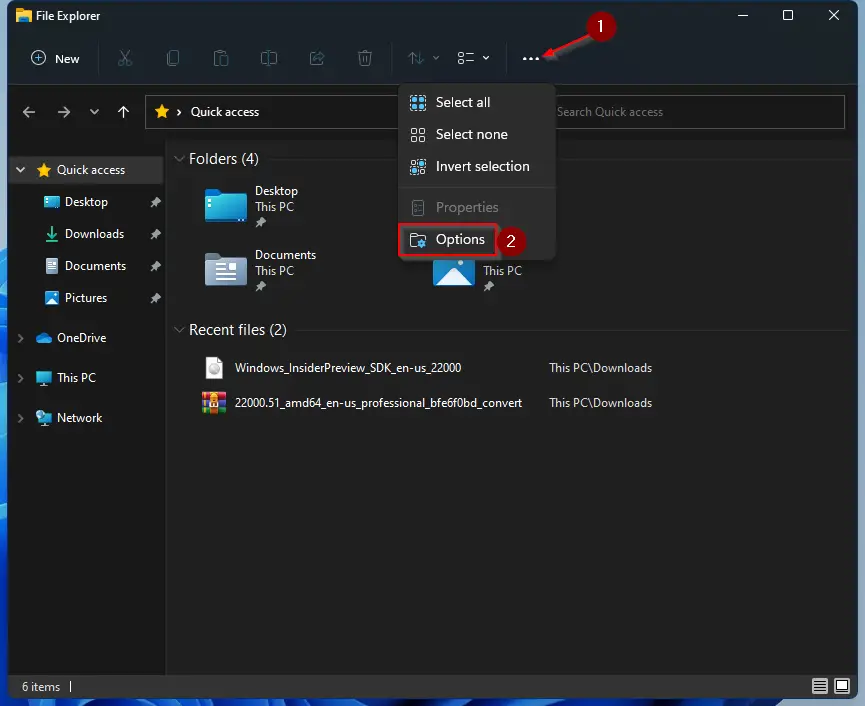
Step 2. Select Options from the dropdown menu.
Step 3. In the Folder Options window, switch to the View tab.
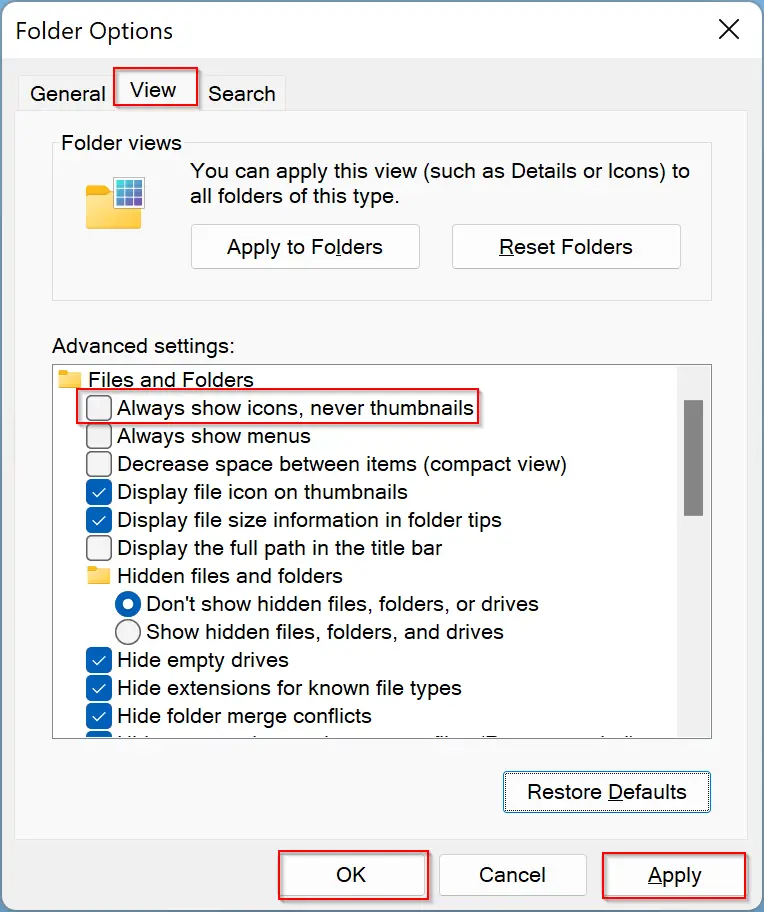
Step 4. Scroll down and uncheck Always show icons, never thumbnails.
Step 5. Click Apply, then OK.
Disabling this option allows File Explorer to generate and display thumbnail previews again.
Additional Tips
- Set your folder layout to Medium, Large, or Extra Large icons. Thumbnails won’t appear in List or Details views. Learn more in our thumbnail preview guide.
- If previews still don’t appear, restart File Explorer using Task Manager or reboot your PC.
- Run the System File Checker tool by typing
sfc /scannowin Command Prompt to fix any system file issues. - Ensure your system has enough free disk space—Windows might skip generating thumbnails if disk space is low.
Conclusion
To bring back missing image previews in Windows 11:
- Enable the Show thumbnails instead of icons option under Performance Settings.
- Disable the Always show icons, never thumbnails option in Folder Options.
These quick steps should restore thumbnail previews in File Explorer, making it easier to browse and manage your photos without opening each one.