

An ISO file (or ISO image) is an archive that contains an exact digital copy of the data from an optical disc such as a CD, DVD, or Blu-ray. ISO images are popular for backing up discs, distributing large software packages, and preserving bootable media. They store everything in a single file while keeping the structure and functionality intact.
In older Windows versions like XP and Vista, you needed third-party software to mount an ISO as a virtual drive. That changed starting with Windows 7, when Microsoft added built-in ISO mounting support. This feature continues in Windows 8/8.1, 10, and 11, allowing you to mount ISO images to a virtual CD/DVD drive instantly—no extra tools needed.
Still, if you want extra flexibility or prefer a lightweight dedicated tool, try WinCDEmu. It works on Windows 11, supports multiple image formats (ISO, CUE, BIN, and more), and has an incredibly small footprint of about 1.50MB.
Folder2ISO for Windows 11 & 10
When it comes to quickly converting a folder into an ISO file without unnecessary extras, Folder2ISO is one of the simplest tools you can use. Unlike other utilities that pack in numerous unrelated features, Folder2ISO does exactly one thing—and it does it well.
This is a portable tool, so you don’t need to install it. You can even keep it on a USB stick and run it from any PC. The interface is beginner-friendly, making it ideal for anyone who wants quick results without dealing with complicated options.
How to Use Folder2ISO
Step 1. Download Folder2ISO from the official website and extract it using an archive tool.
Step 2. Double-click the Folder2ISO executable to launch the program.
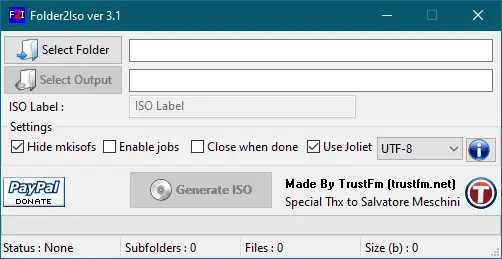
Step 3. Click the Select Folder icon to choose the folder you want to convert, or drag and drop it directly into the interface.
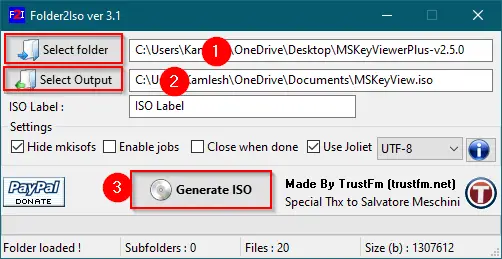
Step 4. Click Select Output to choose where your ISO file will be saved. Finally, click Generate ISO to start the conversion.
In just a few moments (depending on the folder size), you’ll have a ready-to-use ISO file.
Download Folder2ISO
Folder2ISO works on Windows XP through Windows 11, as well as Linux. It’s lightweight (less than 3MB), completely free, and doesn’t require installation. Download the latest version from the official site.
If you’re looking for similar tools, check out:
- IsoCreator – another portable tool for quick folder-to-ISO conversion.
- WinBurner – a simple ISO maker that’s tiny and easy to use.
Conclusion
If you need a fast, lightweight, and portable way to convert a folder into an ISO file, Folder2ISO is an excellent choice. Its no-install design makes it perfect for use on multiple PCs, and its straightforward interface means anyone can use it without a learning curve. Combined with Windows’ built-in ISO mounting feature, you can create, access, and use ISO files without relying on heavy third-party software.