

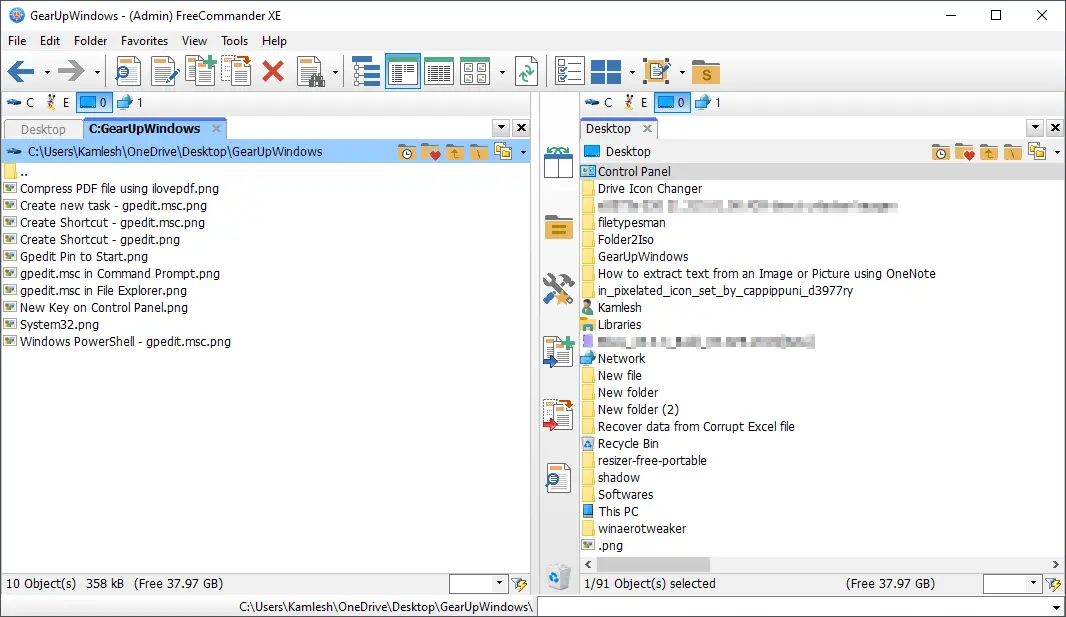
FreeCommander is a versatile and user-friendly file manager that stands out as a powerful alternative to the default File Explorer in Windows. With a dual-pane layout, a tabbed interface, and thoughtful tools for everyday tasks, it helps you organize, compare, copy, and rename files faster — with fewer clicks and more control. If you’re exploring other options too, don’t miss our roundup of free file managers for Windows.
What is FreeCommander?
FreeCommander is a Windows file manager designed to streamline your workflow with side-by-side folder views, tabs, quick filters, and built-in viewers. It’s available as a standard installer and as a portable build, so you can keep it on a USB drive and use it on any PC without installation.
Why Would a Beginner Use FreeCommander?
Beginners appreciate FreeCommander because it reduces friction. The dual-pane design makes drag-and-drop moves effortless, the toolbar and keyboard shortcuts are customizable, and common actions (copy, move, rename, search, zip) are consolidated in one place. It feels familiar if you know File Explorer, but adds the kind of conveniences power users rely on — without overwhelming you.
Main Features of FreeCommander
- Dual-pane browsing for side-by-side folder management and faster drag-and-drop.
- Tabbed interface to keep multiple locations open and switch instantly.
- Advanced file operations: copy/move with options, quick compare, and directory sync helpers.
- Batch renaming with patterns and preview to avoid mistakes.
- Built-in viewers for images, text, and more — handy for a quick look without launching big apps.
- Customizable UI (toolbars, colors, hotkeys) to match your workflow.
- Quick search & filters to isolate files by name, extension, or attributes in seconds.
- Portable version for on-the-go use without touching system files.
How to Use FreeCommander
Step 1. Download and run the installer (or unzip the portable build) from the official site below.
Step 2. Launch FreeCommander and pick a comfortable layout. The two panes show different folders, so you can drag files between them.
Step 3. Open multiple locations with tabs. For example, keep Downloads, Documents, and a USB drive ready in separate tabs for quick switching.
Step 4. Copy or move files. Select items in the left pane and use the Copy/Move buttons (or Ctrl+C / Ctrl+V) to transfer them to the right pane’s folder. For frequent large transfers, pairing FreeCommander with a dedicated copy accelerator like TeraCopy can further improve reliability and speed.
Step 5. Rename many files safely. Use FreeCommander’s batch rename to add numbers, change cases, or replace text with a live preview. If you ever need heavy-duty patterns and extras, try the excellent Bulk Rename Utility.
Step 6. Preview files quickly. The built-in viewer is perfect for a fast check. If you want macOS-style space-bar previews across Windows apps, you can also install QuickLook.
Step 7. Find and filter faster. Press the quick filter and start typing to show only matching files in a folder; use search to scan subfolders by name or pattern.
Step 8. Customize once, save time forever. Tweak toolbar buttons, define your favorite folders, set hotkeys, and pick a theme so your most-used actions are always one click away.
Pros and Considerations
- Pros: Dual-pane productivity, tabs, batch tools, portable option, and a highly customizable interface.
- Considerations: Power features can be hidden behind menus at first; spending a few minutes customizing pays off. Some very advanced tasks (e.g., verified copy queues or scripting) may be better handled by specialized tools.
When FreeCommander Can Help You
- Migrating files between drives or reorganizing a messy Downloads folder — the side-by-side view makes it painless.
- Preparing backups — compare folders and move only what has changed.
- Renaming photo or music collections — batch patterns save hours.
- Reviewing large folders — open multiple tabs and use quick filters to triage faster. For a detailed storage map, a disk analyzer like WizTree pairs nicely with FreeCommander.
- Trying different interfaces — if you want a more modern aesthetic, check One Commander, or if you prefer another dual-pane classic, see Multi Commander.
Frequently Asked Questions About FreeCommander
Is FreeCommander free?
Yes. It’s free for personal and commercial use, with optional donations to support development.
Does FreeCommander have a portable version?
Absolutely. Download the portable ZIP, extract it anywhere (even a USB drive), and run it without installation.
Can FreeCommander replace File Explorer completely?
You can use it as your daily driver. Windows still uses Explorer for some dialogs, but most file tasks are faster in FreeCommander thanks to dual panes and tabs.
How do I batch-rename files safely?
Select your files, open the rename tool, and test your pattern in the live preview before committing. If you need advanced patterns and extras, consider a dedicated renamer such as Bulk Rename Utility.
What’s the quickest way to preview files?
Use FreeCommander’s internal viewer. For instant previews across Windows with the spacebar, try QuickLook.
How can I speed up large file transfers?
FreeCommander handles everyday copies well. For very large or numerous files, a copy accelerator like TeraCopy can add queuing and error recovery.
Download FreeCommander
Get the latest version from the official FreeCommander website. Choose the installer for a standard setup, or the portable ZIP to use it without installation.
Safe Use Tips for Beginners
- Preview before deleting. Use the viewer or open files to confirm content.
- Avoid Shift+Delete unless you’re 100% sure — it bypasses the Recycle Bin.
- Test batch operations (rename, move) on a few files first, then scale up.
- Back up important data before major reorganizations or large moves.
- Customize hotkeys to reduce clicks and prevent mistakes.
Conclusion
FreeCommander brings a faster, more controlled way to manage files on Windows. With its dual-pane layout, tabbed navigation, batch tools, and a customizable interface, it makes everyday tasks easier for beginners and power users alike. Whether you’re cleaning up folders, moving large libraries, or preparing backups, FreeCommander streamlines the job and helps you work smarter.