

Windows 11/10 desktops offer a wide range of customization options. You can easily resize your desktop icons by pressing Ctrl + scrolling your mouse wheel. Additionally, there are options available to hide all your desktop icons if you prefer a cleaner look. By default, the Recycle Bin icon is missing from the Windows 11/10 desktop, but you can easily add it through the Personalization section.
Upon logging in to your user account, the desktop is the primary interface that greets you. This feature provides a convenient launching point for most of your programs, files, and folders without the need to navigate to their individual locations. On the desktop, you’ll commonly find shortcut icons for programs, system icons such as the Recycle Bin and This PC, and a variety of folder and file icons.
This guide aims to delve into the available customization options for the desktop in Windows 11/10, showcasing how to optimize and maximize its functionality.
AutoHideDesktopIcons for Windows 11/10
For greater control over displaying or hiding desktop icons, a third-party freeware tool called AutoHideDesktopIcons can be utilized. This utility not only comes at no cost, but it is also portable, meaning it can be used on multiple devices without installation. With AutoHideDesktopIcons, desktop icons are automatically concealed when not in use, and users have the ability to customize the time delay after moving the mouse cursor away from the desktop or the period of mouse inactivity on the desktop before the program initiates the hiding process.
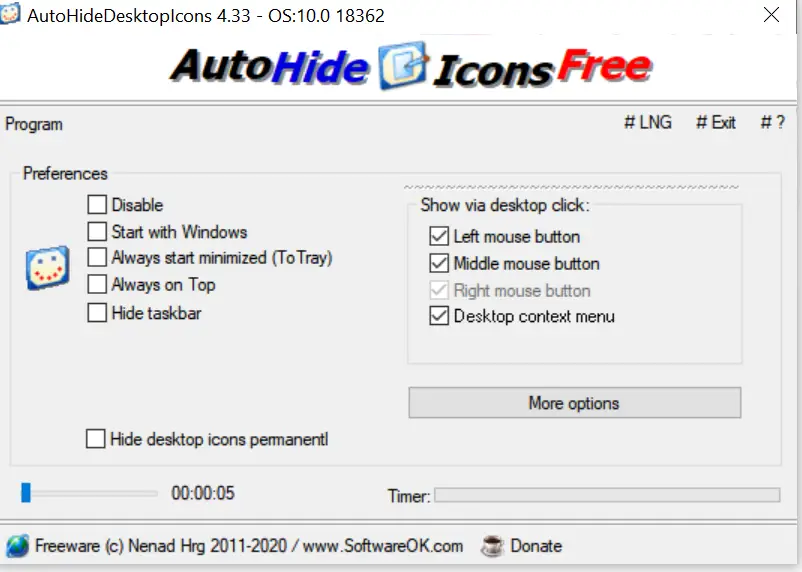
Automatically hide desktop icons on Windows 11/10
AutoHideDesktopIcons comes pre-configured and is ready to use. AutoHideDesktopIcons automatically hides desktop icons with the default settings if you move the mouse cursor away from the desktop for 5 seconds. Still, you can set your own time by moving the slider.
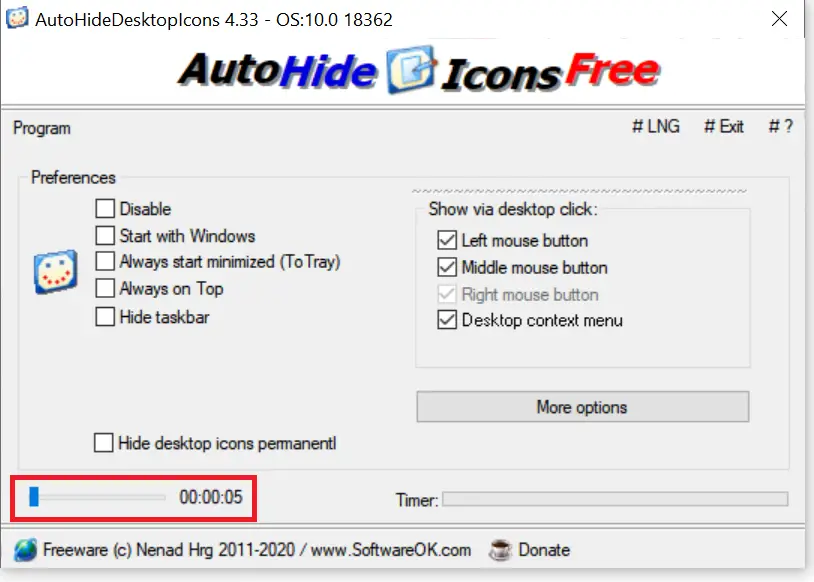 To see the hidden icons on the Windows 11/10 desktop, you can do the following:-
- Click the Left Mouse Button on the desktop
- Click the Right Mouse Button on the desktop, or
- Click the Mouse Middle Button on the desktop.
The AutoHideDesktopIcons program automatically conceals all desktop icons once the mouse cursor moves away from the desktop and onto another window or taskbar area. Similarly, if the mouse remains stationary on the desktop for a predetermined duration, the program initiates the hiding process. To reveal the icons, you need to click the left, right, or middle button on the mouse while on the desktop.
Moreover, the program offers an option to hide all desktop icons permanently if desired.
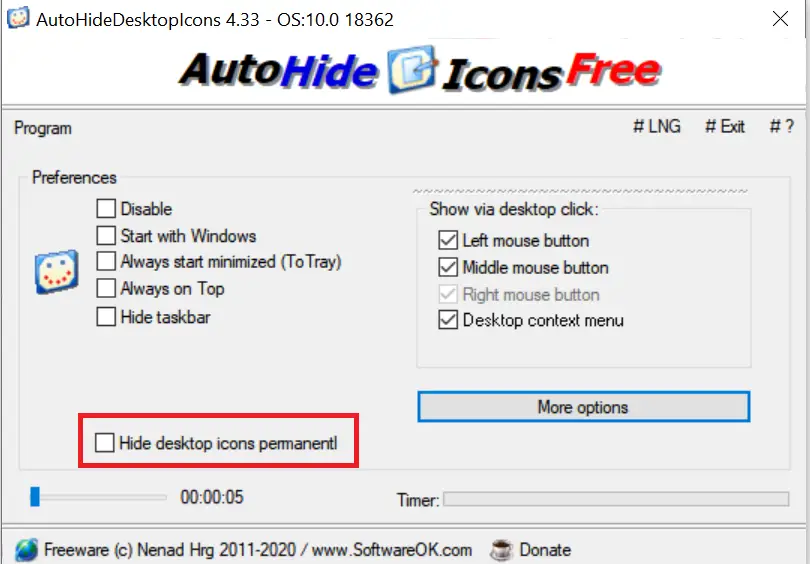 By clicking on the More options button, you can perform additional tweaking:-
- Hide via the middle mouse button.
- Make desktop icons visible by pressing the Win + D keys combination.
- Show icons when the mouse moves across the desktop.
- Hide icons program start.
- Hide the taskbar when icons hide.
If you like this portable application, you can configure it to start with Windows by checking the Start with Windows option under Preferences. You can also check “Always start minimized (To Tray),” so it will sit on the system tray.
The AutoHideDesktopIcons freeware app is compatible with Windows 11, 10, 8/8.1, and 7, including 32-bit and 64-bit systems.
Download AutoHideDesktopIcons
Download the AutoHideDesktopIcons freeware tool from this link.
FAQs
How can I resize desktop icons in Windows 11/10?
You can resize icons instantly by holding the Ctrl key and scrolling your mouse wheel up or down. Windows will apply the new icon size immediately.
Is there a way to hide all desktop icons without deleting them?
Yes. Windows provides a built-in option to hide all desktop icons. You can toggle this through the View menu on the desktop.
Why is the Recycle Bin missing from my desktop?
The Recycle Bin is not shown by default on many new installations. You can enable it through the Personalization settings under Desktop icon settings.
What is AutoHideDesktopIcons?
AutoHideDesktopIcons is a free and portable tool that automatically hides your desktop icons when they are not in use. It brings additional control and automation beyond Windows’ built-in hide option.
Does AutoHideDesktopIcons require installation?
No. It is a portable utility that can be run directly without installation, making it convenient for use across multiple devices.
How does AutoHideDesktopIcons hide the icons automatically?
The program hides icons after a set period of mouse inactivity or when the cursor moves away from the desktop. You can adjust the timer using its slider control.
How do I show hidden icons again?
You can reveal the icons by clicking the left, right, or middle mouse button on the desktop. The icons will reappear instantly.
Can I hide desktop icons permanently using this tool?
Yes. AutoHideDesktopIcons includes an option to keep icons hidden all the time if you prefer a completely clean desktop.
Are there extra customization options in AutoHideDesktopIcons?
Yes. Through More options, you can enable middle-mouse hiding, reveal icons with Win + D, hide the taskbar with icons, and more.
Is AutoHideDesktopIcons compatible with Windows 11?
Yes. It works on Windows 11, 10, 8/8.1, and 7 on both 32-bit and 64-bit systems.
Conclusion
In conclusion, Windows 11/10 desktops offer a wide range of customization options, including the ability to resize icons, hide desktop icons for a cleaner look, and add missing icons like the Recycle Bin. The desktop serves as a convenient launching point for programs, files, and folders. AutoHideDesktopIcons is a useful third-party freeware tool that automatically hides desktop icons when not in use and allows for customization of the hiding process. By utilizing this tool, users can optimize and maximize the functionality of their Windows 11/10 desktops.