

A theme pack may include one or more wallpapers and an accent color. Apart from the wallpaper(s), it can also come with sound schemes and icons.
When it comes to Windows 11, it ships with six beautiful themes: Windows (light), Windows (dark), Glow, Captured Motion, Sunrise, and Flow. Windows (light) and Windows (dark) themes include only one wallpaper, while other themes include four wallpapers each. By default, the Windows (light) theme is applied as the default theme on Windows 11 PCs. When you activate dark mode, the Windows (dark) theme is applied.
While there is nothing wrong with the default theme, not all computer users may like it and want to change it. Windows 11/10 provides an easy option to change the default theme. You can easily choose one of the offered themes from the Settings app. If you are not happy with any of the six themes shipped with Windows 11, you can download and install new themes from the Microsoft Store or any other third-party website.
Multiple ways are available to change a theme on Windows 11/10. You can change the theme via the Settings app, File Explorer, or even the classic Control Panel. In this gearupwindows guide, we’ll show you all the ways to change a theme one by one.
How to Change Windows 11 Theme via the Settings app?
Using the Settings app, Windows 11 allows you to change the theme from two different places.
First Method
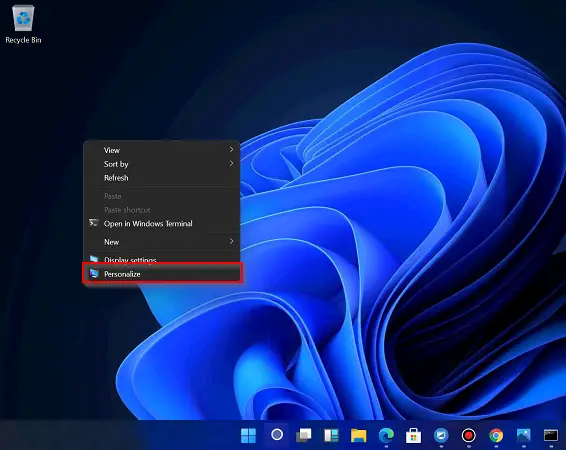
Step 1. Right-click on a blank area on the desktop and then select the Personalize option to access the Settings > Personalization page.
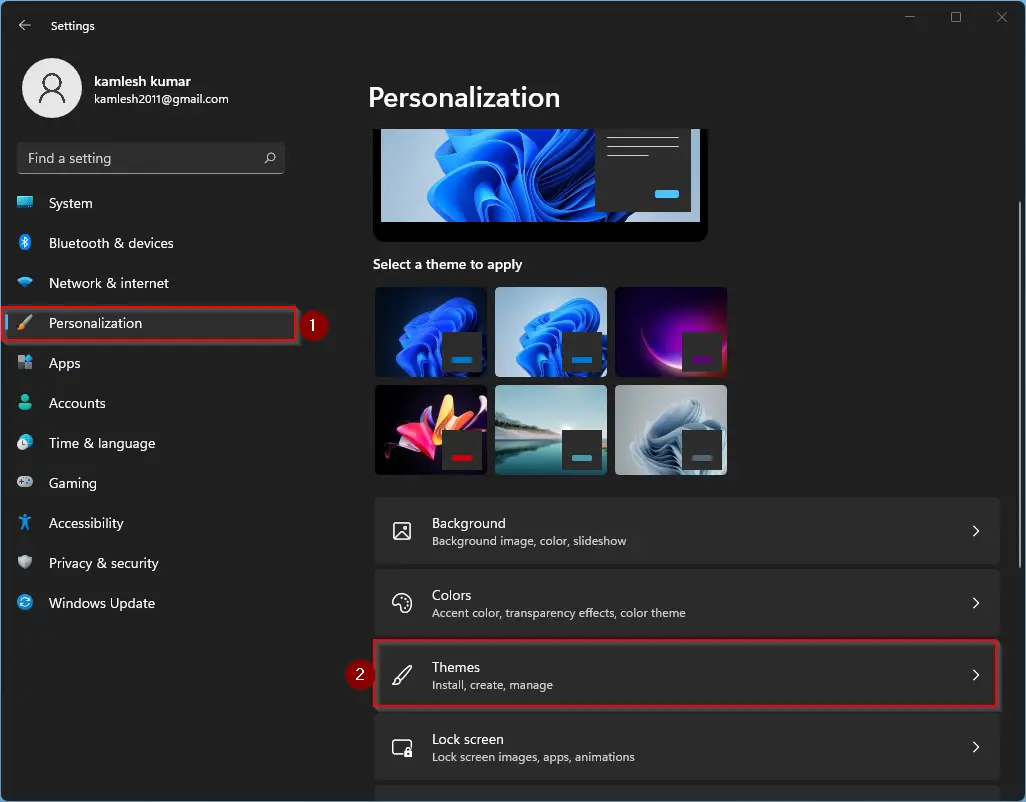
Step 2. On the right-side pane, click on the Themes option.
Step 3. Here, you will find all default themes that ship with Windows 11 and that you downloaded from the Microsoft Store. Click on any theme that you would like to apply.
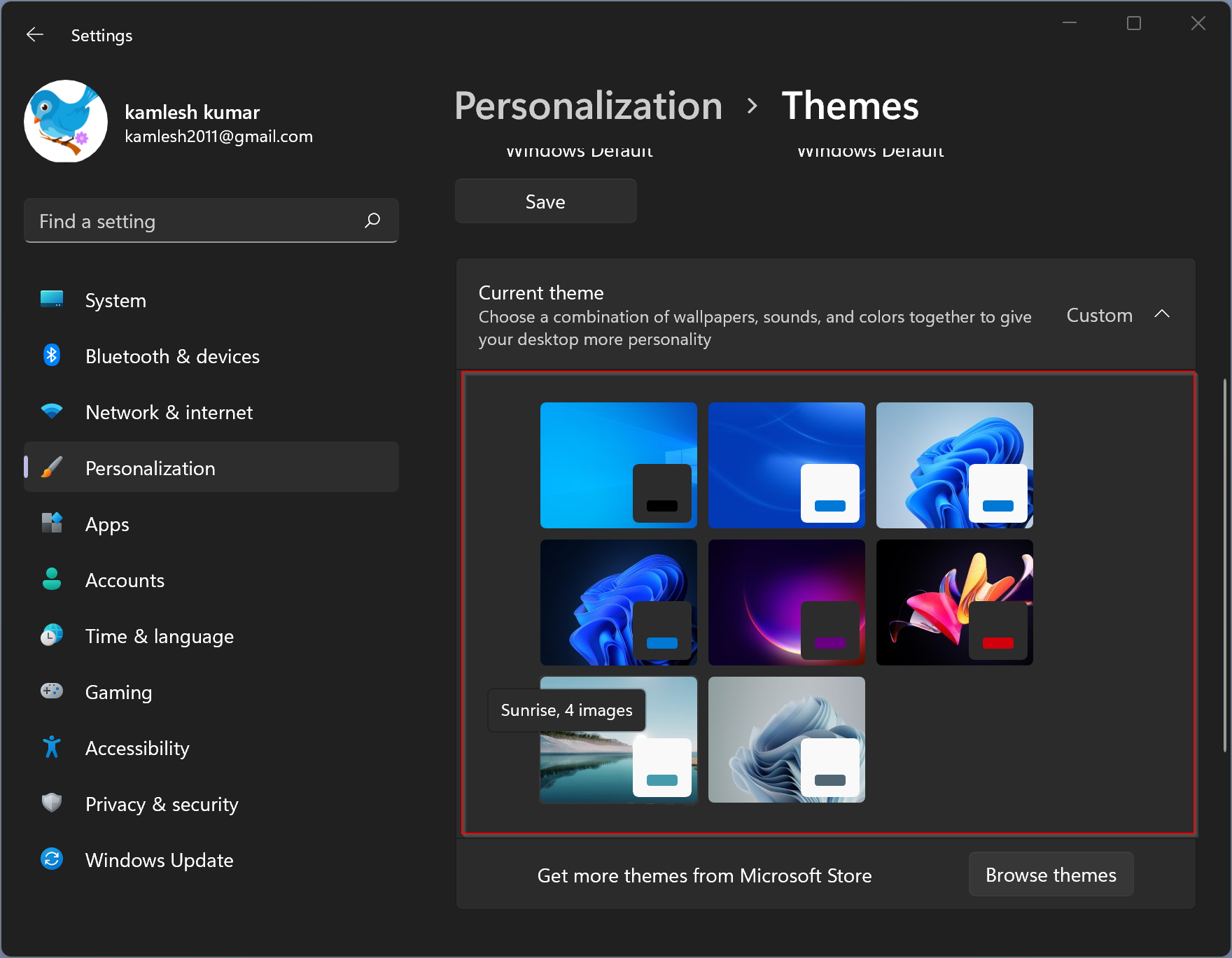
The changes are immediate, which means once you click on any theme, it will be applied immediately.
Second Method
Step 1. Right-click on a blank area on the desktop and then select the Personalize option to access the Settings > Personalization page.
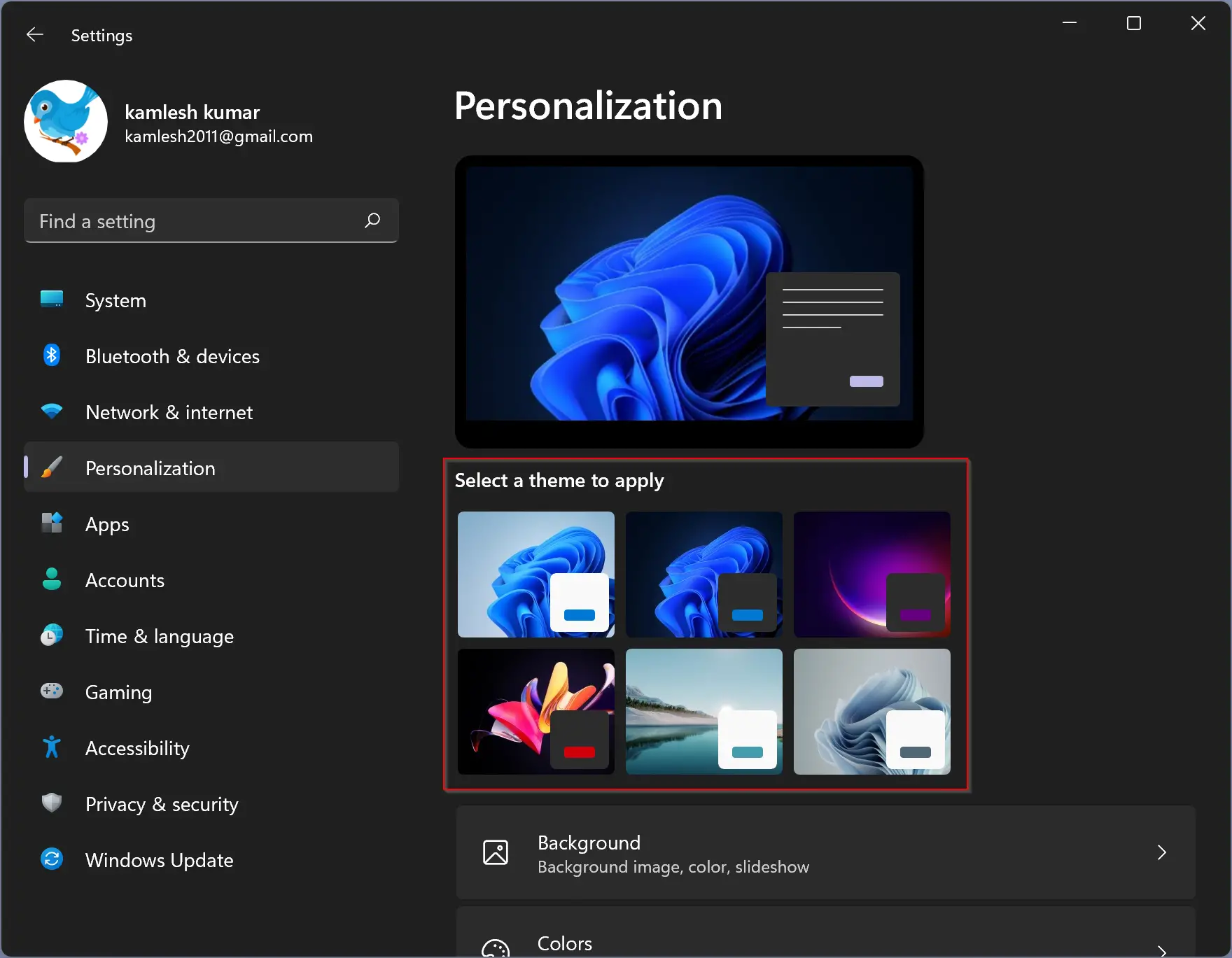
Step 2. On the right-side pane of Personalization, click on any theme that you would like to use. Please note that here you can see only the six latest themes that you have used recently.
How to Change Windows 11 or 10 Theme through Control Panel?
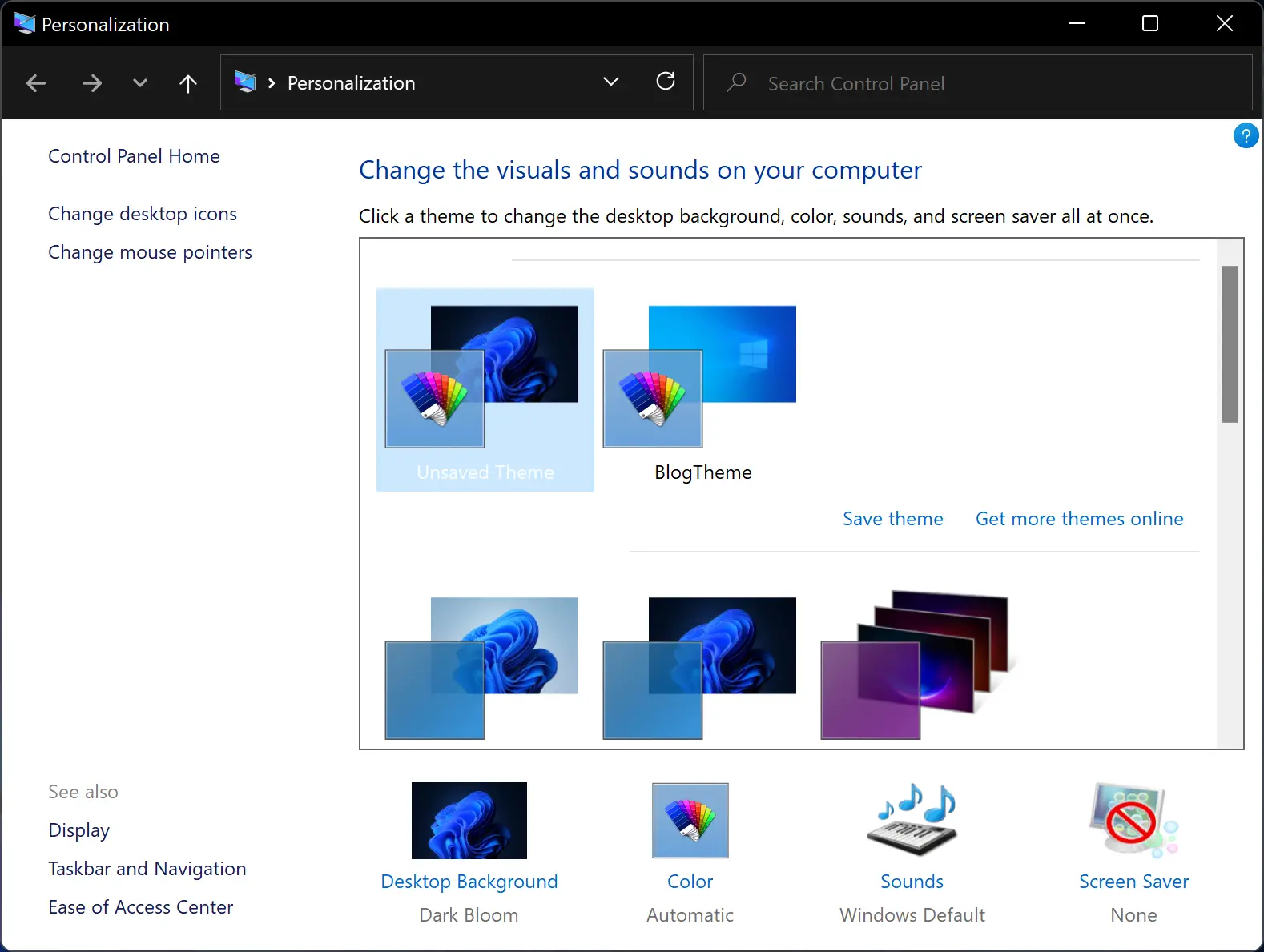
If you love to use the classic Control Panel, you can use this method to change the Theme on Windows 11/10. However, the classic Personalization window is no longer part of the Control Panel. But there is a way to access it and change the theme via the Personalization panel.
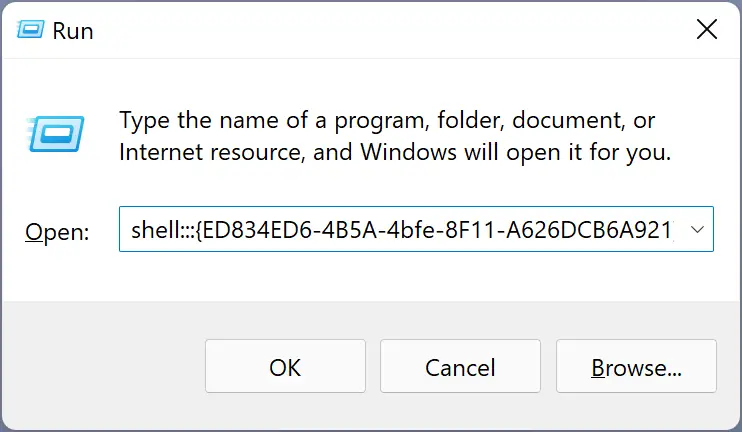
Step 1. Press Windows + R hotkey to open the Run dialog box.
Step 2. In the Run box, copy and paste the following shell command and hit the Enter key on the keyboard to open the classic Personalization panel:-
shell:::{ED834ED6-4B5A-4bfe-8F11-A626DCB6A921}
Step 3. Here, you will see all the themes that are available on your PC. Click on any theme that you would like to use. That’s it.
How to Download and Install Themes on Windows 11 or 10 from the Microsoft Store?
If you don’t like the themes that ship with Windows 11, you can get many themes from the Microsoft Store for free. Click on the Microsoft Store icon on the taskbar. On the Store page, search for Windows Themes. Click on any theme that you love to use. Then click on the Get button. Now, click on the Install button. Finally, click on the Apply button.
How to Change Windows 10 Theme via the Settings app?
To change the Windows 10 theme using the Settings app, do these steps:-
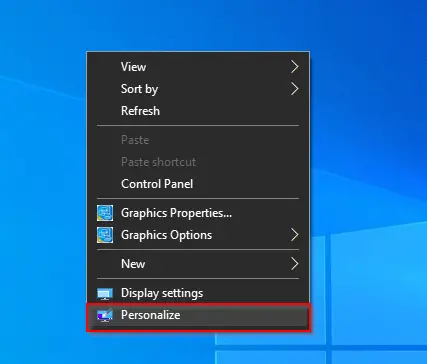
Step 1. Right-click on a blank area on the desktop and then select the Personalize option to access the Settings > Personalization page.
Step 2. On the left-side pane, click on the Themes option.
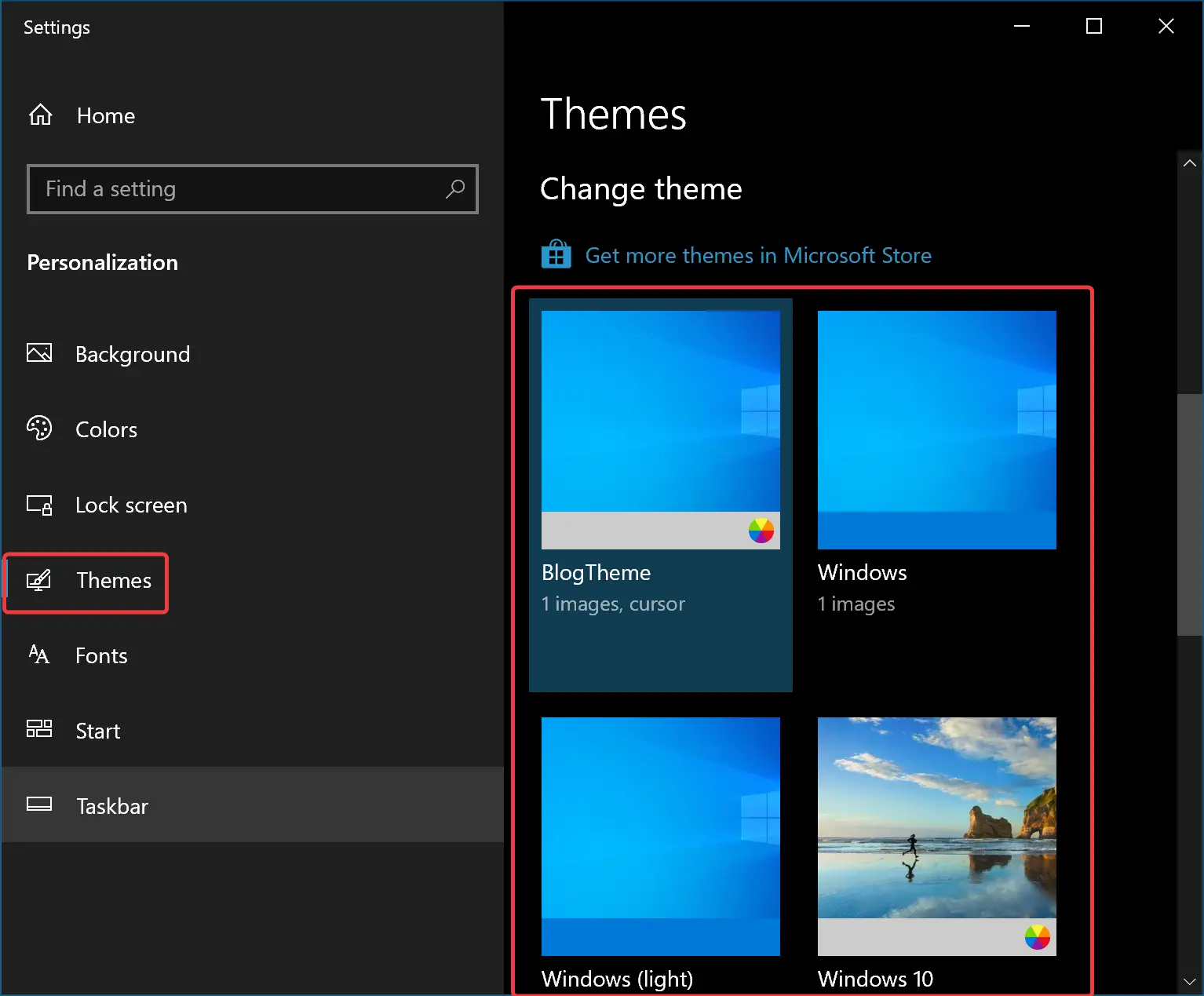
Step 3. On the opposite sidebar, you will find all default themes that ship with Windows 10 and that you downloaded from the Microsoft Store. Click on any theme that you would like to apply.
The changes are immediate, which means once you click on any theme, it will be applied immediately.
Conclusion
In conclusion, Windows 11 offers six pre-installed themes that include beautiful wallpapers, accent colors, and sound schemes. While the default theme is fine for some users, others may want to change it to their preference. There are multiple ways to change the theme on Windows 11, including using the Settings app, File Explorer, or the classic Control Panel. The Settings app allows you to easily select one of the offered themes or download new ones from the Microsoft Store or any other third-party website. Changing the theme is just a few clicks away, and users can personalize their Windows 11 or Windows 10 experience to their liking.