

HEIC (High-Efficiency Image Container) is a modern image format used primarily on Apple devices because it stores high-quality images in smaller file sizes compared to JPG. However, since HEIC is not natively supported on Windows and Android, you might face compatibility issues when trying to open or edit these files. Converting them to the universally supported JPG format is often the simplest fix.
In this beginner-friendly guide, we’ll show you how to batch convert HEIC to JPG using the right-click context menu in Windows 11/10. This method is quick, convenient, and works entirely offline.
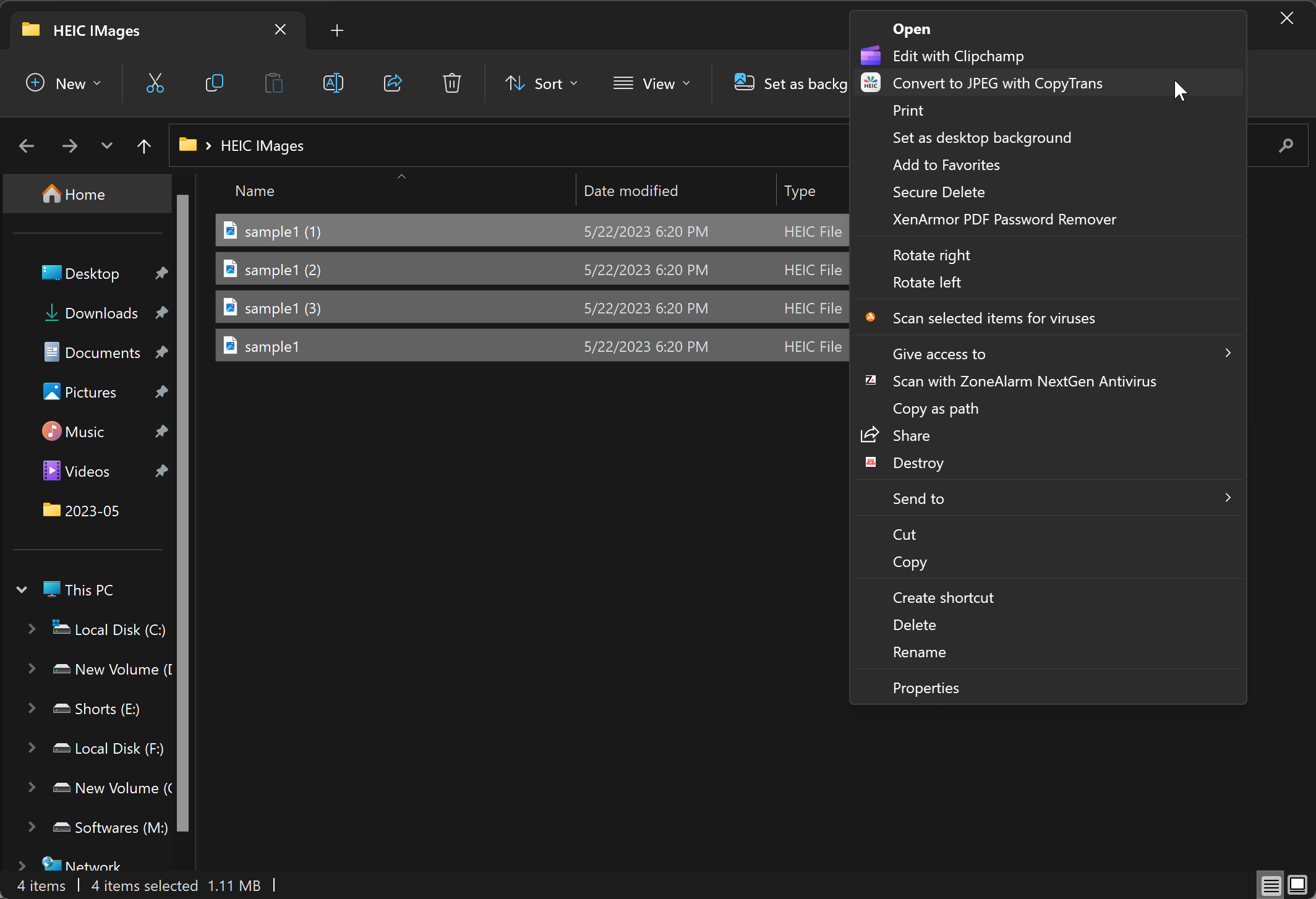
How to Convert HEIC to JPG in Windows 11/10 Using Right-Click Context Menu
Follow these steps to convert HEIC files to JPG in Windows 11/10:
Step 1. Download and install the free tool CopyTrans HEIC for Windows. It adds a “Convert to JPEG” option directly to your right-click context menu.
Step 2. Open the folder where your HEIC images are stored.
Step 3. Select the HEIC images you want to convert. You can hold the Shift key while clicking files or drag to highlight them.
Step 4. Right-click on any of the selected files to open the context menu.
Step 5. Click on “Convert to JPEG with CopyTrans.” The batch conversion will start instantly.
Step 6. When it finishes, the JPG files appear in the same folder as your original HEIC images, making them easy to find and share.
Tip: View HEIC on Windows Without Converting
If you just want to open HEIC files on your PC, see our guide on how to open HEIC and HEVC files in Windows 11/10. This can save time when conversion isn’t necessary.
Alternative: Context-Menu Conversions with File Converter
Prefer an all-in-one tool? You can also use File Converter, a free utility that adds powerful conversion options to the right-click menu for many formats. It’s a handy companion alongside CopyTrans for everyday image conversions.
Frequently Asked Questions
Does converting HEIC to JPG reduce quality?
JPG is a lossy format, so there may be a slight reduction in quality. For everyday sharing and viewing, the difference is usually minimal.
Do I need internet access to convert?
No. CopyTrans works entirely offline once installed, which is faster and more private than uploading photos to online converters.
Where are my converted files saved?
By default, the JPG copies are saved in the same folder as the original HEIC images with the same names (but with the .jpg extension).
Conclusion
Using the right-click context menu to convert HEIC to JPG in Windows 11/10 is fast and reliable. With CopyTrans—and optionally the File Converter utility—you can handle single images or batches locally, keep your photos private, and ensure compatibility across Windows, Android, and older apps.