

RAR is a commonly used file compression format that helps users archive and compress files efficiently on Windows. While RAR files can be opened easily with tools like WinRAR, there might be times when you want to convert a RAR file to an ISO format.
An ISO file is a disk image that contains a complete replica of a CD, DVD, or Blu-ray disc. Converting a RAR file into ISO format makes it easier to burn the data to a physical disc or mount it as a virtual drive.
In this article, we will guide you through converting RAR to ISO on Windows 11 or 10 using the AnyToISO tool.
How to Convert RAR to ISO on Windows 11 or 10?
To convert a RAR file to ISO format on Windows 11 or 10, follow these steps:
Step 1. First, download and install AnyToISO on your Windows PC.
Step 2. Once the installation is complete, open AnyToISO by double-clicking its desktop icon or searching for it through the Start menu.
Step 3. In the application, switch to the “File Extract/Convert to ISO” tab.
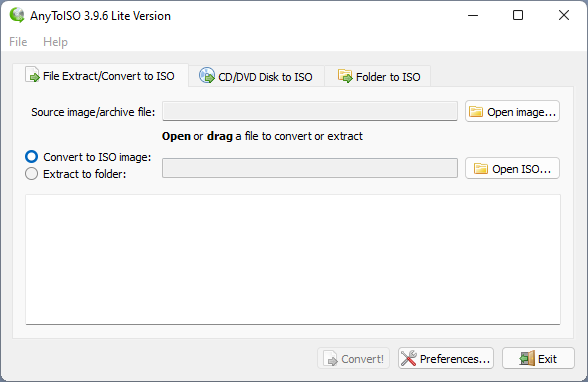
Step 4. Click the “Open image” button. This will open File Explorer, where you can browse and select the RAR file you wish to convert.
Step 5. By default, the program will save the ISO file in the same directory as the original RAR file. If you want to change the location, click the “Open ISO” button and choose a different output folder.
Step 6. After selecting the RAR file and output location, click the “Convert” button to begin the process.
AnyToISO will now convert the selected RAR file into an ISO file. Once the conversion is complete, a confirmation message will appear.
You can then click the “OK” button and navigate to the destination folder to locate your new ISO file.
Conclusion
Converting RAR to ISO on Windows 11 or 10 is simple when using AnyToISO. This tool offers a fast and reliable way to create ISO disk images from compressed RAR files. Whether you want to burn data to a disc or mount it virtually, having the ISO format gives you more flexibility. AnyToISO is a valuable utility that supports a wide range of formats, making it a helpful tool for everyday Windows users.