

You can always personalize your browsing experience on Google Chrome by installing free themes available online. The Chrome Web Store features an extensive selection of thousands of beautiful themes to choose from. To apply a theme from the official Chrome themes page, simply browse the provided link and select the theme you desire for your Chrome browser. It’s that simple!
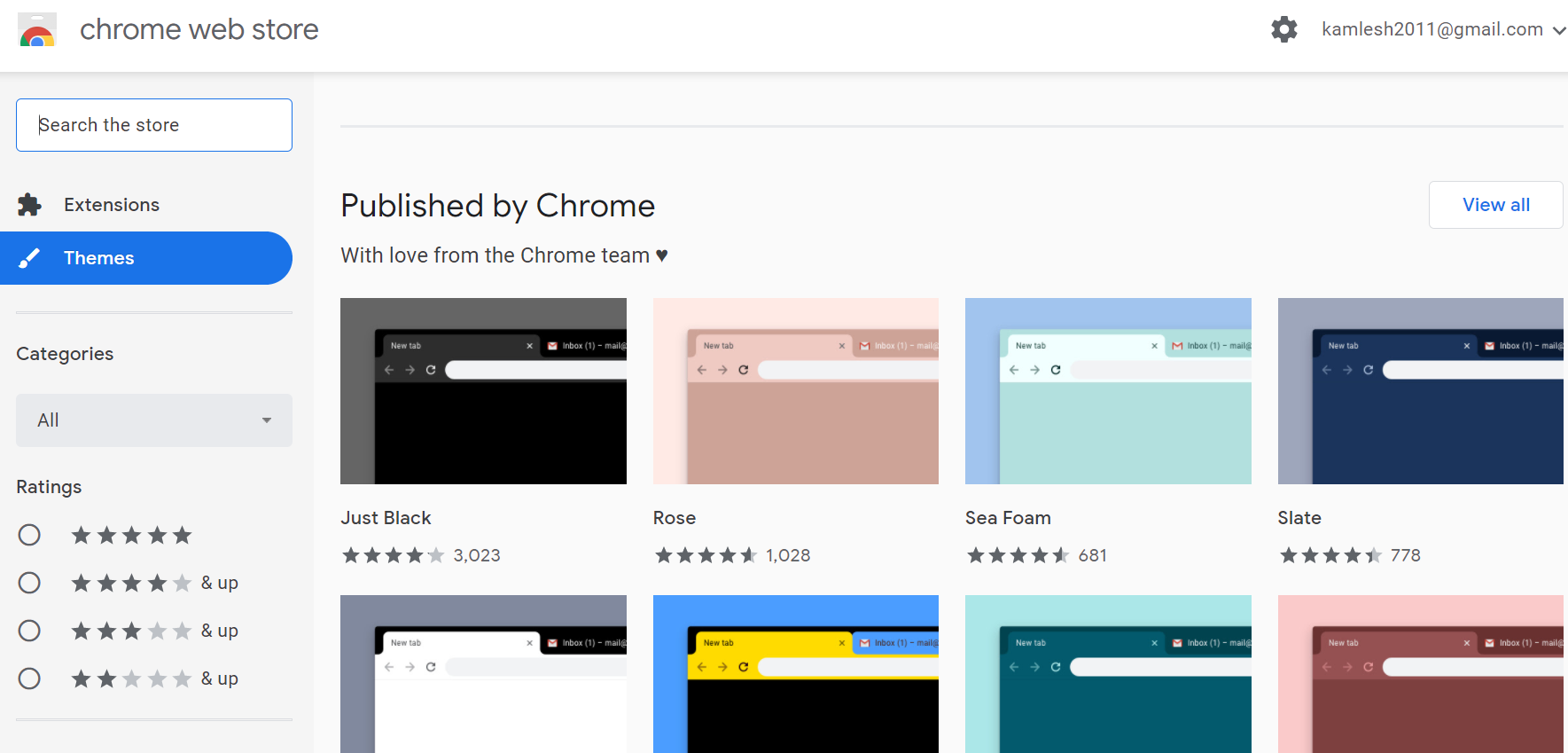
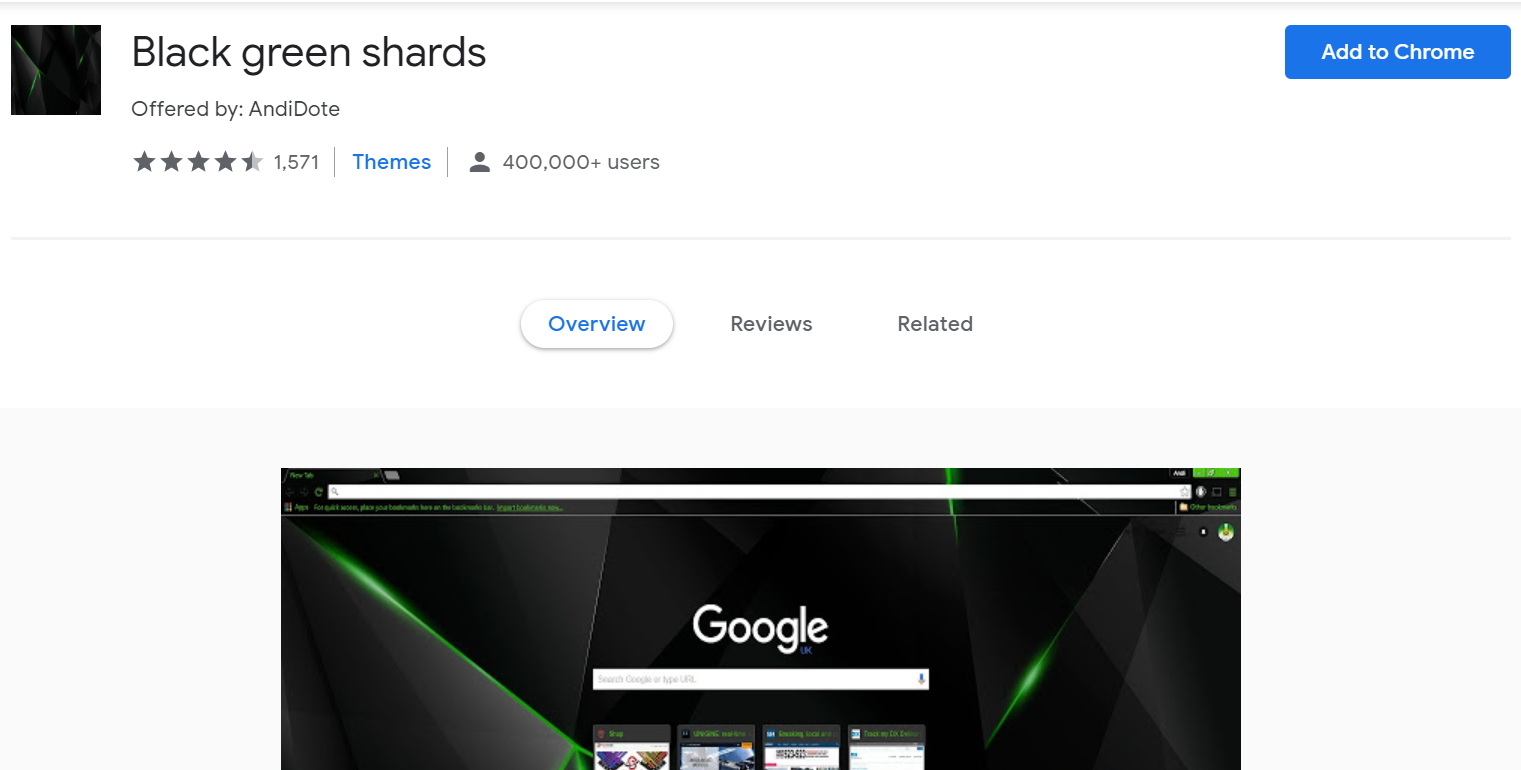
To apply a theme, click on the one you want and then click the “Add to Chrome” button in the top right corner. The theme will be automatically downloaded and applied to your browser.
But what if you want to create your own theme and apply it to Chrome? Fortunately, you can use an online tool to do so.
How To Create a Google Chrome Theme Online?
To create your own Google Chrome theme online, follow these steps:-
Step 1. Open Chrome Theme Creator in your Chrome browser.
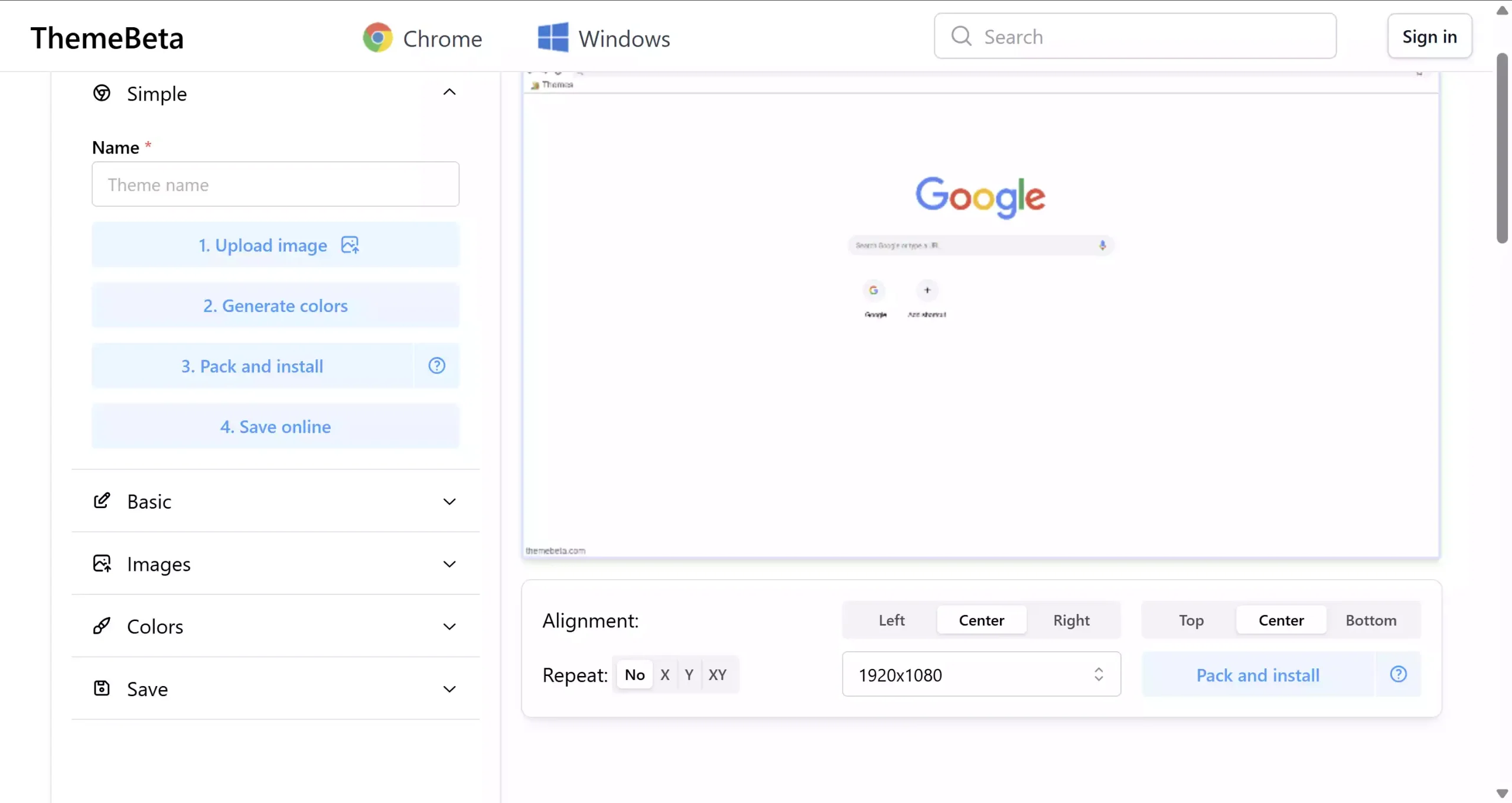
On the page, you’ll see five tabs in the left sidebar: Simple, Basic, Images, Colors, and Save. As you make changes, you’ll see a preview of your theme on the right side of the page.
Step 2. In the Simple tab, give your theme a name and upload an image from your computer to use as the background of your Chrome browser.
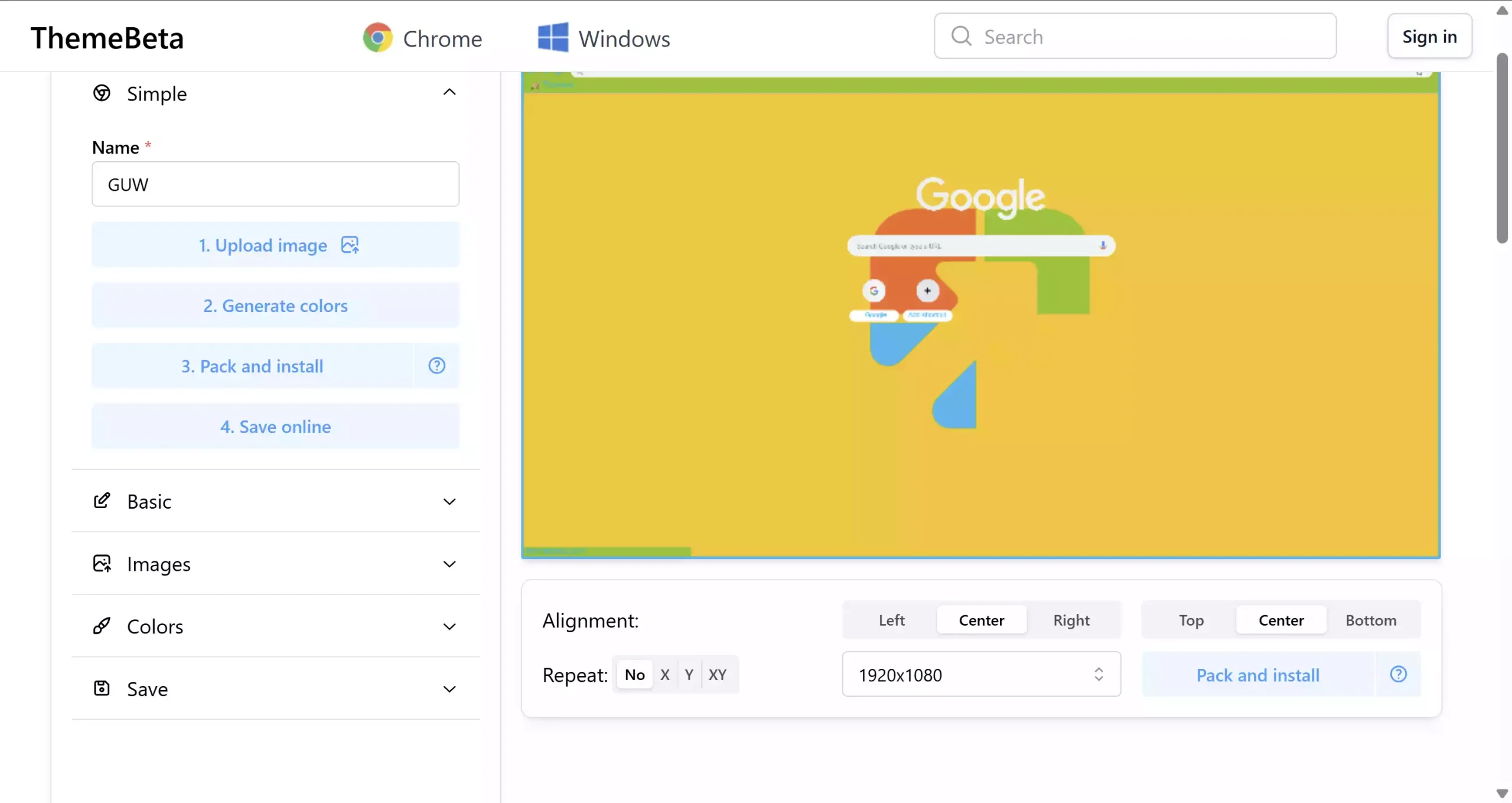
Step 3. After uploading your background image, click “Generate Colors.” This will automatically match the color of the URL address bar and background to your theme. You can also set the colors of different elements of the Chrome browser in the Colors tab.
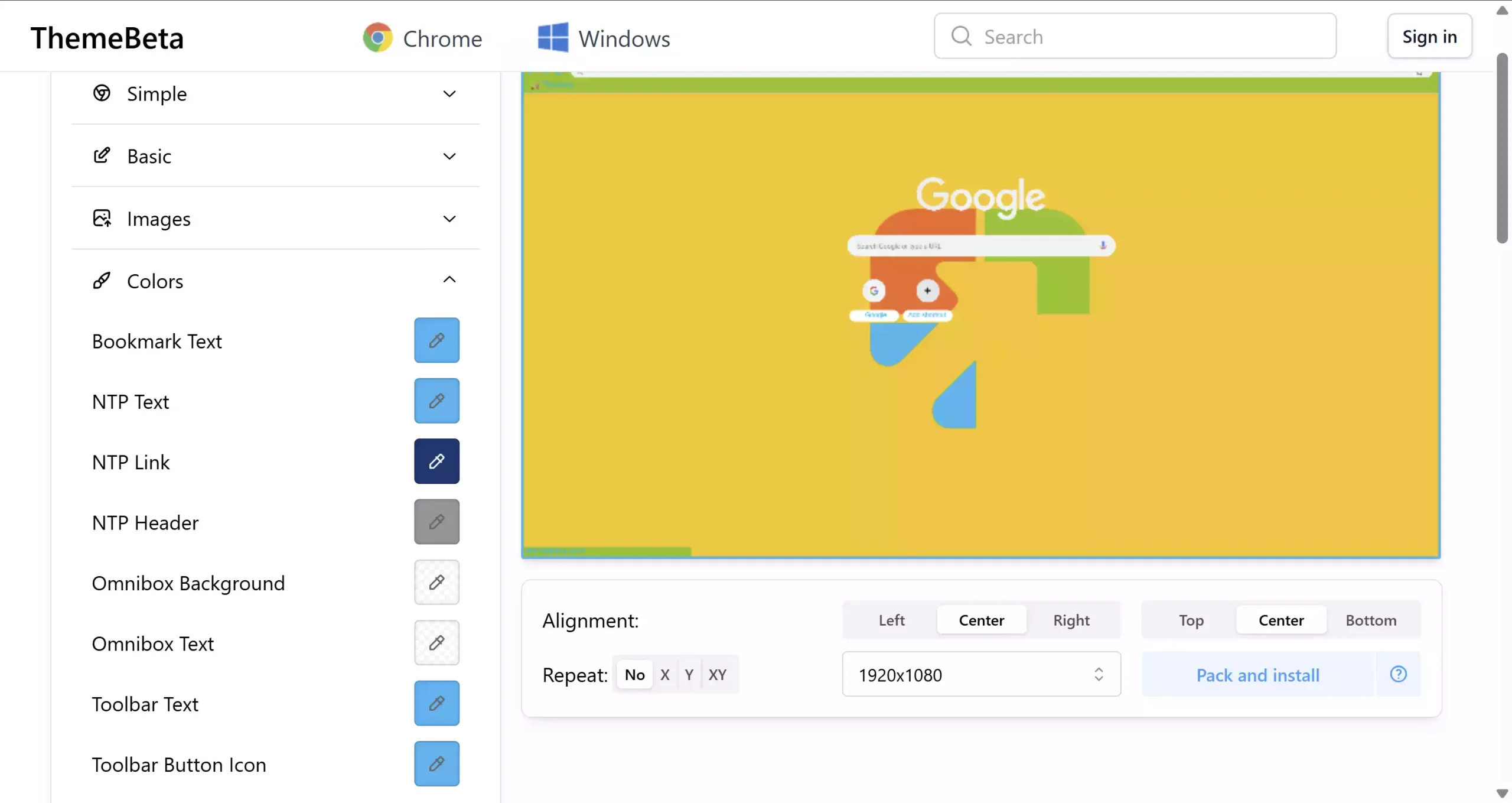
Step 4. Once you’re happy with the changes (a preview is available next to the settings), click the Pack tab.
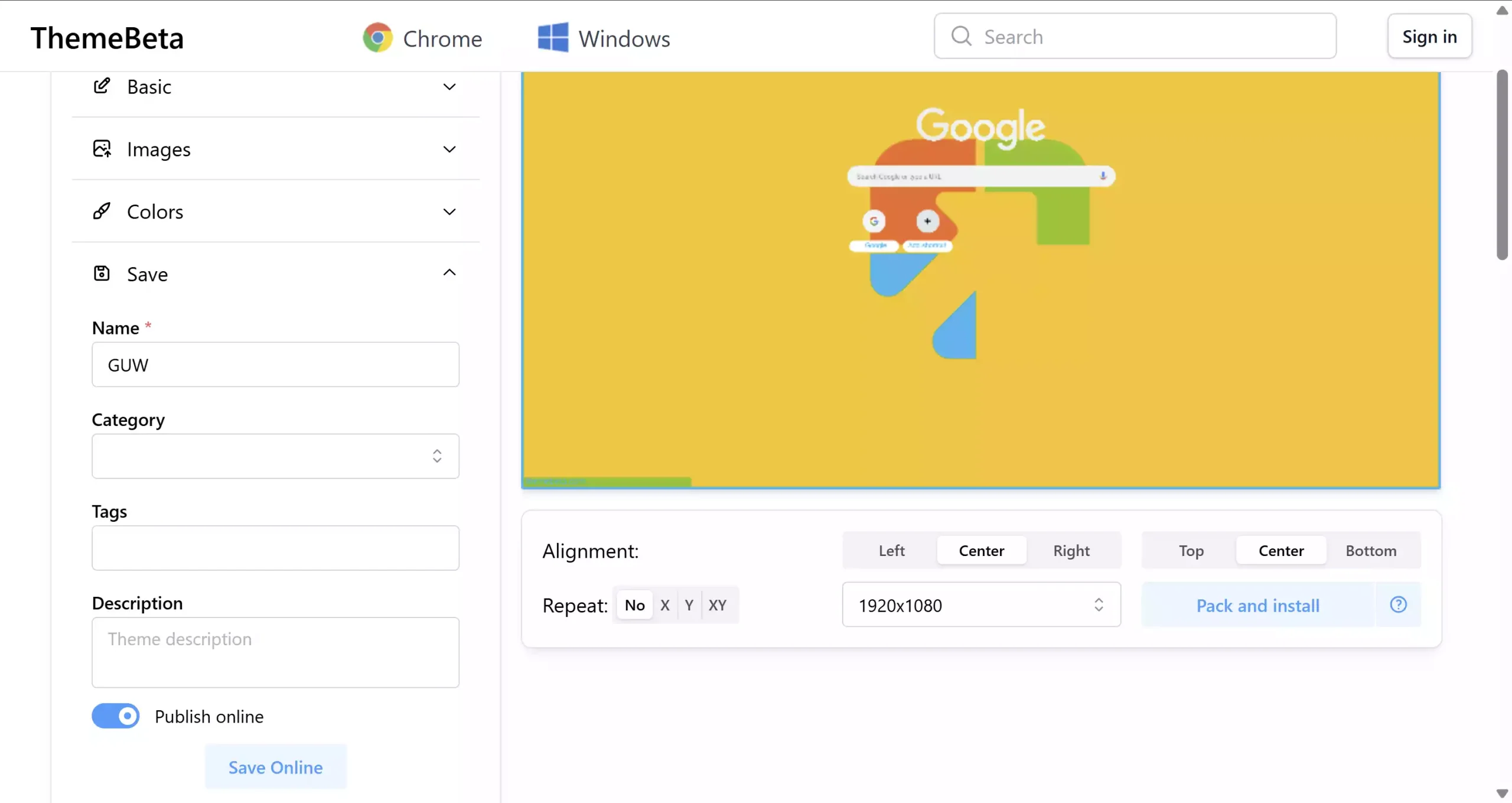
You’ll see several options here: Name, Category, Tags, Description, Pack and Install, etc.
If you want to save your theme online, click the Save Online button. To apply your new theme to Chrome, click “Pack and Install.” This will let you download the setup file for your Chrome browser in a ZIP file.
Step 5. This will create a setup file for your Chrome browser, and the download will start automatically.
Step 6. Depending on your Chrome settings, you may see a warning.
Step 7. Click “Keep.”
Step 8. Finally, the setup file will be automatically downloaded with the extension “zip.”
Step 9. To replace your Chrome theme, unzip the file you downloaded.
Step 10. Now, open Google Chrome and go to:
chrome://extensions/
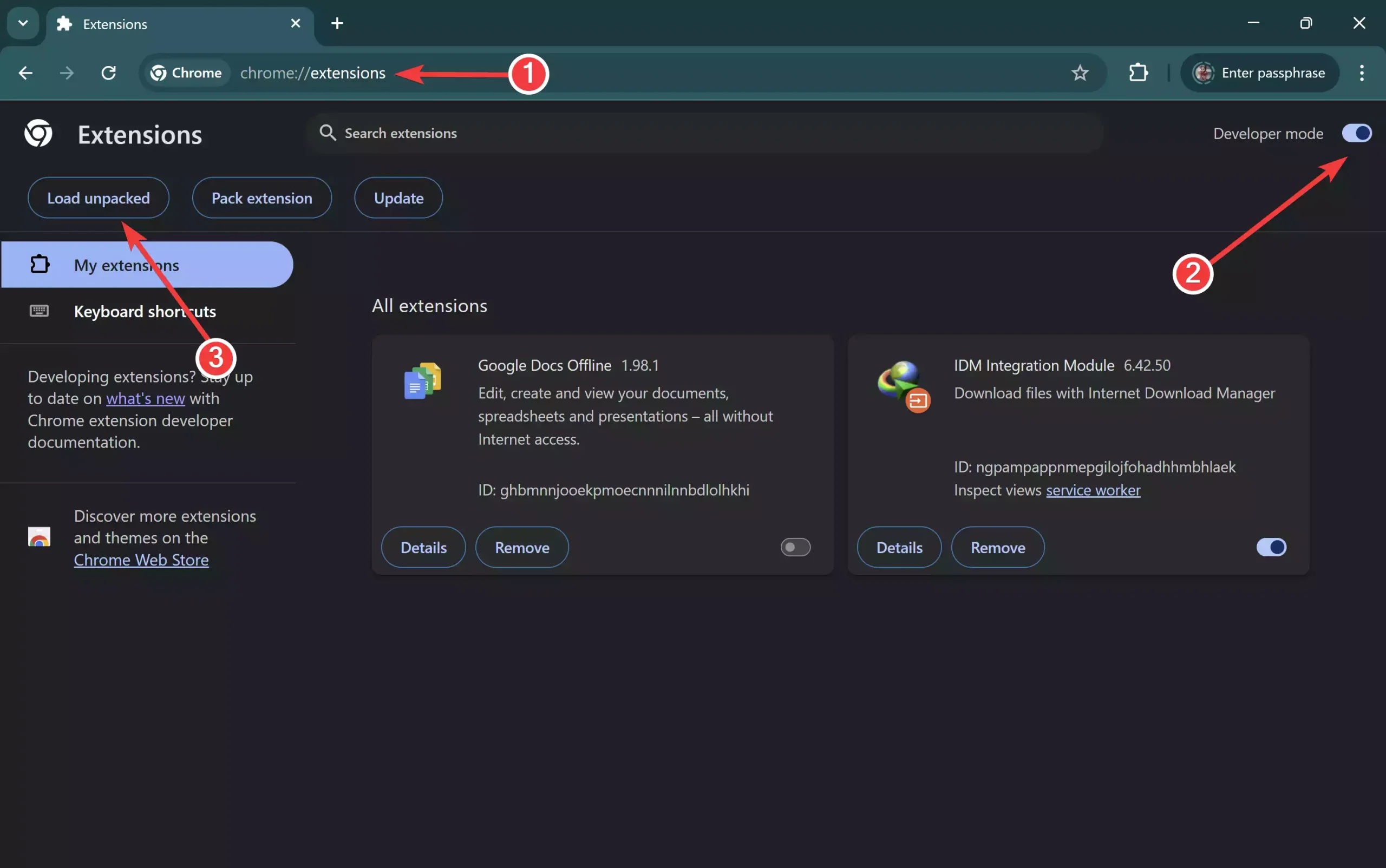
Step 11. Turn on Developer mode (top-right corner).
Step 12. Click Load unpacked.
Step 13. Select the extracted folder (not the ZIP).
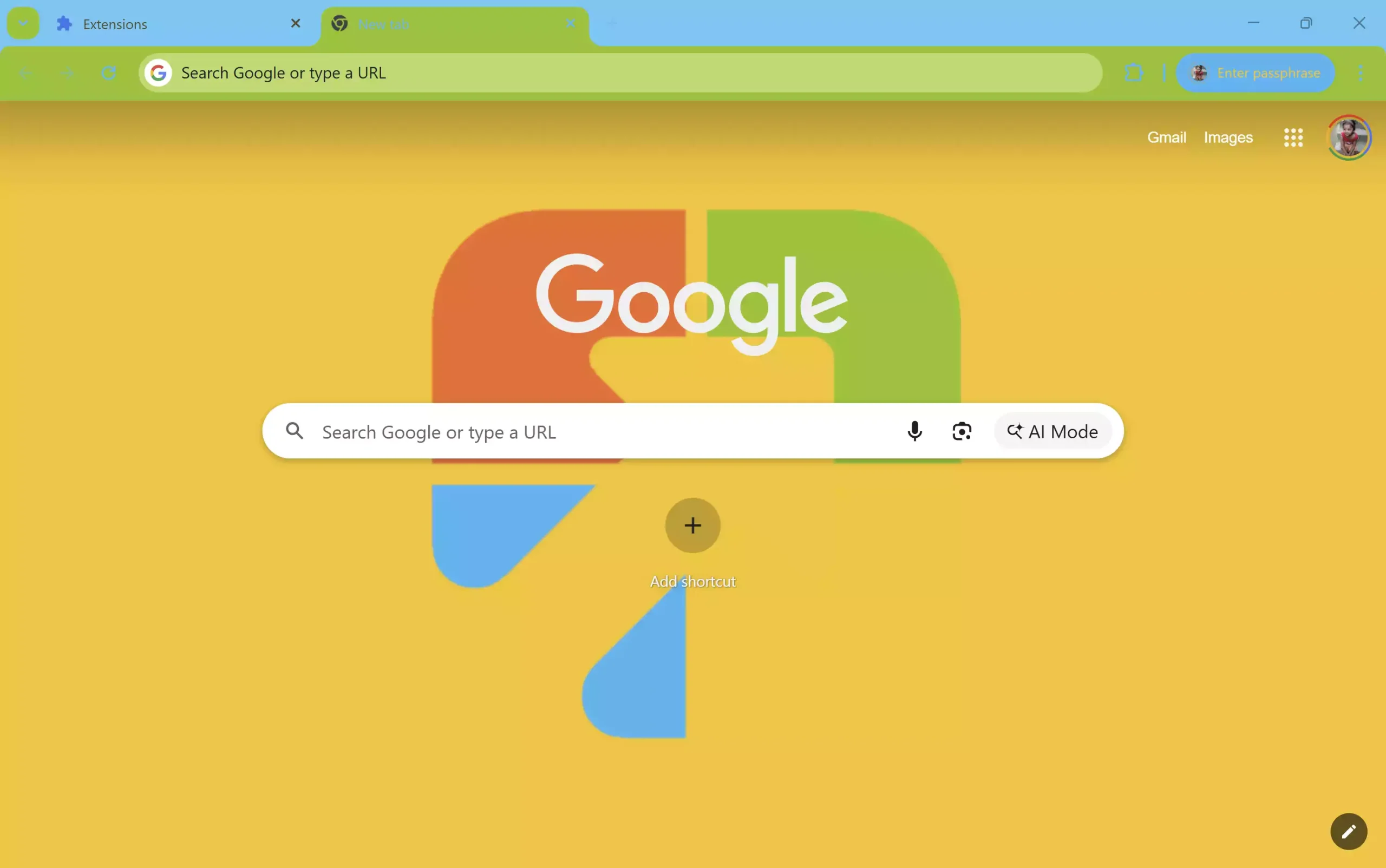
Your custom ThemeBeta theme should now appear and apply to Chrome.
This is a fantastic online tool if you want to personalize the appearance of your Chrome browser. In addition to creating your own themes, you can also download various Chrome themes from the Chrome Store.
Frequently Asked Questions About Google Chrome Themes
Can I remove a Chrome theme after applying it?
Yes. Go to Settings > Appearance in Chrome and click the “Reset to default” button to remove any installed theme.
Do Chrome themes affect browser speed?
No, Chrome themes only change the appearance and do not impact browsing speed or performance.
Can I use Windows themes together with Chrome themes?
Yes, Chrome themes affect only the browser, while Windows desktop themes change your overall system look. You can combine both for a personalized experience.
Are custom Chrome themes safe to use?
Themes from the official Chrome Web Store are safe. For custom themes created with online tools, make sure you only download from trusted sources.
Can I share my Chrome theme with others?
Yes. By using the “Pack and Install” option, you can download and share the ZIP file with friends.
Conclusion
Personalizing the appearance of your Chrome browser is a fun and easy way to make it feel more like your own. With the thousands of free themes available in the Chrome Web Store, as well as the option to create your own using an online tool like Chrome Theme Creator, the possibilities for customization are endless. Whether you want to express your personal style or simply make your browsing experience more enjoyable, applying a new theme is a quick and simple way to do it. So why not give it a try and see how you can make your Chrome browser truly your own?