

As you may already know, the Group Policy Editor (gpedit.msc) is exclusively available in Windows Professional and Enterprise editions, which means that Windows 11/10/8/7 Home Edition users cannot access it. The Group Policy Editor enables several tweaks, such as disabling or delaying automatic updates on Windows 11/10, but achieving the same tweaks on Home Editions requires modifying the Registry keys, which can be difficult and risky. A single mistake in the Registry keys can render your Windows inoperable. If you are having trouble launching Group Policy Editor on your Windows PC, you should first confirm which edition of Windows 11/10 you are using.
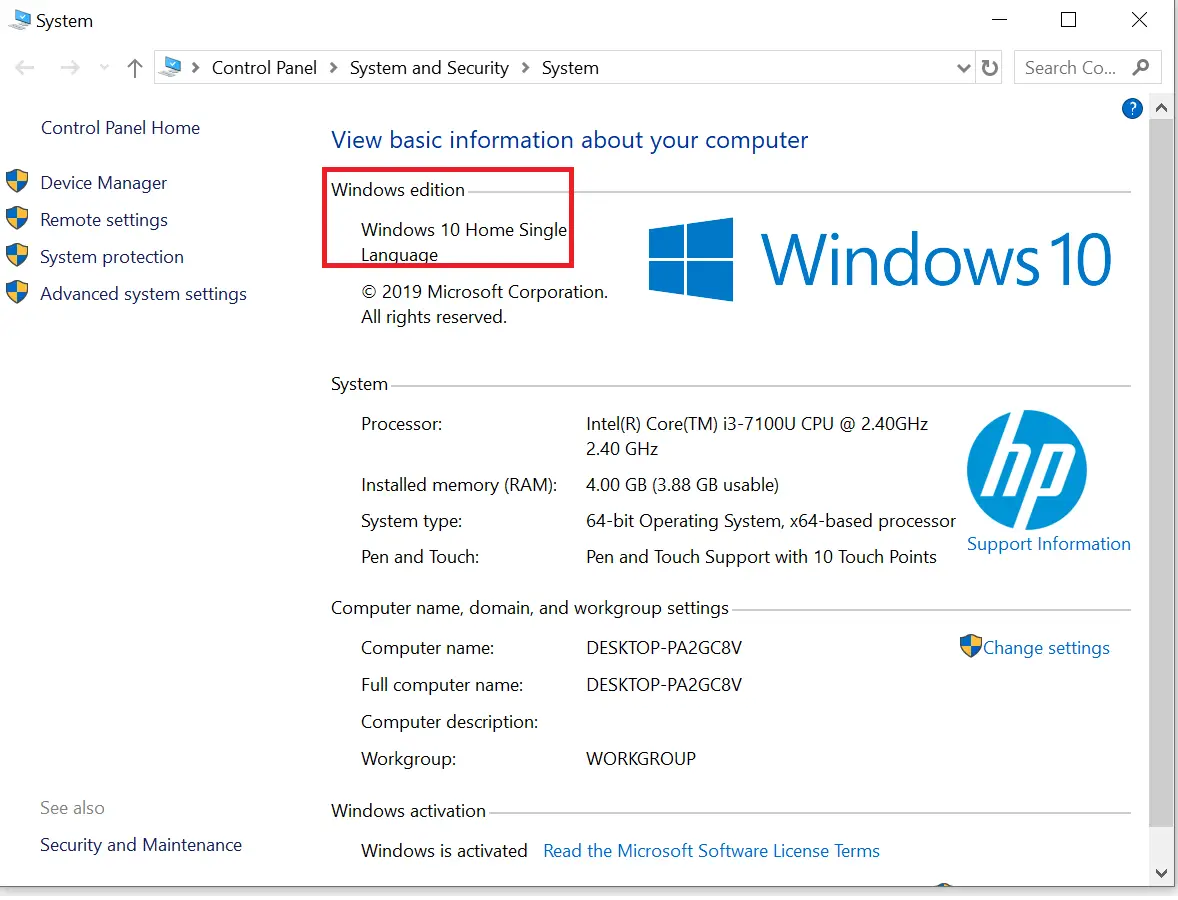 If you are unable to launch Group Policy Editor (gpedit.msc) on your Windows PC, you should check out which edition of Windows 11/10 you are using.
Quick Tips: To check the Windows 11/10 Edition, right-click on This PC and select Properties.
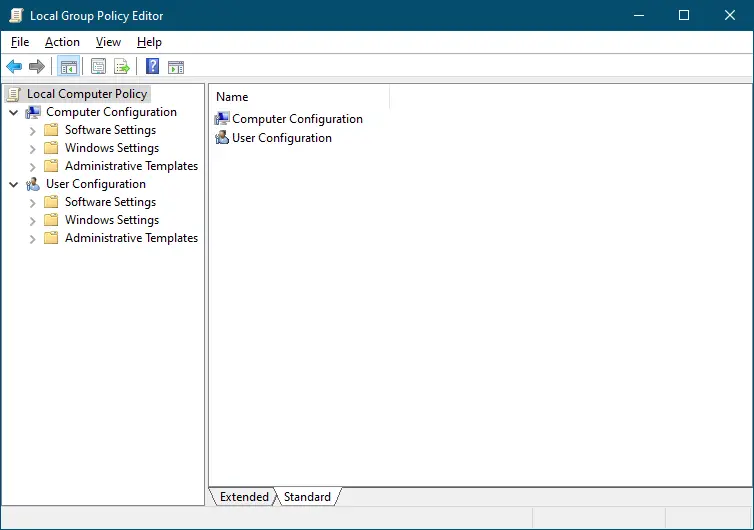
How to Enable Group Policy Editor in Windows 11/10/8/7 Home?
Follow these steps to turn on Group Policy on Windows 11, 10, 8, or 7 Home:-
Step 1. Download the Group Policy Enabler script (or download the PowerShell script).
Step 2. Right-click the downloaded batch file and select Run as administrator.
Step 3. It may take a few minutes to complete the operation, depending on your PC’s speed.
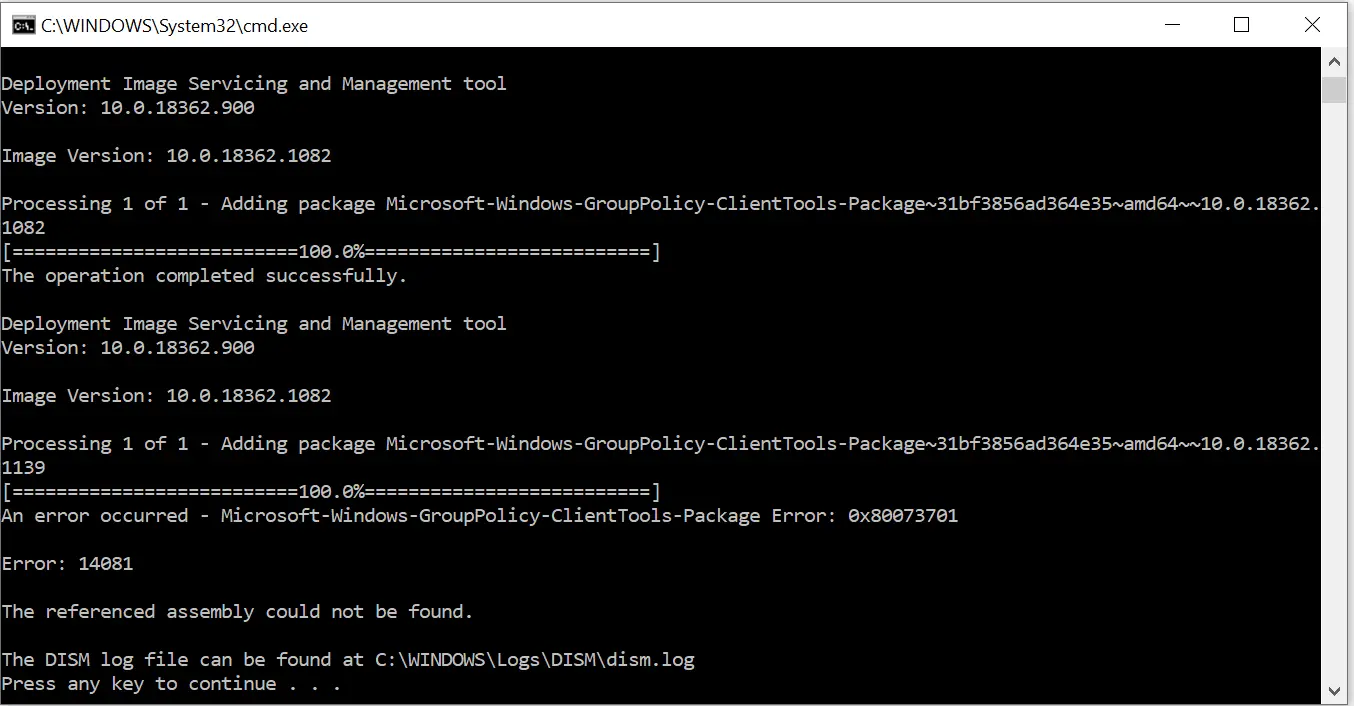 Step 4. Once you complete the above steps, you can launch the group policy editor. If you are still getting not found error, then restart the PC once.
Note: If you are still getting errors in the Group Policy Editor, you need to run the setup file of the Group Policy Enabler again.
How to open the Group Policy Editor in Windows 11/10 Home Edition?
Step 1. Open the Run dialog box by pressing the Windows Logo + R keys.
Step 2. Type gpedit.msc.
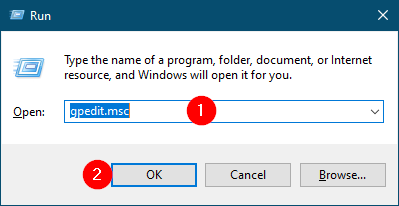 Step 3. Click the OK button to launch the Group Policy Editor.
That’s it!
FAQs
Why is Group Policy Editor not available on my Windows PC?
Group Policy Editor is only included in Windows Professional, Enterprise, and Education editions. Windows Home Edition does not ship with gpedit.msc, so you cannot access it unless you manually enable it using a script.
Is it safe to enable the Group Policy Editor on Windows Home using a script?
Yes, enabling gpedit.msc with a script is generally safe when using a trusted source. However, always create a System Restore point before running any script to avoid issues in case something goes wrong.
Will enabling gpedit.msc on Windows Home unlock all features?
It unlocks most policy options, but a few advanced policies may still not work because certain enterprise components are not included in Home Edition.
Do I need administrator rights to enable gpedit.msc?
Yes. You must run the batch or PowerShell script as an administrator; otherwise, the installation will fail or gpedit.msc will not launch.
Why does gpedit.msc still show errors after enabling it?
This usually happens when some components fail to install. Running the script again or rebooting your PC typically resolves the issue.
Can I use Group Policy to disable automatic updates on Windows Home?
Once gpedit.msc is enabled, you can access many update-related policies. However, some restrictions may still apply because Windows Home handles updates differently from Pro editions.
Is modifying the Registry an alternative to using Group Policy Editor?
Yes. Every Group Policy change ultimately creates or modifies a Registry value. Home users can manually apply tweaks using Registry keys, but it is more complex and riskier compared to using gpedit.msc.
Will enabling Group Policy Editor slow down my PC?
No. The process only installs missing management components and does not affect system performance.
Can the changes made via gpedit.msc on Windows Home be reversed?
Yes. You can undo any policy by setting it back to Not Configured or by deleting the related Registry values if necessary.
Do I need to enable gpedit.msc again after Windows updates?
Usually no. Once enabled, it remains available. However, major version upgrades may occasionally require re-running the enabling script.
Conclusion
In conclusion, Group Policy Editor is an essential tool for advanced users to tweak and manage various system settings on their Windows 11/10 PCs. However, the tool is only available in Professional and Enterprise editions, leaving Home Edition users without access. In this article, we have discussed how to enable the Group Policy Editor on Windows 11/10 Home Edition by using a simple script. We have also provided a quick guide on how to open the Group Policy Editor once it is enabled. It is essential to note that modifying Registry keys can be tricky and may lead to system instability, so it is crucial to be careful and follow the instructions carefully. If you encounter any errors, you can re-run the setup file of the Group Policy Enabler to fix the issue.
Also Refer: 12 Ways to Open the Local Group Policy Editor (gpedit.msc) in Windows 11/10/8/7