

AutoEndTasks is a feature in Windows that can be enabled or disabled to control how running applications and processes are handled during the shutdown, restart, or signing out of the system. When this feature is enabled, Windows will force-close all running applications and processes, even if they are unresponsive. Disabling this feature allows the applications and processes to continue running until they are manually closed.
In this article, we will guide you through the steps to enable or disable AutoEndTasks in Windows 11 or 10.
How to Enable or Disable AutoEndTasks in Windows 11 or 10?
Enabling or disabling the AutoEndTasks feature in Windows 11 or 10 involves making changes to the Windows Registry Editor. Follow the steps below to enable or disable AutoEndTasks:-
Step 1. Open the Run dialog box by pressing Windows + R on your keyboard.
Step 2. Type “regedit” in the Run dialog box and hit Enter to open the Registry Editor.
Step 3. In the Registry Editor, navigate to the following path:-
HKEY_CURRENT_USER\Control Panel\Desktop

Step 4. On the right-hand side, right-click on the free space and select New > String Value.
Step 5. Name the new string value “AutoEndTasks.”
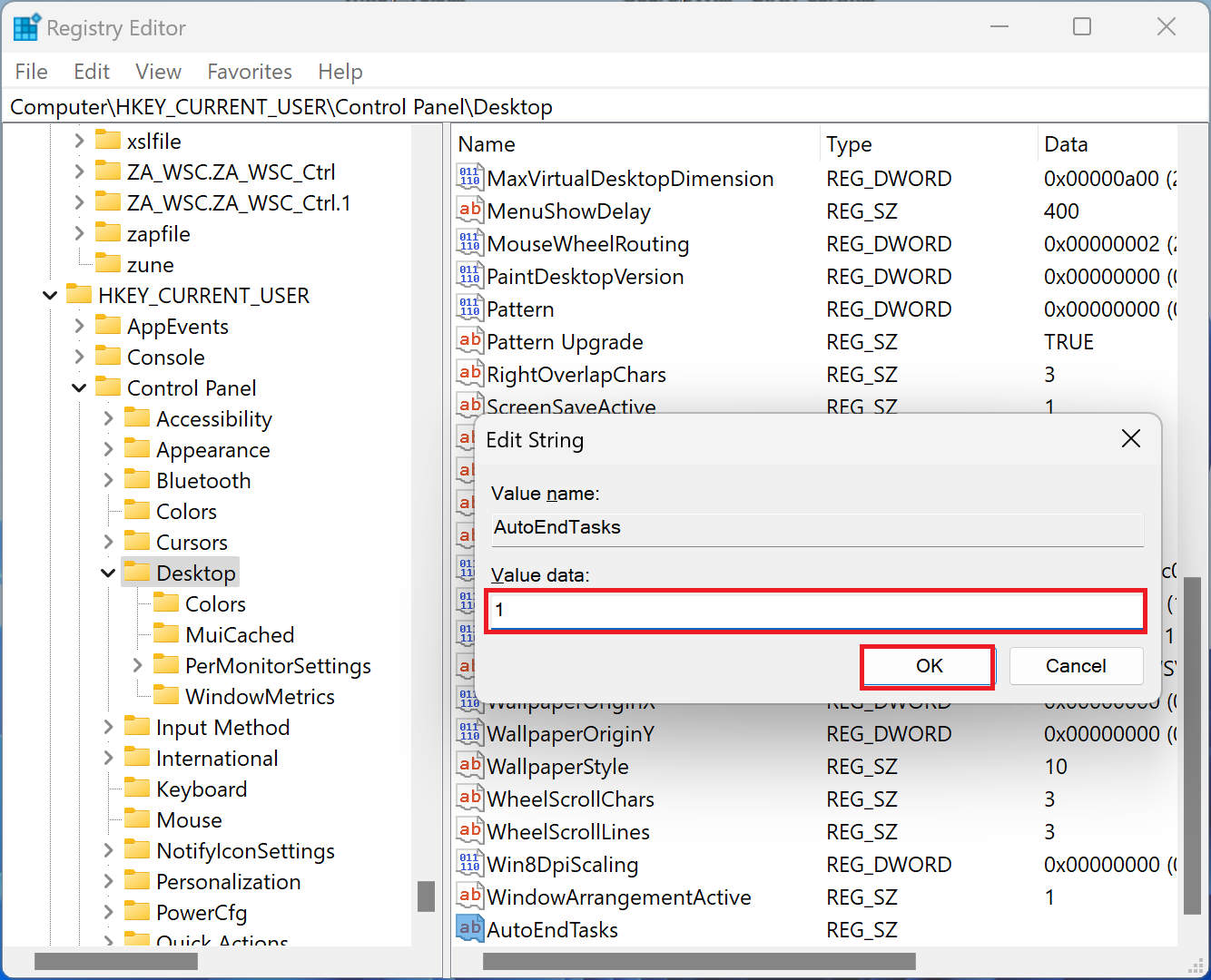
Step 6. Double-click on the “AutoEndTasks” string value to edit it.
Step 7. To enable AutoEndTasks, change the “Value data” to “1“. To disable it, change the “Value data” to “0“.
Step 8. Click “OK” to save the changes and close the Registry Editor.
After making the changes, the AutoEndTasks feature will be enabled or disabled for all users, depending on the value you have set.
Important Note
- Before making any changes to the Windows Registry Editor, it is recommended to create a backup of the Registry. This will ensure that you can revert to the original settings if anything goes wrong.
- Enabling the AutoEndTasks feature may cause applications and processes to be force-closed without warning, potentially leading to data loss or other issues. Therefore, it is important to use this feature with caution.
- In case you’re not comfortable editing the registry or you’re not confident enough, it is recommended that you seek help from an expert to avoid making any errors that could cause problems with your system.
Conclusion
Enabling or disabling the AutoEndTasks feature in Windows 11 or 10 can be a useful tool for controlling how running applications and processes are handled during the shutdown, restart, or signing out of the system. By following the simple steps outlined in this article, users can easily enable or disable this feature. However, it is important to exercise caution when using this feature, as it may force-close applications and processes without warning, potentially leading to data loss or other issues. Always make sure to back up the registry before making any changes, and seek help from an expert if you’re not comfortable editing the registry yourself.