

The Prefetch or Network Prediction feature in Google Chrome caches pages that are linked to the web page you are currently on. Using this feature, you can browse the web faster, but it eats up data in the background. For your information, it controls TCP, SSL pre-connection, and DNS prefetching.
In this gearupwindows article, we will guide you on enabling and disabling network prediction (prefetch or prefetching) on the Google Chrome browser. To do this, you can use either Chrome Settings or Registry Editor in Windows 11/10.
How to Enable or Disable Network Prediction in Google Chrome Settings?
To turn on or off the network prediction (prefetch) in Google Chrome Settings, use these steps:-
Step 1. Open Google Chrome on PC or Mac.
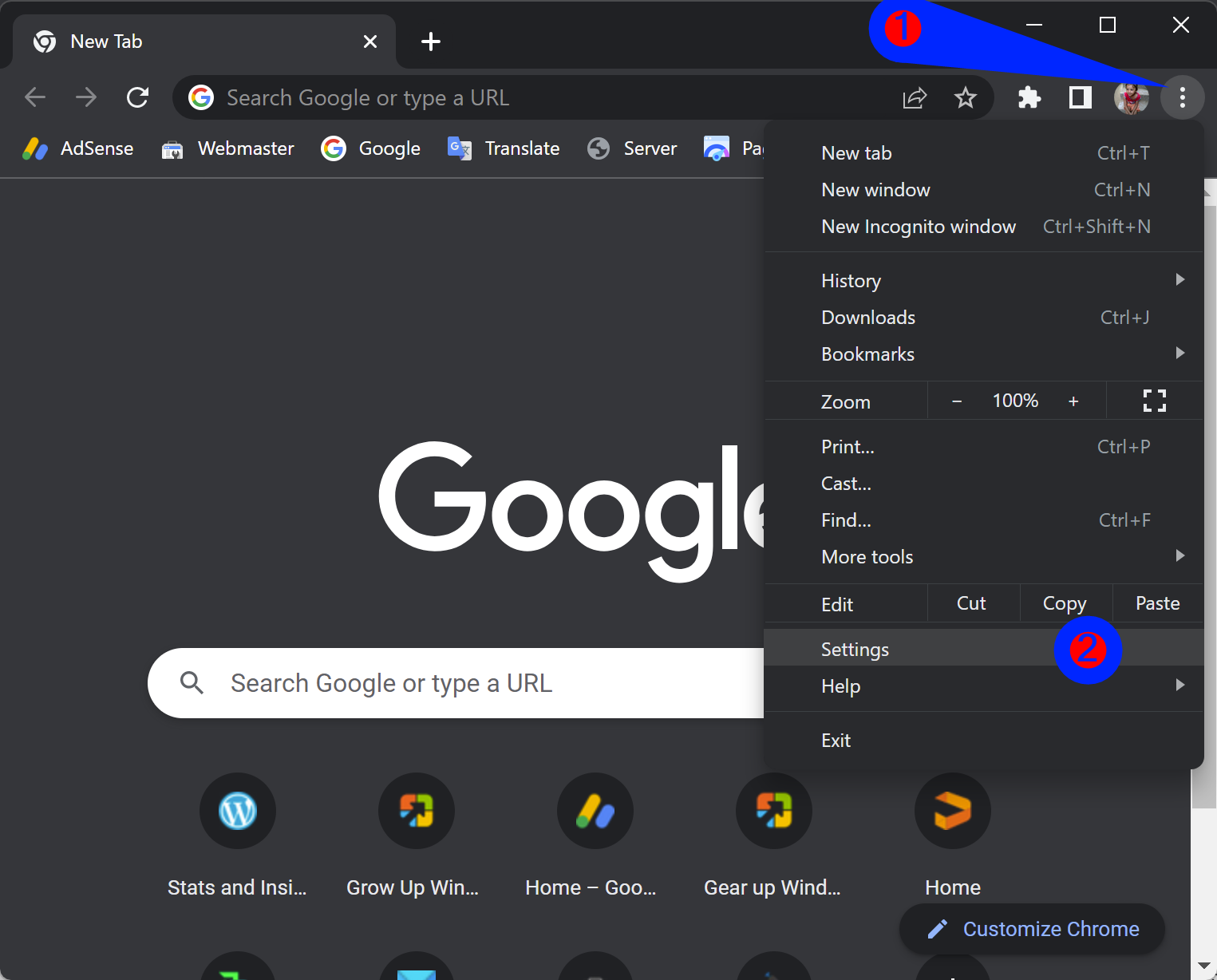
Step 2. Then, click the Menu button in the upper-right corner and select Settings in the drop-down menu.
Step 3. Next, select Privacy and security in the left sidebar.
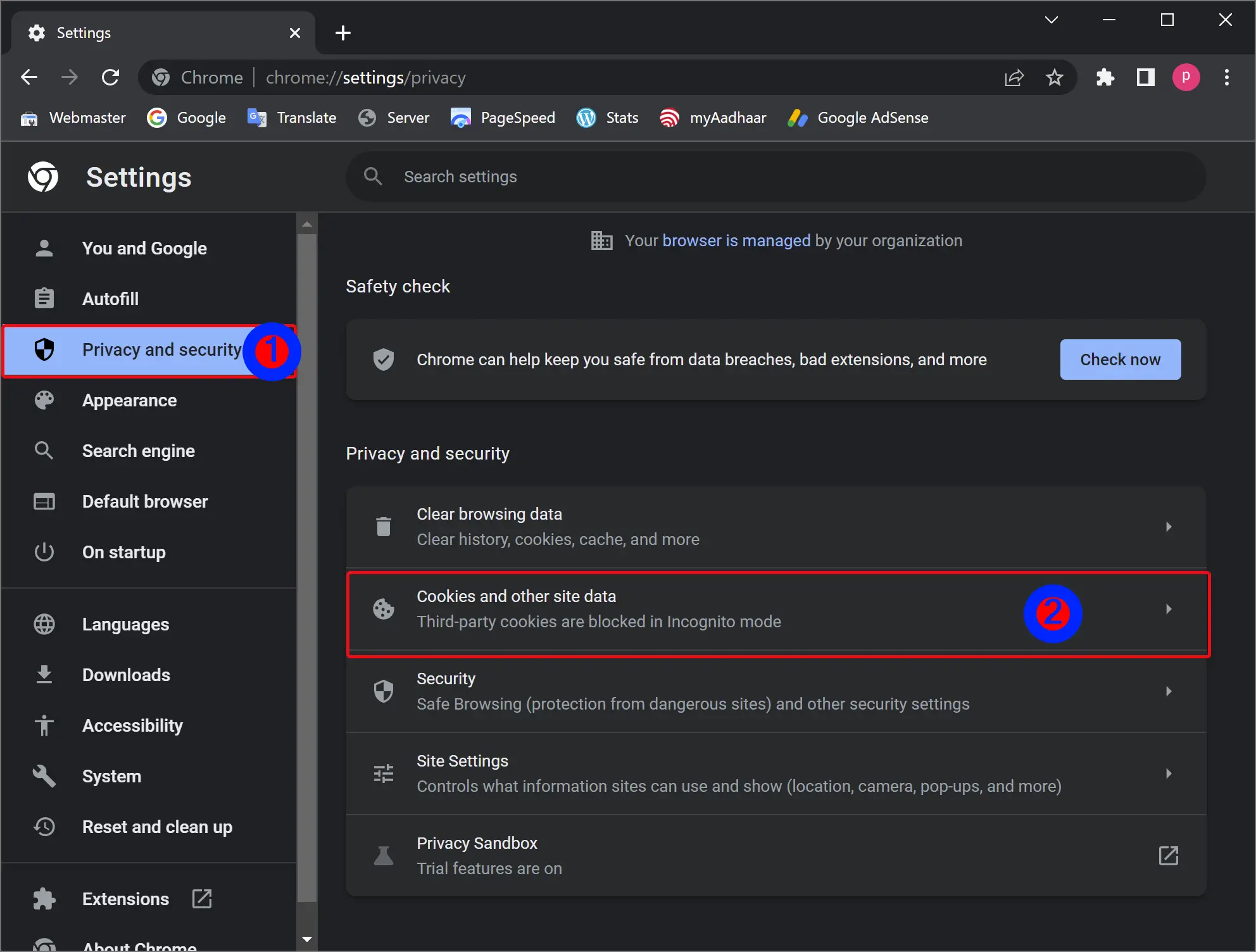
Step 4. On the right sidebar of “Privacy and security,” click on the Cookies and other site data tile.
Step 5. Finally, scroll down and enable or disable the toggle switch Preload pages for faster browsing and searching.
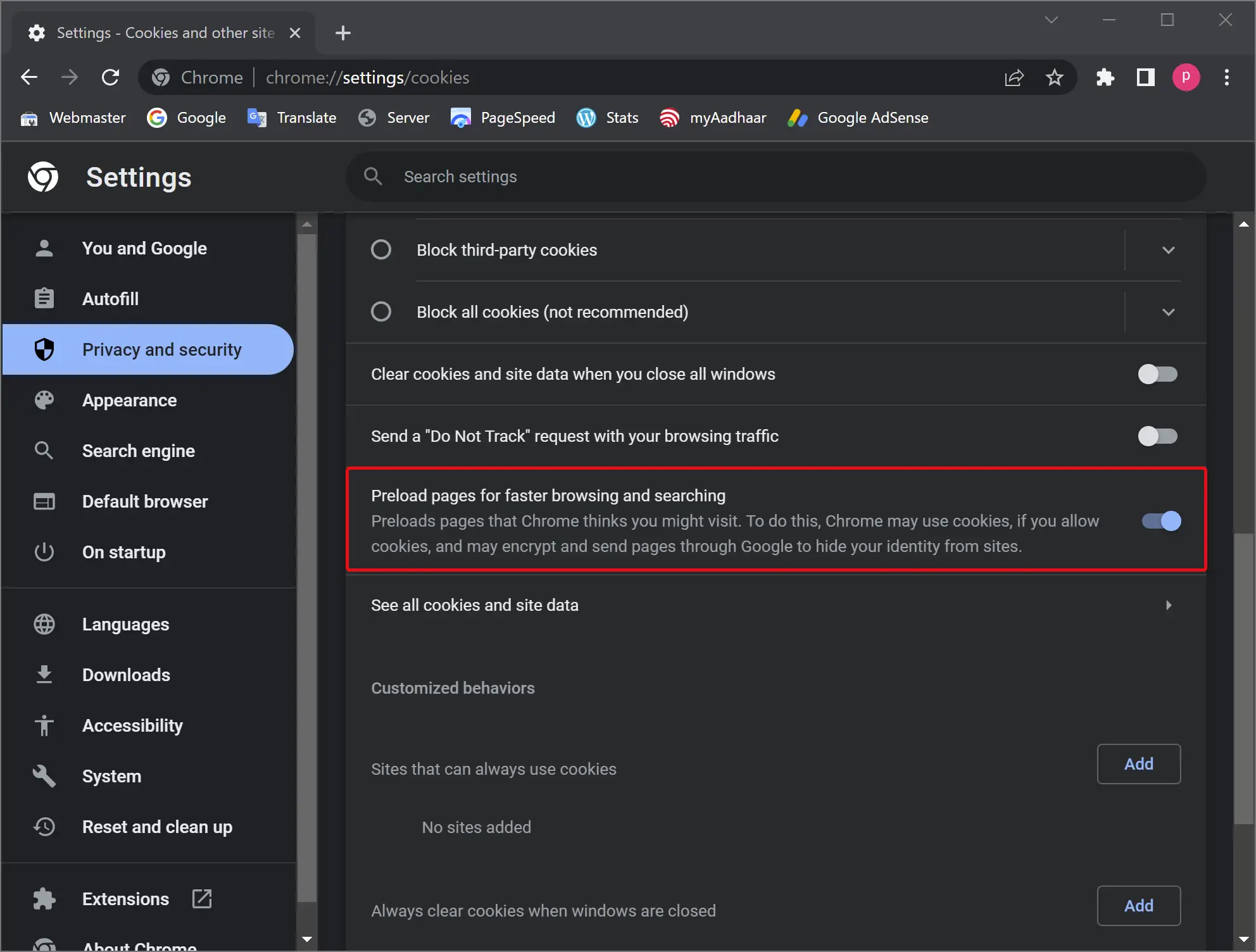
Using the above steps, you should be able to enable or disable Network Prediction or Prefetch in the Google Chrome browser.
How to Turn On or Off Prefetch (Network Prediction) in Google Chrome on Windows 11 or 10 using Registry Editor?
To enable or disable Prefetch (Network Prediction) in Google Chrome on Windows 11 or 10 using Registry Editor, do these steps:-
Step 1. Open Registry Editor.
Step 2. Then, browse or navigate to the following path in the left sidebar of Registry Editor:-
HKEY_CURRENT_USER\Software\Policies\
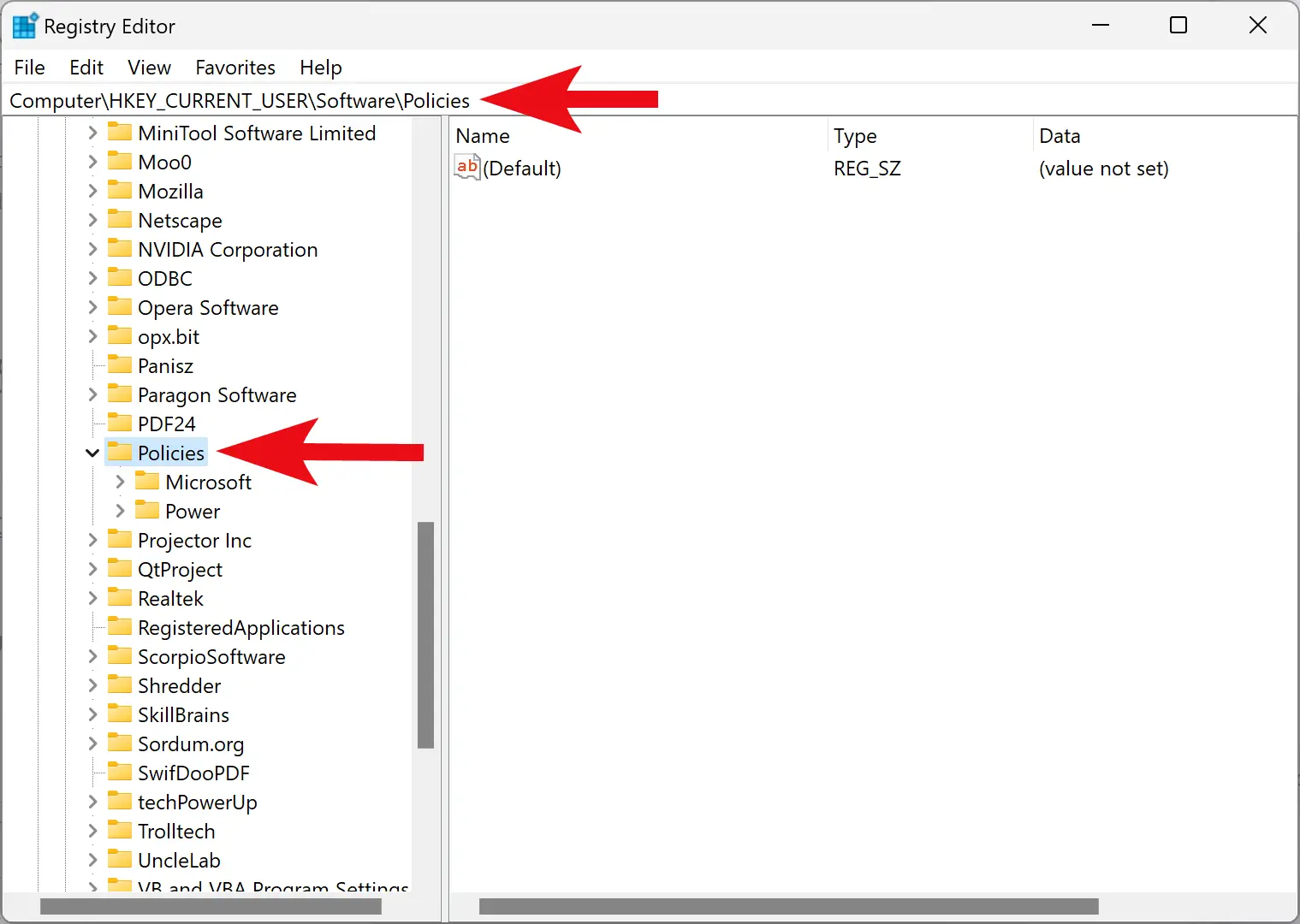
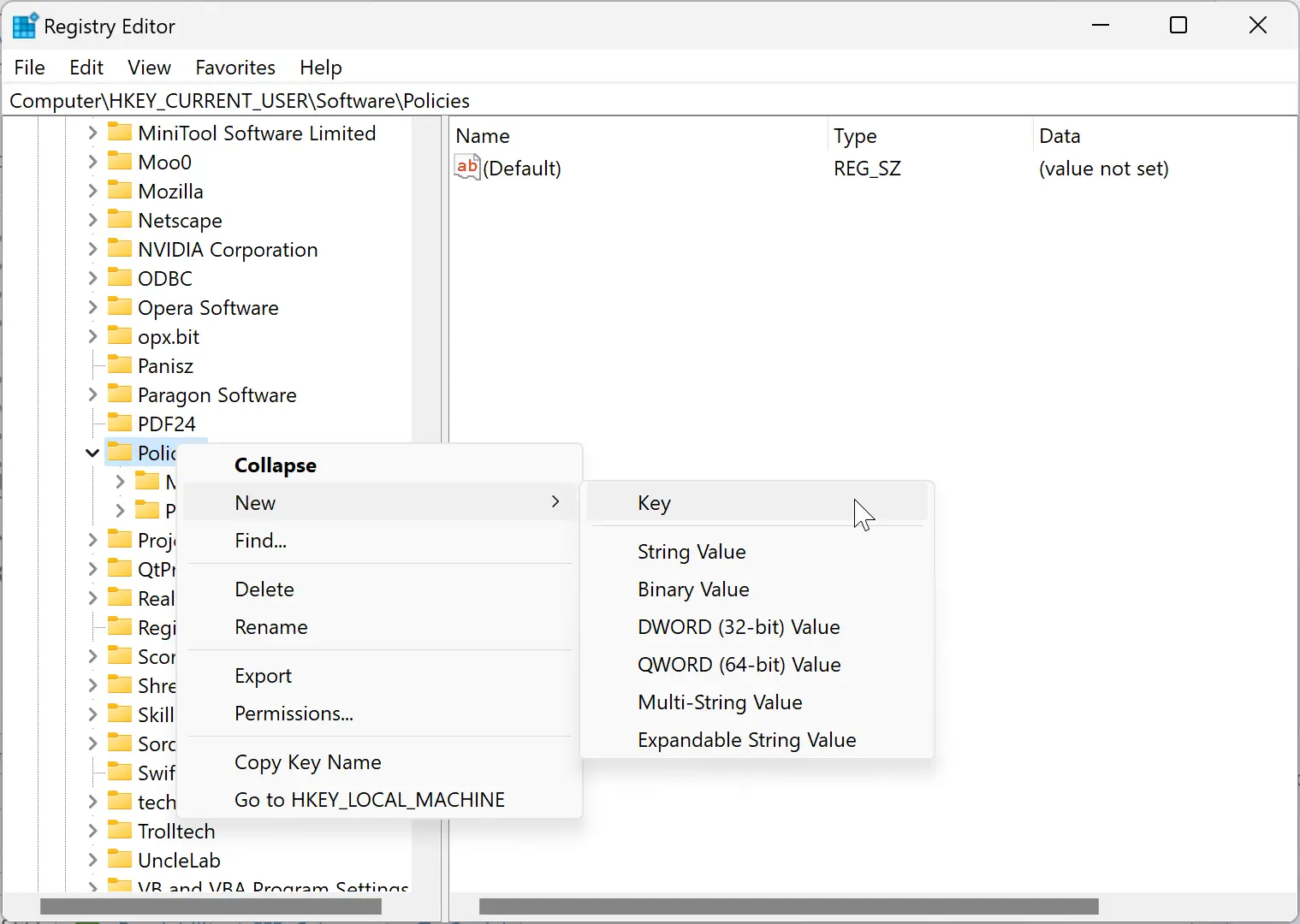
Step 3. Next, right-click on the Policies key and select New > Key.
Step 4. Name the newly created key Google.
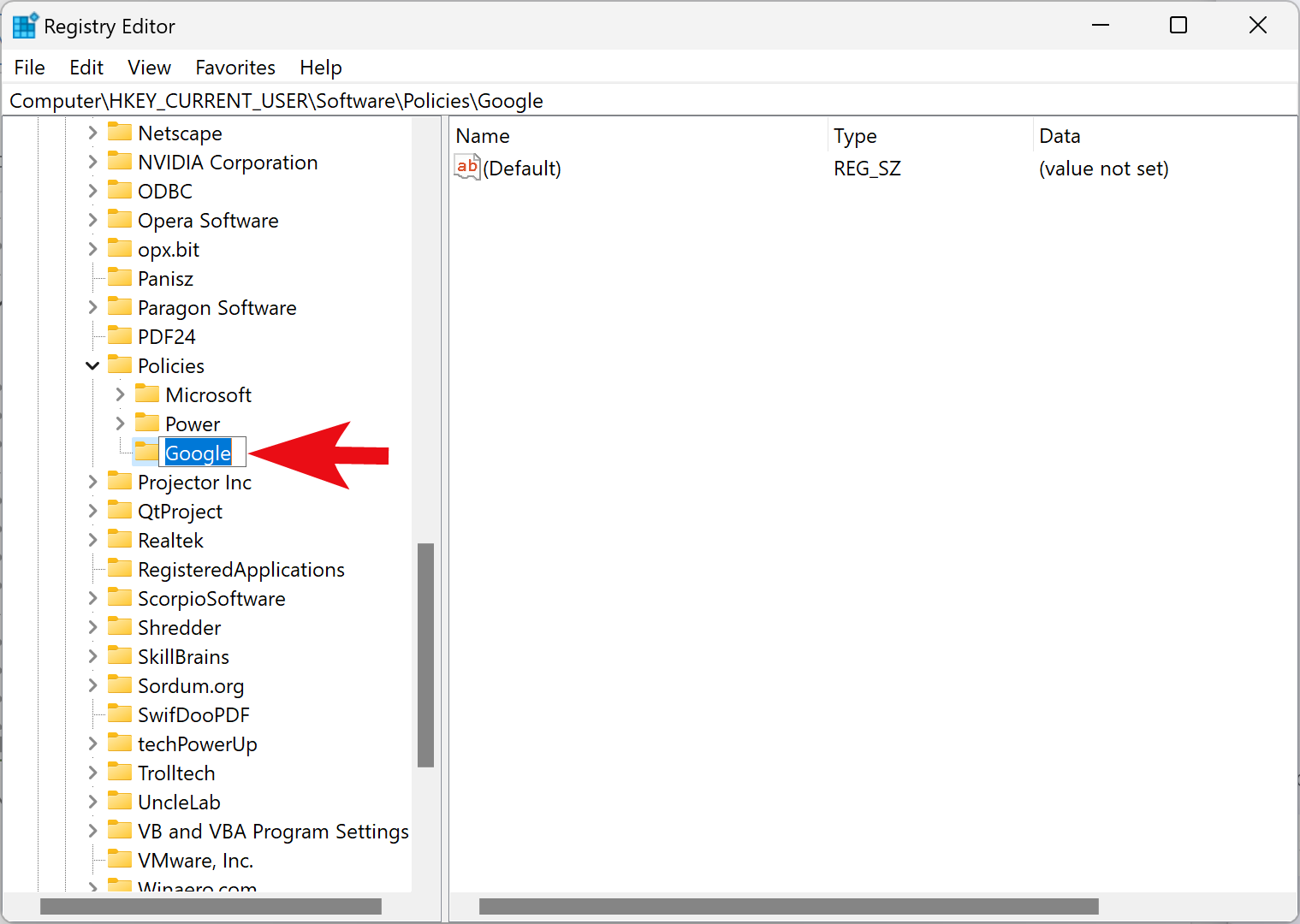
Step 5. Now, right-click on the Google folder and select New > Key.
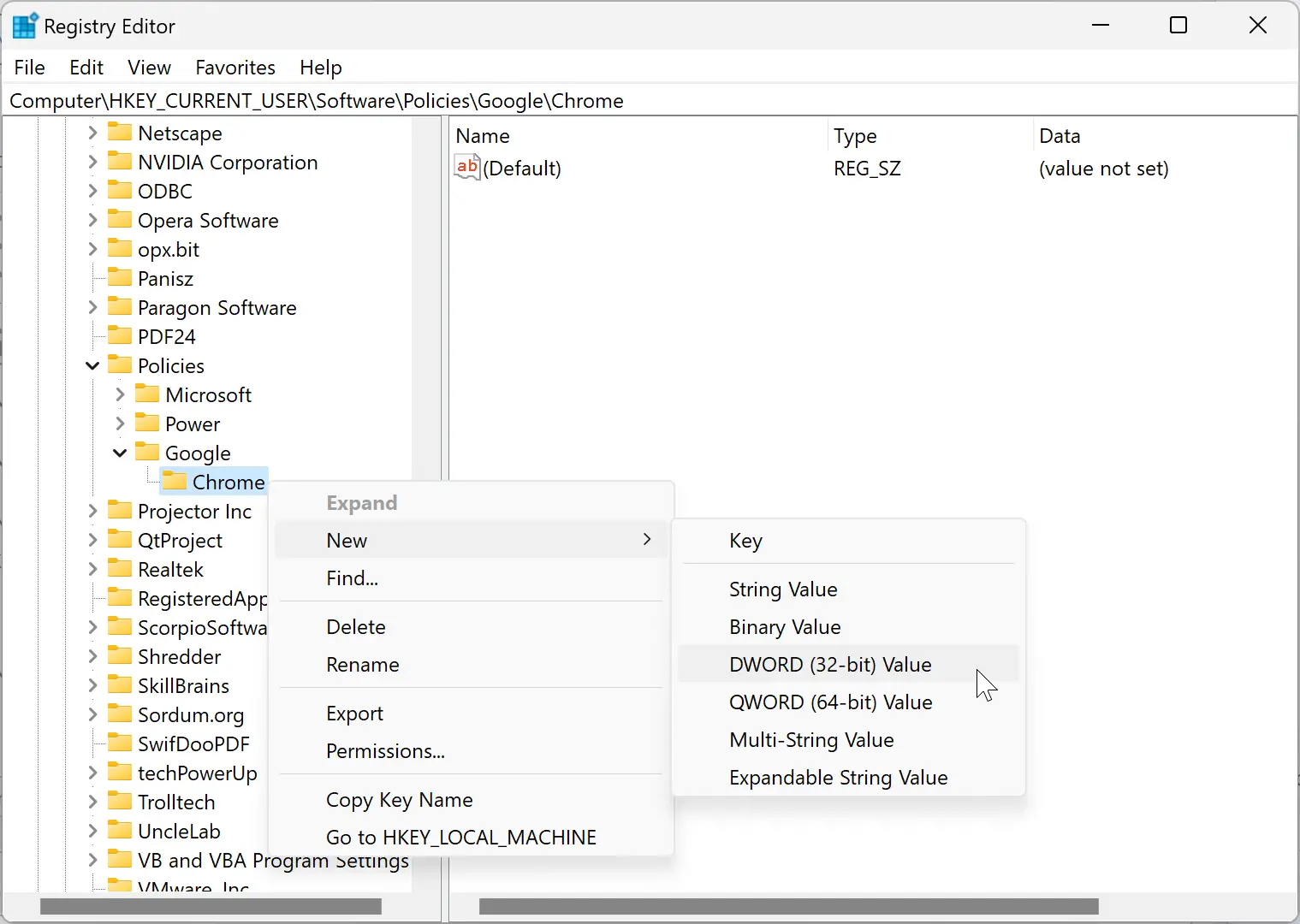
Step 6. Name this key Chrome.
Step 7. Right-click on the Chrome key and choose New > DWORD (32-bit) Value.
Step 8. Name this REG_DWORD as NetworkPredictionOptions.
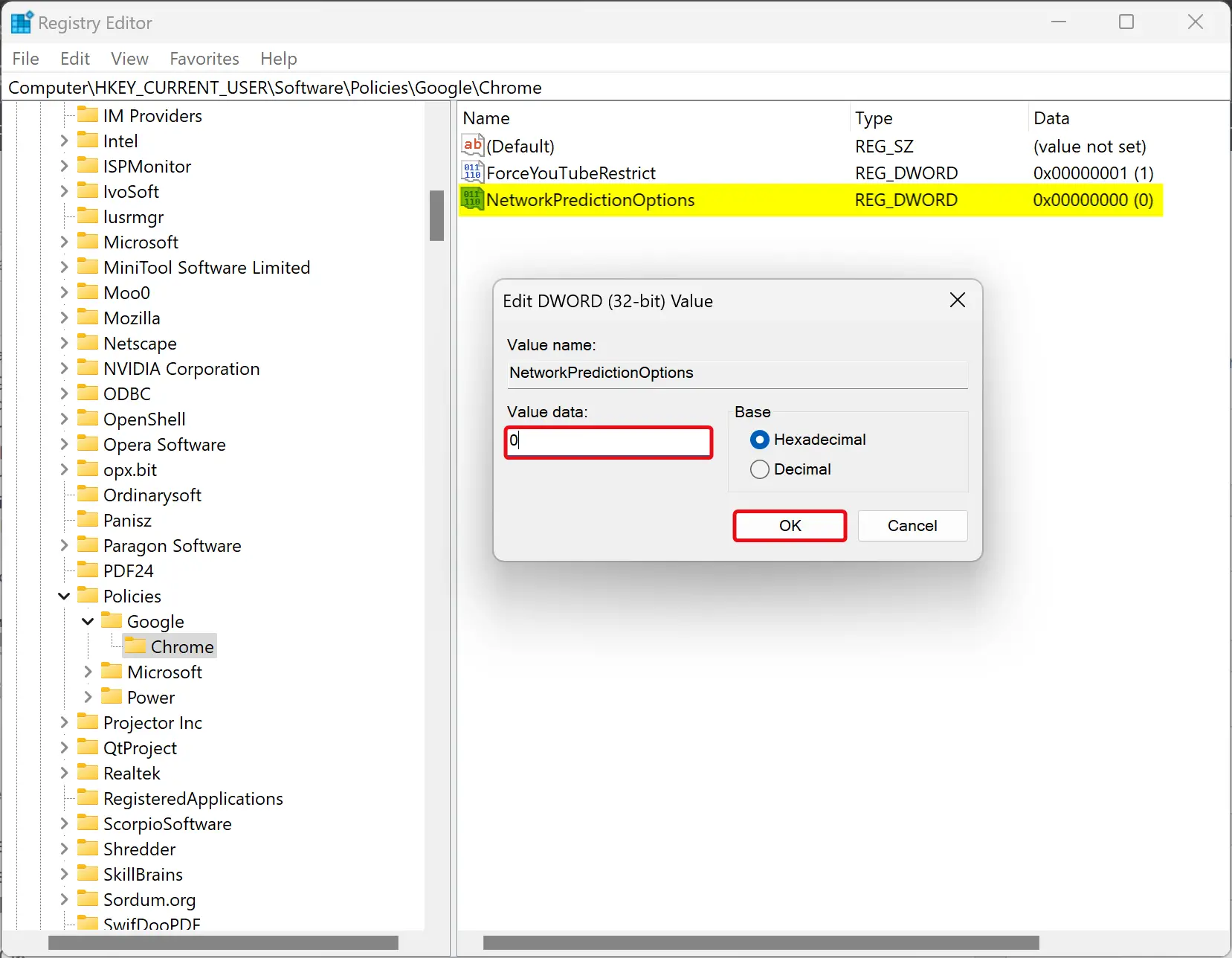
Step 9. Double-click on the NetworkPredictionOptions REG_DWORD and set the “Value data” to the following:-
- 0 = Prefetch always enabled.
- 1 = Prefetch enabled on any network that is not cellular.
- 2 = Disable prefetch or Network Prediction.
Step 10. Click OK.
Step 11. Reboot your computer to apply the changes.
Conclusion
In conclusion, network prediction or prefetching is a useful feature in Google Chrome that can enhance your browsing experience by caching pages linked to the webpage you are currently on. However, it can also consume data in the background. This article has provided step-by-step instructions on enabling or disabling network prediction in Google Chrome settings or using the Registry Editor in Windows 11/10. Following these instructions allows users to easily manage their network prediction settings and improve their browsing experience accordingly.