

The taskbar has always been a crucial component of the Windows operating system. With every version, Microsoft continues to refine it, and Windows 11 is no exception. In this latest iteration, the taskbar is optimized for touch-based devices such as tablets. However, some users may prefer more control over how the taskbar behaves when using their device in tablet mode.
Fortunately, Windows 11 offers the flexibility to enable or disable the tablet-optimized taskbar, allowing users to customize their experience based on personal preferences. In this guide, we will walk you through two effective methods to turn the tablet mode taskbar on or off.
What’s New with the Tablet Taskbar in Windows 11?
One of the most significant updates introduced in Windows 11 (starting with the feature drop in March 2023) is the redesigned taskbar, specifically tailored for tablet use. When you detach or fold the keyboard on a convertible device, the new taskbar automatically switches to tablet mode.
This revamped design features two modes:
- Collapsed Mode: Hides all icons except system tray essentials, giving you more screen space and reducing accidental touches.
- Expanded Mode: Features larger, touch-friendly icons for easy access to apps and settings.
Depending on your usage, you can quickly switch between these modes by swiping up or down at the bottom of your screen.
How to Turn On or Off the Taskbar for Tablets on Windows 11
You can toggle the tablet-optimized taskbar in Windows 11 using either of the following methods:
Method 1: Enable or Disable Tablet Taskbar via Settings
Follow these steps to turn the feature on or off using the Settings app:
Step 1. Open Settings on your Windows 11 device.
Step 2. Click on Personalization.
Step 3. Select Taskbar from the right-hand pane.
Step 4. Click on Taskbar behaviors to expand the section.
Step 5. Check or uncheck the option: “Optimize taskbar for touch interactions when this device is used as a tablet.”
Method 2: Turn On or Off Tablet Taskbar via Registry Editor
If you cannot find the option in Settings, you can enable or disable the tablet taskbar by modifying the Windows Registry:
Step 1. Open the Registry Editor.
Step 2. Navigate to the following path:
HKEY_CURRENT_USER\Software\Microsoft\Windows\CurrentVersion\Explorer\Advanced
Step 3. Right-click on the Advanced key and choose New > DWORD (32-bit) Value.
Step 4. Name the new DWORD value as ExpandableTaskbar.
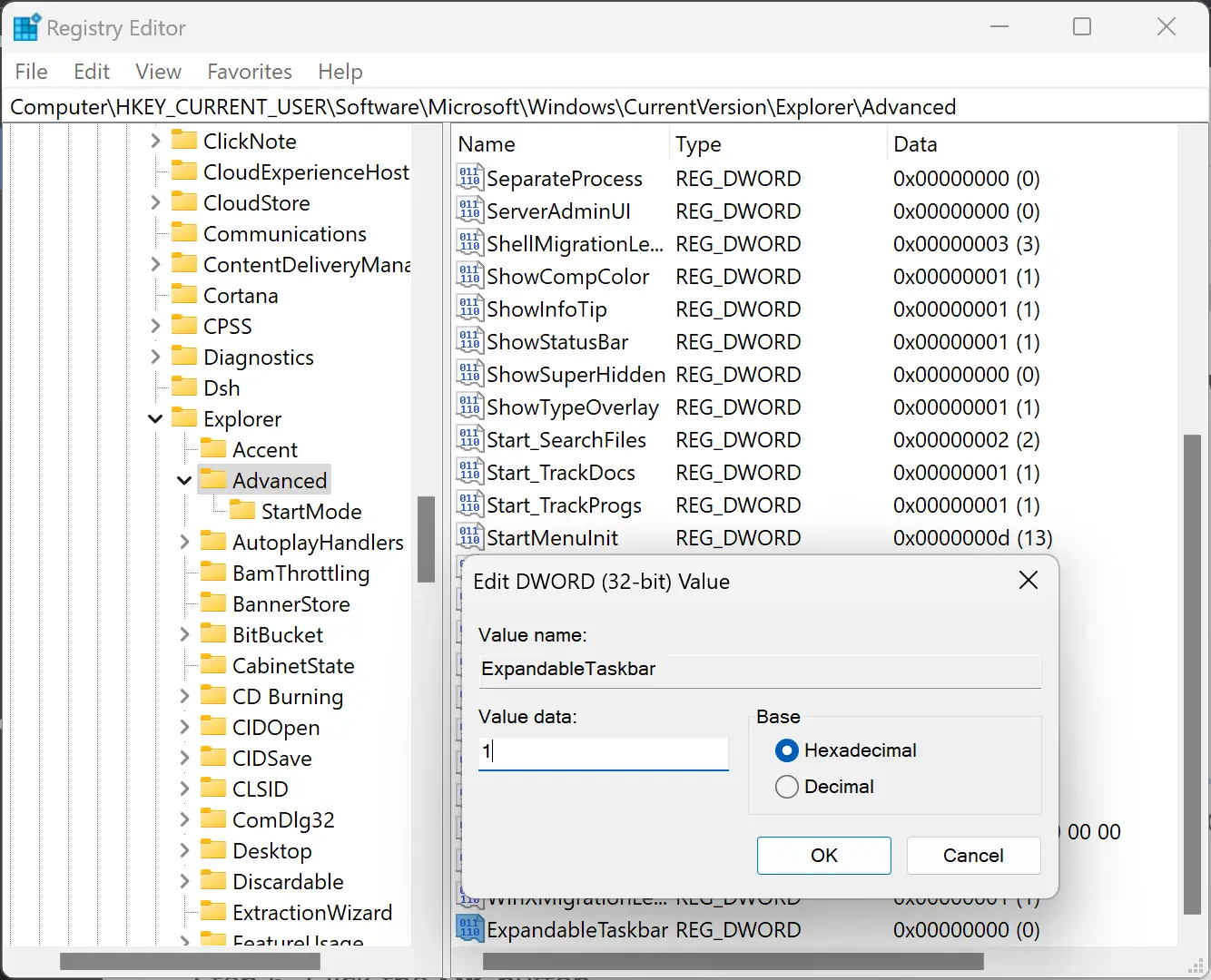
Step 5. Double-click on ExpandableTaskbar and set its value:
- Enter 1 to enable the tablet-optimized taskbar.
- Enter 0 to disable it.
Step 6. Click the OK button to save the changes.
Step 7. Restart your PC for the changes to take effect.
Conclusion
The taskbar remains a key feature in Windows, and with Windows 11, it’s been reimagined for tablet users. Whether you prefer a cleaner, minimal interface in collapsed mode or want easier access with expanded mode, Windows 11 lets you control the behavior of the taskbar with ease.
By following the methods outlined above—via the Settings app or Registry Editor—you can quickly enable or disable the tablet taskbar to suit your needs. This flexibility is a testament to how Windows 11 is evolving to meet the demands of both traditional and touch-based computing.