

Does your mouse scroll in the wrong direction on your Windows 11 PC? When you scroll up, the page moves down—or vice versa? This issue can be frustrating, especially if you’re used to a specific scroll behavior. Whether it started after a Windows update or you’re using a new mouse, don’t worry.
In this gearupwindows guide, we’ll show you how to fix the mouse scrolling direction in Windows 11 using different methods.
Why Is My Mouse Scrolling Backward in Windows 11?
By default, Windows scrolls content the traditional way—when you scroll up, the content moves upward. However, if your scroll direction has changed, it could be due to:
- Driver updates or changes
- Incorrect settings in the registry
- Third-party software overriding default behavior
How to Change Mouse Scroll Direction Using Settings?
This method works if you’re using a precision touchpad or supported devices.
Step 1. Press Windows + I keys to launch the Settings app.
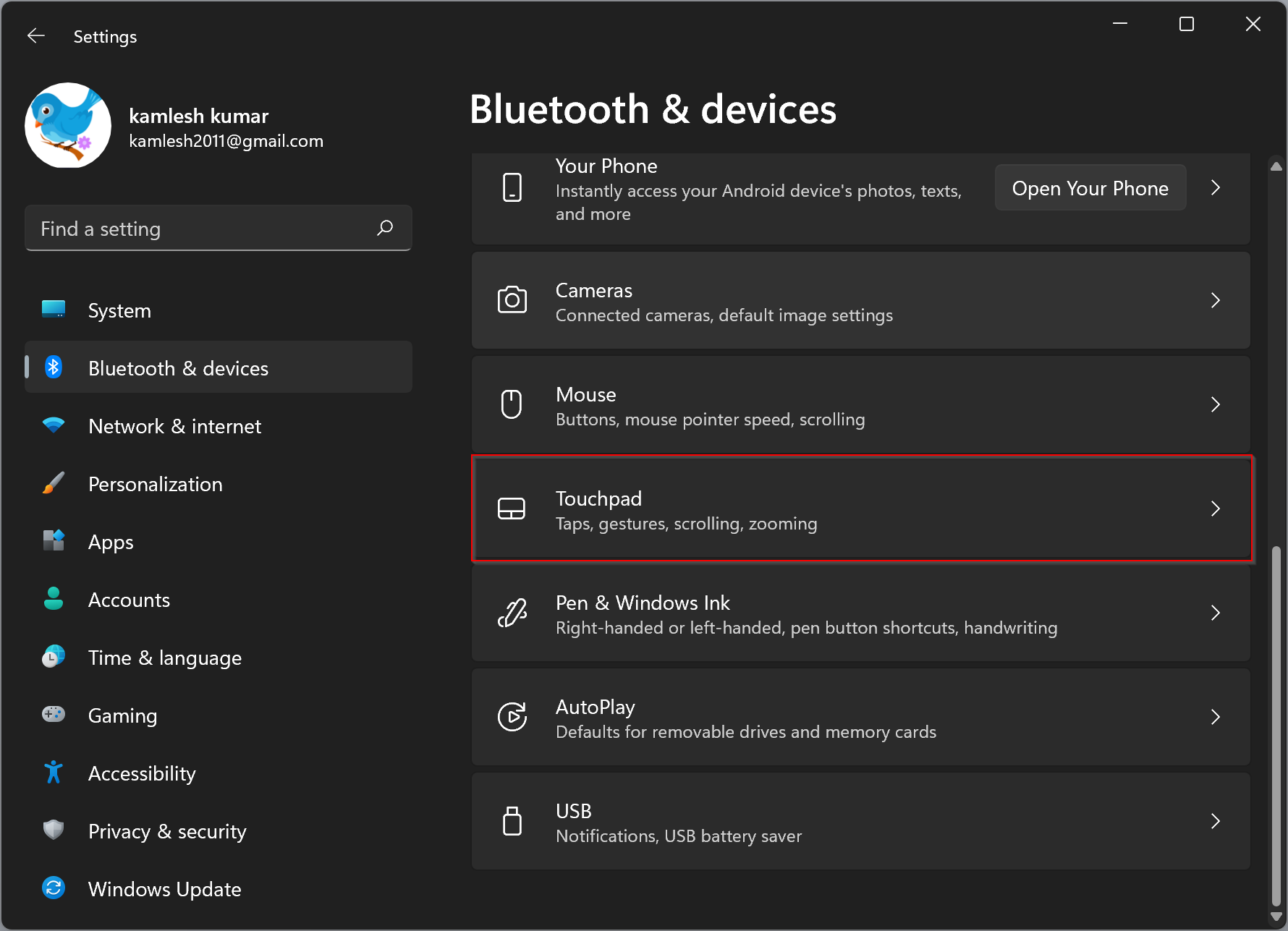
Step 2. Go to Bluetooth & devices > Touchpad.
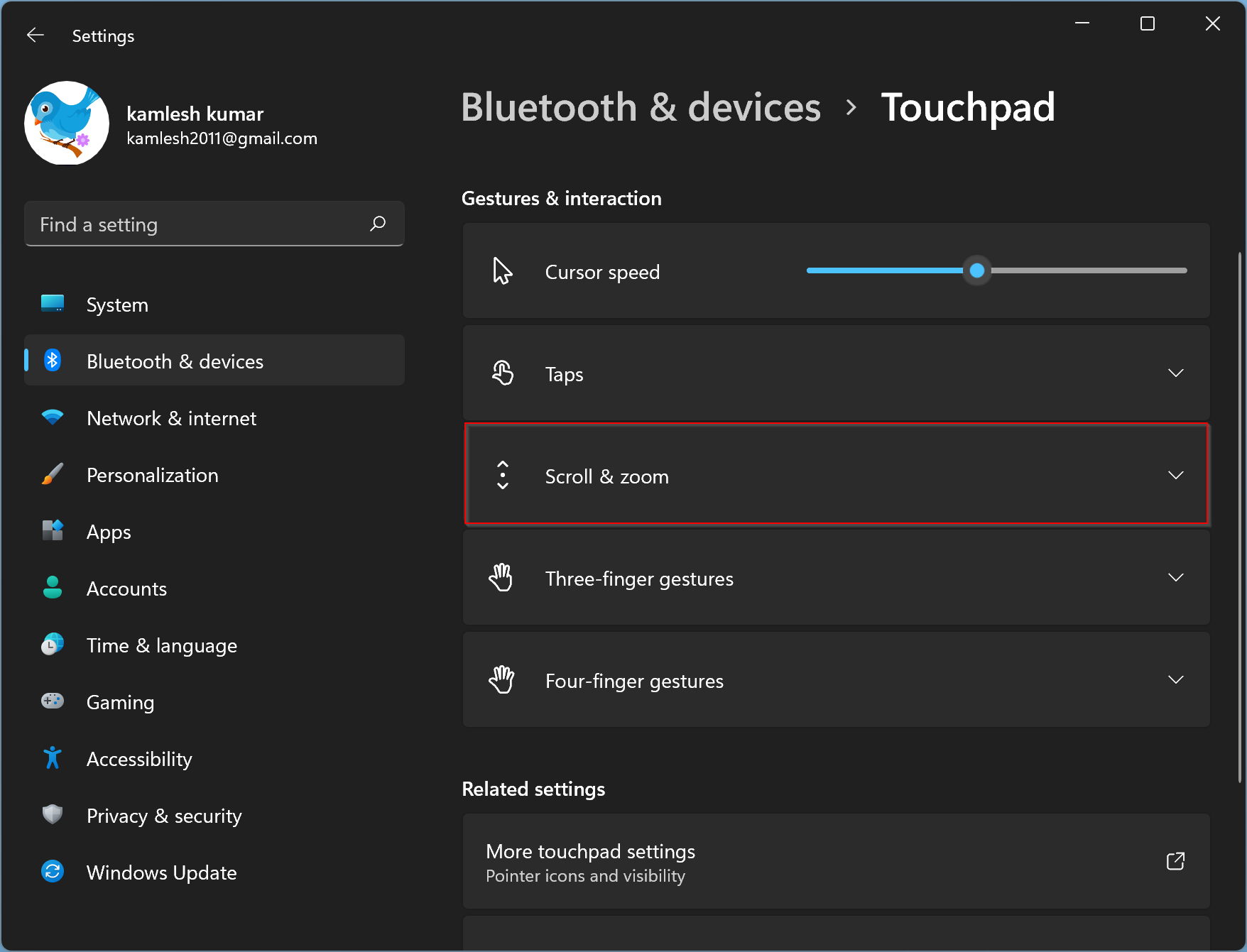
Step 3. Scroll down to the Scroll & zoom section. Click the dropdown under Scrolling direction and select either Down motion scrolls down or Down motion scrolls up, based on your preference.
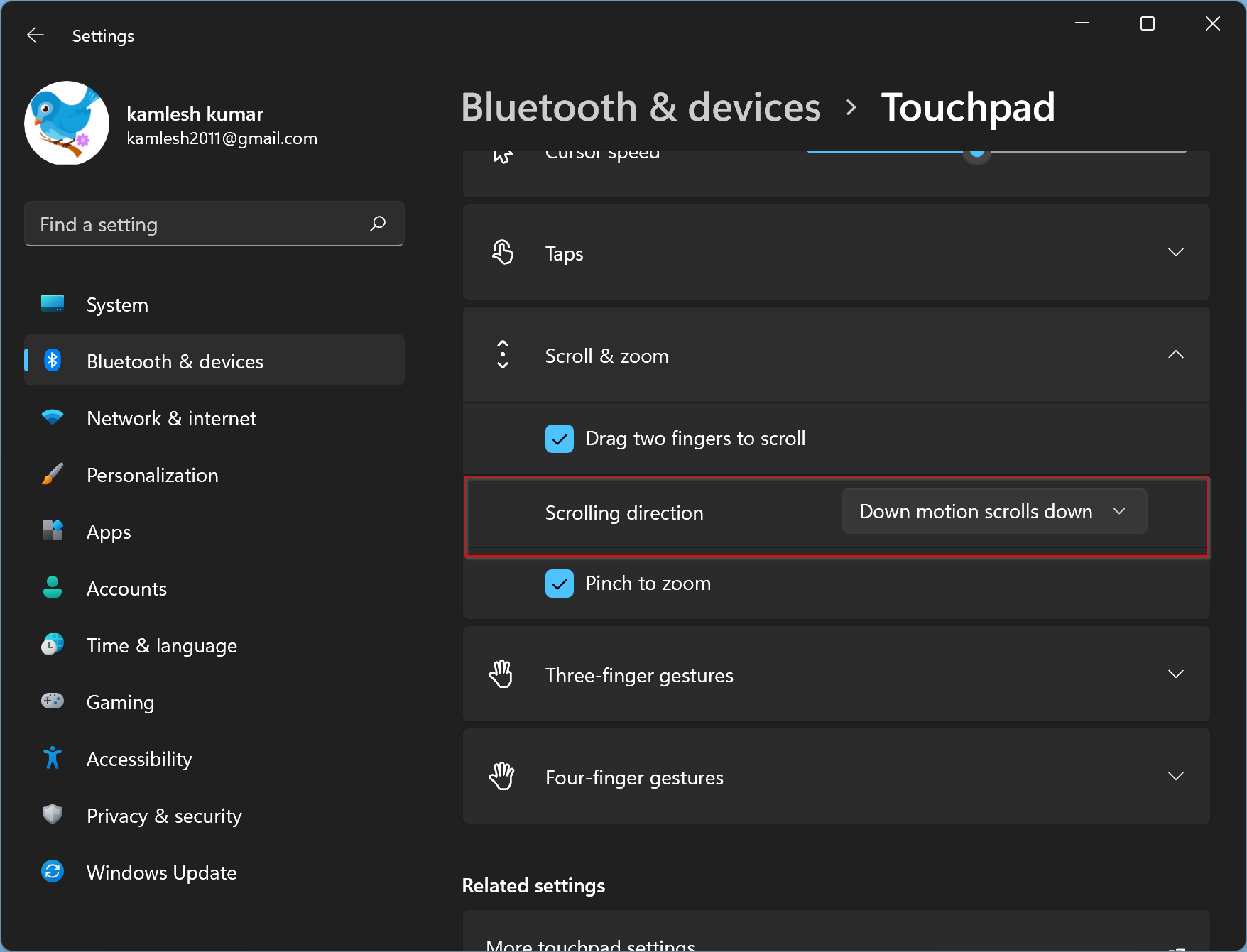
If you’re using a traditional mouse and this option is unavailable, follow the method below.
How to Change Mouse Scroll Direction for Traditional Mouse?
This method works for most wired or wireless USB mice.
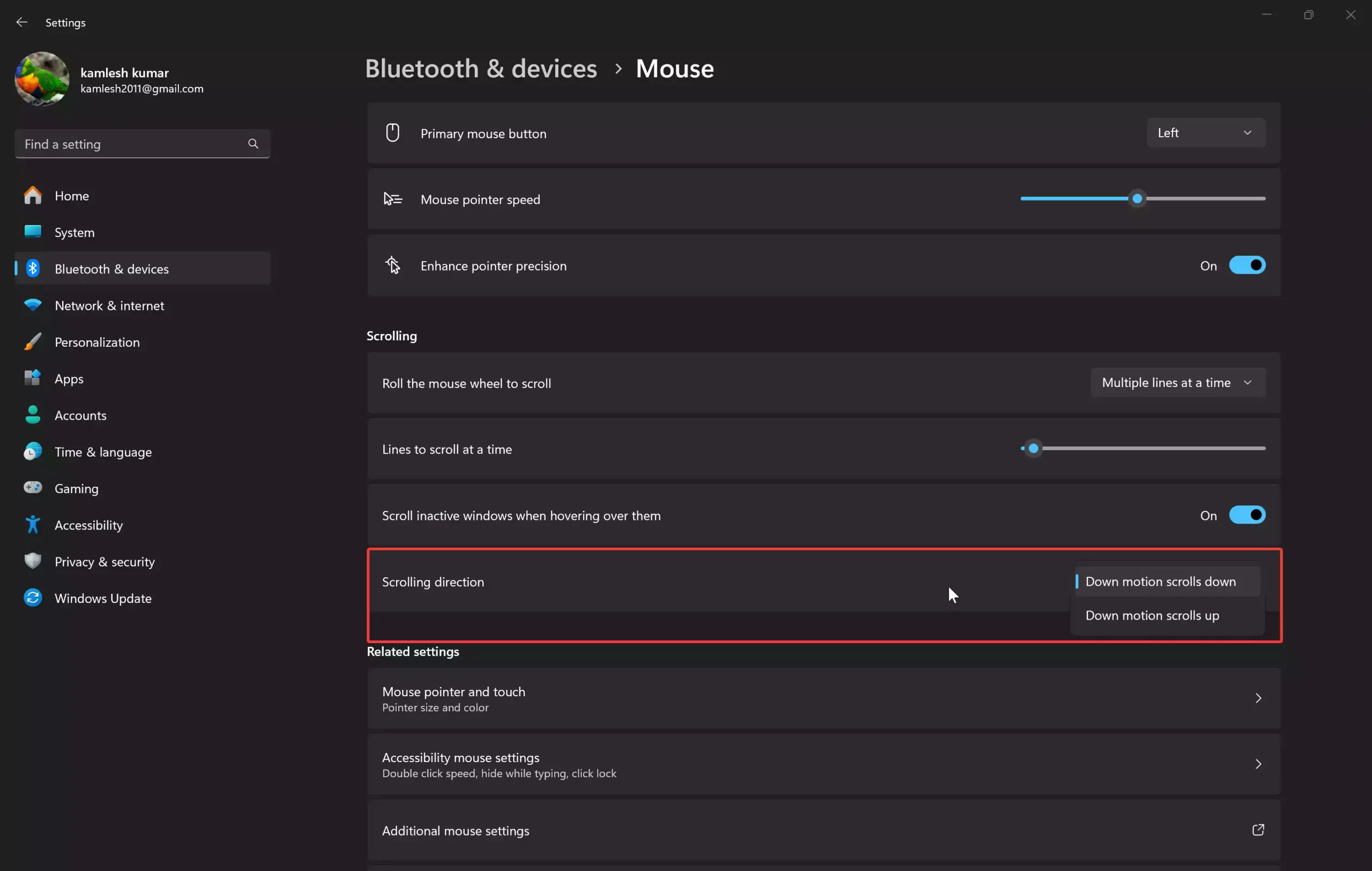
Step 1. Open Settings > Bluetooth & devices > Mouse.
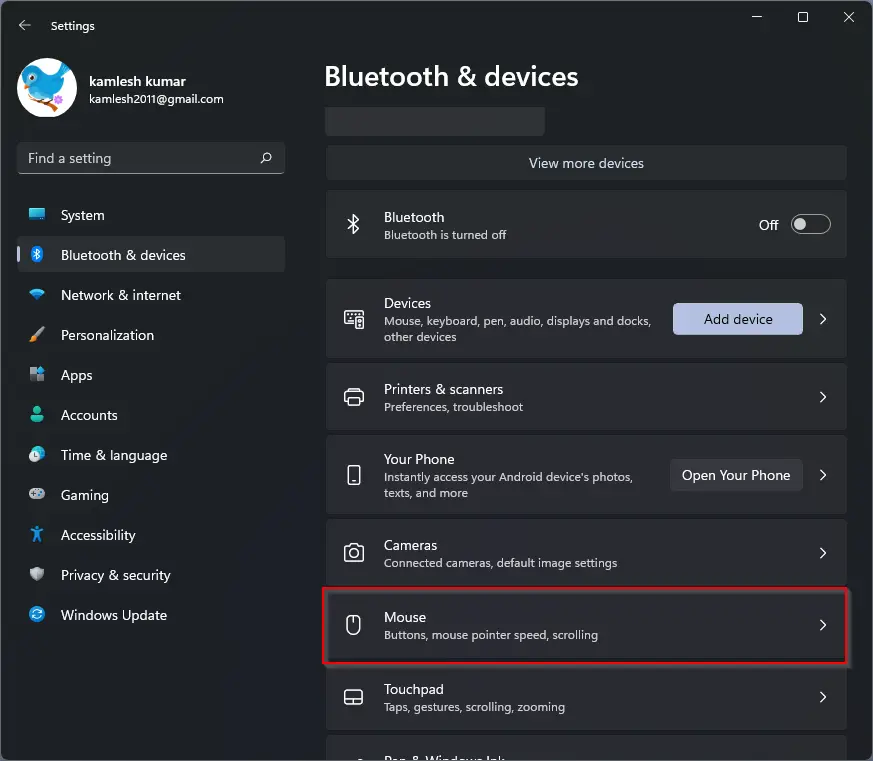
Step 2. Scroll down to the Scrolling section. Click the Scrolling direction drop-down menu and choose either Down motion scrolls down or Down motion scrolls up.
Conclusion
If your mouse scrolls in the opposite direction in Windows 11, you can easily fix it by adjusting the scrolling direction from the Settings app. Use the Touchpad section for precision devices or the Mouse settings for traditional devices.
For more helpful mouse and pointer tweaks in Windows 11, check out our guides on enabling mouse pointer trails and changing pointer size and color.