

In Windows 8.1 and 10, you can easily mount ISO files by right-clicking on the file and selecting the “Mount” option. Unlike previous versions of Windows, there is no need for third-party software to create virtual CD/DVD drives. Windows Explorer automatically creates a virtual DVD-ROM and inserts the ISO file. However, sometimes the mount option may seem missing in Windows 8.1 due to third-party applications interfering with default options. In this case, there are two ways to activate the missing mount option. Both methods achieve the same outcome but use different interfaces. Let’s take a look at both methods step by step.
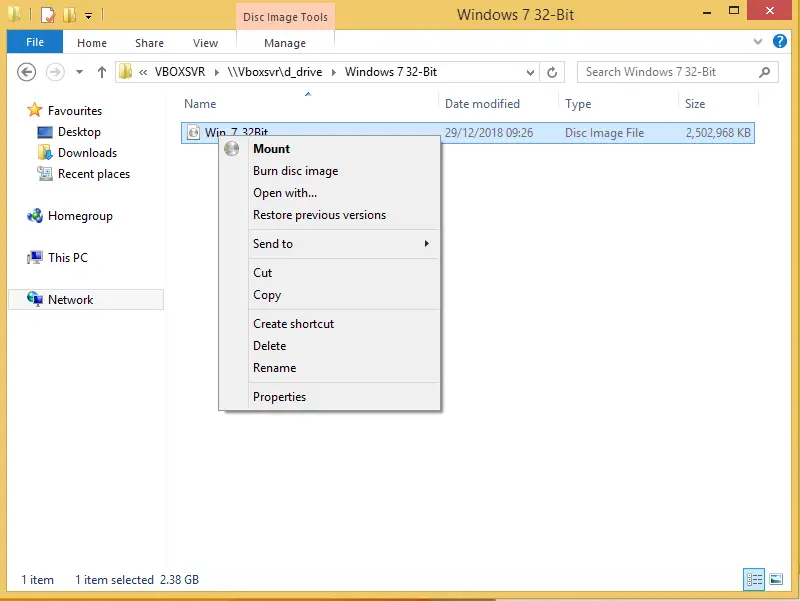
How to fix the missing Mount option in Windows 8.1 using Control Panel?
Follow these steps to fix the missing Mount option in Windows 8.1 using Control Panel:-
Step 1. Click on the Start button and type “default programs.”
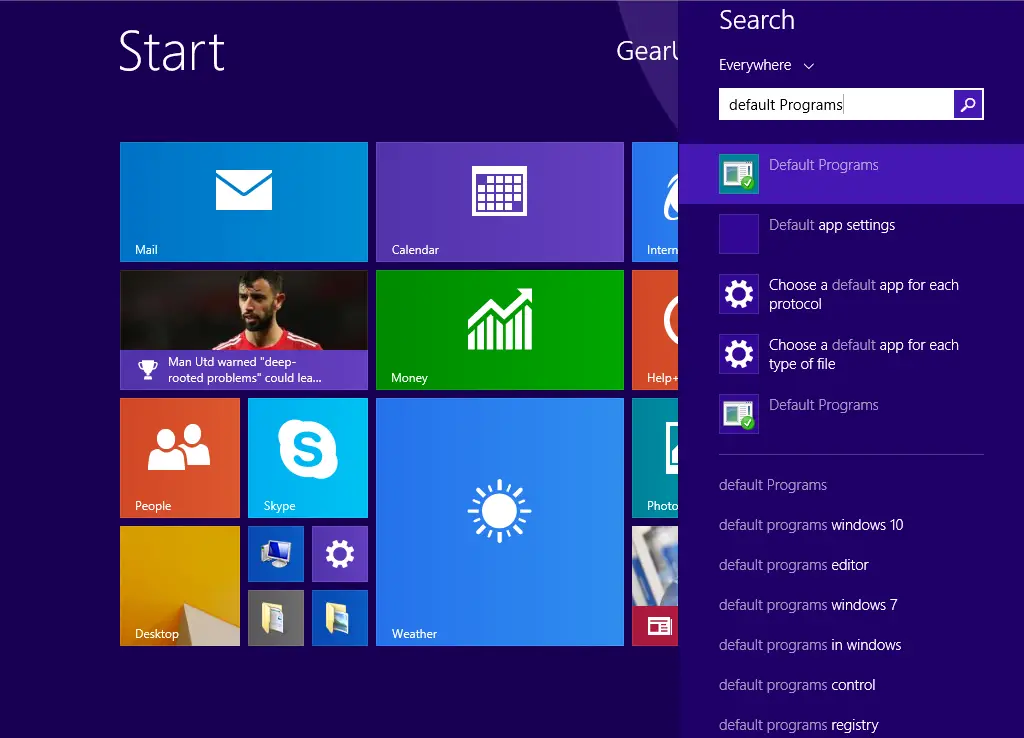
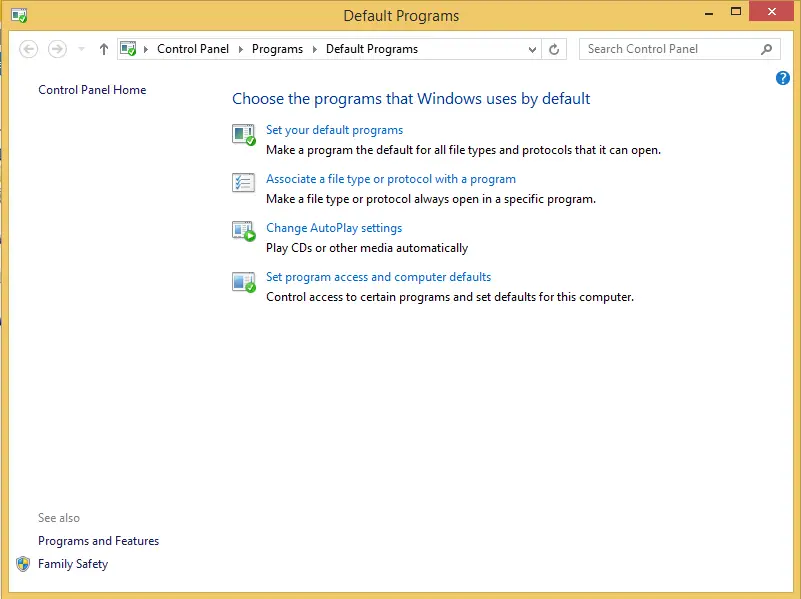
Step 2. From the available results, click on the “Default Programs” app to open the Default Programs window.
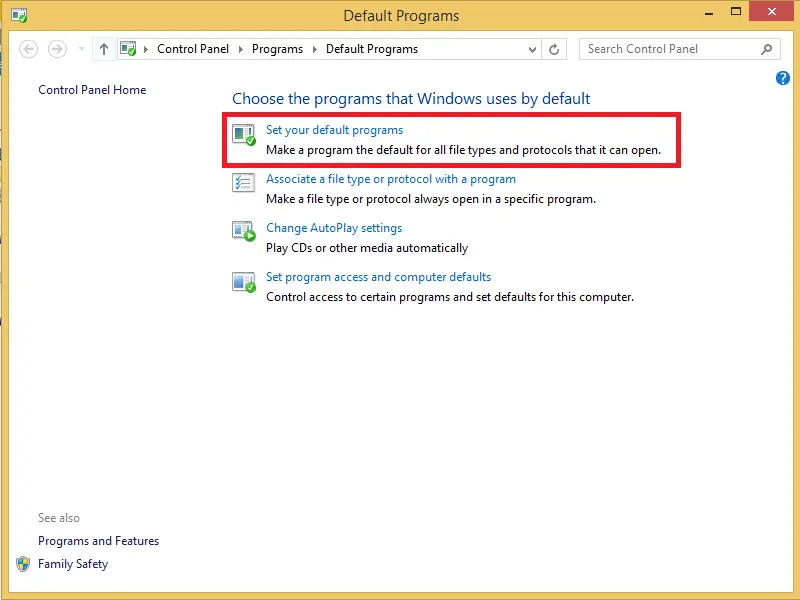
 Step 3. Click on the link “Set your default programs.”
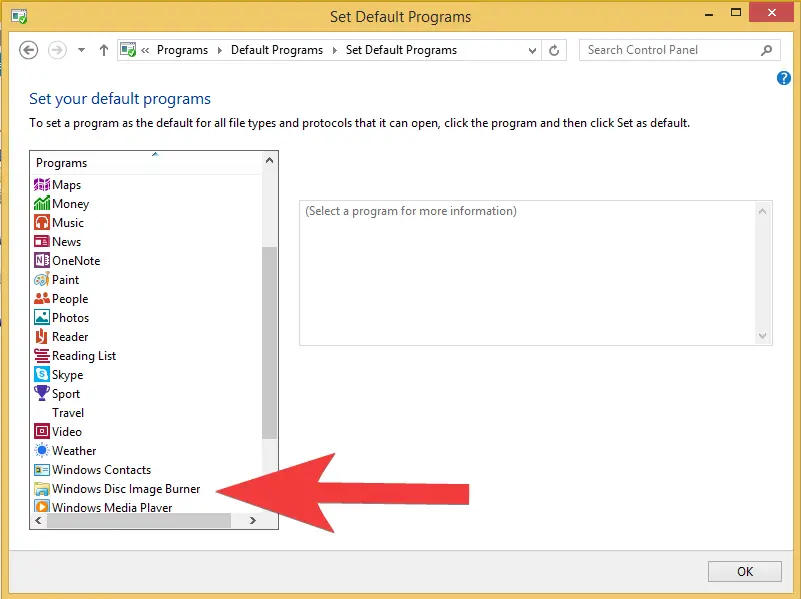
 Step 4. In the Set Default Programs window, scroll down from the application’s left list and select Windows Disk Image Burner.
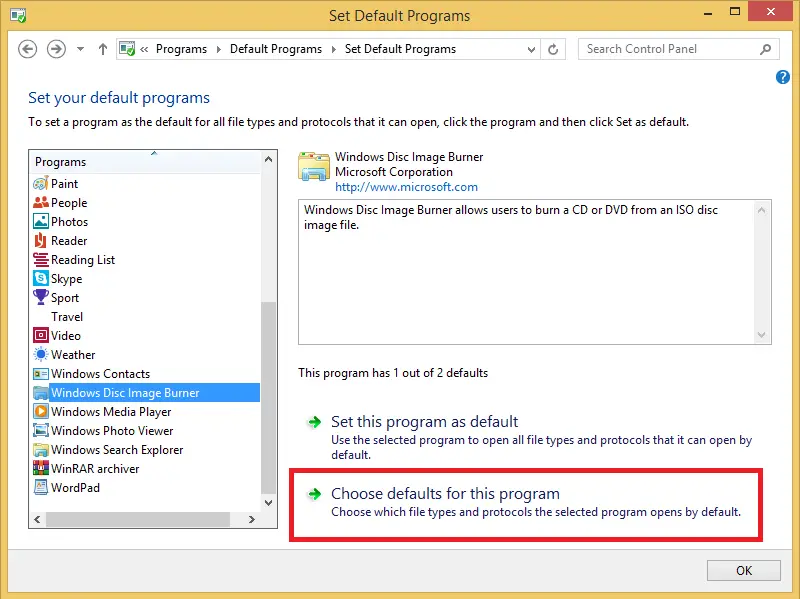
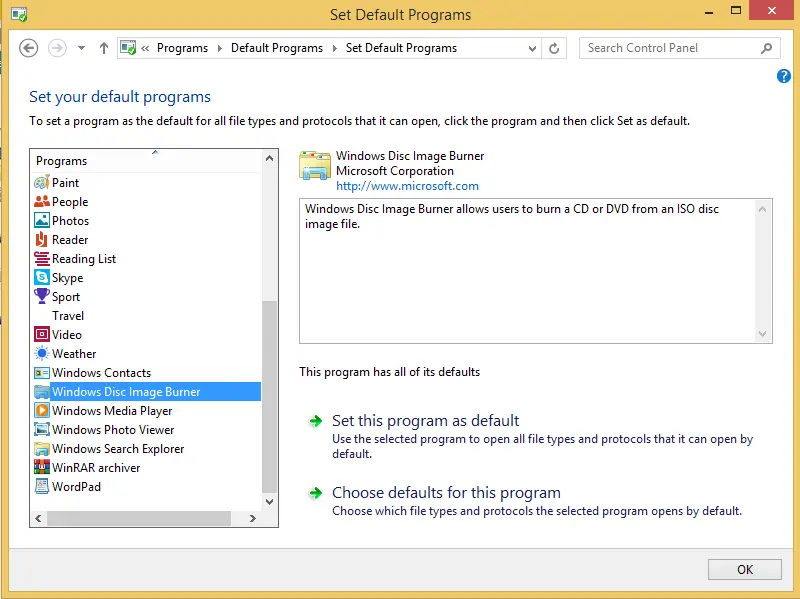 Step 5. From the right pane, click the “Choose default for this program” option.
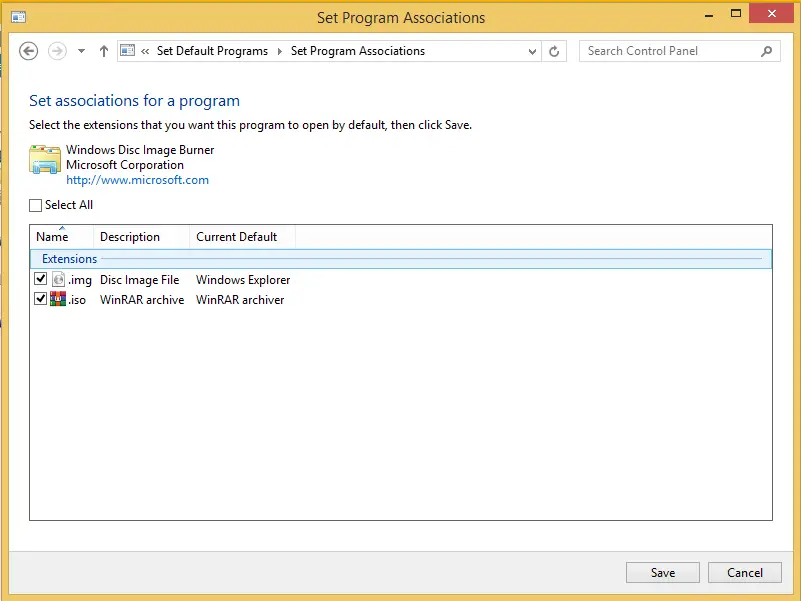
 Step 6. In the “Set Program Associations” window, check both the “.img” and “.iso” options.
 Step 7. Once both .img and .iso are checked, click the Save button.
 Step 8. You may now close an open window.
How to fix the missing Mount option in Windows 8.1 using Windows Explorer?
Follow these steps to fix the missing Mount option in Windows 8.1 using Windows Explorer:-
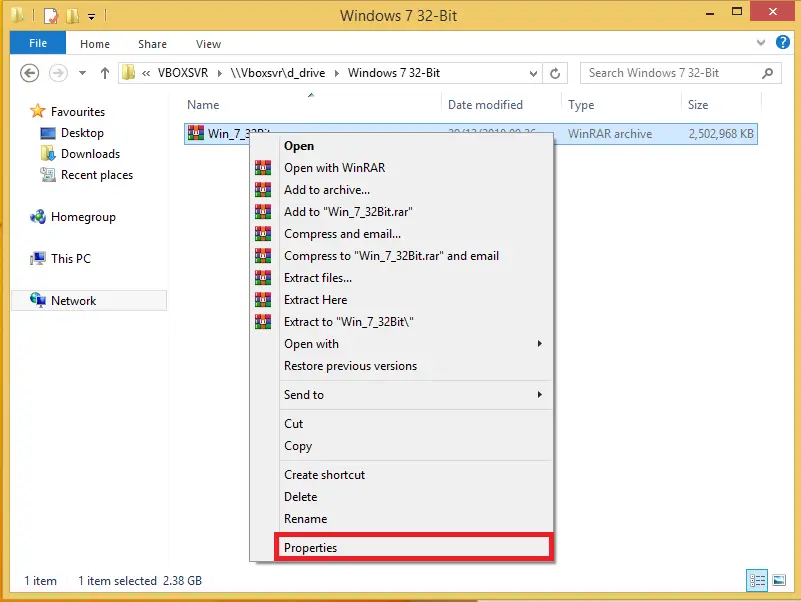
Step 1. Right-click on any ISO file on your computer or notebook and select the Properties option.
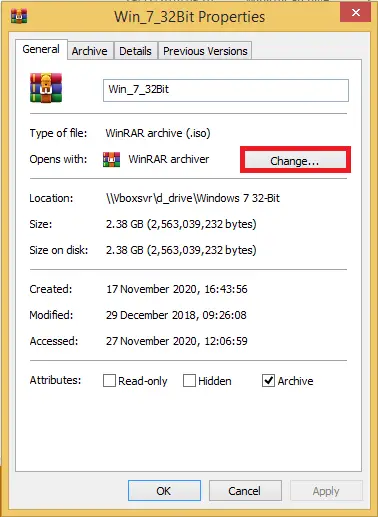
 Step 2. From the ISO Properties window, click the Change button under the General tab in front of “Opens with.”
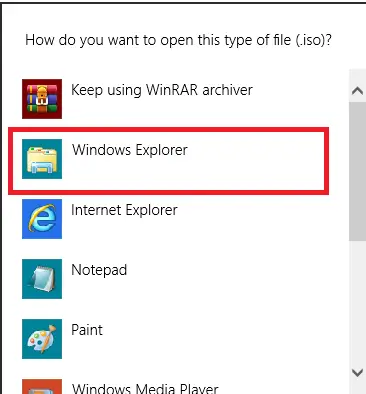
 Step 3. Select Windows Explorer from the available list of apps.
 Step 4. Click on Apply and then the OK button.
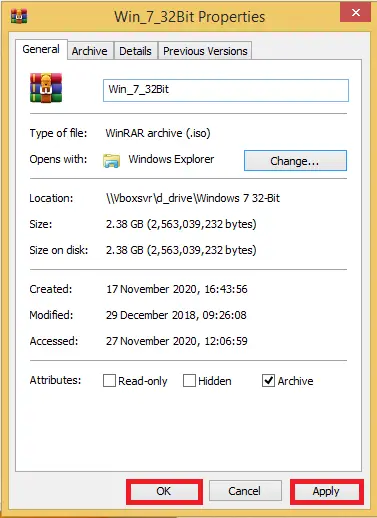 Once the above-mentioned steps are completed successfully, you can mount an ISO or IMG file easily and take advantage of this amazing feature of Windows 8.1, because you don’t have to install any third-party software to use this feature.
FAQs
Why is the Mount option missing in Windows 8.1?
The option usually disappears when a third-party program takes over ISO or IMG file associations, preventing Windows Explorer from handling them.
Do I need third-party tools to mount ISO files in Windows 8.1?
No. Windows 8.1 has built-in ISO mounting support. You only need to restore default associations if the Mount option is missing.
What if Windows Disk Image Burner is not listed in Default Programs?
This may happen if system files are corrupted. Running System File Checker (sfc /scannow) usually restores missing components.
Does changing file associations affect other applications?
Only ISO and IMG file types are affected. Other file associations remain unchanged.
Can I unmount an ISO after fixing the issue?
Yes. Once mounted, right-click the virtual CD drive and select Eject to unmount it.
Conclusion
In conclusion, if you’re facing the issue of a missing Mount option in Windows 8.1, there are two methods you can use to resolve it. The first method involves modifying the Control Panel, while the second method involves using the File Explorer. Both methods are effective, and it’s up to you to choose the one that suits you best. By following the steps outlined in this article, you should be able to resolve the missing Mount option issue in Windows 8.1 and easily mount ISO files.